
1. Introduction
This manual provides essential information for the proper setup, operation, and maintenance of your redbeat M2 Android 14 Tablet. Please read this guide thoroughly before using your device to ensure optimal performance and longevity.

Image: The redbeat M2 Tablet shown with its included pink protective case. The tablet features a sleek design with a large display.
2. What's in the Box
Verify that all items are present in your package:
- redbeat M2 Tablet
- Pink Protective Case
- Type-C Charging Cable
- Instruction Book (this manual)
- SIM Card Tray Ejector Tool

Image: A visual representation of the redbeat M2 Tablet's physical features, including camera, ports, and buttons, alongside a list of included accessories: the tablet, pink case, Type-C cable, instruction book, and card needle.
3. Device Layout
Familiarize yourself with the physical components of your redbeat M2 Tablet:
- Front Camera: Located at the top center when held vertically.
- 10.95-inch HD Display: Main touchscreen interface.
- Rear Camera: Located on the back, typically in the upper left corner.
- Power Button: Usually on the side, used to turn the device on/off or wake/sleep.
- Volume Buttons: Adjacent to the power button, for adjusting audio levels.
- USB Type-C Port: For charging and data transfer.
- 3.5mm Headphone Jack: For connecting wired audio devices.
- SIM Card/MicroSD Card Slot: For inserting SIM cards and expanding storage.
- Four Stereo Speakers: Positioned for enhanced audio output.
4. Setup Guide
4.1 Initial Charging
Before first use, fully charge your tablet using the provided Type-C cable and a compatible 18W fast charger. The 8000mAh battery provides extended usage time.
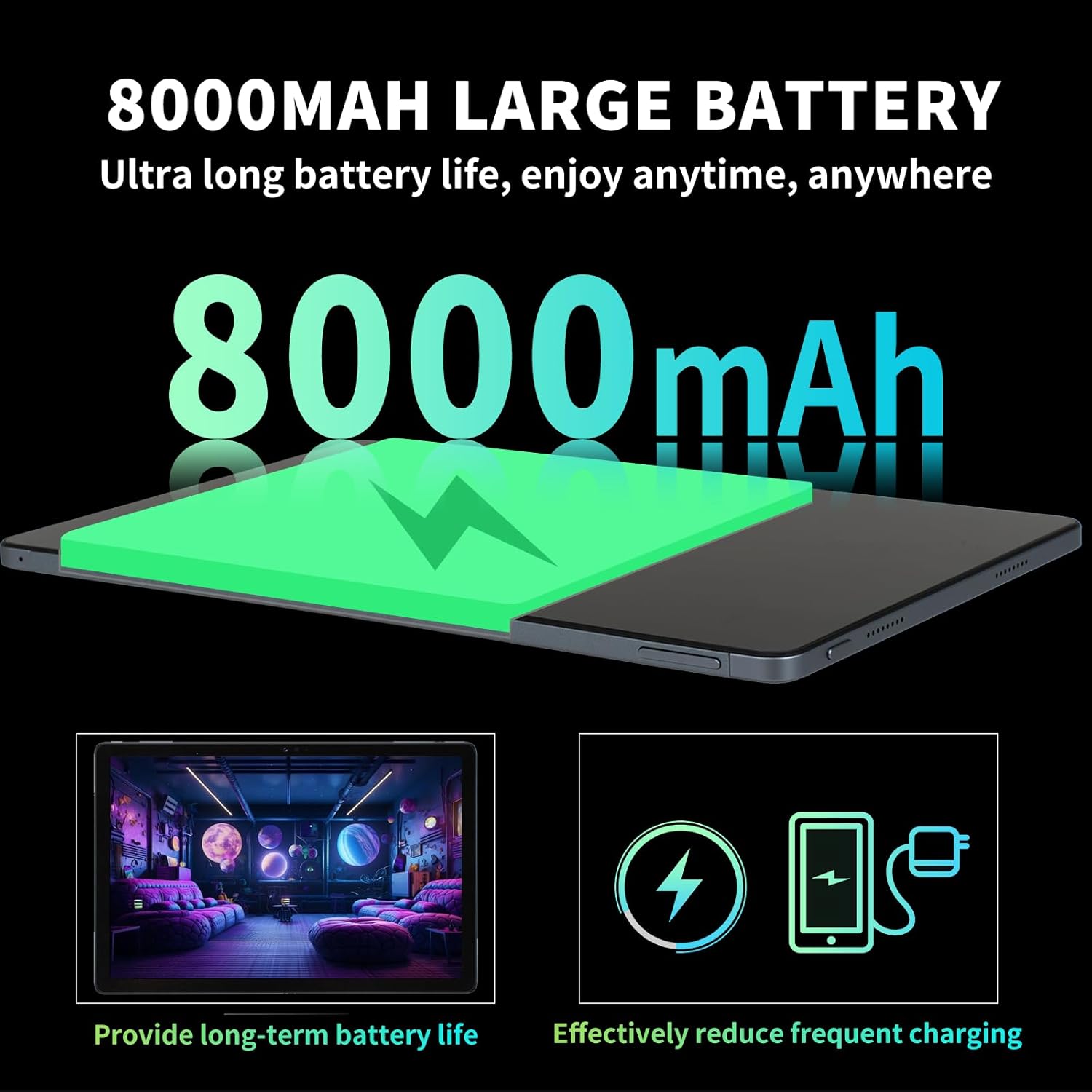
Image: Illustration highlighting the 8000mAh large battery capacity, emphasizing long battery life and reduced charging frequency.
4.2 Power On/Off
- To Power On: Press and hold the Power button until the redbeat logo appears.
- To Power Off: Press and hold the Power button, then select 'Power off' from the options on the screen.
- To Restart: Press and hold the Power button, then select 'Restart'.
4.3 SIM Card and Storage Expansion
The redbeat M2 Tablet supports dual Nano SIM cards for 4G LTE connectivity and a TF (MicroSD) card for storage expansion up to 1TB.
- Locate the SIM card tray on the side of the tablet.
- Insert the SIM card tray ejector tool into the small hole next to the tray and press gently until the tray pops out.
- Place your Nano SIM card(s) and/or TF card into the designated slots on the tray. Ensure correct orientation.
- Carefully reinsert the tray into the tablet.

Image: The redbeat M2 Tablet displaying its 4G Global Connectivity feature, with an emphasis on dual SIM card support and compatible network frequency bands.
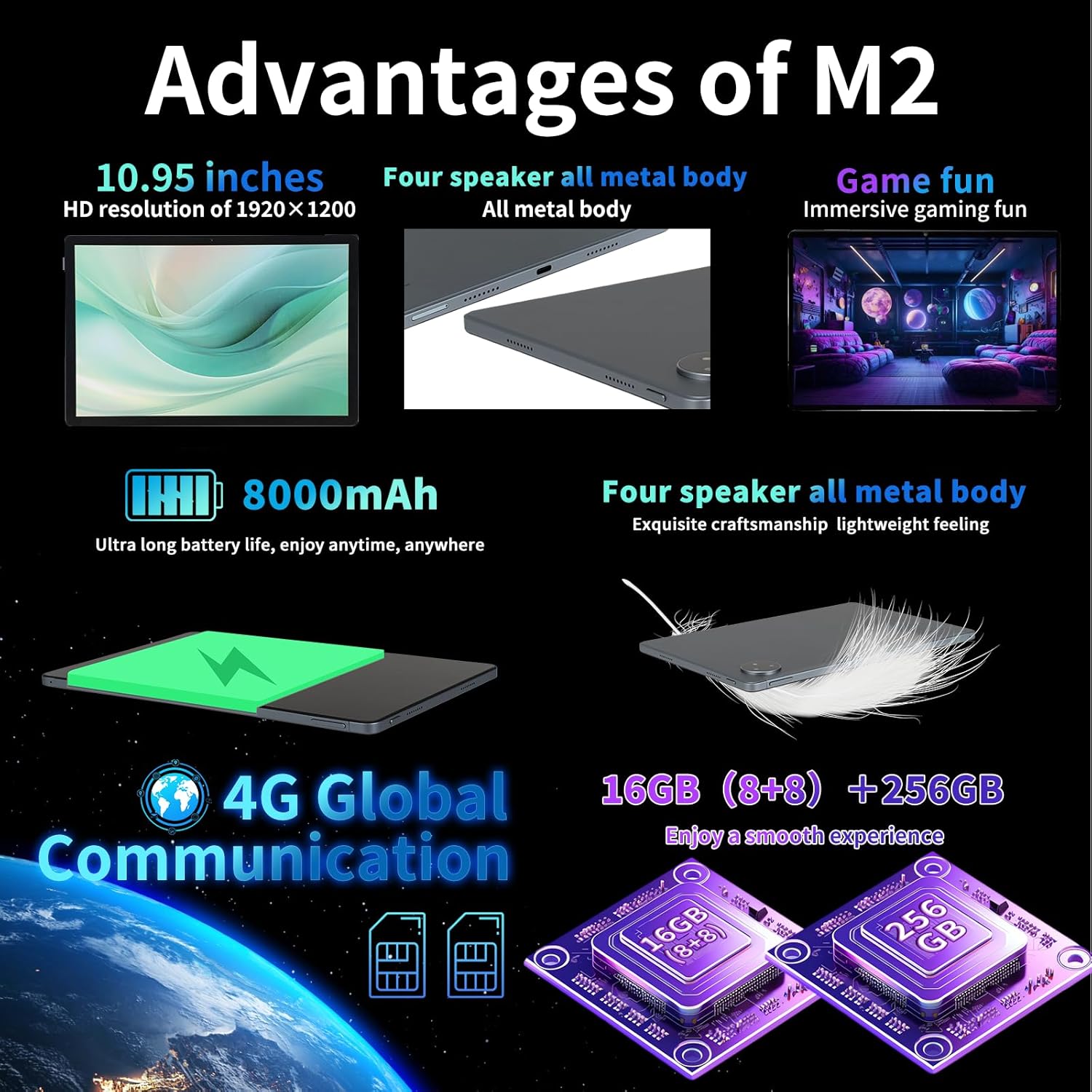
Image: A graphic illustrating the tablet's memory configuration: 16GB (8GB physical + 8GB extended) RAM and 256GB internal storage, with support for up to 1TB external storage.
4.4 Initial Device Setup
Upon first power-on, follow the on-screen prompts to configure your tablet:
- Select your language and region.
- Connect to a Wi-Fi network (2.4G/5G supported).
- Sign in with your Google account or create a new one. This is necessary to download apps from the Google Play Store.
- Set up screen lock (PIN, pattern, password, or Face Unlock).
- Review and accept terms and conditions.
5. Operating Instructions
5.1 Touchscreen Gestures
Navigate your tablet using standard Android gestures:
- Tap: Select an item or open an app.
- Long Press: Access contextual menus or move icons.
- Swipe: Scroll through pages, lists, or switch between home screens.
- Pinch-to-Zoom: Zoom in or out on images and web pages.
5.2 Connectivity
- Wi-Fi: Go to Settings > Network & internet > Wi-Fi to connect to available networks. Supports 2.4G and 5G bands.
- Bluetooth: Go to Settings > Connected devices > Bluetooth to pair with Bluetooth devices (e.g., headphones, keyboards). Supports BT5.0.
- Mobile Data (4G LTE): Ensure a valid SIM card is inserted. Enable mobile data in Settings > Network & internet > Mobile network.
5.3 Camera Usage
The tablet features a 13MP rear camera and a 5MP front camera.
- Open the Camera app from your home screen or app drawer.
- Tap the shutter button to take a photo.
- Switch between front and rear cameras using the camera icon.
- Select video mode to record videos.
5.4 Audio and Multimedia
Enjoy immersive audio with the tablet's four stereo speakers and Dolby panoramic surround sound. A 3.5mm headphone jack is available for private listening.

Image: A close-up view of the redbeat M2 Tablet's all-metal body and speaker grilles, highlighting its four-speaker audio system and exquisite craftsmanship.
5.5 Face Unlock and GPS
The redbeat M2 Tablet includes Face Unlock for convenient security and GPS for navigation and location-based services.
6. Maintenance
6.1 Cleaning Your Tablet
Use a soft, lint-free cloth to clean the screen and body of your tablet. Avoid abrasive materials or harsh chemicals that could damage the surface.
6.2 Software Updates
Regularly check for and install software updates to ensure your tablet has the latest features, security patches, and performance improvements. Go to Settings > System > System update.
6.3 Storage Management
To optimize performance, periodically manage your tablet's storage. Delete unnecessary files, uninstall unused apps, and move large media files to external storage (TF card) if applicable. Go to Settings > Storage.
7. Troubleshooting
If you encounter issues with your redbeat M2 Tablet, refer to the following common solutions:
- Device not turning on: Ensure the battery is charged. Connect the tablet to the charger for at least 30 minutes before attempting to power on.
- Screen unresponsive: Try restarting the tablet by holding the Power button for 10-15 seconds.
- Wi-Fi/4G connectivity issues: Toggle Wi-Fi/Mobile Data off and on. Restart your router or check your SIM card insertion.
- Apps crashing or slow performance: Close background apps, clear app cache (Settings > Apps > [App Name] > Storage & cache > Clear cache), or restart the tablet.
- Battery draining quickly: Reduce screen brightness, disable unused features (Bluetooth, GPS, Wi-Fi when not needed), and check for power-intensive apps in Settings > Battery.
- Tablet not charging: Ensure the Type-C cable and charger are working correctly. Try a different cable or power adapter. Clean the charging port for any debris.
If problems persist, contact redbeat customer support for further assistance.
8. Specifications
| Feature | Specification |
|---|---|
| Model Name | M2 |
| Operating System | Android 14 |
| Processor | Unisoc T616 Octa-Core, 2 GHz |
| RAM | 16GB (8GB + 8GB Extended) |
| Internal Storage | 256GB |
| Expandable Storage | Up to 1TB (TF Card) |
| Screen Size | 10.95 Inches |
| Screen Resolution | 1920 x 1200 pixels (2K HD) |
| Rear Camera | 13MP |
| Front Camera | 5MP |
| Battery Capacity | 8000mAh |
| Charging | 18W Fast Charge (Type-C) |
| Wireless Connectivity | Wi-Fi (802.11n, 2.4G/5G), Bluetooth 5.0 |
| Cellular Connectivity | 4G LTE Dual SIM (GSM, WCDMA, LTE bands) |
| Dimensions (LxWxH) | 10.28 x 6.89 x 0.47 inches |
| Item Weight | 1.54 pounds (approx. 511g) |
| Other Features | GPS, Face Unlock, Four Stereo Speakers |
9. Warranty and Support
redbeat is committed to providing quality products and customer satisfaction.
- Lifetime Customer Service: redbeat offers lifetime customer service to assist with any queries or issues.
- One-Year Limited Warranty: Your redbeat M2 Tablet includes a one-year warranty covering manufacturing defects.
- 30-Day Money Back Guarantee: A 30-day money-back guarantee and free return policy are available.
For support, please refer to the contact information provided with your purchase or visit the official redbeat website.