
1. Introduction
This manual provides detailed instructions for the setup, operation, and maintenance of your BIGASUO 410B Projector. This 1080P HD projector features 850 ANSI lumens brightness, 4K support, dual-band 2.4G/5G WiFi, and Bluetooth 5.0 connectivity, designed for both home entertainment and business presentations.
2. Package Contents
Please verify that all items are present in the package:
- BIGASUO 410B Projector
- Power Cable
- Remote Control
- HDMI Cable
- AV Cable
- User Manual
- Carrying Bag
3. Product Overview
The BIGASUO 410B Projector is designed for versatile use, offering a compact form factor with powerful projection capabilities. It features a high-transparency LED glass lens, integrated speakers, and a comprehensive set of input/output ports.
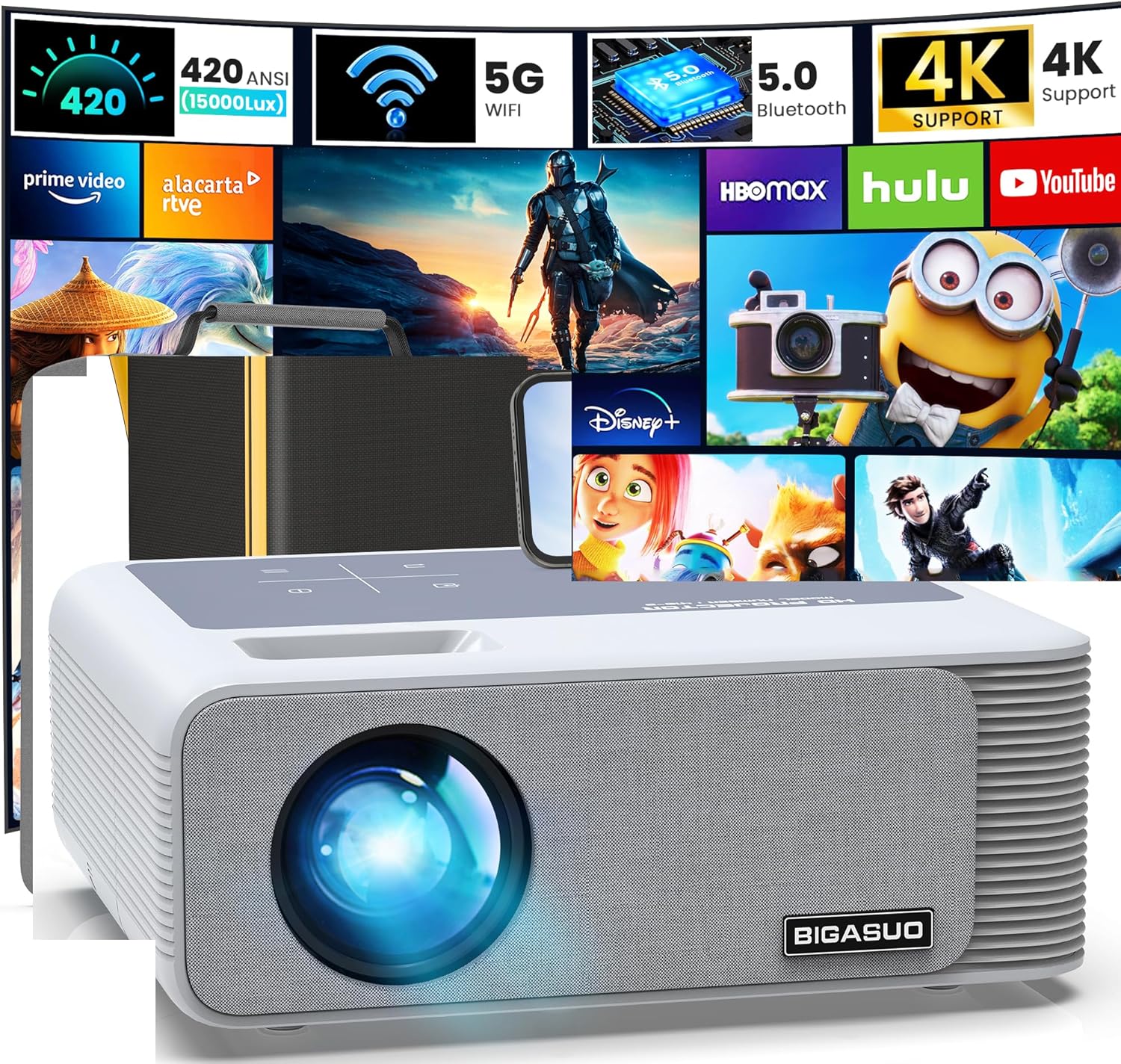
Image 3.1: Front view of the BIGASUO 410B Projector, showcasing its lens and speaker grille, with various streaming service icons in the background, indicating its multimedia capabilities.

Image 3.2: Rear panel of the projector, illustrating the available connectivity options including two HDMI ports, two USB ports, an AV input, and a 3.5mm headphone jack for audio output.
4. Setup
4.1 Placement
The projector can be placed on a flat surface such as a table, mounted on a tripod, or installed on the ceiling. Ensure the projector is positioned to allow for adequate ventilation.

Image 4.1: Various placement options for the projector, including ceiling mount, table placement, and tripod stand, demonstrating its flexibility for different viewing environments.
4.2 Power Connection
- Connect the power cable to the projector's power input port.
- Plug the other end of the power cable into a power outlet.
- Press the power button on the projector or remote control to turn it on.
4.3 Image Adjustment
After powering on, adjust the projected image for clarity and proper alignment.
- Focus: Rotate the focus ring on the projector lens until the image is sharp.
- Keystone Correction: The projector supports 4-point digital keystone correction and ±50° vertical keystone correction. Use the remote control to adjust the image corners or vertical tilt to achieve a rectangular picture.
- Zoom: Adjust the image size from 60% to 100% without moving the projector. This feature is accessible via the remote control.

Image 4.2: Visual representation of image adjustment features, including focus control, 4-point keystone correction, and ±50° vertical keystone adjustment for optimal picture geometry.
5. Operating Instructions
5.1 Wired Connectivity
The projector offers multiple wired input options:
- HDMI Ports (x2): Connect to devices such as TV sticks, satellite boxes, laptops, gaming consoles (PS5), or cameras.
- USB Ports (x2): Connect USB drives for direct media playback (e.g., presentations, videos, photos) or external hard disks.
- AV Port: Connect to older devices using the provided AV cable.
- Audio Out (3.5mm): Connect external speakers or headphones for enhanced audio.

Image 5.1: Diagram illustrating the projector's multiple input ports (AV, Audio, USB, HDMI) and the potential screen sizes (80", 150", 400") achievable with the device.
5.2 Wireless Connectivity
The projector supports both WiFi and Bluetooth for wireless connections.
- WiFi (2.4G + 5G): Enable screen mirroring from your iPhone, Android smartphone, or iPad. Navigate to the WiFi settings on the projector and connect to your network. Then, use the screen mirroring function on your mobile device (e.g., Miracast for Android, Airplay for iOS).
- Bluetooth 5.0: Connect to external Bluetooth speakers or headphones for an immersive audio experience. Note: This projector's Bluetooth function is for audio output devices only and does not support connection to smartphones.

Image 5.2: Illustration of the projector's 2.4G and 5G WiFi capabilities, enabling seamless screen mirroring from both Android (Miracast) and iOS (Airplay) devices.
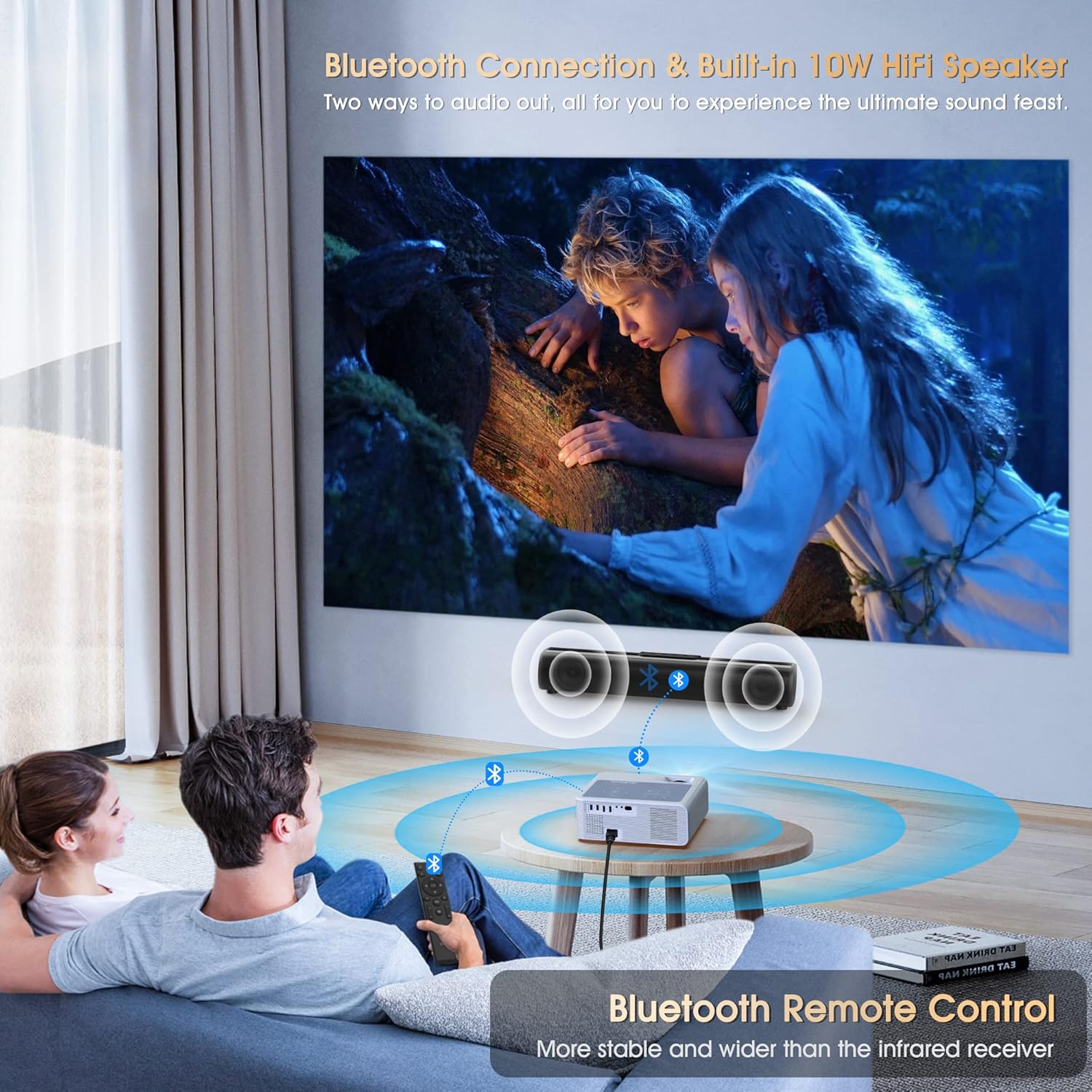
Image 5.3: The projector wirelessly connected to external Bluetooth speakers, providing enhanced audio for a home viewing experience. The image highlights the Bluetooth 5.0 feature.
5.3 Media Playback and Copyrighted Content
The projector can play various media files directly from USB. For streaming services like Netflix, Hulu, or Disney+, due to HDCP copyright restrictions, direct mirroring from a smartphone or tablet is not supported. To watch copyrighted content, you must use an external streaming device (e.g., TV stick, Roku, Fire TV Stick) connected via an HDMI port.

Image 5.4: This image demonstrates how to access streaming services like Netflix and Hulu by connecting a TV stick (not included) to the projector, bypassing copyright restrictions for direct mirroring.
5.4 Office Applications
The projector supports direct playback of common office document formats (Word, Excel, PowerPoint, PDF) from a USB drive, making it suitable for business presentations.

Image 5.5: The projector displaying a business presentation, highlighting its capability to play Word, Excel, PowerPoint, and PDF files directly from a USB drive for office use.
6. Maintenance
- Lens Cleaning: Use a soft, lint-free cloth specifically designed for optical lenses to gently wipe the projector lens. Avoid abrasive materials or harsh chemicals.
- Dust Removal: Regularly clean the projector's vents to prevent dust buildup, which can affect performance and lifespan. Use a soft brush or compressed air.
- Storage: When not in use for extended periods, store the projector in its carrying bag in a cool, dry, and dust-free environment.
7. Troubleshooting
If you encounter issues with your projector, refer to the following common problems and solutions:
| Problem | Possible Cause | Solution |
|---|---|---|
| No image displayed | Power cable loose, incorrect input source, lens cap on | Check power connection, select correct input source (HDMI1/2, AV, USB), remove lens cap |
| Blurred image | Out of focus, incorrect keystone/zoom settings | Adjust focus ring, use remote to adjust keystone and zoom |
| No sound | Volume too low, external audio device not connected/paired, source device muted | Increase projector volume, ensure Bluetooth speaker is paired or wired speaker is connected, check source device's volume |
| WiFi screen mirroring not working | Incorrect WiFi connection, device compatibility, copyrighted content | Ensure projector and device are on the same 2.4G/5G network, verify device compatibility, use HDMI with a TV stick for copyrighted content |
| Bluetooth audio not connecting | Bluetooth device not in pairing mode, out of range, attempting to connect to smartphone | Put Bluetooth speaker/headphone in pairing mode, ensure devices are close, remember Bluetooth is for audio output only (not smartphones) |
8. Specifications
Key technical specifications for the BIGASUO 410B Projector:
- Brand: BIGASUO
- Model: 410B
- Display Resolution: 1920 x 1080 (Native 1080P)
- Brightness: 850 ANSI Lumens
- 4K Support: Yes
- Connectivity Technology: Wi-Fi (2.4G & 5G), Bluetooth 5.0
- Special Features: Built-In Wi-Fi, Bluetooth, 4-Point Keystone Correction, ±50° Vertical Keystone, 60%-100% Zoom
- Recommended Uses: Home Cinema, Office Presentations
- Product Dimensions: 11 x 9 x 4 inches
- Item Weight: 8.67 pounds
- Built-in Speakers: 2 x 5W (10W total)
- Max Display Size: Up to 400 inches
9. Warranty and Support
For warranty information and customer support, please refer to the documentation provided with your purchase or contact the retailer where the product was acquired. You may also visit the official BIGASUO website for further assistance and updated support resources.


