
Introduction
Thank you for choosing the ZMX GMK104 Mechanical Keyboard Kit. This manual provides detailed instructions for setting up, operating, and maintaining your keyboard. The GMK104 is a full-size, VIA programmable, hot-swappable, gasket-mounted keyboard kit featuring triple-mode connectivity, a multifunctional screen and knob, and customizable RGB backlighting. It is designed for users who enjoy personalizing their typing and gaming experience.
Package Contents
Upon unboxing your ZMX GMK104 kit, please ensure all components are present:
- ZMX GMK104 Barebones Keyboard Kit
- USB-C Cable
- 2.4G Receiver (USB Dongle)
- Keycap Puller
- Switch Puller

Video: Unboxing the AULA F108 Pro keyboard, demonstrating the package contents including the keyboard, USB-C cable, keycap puller, and extra switches. This video provides a visual guide to what is included in a similar mechanical keyboard kit.
Setup
1. Installing Switches and Keycaps
The GMK104 is a hot-swappable keyboard, allowing you to install 3-pin or 5-pin mechanical switches without soldering. Carefully align the pins of your desired switches with the sockets on the PCB and press firmly until they click into place. Once switches are installed, use the keycap puller to attach your chosen keycaps.

Image: Hot-swappable PCB sockets. This diagram shows the compatibility of the keyboard's PCB with both 3-pin and 5-pin mechanical switches, highlighting the ease of customization without soldering.

Video: GMK104 Hot Swappable Barebones Keyboard + Jelly Pink Keycaps. This video visually guides users through the process of installing switches and keycaps onto the barebones keyboard, showcasing the hot-swappable feature.
2. Initial Power On & Language Selection
Locate the power switch on the side of the keyboard and slide it to the 'ON' position. The multifunctional screen will power on. Use the knob to navigate to the settings menu and select your preferred language, typically English for initial setup.
Video: AULA F108 PRO - Wireless Mechanical Keyboard. This segment demonstrates the initial power-on of a similar keyboard, including navigating the display screen to select the language and other basic settings.
Connectivity (Triple Mode)
The ZMX GMK104 supports three connection modes: wired (USB-C), 2.4GHz wireless, and Bluetooth 5.0. You can easily switch between these modes using the switch on the keyboard's side and the multifunctional screen.

Image: Triple Mode Connection. This image visually represents the three available connection methods (wired, 2.4G, Bluetooth) and the range of devices (PC, laptop, tablet, smartphone) compatible with the keyboard.
1. Wired Connection (USB-C)
Connect the provided USB-C cable to the keyboard's USB-C port and the other end to your computer. Ensure the mode switch on the keyboard is set to 'USB'. The keyboard will be automatically recognized by your device.
2. 2.4GHz Wireless Connection
Insert the 2.4G USB receiver into an available USB port on your computer. Slide the keyboard's mode switch to '2.4G'. The keyboard will automatically link with the receiver. The screen will indicate successful connection.
3. Bluetooth 5.0 Connection
Slide the keyboard's mode switch to 'BT'. On the multifunctional screen, navigate to 'Connect' and select one of the three Bluetooth channels (BT1, BT2, BT3). Press and hold the knob until the indicator light flashes quickly, indicating pairing mode. On your device (PC, laptop, tablet, or smartphone), search for 'GMK104' in your Bluetooth settings and connect. Once connected, the indicator light will stop flashing.

Video: Introducing this Tri-Mode GMK104 Keyboard Kit. This video highlights the keyboard's versatile connectivity options, showing how to switch between wired, 2.4GHz wireless, and Bluetooth modes for seamless use across various devices.
4. Switching Between Devices
For Bluetooth connections, short press FN+Q, FN+W, or FN+E to switch between the three paired Bluetooth devices. For 2.4GHz, ensure the switch is set to '2.4G'. For wired, ensure the switch is set to 'USB'.
Customization & Features
1. Multifunctional Screen & Knob
The keyboard features a smart display screen and a metal knob. The screen can display time, battery status, connection mode, and custom images. The knob controls volume and can be pressed to navigate menu options. The two multimedia buttons next to the screen switch the backlight/screen on/off.
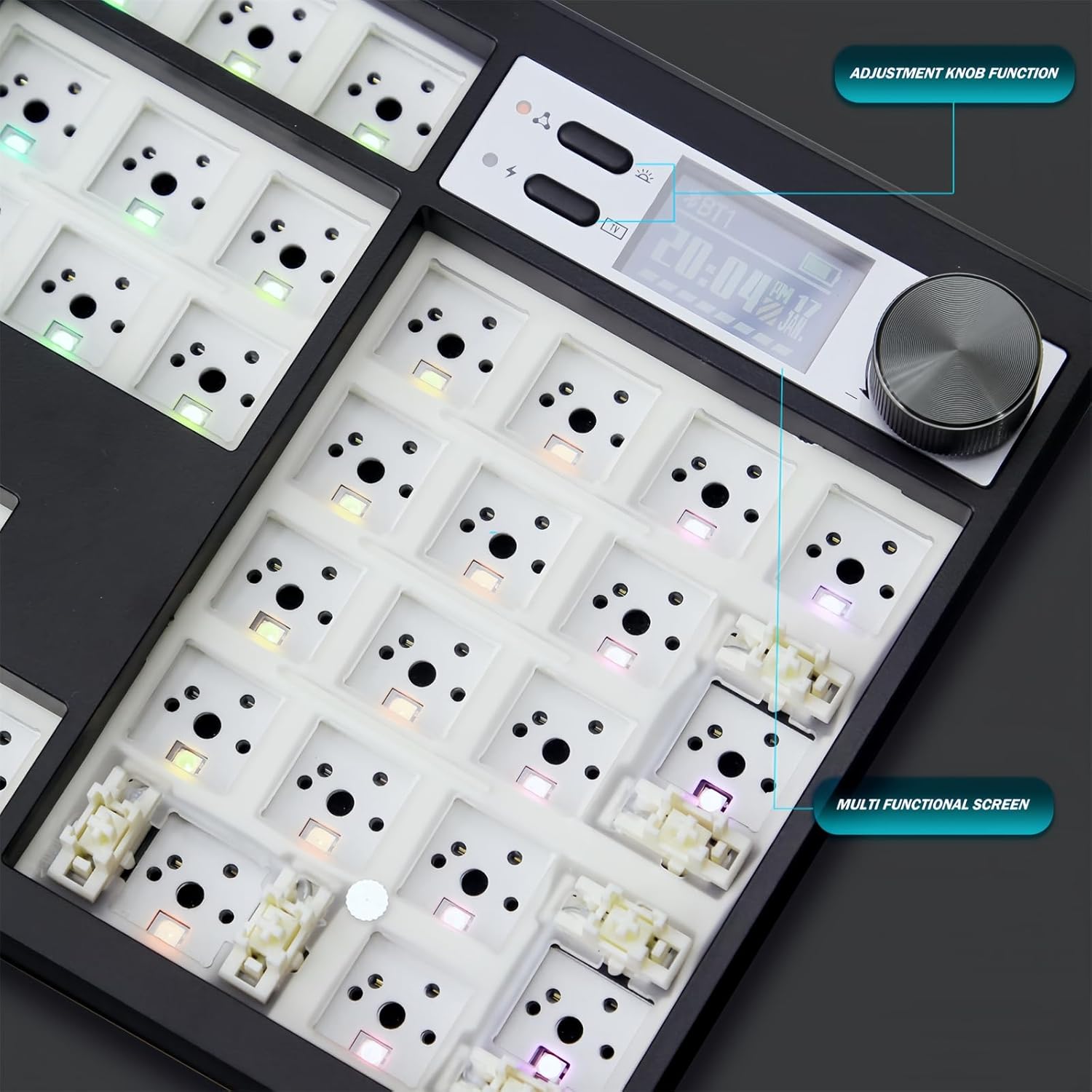
Image: Multifunctional Screen & Knob. This close-up view highlights the interactive display screen and the tactile metal knob, detailing their functions for real-time customization and control.

Video: ZMX GMK104 RGB Gaming Keyboard Kit with Screen and Knob. This video demonstrates the dynamic RGB lighting, the interactive screen, and the versatile knob, illustrating how these features enhance the gaming and user experience.
2. VIA Programmability
The GMK104 is fully VIA programmable, allowing you to remap keys, create macros, and customize lighting effects without proprietary software. Connect the keyboard via USB-C and use the VIA software to personalize your layout and functions.

Image: VIA Software Interface. This image displays the VIA software, illustrating its user-friendly interface for remapping keys, creating macros, and customizing the keyboard's functionality.

Video: ZMX GMK104 Full Size VIA Mechanical Keyboard Kit. This video highlights the VIA programmability, showing how users can customize key functions and lighting effects through the software for a personalized experience.
3. RGB Backlighting
The keyboard features south-facing RGB LEDs with multiple lighting effects, adjustable brightness, and speed. Use the knob and screen to cycle through effects, or program custom lighting via VIA software. Press FN+| to switch backlight effects.

Image: RGB Backlighting. This image showcases the keyboard's dynamic RGB lighting, emphasizing the bright and customizable illumination provided by the south-facing LEDs.

Video: GMK87 Mechanical Keyboard Kit with Cool RGB Backlight. This video illustrates various RGB lighting effects on a similar ZMX keyboard, providing a visual representation of the customizable backlighting available on the GMK104.
4. System Compatibility
The GMK104 is compatible with Windows, macOS, iOS, and Android operating systems. Use the system selection option on the multifunctional screen to ensure optimal performance with your device.
Maintenance
1. Cleaning
Regularly clean your keyboard to prevent dust and debris buildup. Use a soft brush or compressed air to remove particles from between keycaps. For deeper cleaning, remove keycaps using the provided keycap puller and wipe the surface with a damp, lint-free cloth.
2. Switch & Keycap Replacement
Thanks to the hot-swappable design, switches can be easily replaced. Use the switch puller to gently remove switches. Ensure new switches are aligned correctly before pressing them into the PCB. Keycaps can be removed and replaced using the keycap puller.
Troubleshooting
- Keyboard not connecting: Ensure the mode switch is set correctly (USB, 2.4G, or BT). For Bluetooth, ensure the keyboard is in pairing mode (flashing indicator) and your device's Bluetooth is on. For 2.4G, ensure the dongle is securely inserted.
- Backlight not working/customizing: Check brightness settings via the knob/screen or VIA software. Ensure the keyboard is powered on and charged.
- Keys not responding: Ensure switches are properly seated in the PCB. If a specific key is not working, try replacing the switch.
- Screen not responding: Try turning the keyboard off and on again. Ensure the battery is charged.
Specifications
| Number of Keys | 104 |
| Connectivity | 2.4GHz, Bluetooth 5.0, USB-C Wired |
| Battery Capacity | 4000mAh |
| Hot-Swappable | Yes (3-pin/5-pin switches) |
| Backlighting | South-Facing RGB |
| Programmability | VIA Software |
| Product Dimensions | 14 x 5 x 1 inches (approx.) |
| Item Weight | 1 pound (approx.) |
Warranty & Support
For warranty information, technical support, or service inquiries, please refer to the contact details provided with your purchase documentation or visit the official ZMX website. Keep your proof of purchase for warranty claims.


