
Holyton 5088
Holyton 5088 Smart Robot User Manual
Model: 5088
Brand: Holyton
1. Introduction
Welcome to the world of the Holyton 5088 Smart Robot! This large STEM programmable RC robot is designed to provide engaging and educational fun for children aged 4 to 9 years old. With its advanced features including voice control, APP control, and expressive LED eyes, the Holyton 5088 encourages creativity, logic, and coordination through interactive play.
This manual provides comprehensive instructions for setting up, operating, and maintaining your Holyton 5088 robot to ensure a safe and enjoyable experience.
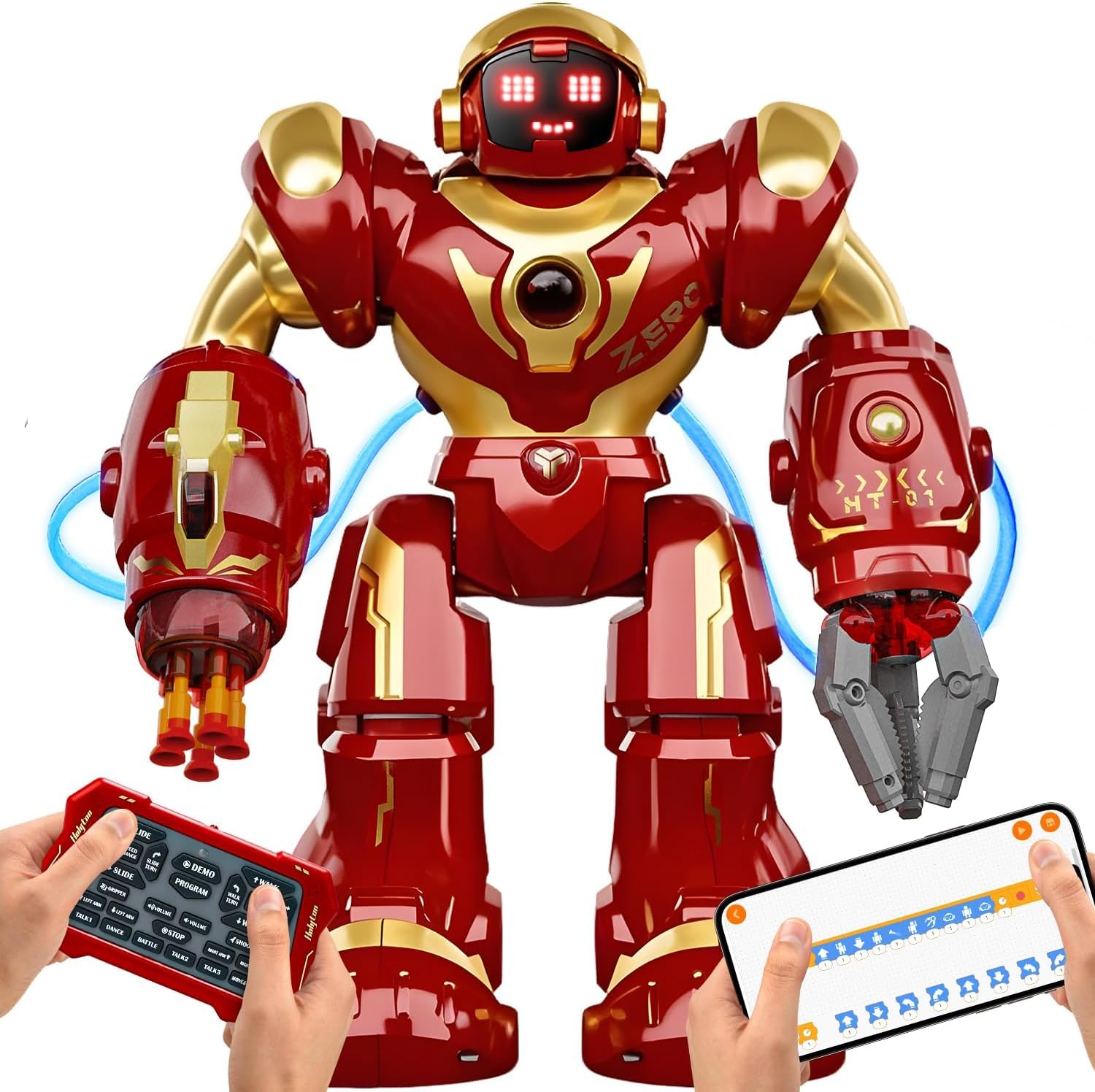
Figure 1.1: The Holyton 5088 Smart Robot, showcasing its remote control and mobile app interface for various control options.
2. Safety Information
Please read all safety warnings and instructions before using the Holyton 5088 Smart Robot. Failure to follow these instructions may result in injury or damage to the product.
- Age Recommendation: This product is recommended for children aged 6-15 years. Adult supervision is advised for younger children.
- Battery Safety:
- Use only the specified battery type (1 AAA battery for remote, built-in rechargeable for robot).
- Do not mix old and new batteries, or different types of batteries.
- Ensure batteries are inserted with correct polarity.
- Remove batteries if the product will not be used for an extended period.
- Do not attempt to disassemble or short-circuit batteries.
- Charging: Only use the provided USB-A to USB-C charging cable. Do not use a USB-C to USB-C cable. Charge the robot in a safe, dry environment away from flammable materials.
- Product Material: The robot is made from skin-friendly ABS plastic with smooth, rounded edges for safe handling.
- Soft-Bullet Launcher: The robot features a soft-bullet launcher. Use only the provided foam darts. Do not aim at eyes or face.
- Environment: Operate the robot on flat, clear surfaces. Avoid water, excessive dust, or extreme temperatures.
3. Package Contents
Verify that all items are present in the package:
- Holyton 5088 Smart Robot (1 unit)
- 2.4GHz Remote Control (1 unit)
- Soft Foam Darts (8 units)
- USB-A to USB-C Charging Cable (1 unit)
- User Manual (this document)
- AAA Battery (1 unit, for remote control)
4. Setup
4.1. Charging the Robot
The Holyton 5088 robot has a built-in rechargeable battery. Before first use, fully charge the robot.
- Locate the charging port on the robot (usually on the back or side).
- Connect the small end of the USB-A to USB-C charging cable to the robot's charging port.
- Connect the larger USB-A end of the cable to a standard USB power adapter (not included) or a computer's USB port.
- The robot's indicator light will show charging status (e.g., red for charging, off/green for fully charged).
- A full charge takes approximately 50 minutes and provides extended playtime.
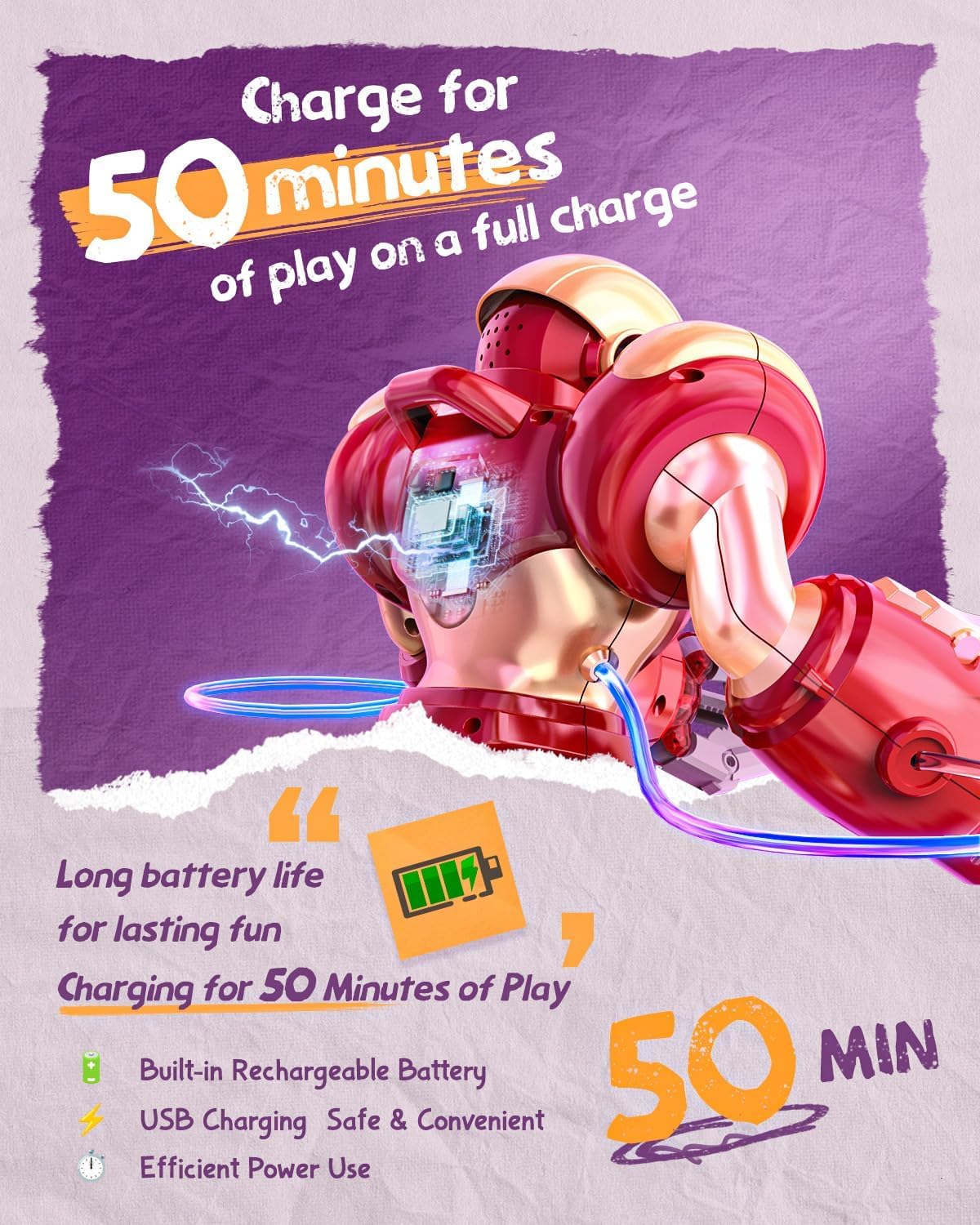
Figure 4.1: The Holyton 5088 robot connected to its USB-C charging cable, illustrating the charging process.
4.2. Installing Remote Control Batteries
The remote control requires 1 AAA battery (included).
- Open the battery compartment on the back of the remote control.
- Insert the AAA battery, ensuring correct polarity (+/-).
- Close the battery compartment securely.
4.3. Powering On and Pairing
- Turn on the robot using the power switch (usually on the back or bottom).
- Turn on the remote control. The robot and remote should automatically pair. An indicator light on the remote will confirm connection.
- For APP control, download the "Corex App" from your device's app store. Enable Bluetooth on your device and follow the in-app instructions to connect to the robot.
5. Operating Instructions
5.1. Control Modes
The Holyton 5088 offers multiple ways to interact:
- 2.4GHz Remote Control: Use the included remote for direct command of the robot's movements and actions.
- Corex App Control: Connect via Bluetooth to the Corex App for advanced control, including gravity-sensor mode (tilting your phone to control movement) and programming.
- Voice Control: The robot responds to 11 voice commands with over 20 unique responses. Speak clearly and directly to the robot.

Figure 5.1: Overview of the Holyton 5088's versatile control options, including app, voice, and remote control.
5.2. Basic Movements and Actions
Use the remote control or app to command the robot:
- Movement: Forward, Backward, Turn Left, Turn Right (walking and sliding modes available).
- Dancing: Activate pre-programmed dance routines.
- Demo Mode: Engage a sequence of pre-programmed actions.
- Voice Dialogue: Interact with the robot using voice commands.

Figure 5.2: The Holyton 5088 robot engaging in a "Sing & Dance Party Time" scenario, highlighting its entertainment features.
5.3. Special Features
- Gripping Arm (Left Arm): The robot's left arm features a robotic claw designed to grab and hold small, lightweight objects.
- Soft-Bullet Launcher (Right Arm): The right arm is equipped with a launcher for soft foam darts. Load the darts into the slots and activate the firing mechanism via the remote or app.

Figure 5.3: The Holyton 5088's dual-arm weapon system, featuring a robotic claw for gripping and a launcher for soft foam darts.
5.4. Programming Actions (STEM Feature)
The Holyton 5088 supports over 200 programmable actions, making it an excellent tool for STEM learning. Use the Corex App's "Simple Drag & Drop Coding" interface to create custom command sequences.
- Open the Corex App and navigate to the programming section.
- Drag and drop action blocks (e.g., move forward, turn, dance, fire dart) into the sequence.
- Arrange the blocks in the desired order.
- Execute the program to watch the robot perform your custom sequence.
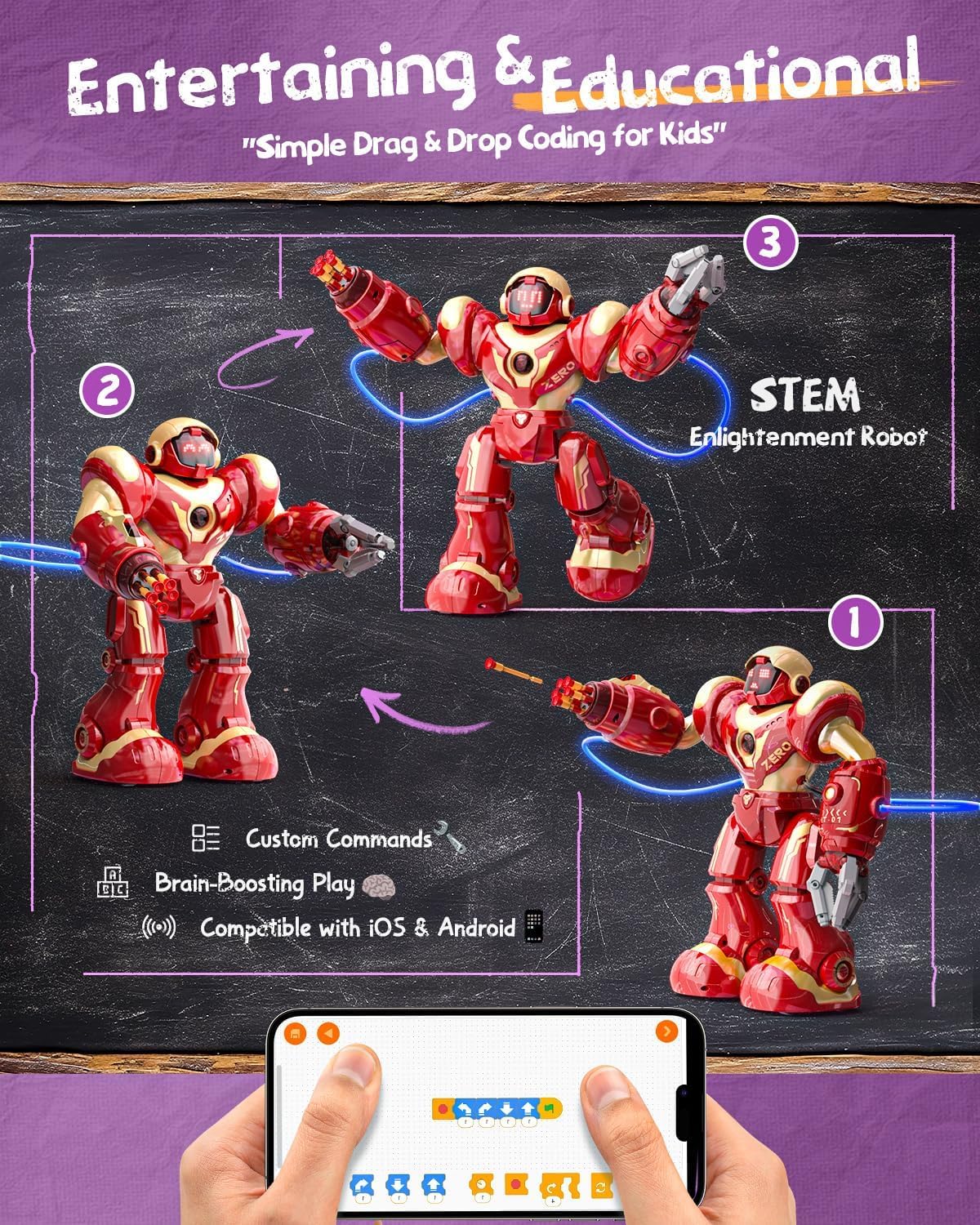
Figure 5.4: The Holyton 5088 demonstrating programmable actions, emphasizing its STEM educational value through custom command sequences.
6. Maintenance
- Cleaning: Wipe the robot with a soft, dry cloth. Do not use harsh chemicals or abrasive cleaners. Avoid getting water into electronic components.
- Storage: Store the robot and its accessories in a cool, dry place away from direct sunlight and extreme temperatures.
- Battery Care: If storing for an extended period, ensure the robot's built-in battery is partially charged (not fully charged or fully depleted) and remove the AAA battery from the remote control.
7. Troubleshooting
| Problem | Possible Cause | Solution |
|---|---|---|
| Robot does not turn on. | Battery is depleted or not charged. | Charge the robot's built-in battery using the provided USB-A to USB-C cable. |
| Remote control not working. | AAA battery is depleted or incorrectly installed. Remote not paired. | Replace AAA battery, ensure correct polarity. Turn both robot and remote off, then on again to re-pair. |
| App cannot connect to robot. | Bluetooth is off on device. Robot is off or out of range. App issue. | Ensure Bluetooth is enabled. Turn robot on and keep within range. Restart the app or your device. |
| Voice commands not recognized. | Background noise. Speaking too softly/unclearly. | Reduce background noise. Speak clearly and directly to the robot. |
| Soft darts do not fire or fall out. | Darts not fully inserted. Launcher mechanism issue. | Ensure darts are pushed firmly into the slots. Check for any obstructions in the launcher. |
8. Specifications
| Feature | Detail |
|---|---|
| Model Number | 5088 |
| Product Dimensions | 13.7 x 15.7 x 18.5 inches |
| Item Weight | 3.99 pounds |
| Recommended Age | 6 - 15 years |
| Robot Battery | Built-in Rechargeable |
| Remote Control Battery | 1 AAA battery (included) |
| Control Modes | 2.4GHz Remote, APP Control (Bluetooth, Gravity Sensing), Voice Control |
| Programmable Actions | 200+ |
| Material | Skin-friendly ABS Plastic |
| Certifications | FCC, CPC |
9. Warranty and Support
Holyton is committed to providing high-quality products and excellent customer service.
- Returns: We offer a 30-day return policy for worry-free shopping.
- Warranty: The Holyton 5088 Smart Robot comes with a 90-day warranty from the date of purchase. This warranty covers manufacturing defects.
- Customer Service: Our dedicated customer service team is ready to assist with any questions or issues you may encounter. Please contact us via the seller's contact information on the purchase platform or visit the official Holyton website for support.
For the latest support information and FAQs, please visit the Holyton store on Amazon or their official website.
Ask a question about this manual
Ask about setup, troubleshooting, compatibility, parts, safety, or missing instructions. Manuals+ will review the question and use this page’s manual context to help answer it.