
Introduction
This manual provides essential information for setting up, operating, maintaining, and troubleshooting your HP 15.6" HD BrightView Touchscreen Laptop. Designed for clarity and ease of use, it covers key features such as the Intel Pentium Gold 7505 processor, 8GB RAM, 672GB storage (512GB SSD + 160GB Docking Station Set), numeric keypad, HD camera, HD audio, and Wi-Fi 5 connectivity, running on Windows 11 Home.
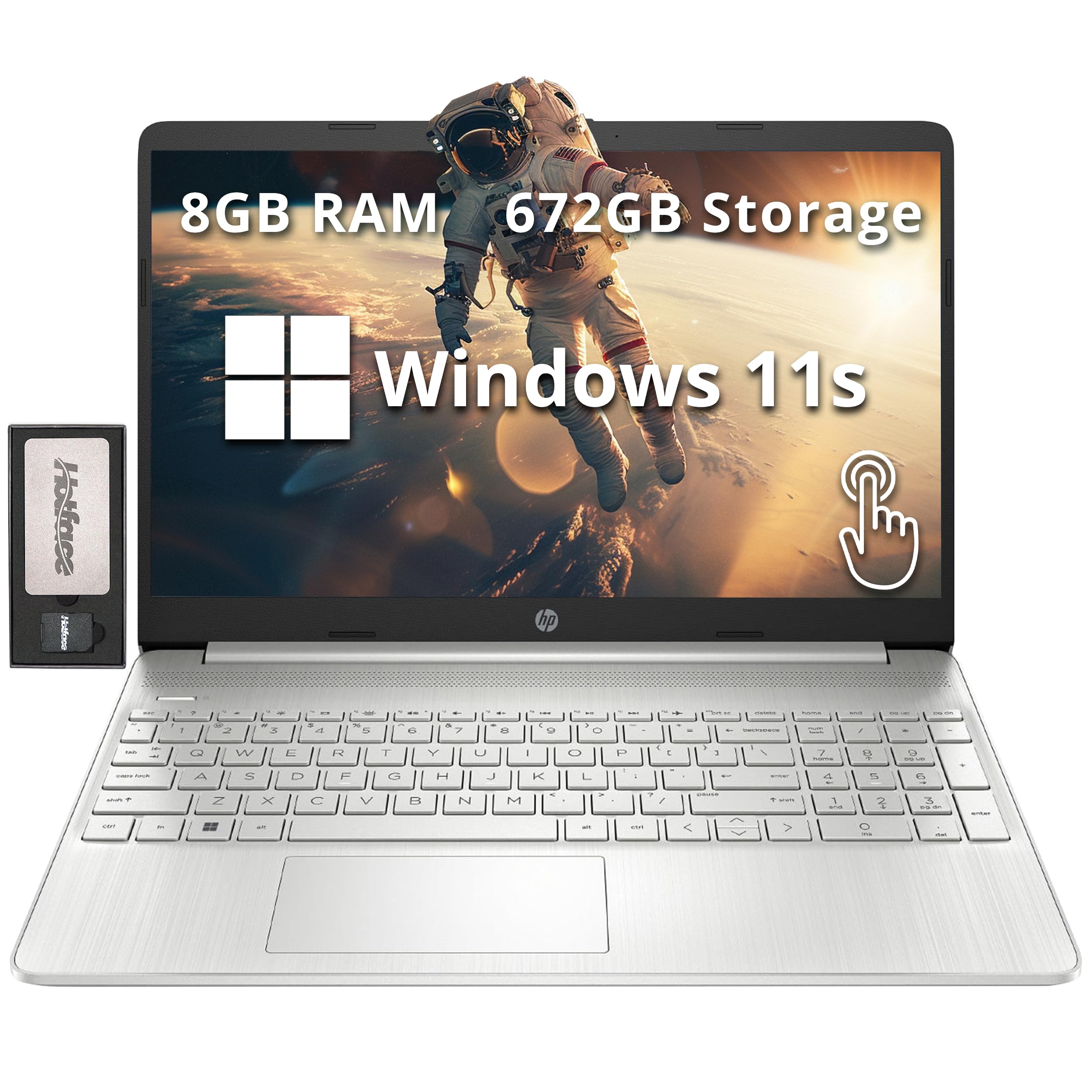
Image: The HP 15.6" HD BrightView Touchscreen Laptop, showcasing its sleek silver design and full-size keyboard.
What's in the Box
Verify that all items are present in your product packaging:
- HP 15.6" HD BrightView Touchscreen Laptop
- Power Adapter
- 7-in-1 Docking Station with 128GB Storage
- 32GB MicroSD Card with Adapter
- Type-C Data Cable
- 3-in-1 Charging Cable
- Suede Cleaning Cloth

Image: A visual representation of the included accessories, highlighting the 7-in-1 docking station, 32GB MicroSD card, various cables, and a suede cleaning cloth.
Setup
- Unpack the Laptop: Carefully remove the laptop and all accessories from the packaging.
- Connect Power: Plug the power adapter into the laptop's power port and then into a wall outlet. Allow the battery to charge fully before first use.
- Initial Power On: Open the laptop lid and press the power button. Follow the on-screen instructions to complete the Windows 11 Home setup, including language selection, network connection, and user account creation.
- Connect Docking Station (Optional): Connect the 7-in-1 docking station to a USB-C port on your laptop. You can then connect external displays, USB devices, and memory cards to the docking station.

Image: A detailed view of the laptop's side, illustrating the various ports including USB Type-A, SD media card reader, Headphone/Microphone Combo, USB Type-C, and HDMI for connecting peripherals.
Operating Instructions
Basic Interaction
- Touchscreen: Use gestures like tap, swipe, pinch-to-zoom directly on the 15.6" HD BrightView display for intuitive navigation.
- Keyboard and Numeric Keypad: Utilize the full-size keyboard for typing and the integrated numeric keypad for efficient data entry.
- Touchpad: The precision touchpad supports multi-touch gestures for scrolling, zooming, and navigating.
Connectivity
- Wi-Fi 5: Connect to wireless networks for internet access. Go to Settings > Network & internet > Wi-Fi to manage connections.
- Bluetooth: Pair with Bluetooth-enabled devices like headphones, mice, or speakers. Access via Settings > Bluetooth & devices.
- USB Ports: Use the USB 3.2 Gen 1 Type-C and Type-A ports for connecting external storage, peripherals, and charging devices.
- HDMI: Connect to external monitors or TVs using the HDMI port for extended display options.
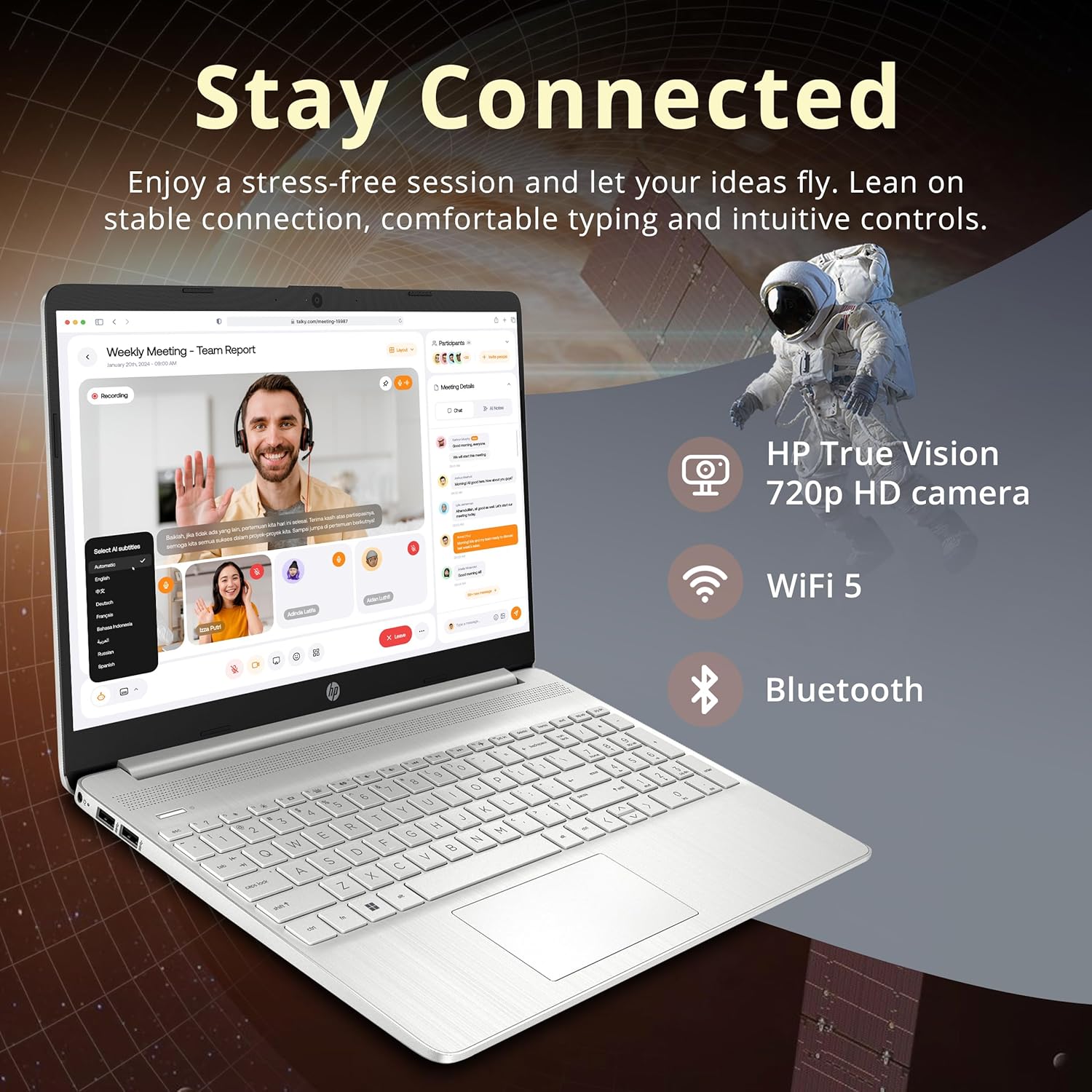
Image: The HP laptop open, displaying a video conference call, emphasizing its HD camera, Wi-Fi 5, and Bluetooth capabilities for staying connected.

Image: The HP laptop displaying several open applications simultaneously, demonstrating its capability for effortless multitasking.
Maintenance
- Cleaning: Use a soft, lint-free cloth slightly dampened with water or a screen cleaner to clean the display. For the keyboard and chassis, use a dry, soft cloth. Avoid harsh chemicals.
- Battery Care: To prolong battery life, avoid extreme temperatures. It is recommended to occasionally discharge the battery below 20% and then fully recharge it.
- Software Updates: Regularly check for and install Windows updates and HP driver updates to ensure optimal performance and security. Go to Settings > Windows Update.
- Storage Management: Periodically clean up unnecessary files and applications to maintain system speed and free up storage space.
Troubleshooting
| Problem | Possible Solution |
|---|---|
| Laptop does not power on | Ensure the power adapter is securely connected and the outlet is functional. Check if the battery is charged. |
| Screen is blank or flickering | Restart the laptop. Check display settings. If connected to an external monitor, ensure the cable is secure. |
| Wi-Fi connection issues | Restart your router and modem. Check Wi-Fi settings on the laptop and ensure Wi-Fi is enabled. Try forgetting and re-connecting to the network. |
| Slow performance | Close unnecessary applications. Check for background processes. Ensure sufficient free storage space. Run a system scan for malware. |
| Touchscreen unresponsive | Restart the laptop. Ensure display drivers are up to date. |
If you encounter issues not covered here, please refer to the support section for further assistance.
Specifications

Image: A graphic detailing the key specifications of the HP laptop, including processor, graphics, RAM, and storage.
| Feature | Detail |
|---|---|
| Brand | HP |
| Model Name | HP |
| Screen Size | 15.6 Inches HD BrightView Touchscreen |
| Resolution | 1366 x 768 pixels |
| Processor | Intel Pentium Gold 7505 (2 GHz, 2 Cores) |
| Graphics | Intel UHD Graphics (Integrated) |
| RAM | 8GB DDR4 (3200 MHz) |
| Storage | 512GB PCIe SSD + 160GB Docking Station Set |
| Operating System | Windows 11 Home |
| Connectivity | Wi-Fi 5 (802.11ac), Bluetooth |
| Ports | 1x USB 3.2 Gen 1 Type-C, 2x USB 3.2 Gen 1 Type-A, 1x Headphone/mic combo, 1x HDMI, Media Card Reader |
| Special Features | Numeric Keypad, HD Camera |
| Dimensions (L x W x H) | 14.11 x 9.53 x 0.71 inches |
| Weight | 3.75 Pounds |
Warranty Information
Your HP laptop comes with a 1-Year Manufacturer Warranty on original components. Additionally, any upgraded RAM/SSD components provided by Snow Bell are covered by a separate 1-Year Warranty from Snow Bell. Please retain your proof of purchase for warranty claims.
For extended coverage, optional protection plans are available for purchase separately. Refer to your retailer for details on 2-Year or 4-Year protection plans.
Support
For technical assistance, driver downloads, or further product information, please visit the official HP support website. You can typically find support resources by searching for your specific model number (HP) on their website.
For issues related to the upgraded RAM/SSD components, please contact Snow Bell directly through your purchase platform or their provided contact information.


