
Introduction
This manual provides detailed instructions for the setup, operation, and maintenance of your Itari 245BT Thermal Label Printer. This printer is designed for efficient label printing, supporting both Bluetooth and USB connectivity across various operating systems and platforms. Please read this manual thoroughly to ensure proper use and optimal performance of your device.
Product Overview
What's in the Box
Verify that all components are present in your package:
- 1 * 245-BT Bluetooth thermal label printer
- 1 * 245-BT quick start guide for label printer
- 1 * Power Cord & Adapter for shipping label printer
- 1 * USB-C adapter for MAC OS
- 10 * 4x6 shipping labels for test

Image: Contents of the Itari 245BT printer box.
Key Features
- Wireless Bluetooth Connectivity: Print wirelessly from iOS and Android devices using the "Labelife" app.
- USB Printing for PCs: Compatible with Windows, Mac OS, Chrome OS, and Linux via USB cable.
- Wide Application: Supports major platforms like Amazon, eBay, Shopify, USPS, UPS, Etsy, PayPal, DHL, and FedEx. Prints labels from 1 to 4.6 inches wide.
- Fast and Clear Printing: Utilizes advanced thermal direct printing technology (no ink/toner needed) with a speed of 150 mm/s (up to 72 sheets of 4x6 labels per minute) and 203 DPI resolution.

Image: Fast and Clear Printing capabilities of the Itari 245BT.

Image: Connectivity options for the Itari 245BT printer.

Image: Universal platform compatibility for the Itari 245BT.
Setup
1. Loading Labels
- Ensure the printer is powered off.
- Open the top cover of the printer.
- Place the thermal labels into the label compartment, ensuring the printable side is facing up. The labels should feed smoothly into the printer mechanism.
- Adjust the label guides to fit the width of your labels snugly, without creasing them.
- Close the top cover. The printer will automatically detect and calibrate the label size.
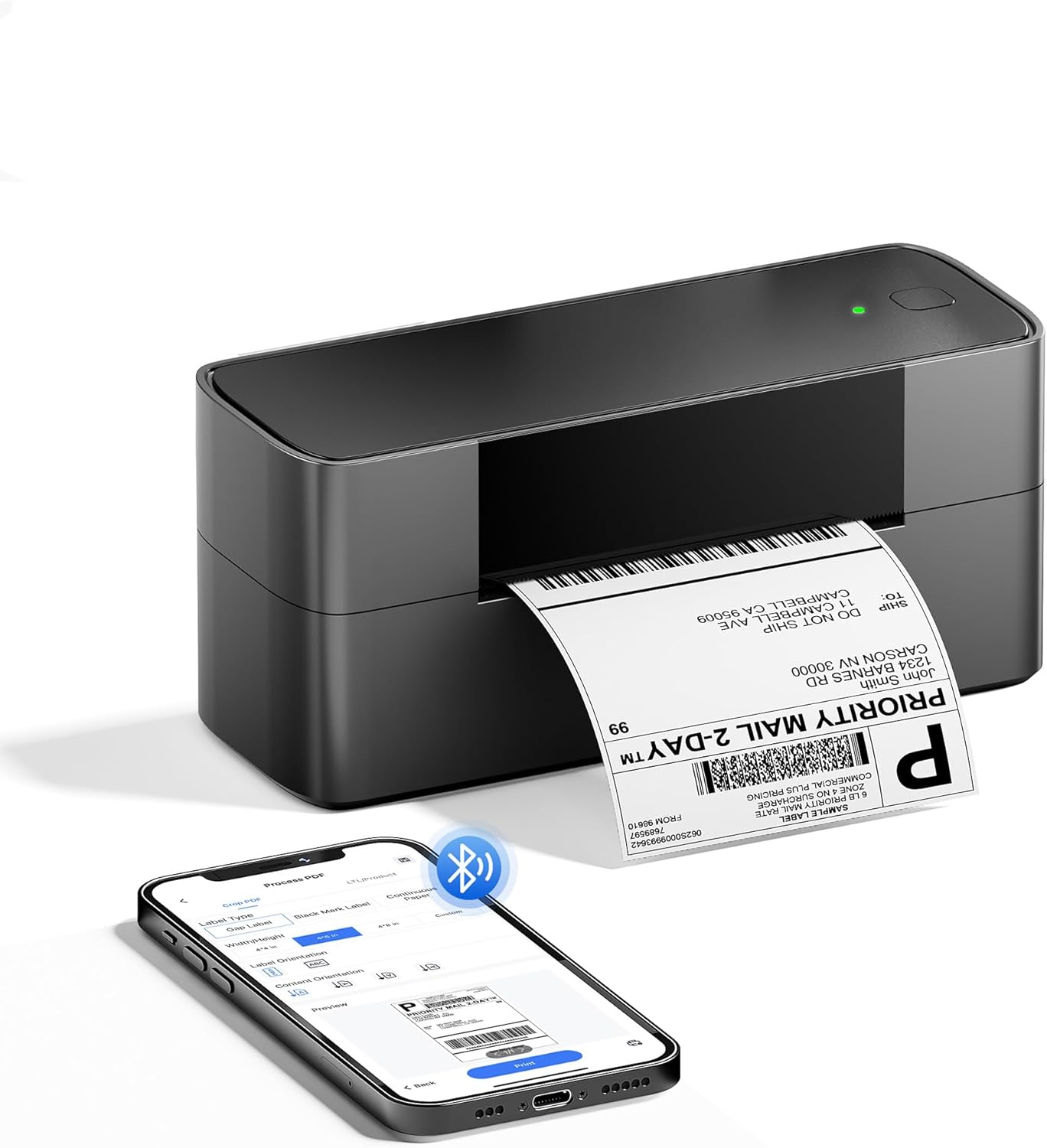
Image: Proper label loading into the Itari 245BT printer.
2. Power Connection
Connect the power adapter to the printer's power port and then plug the adapter into a wall outlet. The power indicator light should illuminate.
3. Driver Installation (for PC)
For Windows, Mac OS, and Linux users, download the necessary drivers from the official website: labelife.net/#/PM245. Chrome OS users can install the "Labelife" extension from the Chrome Web Store.

Image: Step 1 - Downloading the Bluetooth driver for PC.

Image: Steps 2-4 - Connecting and installing the printer driver on PC.
Operating Instructions
1. Bluetooth Printing (Mobile Devices)
The Itari 245BT printer supports wireless printing from iOS and Android devices via Bluetooth using the dedicated "Labelife" app.
- Download the "Labelife" App: Search for "Labelife" in the Apple App Store (for iOS) or Google Play Store (for Android) and install it. You can also visit aimotech.com/labelife/analysis.html for more information.
- Enable Bluetooth: On your mobile device, go to your settings and ensure Bluetooth is turned on.
- Connect to Printer: Open the "Labelife" app. The app will guide you to connect to the 245BT printer via Bluetooth. Select your printer from the list of available devices.
- Print: Once connected, you can select labels, edit them, and initiate printing directly from the app.

Image: Step 1 - Download the "Labelife" app.

Image: Step 2 - Enable Bluetooth on your mobile device.

Image: Step 3 - Connect to the printer via the "Labelife" app.
2. USB Printing (Computers)
For printing from Windows, Mac OS, Chrome OS, or Linux computers, connect the printer using the provided USB cable.
- Connect USB Cable: Plug one end of the USB cable into the printer and the other end into your computer.
- Install Drivers: Ensure the correct drivers are installed as described in the Setup section.
- Select Printer: In your computer's print dialogue, select the "Itari 245BT" printer.
- Print: Send your label design to the printer.

Image: USB connection for printing from a computer.
3. Supported Platforms
The Itari 245BT printer is compatible with a wide range of e-commerce and shipping platforms, including but not limited to:
- Amazon
- eBay
- Shopify
- USPS
- UPS
- Etsy
- PayPal
- DHL
- FedEx
Maintenance
Regular maintenance ensures the longevity and optimal performance of your Itari 245BT printer.
- Cleaning the Print Head: Periodically clean the thermal print head with an alcohol swab to remove dust or adhesive residue. Ensure the printer is off and cooled down before cleaning.
- Using Quality Labels: Always use high-quality thermal labels to prevent damage to the print head and ensure clear prints.
- Dust Prevention: Keep the printer in a clean, dust-free environment. When not in use, consider covering it to prevent dust accumulation.
Troubleshooting
If you encounter issues with your Itari 245BT printer, please refer to the official troubleshooting guide for detailed solutions:
Download Troubleshooting Guide (PDF)
Common issues and quick checks:
- No Power: Check power cable connections and wall outlet.
- No Print: Ensure labels are loaded correctly and the printer is connected (Bluetooth or USB). Verify driver installation for PC.
- Faint Prints: Clean the print head. Ensure you are using thermal labels.
- Paper Jams: Turn off the printer, open the cover, and carefully remove any jammed labels.
- Bluetooth Connection Issues: Restart the printer and your mobile device. Ensure the "Labelife" app is updated and Bluetooth is enabled.
Technical Specifications
| Feature | Specification |
|---|---|
| Model Name | 245-BT |
| Printing Technology | Thermal |
| Connectivity Technology | Bluetooth, USB |
| Maximum Media Size | 4 x 6 inch |
| Maximum Black and White Print Resolution | 203 DPI |
| Max Print Speed Monochrome | 72 ppm (4x6 labels) |
| Compatible Devices | iOS & Android Phone/Pad, Linux, Chrome OS, Windows, Mac OS |
| Product Dimensions | 8.39 x 3.15 x 3.74 inches |
| Item Weight | 2.86 pounds |
| Special Features | Bluetooth Connection, Inkless Printing, Fast Printing, Auto Document Feeder |
Warranty and Customer Support
Warranty Information
The Itari 245BT Thermal Label Printer comes with a Lifetime Warranty, ensuring long-term reliability and support for your product.
Dedicated Support Team
Itari's support team is available to provide technical assistance. You can reach us through the following channels:
- Phone Call: (9:00-17:00 Mon-Fri EST)
- Email/Live Chat: (19:30-4:30 Mon-Fri EST)
Please do not hesitate to reach out if you have any inquiries or issues with your printer.


