
1. Introduction
Thank you for choosing the FENIFOX Wireless Keyboard and Mouse Combo. This manual provides essential information for setting up, operating, and maintaining your new peripheral devices. Please read it carefully to ensure optimal performance and longevity of your product.
2. What's Included
The FENIFOX Wireless Keyboard and Mouse Combo package includes the following items:
- Wireless Keyboard
- Wireless Mouse
- USB Receiver (2.4G)
- USB-C to USB-A Adapter
- USB-C Charging Cable
- Silicone Keyboard Cover
- User Manual

Image: Package contents including keyboard, mouse, USB receiver, USB-C adapter, charging cable, and silicone cover.
3. Setup Instructions
Follow these steps to set up your FENIFOX Wireless Keyboard and Mouse Combo:
- Charge the Devices: Ensure both the keyboard and mouse are fully charged using the provided USB-C charging cable. The keyboard and mouse feature built-in rechargeable lithium polymer batteries. A low-voltage indicator will alert you when charging is needed.
- Locate the USB Receiver: The USB receiver is typically stored in a compartment on the underside of the mouse or keyboard for safekeeping during transport.
- Connect the USB Receiver:
- For devices with a standard USB-A port: Plug the USB receiver directly into an available USB-A port on your computer.
- For devices with a USB-C port: Attach the included USB-C to USB-A adapter to the USB receiver, then plug the adapter into your device's USB-C port.

Image: The USB receiver and the USB-C to USB-A adapter, ready for connection.
- Power On Devices: Turn on the keyboard and mouse using their respective ON/OFF switches. The indicator light on the keyboard will flash once to confirm normal power supply.
- Automatic Connection: The keyboard and mouse should automatically connect to your computer within 1-3 seconds. The connection success indicator light on the keyboard will turn on once connected. No additional drivers are typically required.
- System Compatibility Switch: After connecting, you may need to switch the keyboard layout to match your device's operating system. Use the following key combinations:
- For Windows: Press Fn + W
- For macOS: Press Fn + O
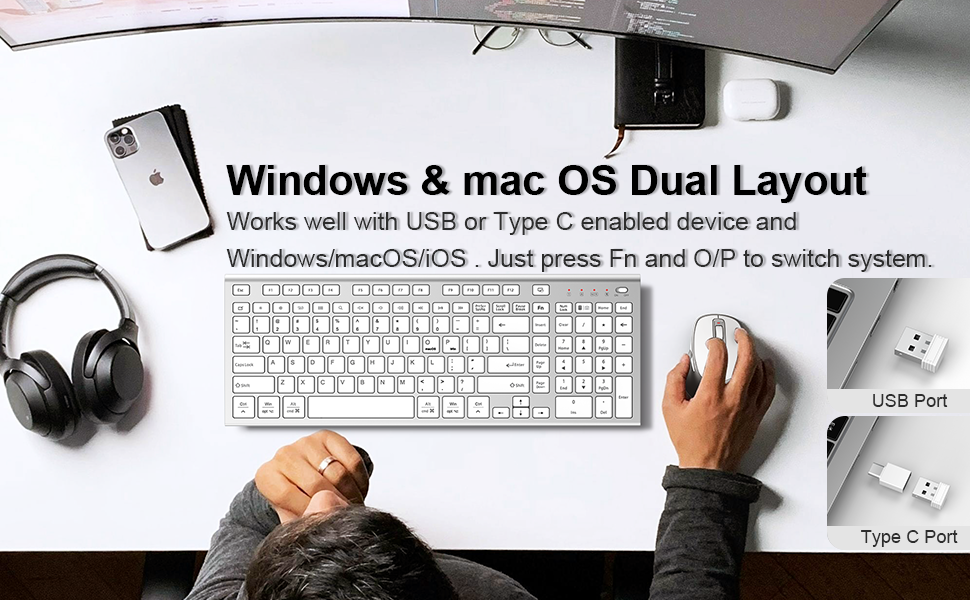
Image: Keyboard layout highlighting the Fn+W (Windows) and Fn+O (macOS) keys for system switching.
Setup Demonstration Video
Video: A visual guide demonstrating the setup process for the FENIFOX Wireless Keyboard and Mouse Combo, including connecting the USB receiver and powering on the devices.
4. Operating Instructions
Keyboard Features:
- Full-Size Layout: The keyboard features a compact full-size layout with a dedicated numeric keypad for efficient data entry.
- Multimedia Keys: Access 14 independent multimedia keys (F1-F12) for quick control of media playback, volume, and other functions without needing Fn key combinations.
- Quiet Typing: Scissor-switch keys and concave keycaps provide a comfortable, responsive, and ultra-quiet typing experience.
- Adjustable Angle: Utilize the adjustable feet on the underside of the keyboard to set a comfortable typing angle (5° or 9°).

Image: User's hands on the FENIFOX keyboard, highlighting the independent multimedia keys.

Image: The ergonomic and slim design of the keyboard and mouse, showing keyboard dimensions and two adjustable typing angles (5° and 9°).
Mouse Features:
- Silent Clicking: The mouse features quiet buttons for a peaceful work environment.
- Adjustable DPI: Cycle through 5 DPI levels (800-1000-1200-1600-2400) by pressing the DPI button located near the scroll wheel to adjust cursor sensitivity.
- Side Buttons: The mouse includes forward and back side buttons for enhanced navigation, particularly useful in Windows systems.

Image: Close-up of the FENIFOX mouse, illustrating the 5 adjustable DPI levels and the forward/back side buttons.

Image: Features of the FENIFOX mouse: silent operation, ergonomic shape, and 5 adjustable DPI settings.
5. Maintenance
Cleaning:
- Keyboard: The included soft silicone cover is dustproof and splashproof. It can be easily removed and cleaned with a damp cloth or mild soap and water. Ensure the cover is completely dry before placing it back on the keyboard. For the keyboard itself, use a soft, dry cloth to wipe surfaces. Avoid harsh chemicals.
- Mouse: Use a soft, dry cloth to clean the mouse surface. For optical sensors, use a cotton swab lightly dampened with rubbing alcohol.

Image: The FENIFOX keyboard with its removable silicone cover, demonstrating its dustproof and splashproof properties.
Charging and Battery:
- Charging: Both devices are rechargeable via the provided USB-C cable. Connect the cable to the respective charging port on the keyboard or mouse and to a USB power source.
- Battery Life: A full charge takes approximately 1.7 hours. The keyboard can last 1.2-2 months on a single charge, and the mouse has a similar long-lasting battery.
- Low-Voltage Indicator: A clear indicator light will signal when the battery is low, prompting you to recharge.
- Power Saving Mode: The devices feature an automatic power-saving mode to conserve battery when not in use. They will wake up with any key press or mouse movement.

Image: Illustration of the 500mAh battery capacity for both mouse and keyboard, with estimated charge and working times.
6. Troubleshooting
If you encounter issues with your FENIFOX Wireless Keyboard and Mouse Combo, please refer to the following common solutions:
- No Connection:
- Ensure both the keyboard and mouse are powered on.
- Verify the USB receiver is securely plugged into a working USB port on your computer.
- If using a USB-C port, ensure the USB-C adapter is correctly attached to the receiver and then to the port.
- Try plugging the USB receiver into a different USB port.
- Restart your computer.
- Lag or Intermittent Connection:
- Ensure the devices are within the 33-foot (10m) wireless range of the USB receiver.
- Remove any large metal objects or other electronic devices that might be causing interference between the devices and the receiver.
- Ensure the devices are fully charged.
- Incorrect Key Functions (Mac/Windows):
- Press Fn + W for Windows layout.
- Press Fn + O for macOS layout.
- Mouse Cursor Too Fast/Slow:
- Press the DPI button on the mouse to cycle through the 5 available sensitivity levels (800-1000-1200-1600-2400 DPI) until you find your preferred speed.
- Keyboard/Mouse Not Waking Up:
- Press any key on the keyboard or move/click the mouse to wake them from power-saving mode.
- Ensure the devices are charged.
7. Specifications
| Feature | Description |
|---|---|
| Brand | FENIFOX |
| Model | B0DJVFYZ45 |
| Connectivity Technology | 2.4G Radio Frequency (USB Receiver) |
| Compatible Devices | Laptop, Personal Computer, Smartphone, Tablet, Television |
| Operating System Compatibility | Android, Linux, Mac OS, Windows |
| Keyboard Layout | QWERTY (Dual layout for Windows/macOS) |
| Number of Keys (Keyboard) | 121 (Full-size with numeric keypad and independent multimedia keys) |
| Mouse DPI Levels | 5 adjustable levels (800-1000-1200-1600-2400) |
| Battery Type | 1 Lithium Polymer battery (included) |
| Charging Port | USB-C |
| Charging Time | Approx. 1.7 hours |
| Battery Life (Keyboard) | 1.2-2 months on a single charge |
| Wireless Range | Up to 33 feet (10m) |
| Item Weight | 640 Grams |
| Special Features | Compact design, ultra-quiet typing/clicking, dustproof/splashproof silicone cover, ergonomic design, power-saving mode. |
8. Warranty & Support
Warranty Information:
The FENIFOX Wireless Keyboard and Mouse Combo comes with a 1-year warranty on parts. Please retain your proof of purchase for warranty claims.
Customer Support:
For any questions, issues, or support needs, please contact FENIFOX customer service. You can typically find contact information on the product packaging or the official FENIFOX website. Your satisfaction is our top priority.