Download PDFFree PDF. The Save button below keeps a bookmark and private notes in your account.
TCL 50-Inch Class 4K QLED Smart TV User Manual
Model: 50Q651G
This manual provides comprehensive instructions for setting up, operating, and maintaining your TCL 50-Inch Class 4K QLED Smart TV. Please read this manual thoroughly before using your television and retain it for future reference.
1. Introduction
The TCL 50-Inch Class 4K QLED Smart TV (Model 50Q651G) delivers an immersive viewing experience with its advanced display and smart features. Featuring 4K HDR resolution enhanced by QLED technology, it provides vibrant and accurate colors. The integrated AiPQ 3.0 processor optimizes image quality, while the 120Hz Game Accelerator ensures smooth gaming. With Google TV built-in, you can easily access streaming content and control your TV using voice commands via Google Assistant or Alexa. Enjoy cinematic sound with Dolby Atmos and DTS HD.
Image: Front view of the TCL 50-Inch QLED Smart TV, showcasing its slim design and vibrant display.
Image: An overview of key features for the TCL Q651G Series, including QLED Pro, AiPQ Pro Processor, Slim & Uni-Body design, Dolby Vision-Atmos, and 120Hz Game Accelerator.
2. Setup
2.1 Unboxing and Package Contents
Carefully remove the TV and all accessories from the packaging. Ensure all items listed below are present:
TCL 50-Inch Class 4K QLED Smart TV
Remote Control
Power Cord
TV Stand (2 pieces)
Screws for TV Stand
Quick Start Guide (this manual)
Batteries for Remote Control (AAA x 2)
2.2 Stand Installation
If you are not wall-mounting your TV, follow these steps to attach the stand:
Place the TV face-down on a soft, clean surface to prevent screen damage.
Align each stand piece with the corresponding slots on the bottom of the TV.
Secure each stand piece with the provided screws. Ensure they are tightened firmly.
2.3 Connecting Devices
Connect your external devices to the TV's ports. Refer to the port labels on the back of your TV.
HDMI: For Blu-ray players, game consoles, cable/satellite boxes.
USB: For USB drives to play media files.
Antenna/Cable IN: For connecting an antenna or cable TV.
Ethernet (LAN): For a wired internet connection.
Optical Digital Audio Out: For connecting to a soundbar or audio receiver.
2.4 Initial Power-On and Setup
After connecting all necessary cables:
Plug the power cord into an electrical outlet.
Press the Power button on the remote control or on the TV.
Follow the on-screen instructions to complete the initial setup, which includes:
Language selection
Network connection (Wi-Fi or Ethernet)
Google Account sign-in (recommended for full Smart TV features)
Channel scan (for antenna/cable users)
3. Operating Your TV
3.1 Remote Control Overview
Familiarize yourself with the remote control buttons for easy navigation and control.
Power: Turns the TV on or off.
Input: Selects input source (HDMI, TV, USB).
Navigation Pad (Up/Down/Left/Right/OK): Navigates menus and confirms selections.
Back: Returns to the previous screen.
Home: Accesses the Google TV home screen.
Volume +/-: Adjusts volume.
Channel +/-: Changes channels.
Voice Assistant Button: Activates Google Assistant or Alexa for voice commands.
App Shortcut Buttons: Direct access to popular streaming services.
3.2 Google TV Interface
The Google TV interface organizes your favorite content from various streaming services into one central hub. Use the navigation pad to browse recommendations, access your apps, and manage your profile.
3.3 Voice Control (Google Assistant & Alexa)
Your TCL Smart TV supports voice control through Google Assistant and Alexa. Press the Voice Assistant button on your remote and speak your command. You can ask to search for movies, open apps, control smart home devices, and more.
3.4 Picture and Sound Enhancements
Your TV features advanced technologies for superior picture and sound quality.
Image: Diagram illustrating the AiPQ Pro Processor, an AI image quality processor that enhances visual details and color accuracy.
QLED Technology: Quantum Dot technology delivers over a billion shades of vibrant and accurate colors, covering nearly the entire DCI-P3 color space.
Image: Visual representation of 95% DCI-P3 color gamut, demonstrating the wide range of colors produced by Quantum Dot technology.
4K HDR (Dolby Vision, HDR10+, HDR10, HLG): Experience enhanced contrast, accurate colors, and fine details across various HDR formats.
Image: A split screen showing a scene with and without Dolby Vision, highlighting the enhanced detail and immersion provided by Dolby Vision.
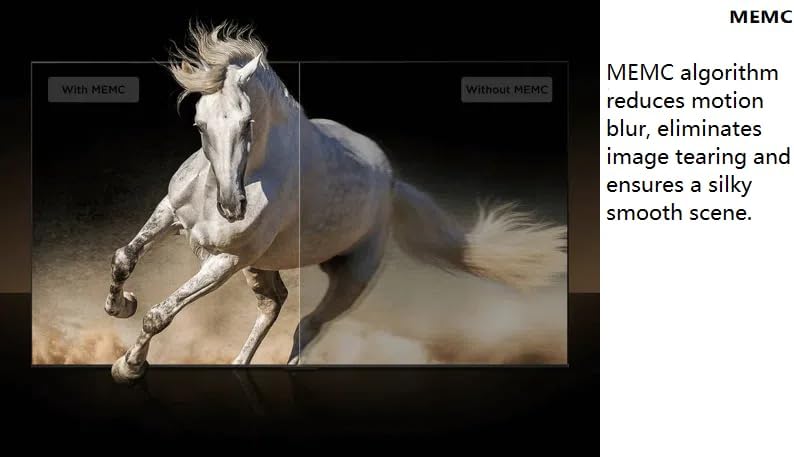
MEMC (Motion Estimation, Motion Compensation): Reduces motion blur and eliminates image tearing for smoother scenes.
Image: A comparison showing a fast-moving horse with and without MEMC, demonstrating how MEMC reduces motion blur and improves clarity.
Dolby Atmos and DTS HD: Provides immersive surround sound, making you feel like you are inside the action.
Image: A living room scene with visual cues indicating immersive sound waves, representing the Dolby Vision Atmos experience.
3.5 Gaming Features
The TCL 50Q651G is designed to enhance your gaming experience.
120Hz Game Accelerator: This technology automatically adjusts content for a higher refresh rate and super-low latency, providing a much smoother gaming experience.
Image: A visual comparison demonstrating the difference between 60Hz and 120Hz refresh rates in gaming, highlighting the smoother motion with 120Hz Game Accelerator.
Game Master: Unlock advanced display and audio technology for smoother streaming and an elevated gaming experience.
Image: An illustration depicting a gamer on a futuristic vehicle, representing the enhanced gaming experience provided by TCL Game Master.
VRR / ALLM / Free-Sync: These features work together to reduce input lag and screen tearing, ensuring a fluid gaming session.
4. Maintenance
4.1 Cleaning Your TV
Screen: Gently wipe the screen with a soft, lint-free cloth. For stubborn marks, use a screen cleaner specifically designed for TVs, applied to the cloth, not directly to the screen.
Cabinet: Wipe the TV cabinet with a soft, dry cloth. Avoid using abrasive cleaners or solvents.
4.2 Software Updates
To ensure optimal performance and access to the latest features, regularly check for software updates:
Go to the TV's Settings menu.
Navigate to "System" or "About".
Select "Software Update" or "System Update" and follow the on-screen prompts.
4.3 Care and Handling
Avoid exposing the TV to direct sunlight, extreme temperatures, or high humidity.
Ensure proper ventilation around the TV by not blocking the vents.
Do not place heavy objects on top of the TV.
5. Troubleshooting
If you encounter issues with your TV, refer to the following common problems and solutions:
Problem
Possible Cause / Solution
No Power
Check if the power cord is securely plugged into the TV and the outlet. Try a different outlet.
No Picture / Poor Picture
Ensure the correct input source is selected. Check all cable connections. Adjust picture settings (brightness, contrast).
No Sound / Poor Sound
Check volume level and mute status. Verify audio output settings. If using external audio, check its connections and power.
Remote Control Not Working
Replace batteries. Ensure no obstructions between remote and TV's IR sensor.
Network Connection Issues
Verify Wi-Fi password. Restart your router and modem. Try connecting via Ethernet cable.
Smart Features Not Responding
Restart the TV by unplugging it for a few minutes. Ensure a stable internet connection.
6. Specifications
Feature
Detail
Brand
TCL
Model Number
50Q651G
Screen Size
50 Inches
Display Technology
QLED
Resolution
4K (2160p)
Refresh Rate
60 Hz (with 120Hz Game Accelerator)
Special Features
120Hz Game Accelerator, Google TV, Voice Remote, Dolby Vision, Dolby Atmos, AiPQ 3.0 Processor
Connectivity Technology
Wi-Fi 5, Bluetooth
Product Dimensions (W x D x H)
43.7 x 2.8 x 25.4 inches (without stand)
Item Weight
27.9 pounds
7. Warranty and Support
7.1 Warranty Information
This product is covered by a limited warranty provided by TCL. Please refer to the warranty card included with your product or visit the official TCL website for detailed warranty terms and conditions. Keep your purchase receipt as proof of purchase for warranty claims.
7.2 Customer Support
For technical assistance, troubleshooting, or service inquiries, please contact TCL Customer Support:
Website: Visit the official TCL support website for FAQs, manuals, and contact options.
Phone: Refer to the contact information provided on the TCL website or your product's quick start guide.
Ask about setup, troubleshooting, compatibility, parts, safety, or missing instructions. Manuals+ will review the question and use this page’s manual context to help answer it.