
SEUNKWANG V99
EWEADN V99 Wireless Mechanical Keyboard User Manual
Model: V99
Brand: SEUNKWANG
1. Introduction
The EWEADN V99 Wireless Mechanical Keyboard is a versatile and customizable input device designed for various uses, including gaming, work, and study. It features tri-mode connectivity (Bluetooth 5.0, 2.4Ghz, USB-C), hot-swappable switches, a gasket-mounted design for improved acoustics, and extensive RGB backlighting customization. This manual provides detailed instructions for setup, operation, and maintenance of your new keyboard.
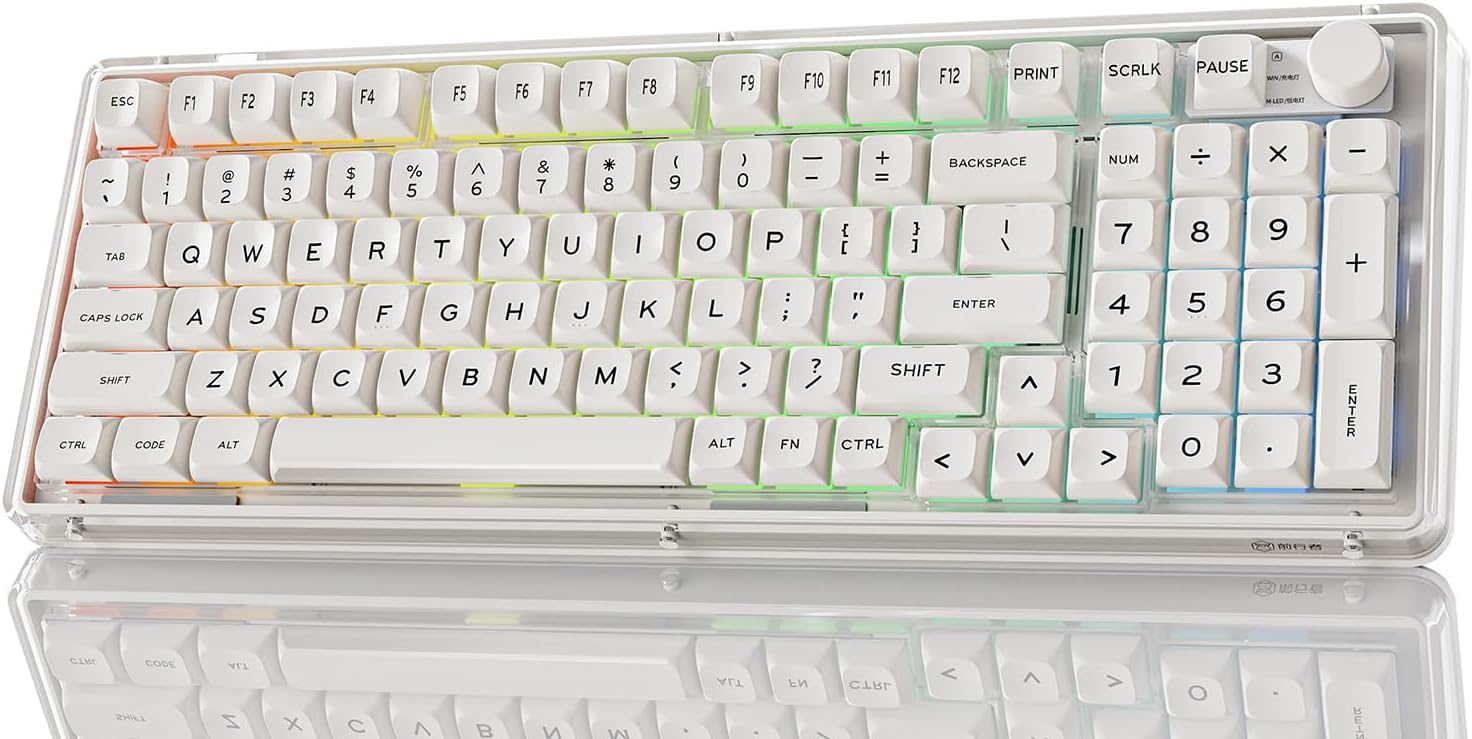
Figure 1: EWEADN V99 Wireless Mechanical Keyboard
2. What's in the Box
- Spare Switch (Snow Leopard Switch) x2
- 6-sided Screwdriver
- 2.4Ghz USB Receiver
- Dust Cover
- User Manual (this document)
- USB-C Cable
3. Setup
3.1. Connectivity Modes
The EWEADN V99 keyboard supports three connection modes: Bluetooth 5.0, 2.4Ghz wireless, and USB-C wired. You can connect up to 5 devices simultaneously.

Figure 2: Tri-Mode Connection Options
- Bluetooth Mode (BT1/BT2/BT3): Press and hold FN + Q/W/E to switch between three different Bluetooth channels. The keyboard will enter pairing mode, indicated by a flashing light. Select 'EWEADN V99' on your device's Bluetooth settings to connect.
- 2.4Ghz Wireless Mode: Insert the provided 2.4Ghz USB receiver into your computer's USB port. Press and hold FN + R to activate 2.4Ghz mode. The keyboard should connect automatically.
- USB-C Wired Mode: Connect the keyboard to your computer using the provided USB-C cable. This mode is plug-and-play and requires no additional setup.
3.2. Charging the Battery
The keyboard is equipped with a 5000mAh large-capacity battery. To charge, connect the USB-C cable to the keyboard and a power source (e.g., computer USB port, wall adapter). The battery indicator will show charging status.

Figure 3: Ultra-large Capacity Battery
Video 1: Demonstrates the wireless functionality of the V99 Cream White Mechanical Gaming Keyboard.
4. Operating Instructions
4.1. Key Functions and Multimedia Knob
The keyboard features a multimedia knob and various FN key combinations for enhanced control.

Figure 4: 2-in-1 Multimedia Knob
- Multimedia Knob: Rotate clockwise for Volume+, counter-clockwise for Volume-. Press the knob to toggle backlight on/off.
- FN + Enter: Switch RGB backlight colors.
- FN + \: Switch RGB backlight effects.
- FN + ESC (hold 3s): Reset backlight settings.
Video 2: Showcases the programmable RGB backlit gaming keyboard features.
4.2. Customizing RGB Backlight
The V99 keyboard offers 16.8 million colors with 22 effects and 9 color options. Use the dedicated driver software to further customize lighting, including music rhythm synchronization.
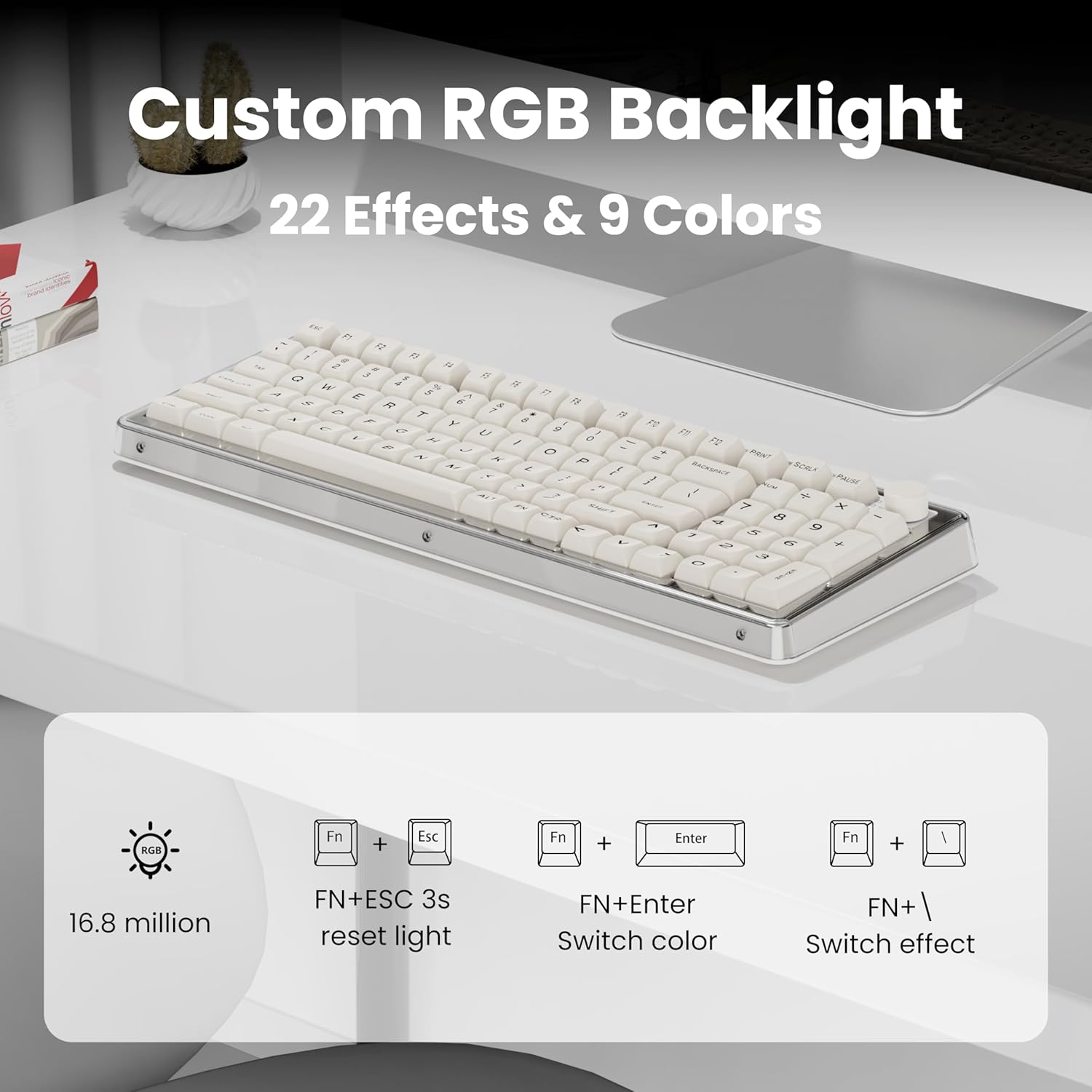
Figure 5: Custom RGB Backlight
Video 3: Demonstrates the software supporting music rhythm lighting effects.
Video 4: Shows the V99 software supporting music rhythm and custom light effects.
4.3. Programmable Driver & Macros
Enhance your gaming and work efficiency by programming a series of operations into a single key using the dedicated driver software. The driver is compatible with Windows and MacOS.

Figure 6: Programmable Software Interface
4.4. Hot-Swappable Switches
The keyboard features a hot-swappable PCB, allowing for easy replacement of 3-pin or 5-pin mechanical switches without soldering. This enables customization of typing feel and sound.

Figure 7: Hot-Swappable Switches
Video 5: Demonstrates the Crystal Switch in the V99 Customized Gaming Keyboard.
Video 6: Shows the hot-swappable feature of the V99 gaming keyboard.
Video 7: Provides a sound quality test of the Cream Matte transparent keyboard.
5. Maintenance
5.1. Cleaning the Keyboard
To maintain optimal performance and appearance, regularly clean your keyboard. Use a soft, dry cloth to wipe down the keycaps and casing. For deeper cleaning, you may use a small brush or compressed air to remove dust and debris from between the keys.
5.2. Replacing Switches and Keycaps
Thanks to the hot-swappable design, you can easily replace switches and keycaps. Use the provided 6-sided screwdriver and switch puller tool to carefully remove existing components. Align new switches/keycaps with the sockets and press firmly until they click into place. Refer to Section 4.4 for more details on hot-swappable features.
6. Troubleshooting
6.1. Connectivity Issues
- Keyboard not connecting via Bluetooth/2.4Ghz: Ensure the keyboard is charged. Check that the correct mode (BT1/BT2/BT3 or 2.4Ghz) is selected using the switch on the back of the keyboard. For Bluetooth, ensure your device's Bluetooth is on and the keyboard is in pairing mode. For 2.4Ghz, ensure the USB receiver is securely plugged in.
- Intermittent connection: Move the keyboard closer to your device or USB receiver to reduce interference. Ensure no large metal objects are blocking the signal path.
6.2. Lighting Issues
- RGB lights not working: Ensure the backlight is turned on via the multimedia knob. Check battery level. Try resetting the backlight by holding FN + ESC for 3 seconds.
- Lights not changing effects/colors: Ensure you are using the correct FN key combinations (FN + Enter for color, FN + \ for effect).
6.3. Key Functionality Issues
- Certain keys not responding: If you have recently swapped switches, ensure they are properly seated. Try replacing the problematic switch with one of the spare switches provided.
- Unexpected key behavior: If using the programmable driver, ensure no unintended macros are active. Reset the keyboard to factory settings if necessary (refer to driver software instructions).
7. Specifications
| Feature | Specification |
|---|---|
| Product Dimensions | 6.77 x 1.77 x 18.5 inches |
| Item Weight | 2.89 pounds |
| Manufacturer | EWEADN |
| Item model number | V99 |
| Batteries | 1 Lithium Ion batteries required. (included) |
| Connectivity Technology | Bluetooth, 2.4G, USB-C |
| Keyboard Description | Wireless Mechanical Gaming Keyboard |
| Special Feature | Backlit, Hotkeys and Media Keys, Programmable Keys, Customizable Display Keys, Hot-Swappable |
| Color | White |
| Number of Keys | 99 |
| Keyboard backlighting color support | RGB |
8. Warranty and Support
The EWEADN V99 gaming keyboard comes with 48-month brand support. Our expert team is always available to assist you with any questions or concerns regarding your product.
For further assistance, please refer to the contact information provided on the product packaging or the official EWEADN website.
Ask a question about this manual
Ask about setup, troubleshooting, compatibility, parts, safety, or missing instructions. Manuals+ will review the question and use this page’s manual context to help answer it.