1. Introduction
This manual provides detailed instructions for the safe and efficient use of your ZIOVO Z168 Android 14 Tablet. Please read this manual thoroughly before using the device and retain it for future reference.
1.1 Safety Information
- Do not expose the tablet to extreme temperatures, direct sunlight, or high humidity.
- Avoid dropping or subjecting the tablet to strong impacts.
- Use only approved chargers and accessories.
- Do not attempt to disassemble or repair the tablet yourself.
- Keep the tablet away from children and pets.
2. Package Contents
Verify that all items are present in the package:
- ZIOVO Z168 Tablet
- Tablet Case
- Screen Protector (pre-applied or replacement)
- Bluetooth Keyboard
- Wireless Mouse
- Type-C to USB Adapter
- Type-C Data Cable
- EU Standard Charger
- User Manual (this document)

Image: ZIOVO Z168 Tablet with its accessories, including a keyboard, mouse, charger, and cables.
3. Device Overview
Familiarize yourself with the physical components of your ZIOVO Z168 Tablet.
3.1 Physical Features
- Display: 10.1-inch screen (1280x800 pixels)
- Front Camera: 5MP
- Rear Camera: 8MP
- Ports: Type-C port, 3.5mm headphone jack, Micro SD card slot
- Speakers: Dual Smart Speakers

Image: Diagram illustrating key features of the ZIOVO Z168 Tablet, including screen size, cameras, and connectivity.
4. Setup
4.1 Initial Power On
- Press and hold the Power button until the screen turns on.
- Follow the on-screen prompts to select your language and region.
- Important: Do not connect to Wi-Fi immediately after powering on. Wait until the tablet reaches the home screen before connecting to a network. This helps ensure proper system initialization.
4.2 Wi-Fi Connection
- From the home screen, swipe down from the top to open the Quick Settings panel.
- Tap the Wi-Fi icon to enable it.
- Go to Settings > Network & internet > Internet.
- Select your desired Wi-Fi network from the list.
- Enter the password if prompted and tap Connect.
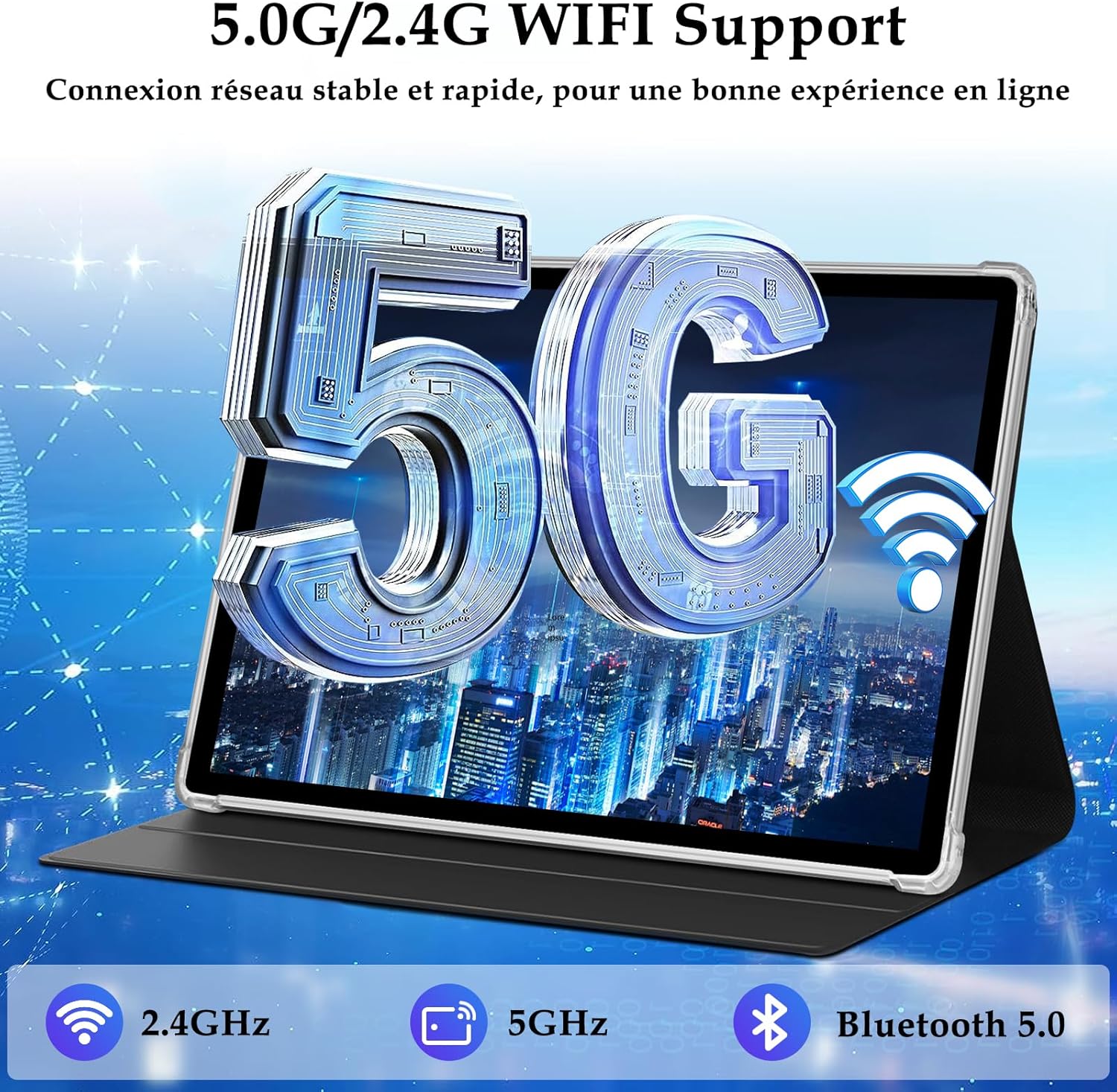
Image: The tablet screen displaying 5G WiFi connectivity, indicating support for both 2.4GHz and 5GHz bands.
4.3 Google Account Setup
To access the Google Play Store and other Google services, you will need to sign in with your Google account. Follow the on-screen instructions during initial setup or go to Settings > Accounts > Add account > Google.
5. Operating the Tablet
5.1 Android 14 Operating System
Your ZIOVO Z168 Tablet runs on the Android 14 operating system, offering enhanced privacy controls, improved security, and a personalized user experience.
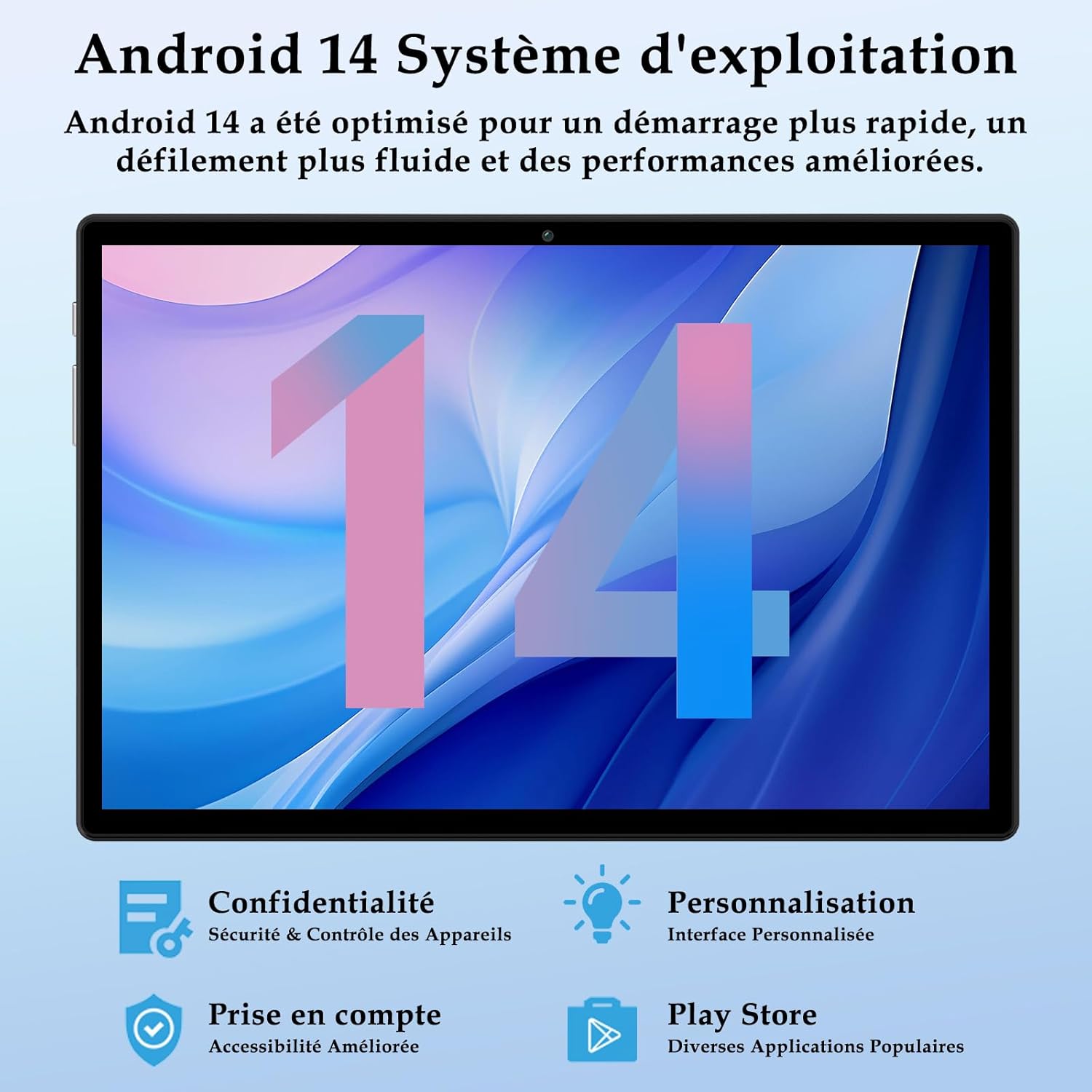
Image: A visual representation of the Android 14 operating system, highlighting features like privacy, personalization, accessibility, and Play Store access.
5.2 Basic Navigation
- Swipe: Move your finger across the screen to scroll through content or switch between screens.
- Tap: Touch the screen briefly to select an item or open an application.
- Long Press: Press and hold an item to reveal additional options.
- Pinch-to-Zoom: Use two fingers to zoom in or out on images and web pages.
5.3 Storage Management
The tablet comes with 128GB of internal storage. You can expand this by up to 1TB using a Micro SD/TF card.
- Insert the Micro SD card into the designated slot.
- Go to Settings > Storage to manage internal and external storage.
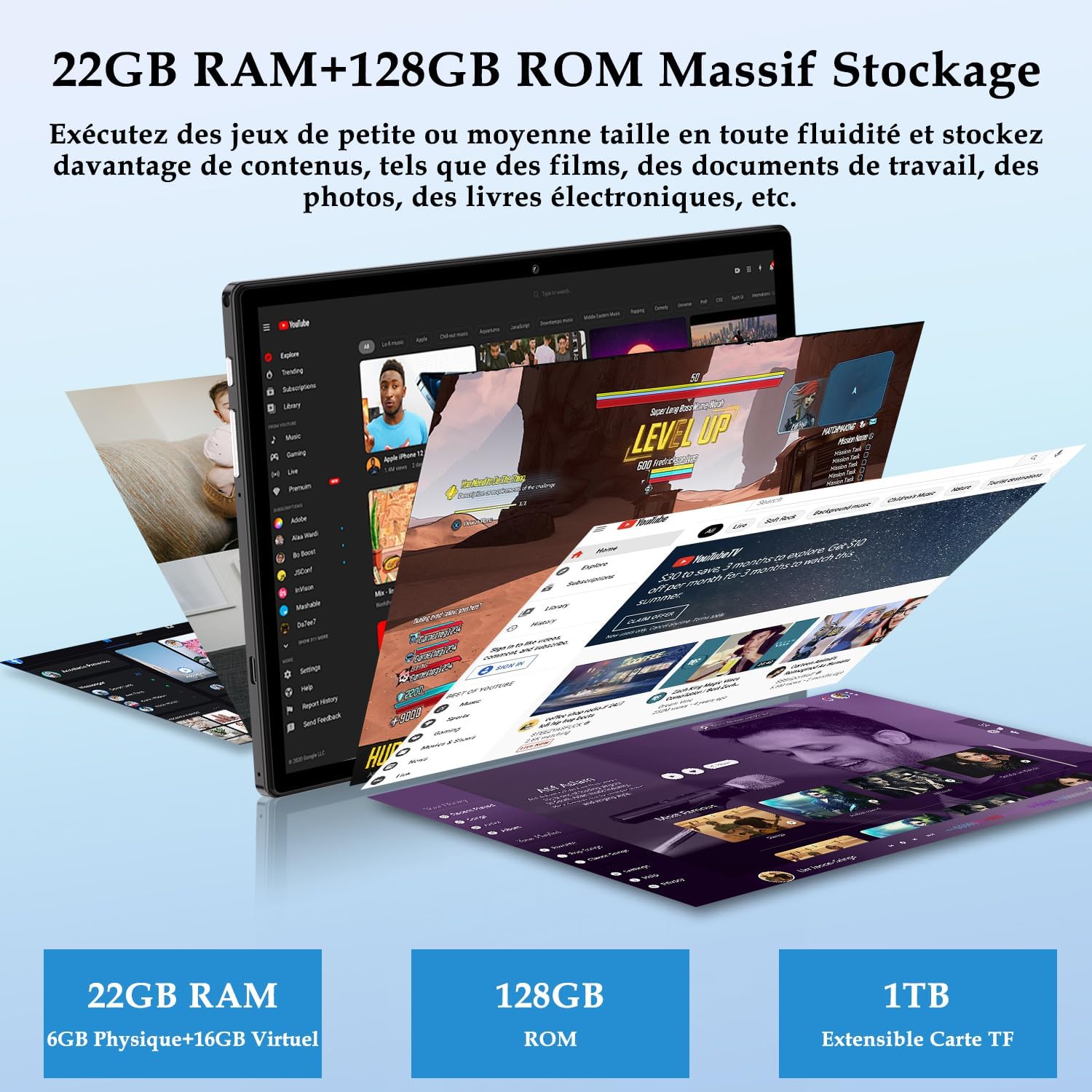
Image: A graphic illustrating the tablet's storage capabilities, including 22GB RAM, 128GB ROM, and 1TB expandable storage via TF card.
5.4 Widevine L1 Support
The ZIOVO Z168 Tablet supports Widevine L1, enabling high-definition (HD) and ultra-high-definition (UHD) streaming content from platforms like Netflix, Amazon Prime Video, Hulu, and HBO Max.
Image: A visual demonstrating Widevine L1 support, showing the tablet displaying high-quality video content from various streaming platforms.
5.5 Facial Recognition
The tablet supports facial recognition for quick and secure unlocking. To set up facial recognition, go to Settings > Security & privacy > Face unlock and follow the on-screen instructions.
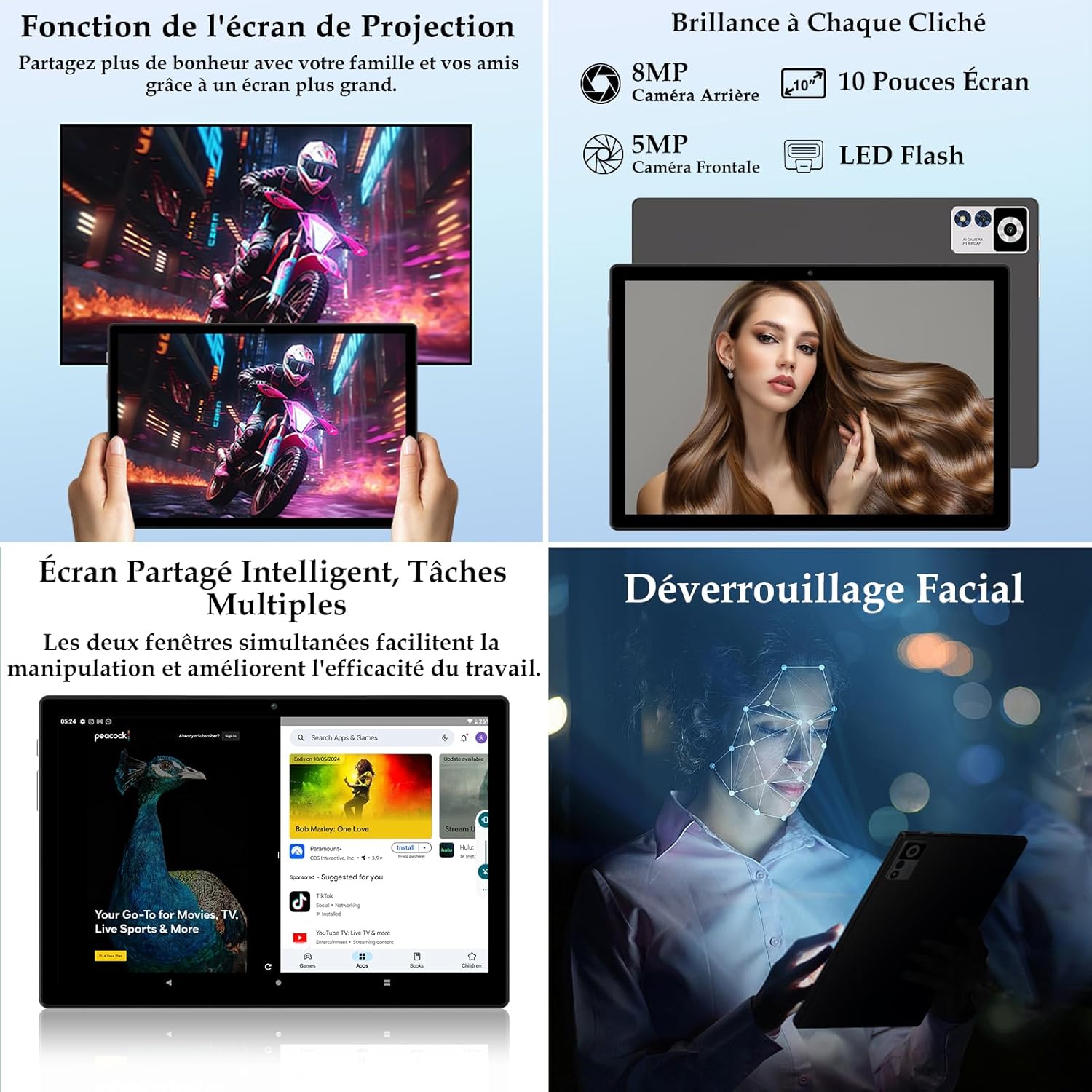
Image: A depiction of the facial recognition feature in action, showing a user unlocking the tablet with their face.
5.6 Split Screen Functionality
Utilize the split-screen feature to run two applications simultaneously, enhancing multitasking and productivity. To activate, open an app, then swipe up from the bottom of the screen and hold to access recent apps. Drag one app to the top or bottom of the screen, then select another app for the remaining space.
Image: The tablet screen displaying two applications running side-by-side in split-screen mode, demonstrating multitasking capabilities.
6. Using Accessories
6.1 Bluetooth Keyboard and Wireless Mouse
The included Bluetooth keyboard and wireless mouse enhance the tablet's functionality for productivity tasks.
6.1.1 Connecting the Bluetooth Keyboard
- Ensure the keyboard is charged and powered on.
- On your tablet, go to Settings > Connected devices > Bluetooth.
- Turn on Bluetooth and tap Pair new device.
- Select the keyboard from the list of available devices and follow any on-screen pairing instructions.
6.1.2 Connecting the Wireless Mouse
- Insert the USB dongle for the wireless mouse into the Type-C to USB adapter.
- Connect the Type-C to USB adapter to the tablet's Type-C port.
- Ensure the mouse has batteries and is powered on. The tablet should automatically detect the mouse.
7. Maintenance
7.1 Battery Management
The tablet is equipped with an 8000mAh battery. To prolong battery life:
- Avoid fully discharging the battery frequently.
- Charge the tablet using the provided Type-C charger.
- Avoid exposing the tablet to extreme heat or cold during charging.

Image: A visual representation of the tablet's 8000mAh battery and its Type-C charging port, along with a 3.5mm headphone jack.
7.2 Cleaning
Use a soft, lint-free cloth to clean the tablet screen and body. Do not use abrasive cleaners or solvents.
7.3 Software Updates
Periodically check for software updates to ensure optimal performance and security. Go to Settings > System > System update.
8. Troubleshooting
- Tablet does not turn on: Ensure the battery is charged. Connect the charger and try again.
- Screen is unresponsive: Restart the tablet by pressing and holding the Power button.
- Wi-Fi connection issues: Check if Wi-Fi is enabled. Restart your router and the tablet. Forget the network and reconnect.
- Applications crashing: Clear the cache of the problematic app (Settings > Apps > select app > Storage & cache > Clear cache). If the issue persists, reinstall the app.
- Slow performance: Close unnecessary background applications. Clear cache and temporary files. Consider a factory reset as a last resort (back up your data first).
9. Specifications
| Feature | Specification |
|---|---|
| Model | Z168 |
| Operating System | Android 14 |
| Processor | Octa-Core T606, 2.0GHz |
| RAM | 22GB (6GB Physical + 16GB Virtual) |
| Internal Storage (ROM) | 128GB |
| Expandable Storage | Up to 1TB via Micro SD/TF card |
| Battery Capacity | 8000mAh |
| Screen Size | 10.1 Inches |
| Screen Resolution | 1280 x 800 pixels |
| Widevine Support | L1 |
| Front Camera | 5MP |
| Rear Camera | 8MP |
| Connectivity | 5G/2.4G WiFi (802.11ax), Bluetooth 5.0, AGPS |
| Ports | Type-C, 3.5mm Headphone Jack, Micro SD Slot |
| Dimensions (L x W x H) | 24.3 x 16 x 1 cm |

Image: A detailed view of the Octa-Core T606 processor, highlighting its 2.0GHz speed, A75 high performance, and 12nm process for energy efficiency.
10. Warranty and Support
For warranty information and customer support, please refer to the documentation provided with your purchase or contact ZIOVO customer service through their official channels. Specific warranty details may vary by region and retailer.
