
1. Introduction
Thank you for choosing the Eaglerich D3121 6.2-inch Touchscreen Car Radio. This manual provides essential information for the proper installation, operation, and maintenance of your new car audio system. Please read this manual thoroughly before use to ensure optimal performance and to prevent damage.
2. Safety Information
- Always operate the vehicle safely. Distracted driving can lead to accidents.
- Do not attempt to install or service this unit if you are not qualified. Professional installation is recommended.
- Ensure all wiring is correctly connected to prevent short circuits or damage to the vehicle's electrical system.
- Keep the volume at a level that allows you to hear outside traffic and emergency vehicles.
- Avoid exposing the unit to extreme temperatures, direct sunlight for prolonged periods, or excessive moisture.
- Do not insert foreign objects into the disc slot or USB ports.
3. Package Contents
Verify that all items are present in the package:
- 1 x Eaglerich D3121 DVD/CD Car Radio
- 1 x Power Cord
- 1 x Remote Control
- 1 x Rear View Camera
4. Product Overview
The Eaglerich D3121 is a versatile double DIN car audio receiver designed to enhance your in-car entertainment and connectivity. It features a 6.2-inch capacitive touchscreen and supports a wide range of functions.
Key Features:
- 6.2-inch HD Capacitive Touch Screen (800x480 resolution)
- Built-in Bluetooth 5.0 for hands-free calling and audio streaming
- Wired Apple CarPlay and Android Auto compatibility
- Mirror Link function for smartphone screen mirroring
- Integrated CD/DVD Player supporting various disc formats
- FM/AM Radio with RDS (Radio Data System)
- Dual USB Ports for media playback and charging
- Steering Wheel Control (SWC) compatibility
- Rear View Camera input with automatic display
- Mosfet power amplifier: 4 x 60 watts
Front Panel Controls and Ports:
The front panel includes the touchscreen display, physical buttons for essential functions like MENU, MUTE, PWR/VOL, and a GPS slot, USB port, SD card slot, and AUX input for easy access.

Image: Front view of the Eaglerich D3121 car radio, highlighting the touchscreen and control layout.
5. Setup and Installation
Proper installation is crucial for the performance and safety of your car radio. It is highly recommended to have this unit installed by a qualified professional.
5.1 Mounting the Unit
The D3121 is a double DIN unit. Ensure your vehicle's dashboard opening is compatible. Use the provided mounting brackets to secure the unit firmly into the dashboard.

Image: Side view of the car radio, illustrating mounting points.
5.2 Wiring Connections
Connect the power cord, speaker wires, and other accessory cables according to your vehicle's wiring diagram and the provided wiring harness. Incorrect wiring can cause damage to the unit or vehicle.
- Power (Yellow): Connect to constant 12V power.
- Accessory (Red): Connect to switched 12V power (ignition).
- Ground (Black): Connect to a clean chassis ground point.
- Speaker Wires: Connect to vehicle speakers, ensuring correct polarity.
- Rear View Camera Input: Connect the included rear view camera to the dedicated input.
- Steering Wheel Control (SWC): Connect to your vehicle's SWC wires (if applicable).

Image: Rear panel connections of the car radio.
5.3 USB Charging Port
The unit includes a dedicated USB charging port (5V_2.1A high current) for fast charging of compatible devices. Use the provided USB extension cable for convenient access.

Image: Dedicated USB charging port and its use.
6. Operating Instructions
6.1 Basic Operations
- Power On/Off: Press the PWR/VOL knob to turn the unit on or off.
- Volume Control: Rotate the PWR/VOL knob to adjust the volume level.
- Mute: Press the MUTE button to silence the audio. Press again to restore.
- Menu: Press the MENU button to access the main menu or return to the previous screen.
6.2 Radio (FM/AM/RDS)
- Select the Radio icon from the main menu.
- Use the on-screen controls to scan for stations or manually tune.
- Press and hold a preset button to save the current station.
- RDS (Radio Data System) functions (RT, AF, TA) provide station information, alternative frequencies, and traffic announcements where available.
6.3 Bluetooth 5.0
Pair your smartphone via Bluetooth for hands-free calling and audio streaming.
- Go to the Bluetooth menu on the car radio.
- Enable Bluetooth on your smartphone and search for available devices.
- Select "Eaglerich" (or similar name) from your phone's list and confirm pairing.
- Once paired, you can make/receive calls and play music wirelessly.
6.4 Wired Apple CarPlay & Android Auto
Connect your compatible smartphone via a USB cable to access CarPlay or Android Auto features directly on the car radio's screen.
- Connect your iPhone or Android phone to the designated USB port using a high-quality USB cable.
- The unit will automatically detect and launch CarPlay or Android Auto.
- Use the touchscreen to navigate apps like Maps, Music, Messages, and make calls.
Image: CarPlay and Android Auto functionality demonstration.
6.5 Mirror Link
The Mirror Link function allows you to display your smartphone's screen directly onto the car radio's display.
- Connect your smartphone to the USB port.
- Select the "Mirror Link" option from the main menu.
- Follow the on-screen prompts to establish the connection.
- Your phone's screen will now be mirrored on the car radio.
6.6 CD/DVD Player
Insert a CD or DVD into the disc slot. The unit will automatically detect the disc and begin playback. Use the on-screen controls for playback functions (play, pause, skip, stop).

Image: Inserting a disc into the CD/DVD player.
6.7 USB/SD Media Playback
Insert a USB drive or SD card containing audio or video files into the respective ports. Select the USB or SD icon from the main menu to browse and play your media.
6.8 Rear View Camera
When the vehicle is shifted into reverse gear, the car radio will automatically display the image from the connected rear view camera, assisting with safe parking.
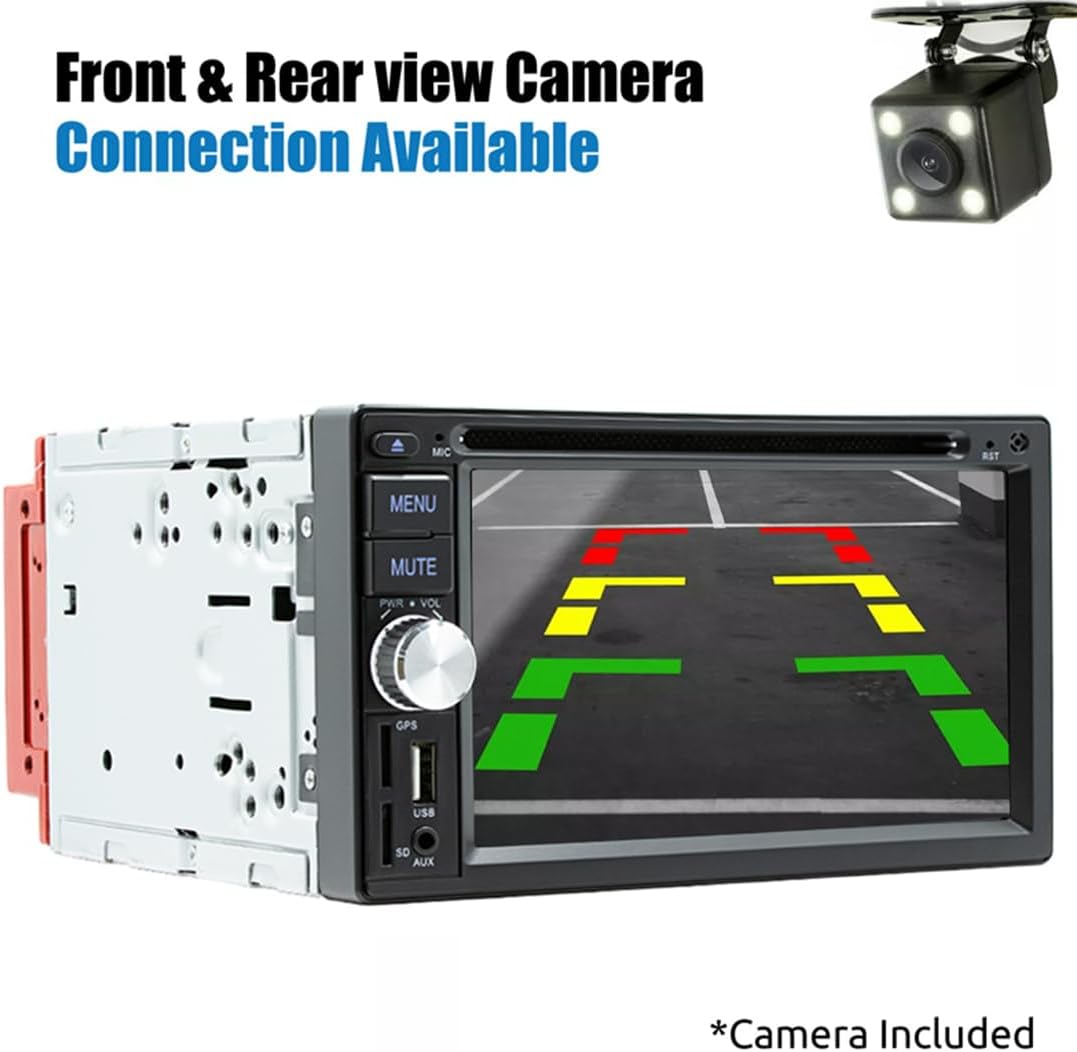
Image: Rear view camera display on the car radio screen.
6.9 Various Screen Interfaces
The unit offers various customizable screen interfaces for different functions, including home screens, radio controls, phone dialer, and settings menus.

Image: Examples of different user interface screens.
7. Maintenance
- Cleaning the Screen: Use a soft, lint-free cloth to gently wipe the touchscreen. Do not use abrasive cleaners or solvents.
- Cleaning the Unit: Wipe the exterior of the unit with a dry, soft cloth.
- Disc Slot: Keep the disc slot free of dust and debris. Avoid inserting damaged or dirty discs.
- Firmware Updates: Check the manufacturer's website periodically for any available firmware updates to ensure optimal performance and new features.
8. Troubleshooting
If you encounter issues with your Eaglerich D3121, refer to the following common problems and solutions:
| Problem | Possible Cause | Solution |
|---|---|---|
| No power | Incorrect wiring; Blown fuse | Check power and ground connections. Inspect and replace fuses if necessary. |
| No sound | Speaker wires disconnected; Volume too low; Mute activated | Verify speaker connections. Increase volume. Deactivate mute function. |
| Bluetooth not connecting | Bluetooth not enabled on phone/unit; Device out of range | Ensure Bluetooth is active on both devices. Move phone closer to the unit. Try re-pairing. |
| CarPlay/Android Auto not starting | Faulty USB cable; Phone not compatible; USB port issue | Use a certified USB cable. Ensure your phone OS is up to date. Try a different USB port if available. |
| Disc playback error | Dirty or scratched disc; Unsupported disc format | Clean the disc. Try a different disc. Ensure the disc format is supported. |
| Rear camera not displaying | Camera not connected; Reverse trigger wire not connected | Check camera and video input connections. Verify the reverse trigger wire is correctly wired. |
9. Specifications
| Feature | Specification |
|---|---|
| System | WinCE |
| Screen Size | 6.2 inches |
| Screen Resolution | 800x480 |
| Screen Type | Capacitive Touch Screen |
| Radio Band | FM/AM |
| FM Frequency | 87.5-108MHz |
| AM Frequency | 522-1620KHz |
| RDS Support | Yes (RT, AF, TA) |
| Amplifier Power | 4 x 60 Watts (Mosfet) |
| Bluetooth Version | 5.0 |
| Audio Formats | MP3, FLAC, APE, WMA, WAV, AAC, AMR |
| Video Formats | AVI, ASF, MP4, MOV, MPG, MPEG1/2/4, VOB, MKV, FLV, TS, WMV, RMVB, 3GP |
| Disc Types Supported | CD, CD-R, CD-RW, VCD, DVD, DVD-R, DVD-RW |
| Working Voltage | 12V |
| Model Number | D3121 |
| ASIN | B0DJS9QJQX |
10. Warranty and Support
Eaglerich products are designed for reliability and performance. For specific warranty details, please refer to the warranty card included with your product or contact the seller directly. For technical support or assistance, please reach out to your point of purchase or the Eaglerich customer service channels.