
BoxWave miniSync
BoxWave miniSync Retractable Portable Sync Cable User Manual
Model: miniSync
Compatible with Eyoyo EY-028
1. Introduction
The BoxWave miniSync Retractable Portable Sync Cable is an innovative solution designed for convenient charging and data synchronization. Its unique retractable mechanism eliminates tangles and knots, making it an ideal accessory for portability and organization. This manual provides detailed instructions on how to effectively use and maintain your miniSync cable.

The BoxWave miniSync Retractable Cable is designed for compatibility with devices like the Eyoyo EY-028, providing both charging and data synchronization capabilities.
2. Key Features
- Retractable Design: Innovative mechanism allows for easy extension and retraction, preventing tangles and knots.
- High-Speed Transfer: Supports USB 2.0 data transfers for quick and efficient file synchronization.
- Convenient Charging: Connects to any standard USB power adapter for reliable device charging.
- Durable Construction: Made from high-quality polycarbonate material with a heavy-duty ribbon-style cable for longevity.
- Adjustable Length: Extends up to 25 inches (63.5 cm) for ample reach, and retracts to a compact 3 inches (7.6 cm) for portability.

The miniSync's retractable design eliminates cable tangles and knots, offering a neat and organized solution for your charging and data transfer needs.
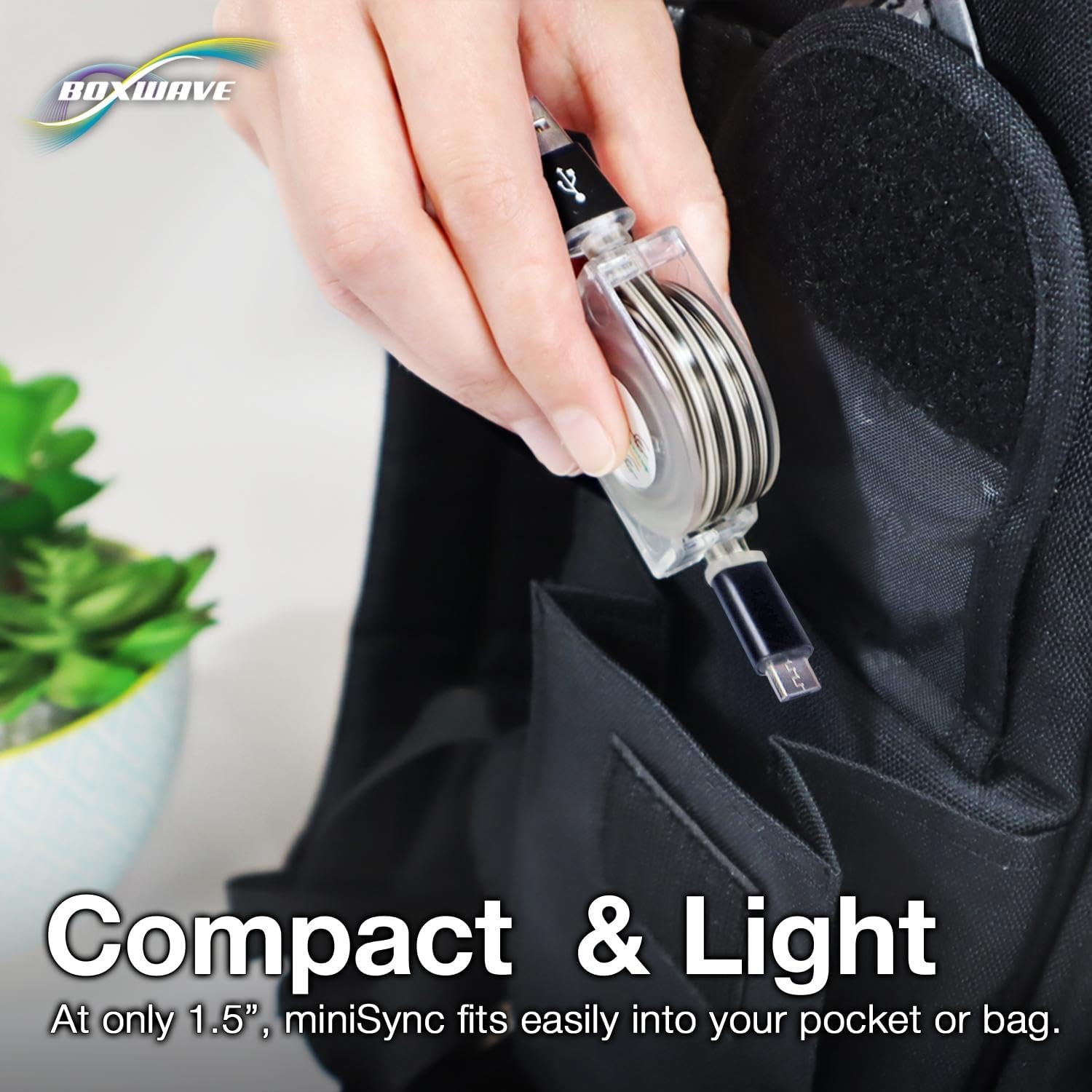
With its compact and lightweight design, the miniSync cable is highly portable, fitting easily into pockets or bags for convenient travel.
3. Setup and Usage
3.1 Extending the Cable
To extend the miniSync cable, grasp both ends of the cable and gently pull them simultaneously away from the central retraction unit. The cable will lock into pre-set lengths. Do not pull only one end or from the middle, as this can damage the internal mechanism.

This image illustrates the correct method for extending the miniSync cable: pull from both ends simultaneously to prevent damage to the retraction mechanism.

To extend the miniSync cable, gently pull both ends until it reaches the desired length. The cable can extend up to 25 inches.
3.2 Retracting the Cable
To retract the cable, pull both ends slightly further out until the locking mechanism releases. Then, allow the cable to slowly retract back into the central unit. Guide the cable gently to ensure smooth retraction.
4. Operating Instructions
4.1 Data Synchronization
Connect the micro-USB end of the miniSync cable to your compatible device (e.g., Eyoyo EY-028). Connect the standard USB-A end to a USB port on your computer. Your device should be recognized, allowing you to transfer data, such as files or firmware updates.
4.2 Charging
Connect the micro-USB end of the miniSync cable to your compatible device. Connect the standard USB-A end to a USB power adapter (e.g., wall charger, car charger, power bank) or a powered USB port on your computer. Your device will begin charging.

The miniSync cable facilitates seamless data synchronization and charging between your portable devices and computers.

The miniSync cable offers multiple adjustable lengths, allowing comfortable use of your device while it charges or syncs.

The miniSync cable supports high-speed USB 2.0 data transfers and efficient charging, providing up to 15W power delivery.
5. Care and Maintenance
- Proper Handling: Always pull both ends of the cable simultaneously when extending or retracting to prevent damage to the internal mechanism.
- Cleaning: Use a soft, dry cloth to wipe the cable and connectors. Avoid using harsh chemicals or abrasive materials.
- Storage: When not in use, ensure the cable is fully retracted and stored in a clean, dry place away from extreme temperatures.
- Avoid Kinks: While the cable is designed to be durable, avoid sharp bends or excessive force that could lead to kinks or internal wire damage.
6. Troubleshooting
6.1 Cable Not Charging Device
- Check Connections: Ensure both ends of the cable are securely plugged into the device and the power source.
- Verify Power Source: Test the power adapter or USB port with another known working cable to confirm it provides power.
- Inspect Cable: Check for any visible damage to the cable or connectors.
6.2 Data Transfer Issues
- Secure Connection: Ensure the cable is firmly connected to both the device and the computer's USB port.
- Computer Recognition: Verify that your computer recognizes the connected device. You may need to check device manager settings or install specific drivers for your device.
- Try Different Port/Computer: Test the cable with a different USB port on your computer or another computer to rule out port-specific issues.
7. Technical Specifications
| Attribute | Value |
|---|---|
| Model Name | miniSync |
| Item Weight | 1.3 ounces (approx. 36.85 grams) |
| Cable Type | USB-A to Micro-USB |
| Data Transfer Speed | USB 2.0 (High Speed) |
| Maximum Extended Length | 25 inches (approx. 63.5 cm) |
| Retracted Length | 3 inches (approx. 7.6 cm) |
| Manufacturer | BoxWave |
| Country of Origin | China |
8. Warranty and Support
BoxWave provides high-quality accessories designed to protect and enhance your devices. For any technical inquiries regarding your miniSync cable, limited 3rd party tech support is available (up to 3 inquiries via messaging). Please refer to your purchase documentation or the BoxWave website for specific warranty details and contact information.
Ask a question about this manual
Ask about setup, troubleshooting, compatibility, parts, safety, or missing instructions. Manuals+ will review the question and use this page’s manual context to help answer it.