
Gofunly H6
Gofunly Kids Instant Print Camera H6 User Manual
Model: H6
Introduction
This manual provides detailed instructions for the safe and effective use of your Gofunly Kids Instant Print Camera, Model H6. Please read this manual thoroughly before operating the device and retain it for future reference.
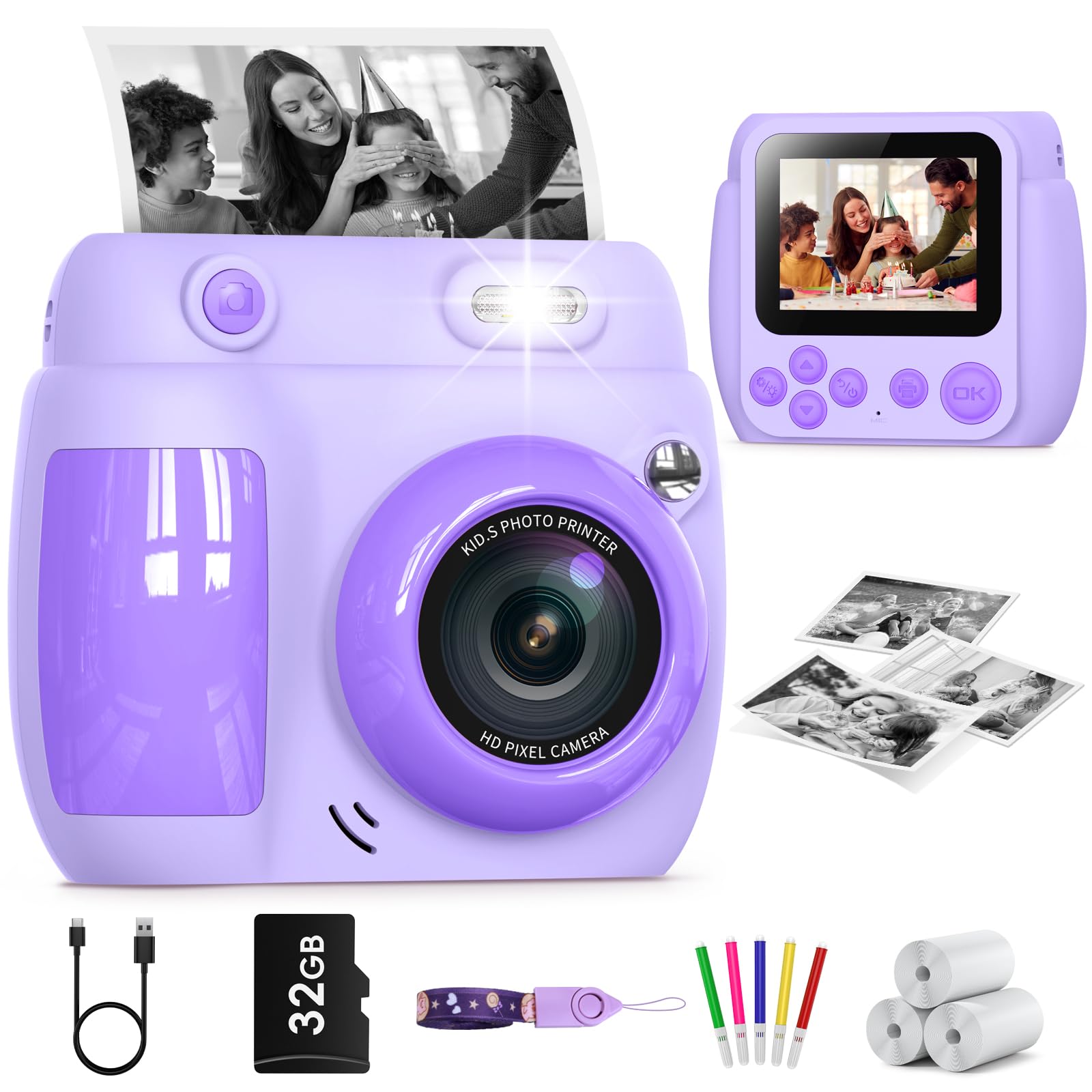
Image: The Gofunly Kids Instant Print Camera H6, purple model.
Package Contents
Upon opening your Gofunly Kids Instant Print Camera package, you should find the following items:
- Gofunly Kids Instant Print Camera (Model H6)
- USB Charging Cable
- Lanyard
- 3 Rolls of Print Paper
- 32GB SD Card (pre-installed or included)
- Color Markers (for decorating printed photos)

Image: All items included in the Gofunly Kids Instant Print Camera package.
Setup
1. Charging the Camera
Before first use, ensure the camera is fully charged. Connect the provided USB charging cable to the camera's USB port and to a compatible USB power source (e.g., computer, wall adapter). The charging indicator will show the charging status.

Image: Illustration of the USB charging port and SD card slot on the camera.
2. Installing Print Paper
The camera uses thermal print paper. Follow these steps to install or replace a roll:
- Pull open the film door on the side of the camera.
- Insert a new roll of print paper, ensuring the paper feeds out from the top and approximately 1-2 inches are extended.
- Close the film door securely.
- The camera is now ready to print photos.

Image: Step-by-step guide for installing print paper.
Video: Demonstration of how to install print paper into the camera.
Operating Instructions
1. Power On/Off
Press and hold the power button to turn the camera on or off.
2. Basic Camera Functions
The camera features a 2.4-inch IPS screen and intuitive controls. Navigate through the menu using the directional buttons and confirm selections with the 'OK' button.
- Camera Mode: Capture color photos.
- Video Mode: Record 1080P HD videos.
- Music Player: Play stored music files.
- Games: Enjoy 4 built-in puzzle games.
- Playback: View captured photos and videos.
- Settings: Adjust camera parameters.

Image: Overview of the camera's multifunctional capabilities.
3. Taking Photos and Printing
In Camera Mode, press the shutter button to take a photo. The camera can instantly print black-and-white photos using thermal paper. You can also choose to save photos to the 32GB SD card without printing.

Image: The camera capturing and printing a black and white photo.
Video: A child demonstrating taking a photo and printing it instantly.
4. Using Frames and Filters
The camera includes various frames and filters to enhance photos. Access these options through the camera's menu before taking a picture.

Image: Examples of frames and filters available on the camera.
5. Digital Zoom
The camera supports up to 10x digital zoom. Use the zoom buttons to adjust the magnification before capturing an image or video.
Image: Illustration of the camera's 10x digital zoom feature.
6. Flash Function
The camera has a built-in flash for low-light conditions. Activate or deactivate the flash through the camera settings. Caution: Do not look directly into the flash light when it is on.

Image: Comparison of photos taken with flash on and flash off.
Maintenance
- Cleaning: Use a soft, dry cloth to clean the camera body and screen. Do not use liquid cleaners or solvents.
- Storage: Store the camera in a cool, dry place away from direct sunlight and extreme temperatures.
- Battery Care: To prolong battery life, avoid fully discharging the battery frequently. Charge regularly.
- Paper Storage: Keep print paper rolls in a dry place, away from moisture and heat, to ensure optimal print quality.
Troubleshooting
| Problem | Possible Cause | Solution |
|---|---|---|
| Camera does not turn on. | Low battery. | Charge the camera fully using the provided USB cable. |
| Photos are not printing. | Print paper incorrectly installed or depleted. | Check paper installation (refer to "Installing Print Paper" section) or replace the paper roll. |
| Poor print quality. | Low battery, old paper, or dirty print head. | Ensure camera is charged. Replace paper. Gently clean the print head if accessible (refer to manual for specific instructions if available). |
| Cannot save photos/videos. | SD card full or not inserted correctly. | Check if the 32GB SD card is properly inserted. Delete old files or format the card if necessary (backup important data first). |
Specifications
| Feature | Detail |
|---|---|
| Brand | Gofunly |
| Model Name | H6 |
| Color | Purple |
| Screen Size | 2.4 Inches |
| Total Still Resolution | 48 MP |
| Effective Still Resolution | 12 MP |
| Video Resolution | 1080p |
| Frame Rate | 30 FPS |
| Optical Zoom | 10 x |
| Image Stabilization | False |
| Supported File Format | JPEG, MP4 |
| Battery Capacity | 1000 Milliamp Hours |
| Recording Capacity | 2 Hours |
| Memory Storage Capacity | 32 GB (External-Memory Size) |
| Special Feature | Built In Flash |
| Material | Plastic |
| Water Resistance Level | Not Water Resistant |
Warranty Information
The product information indicates that there is no explicit warranty provided for this item. Please refer to the retailer's return policy for details on returns or exchanges.
Support
For any questions or assistance regarding your Gofunly Kids Instant Print Camera, please contact Gofunly customer support. They offer 24/7 professional customer support.
You can also visit the official Gofunly store for more product information and support: Gofunly Store
Ask a question about this manual
Ask about setup, troubleshooting, compatibility, parts, safety, or missing instructions. Manuals+ will review the question and use this page’s manual context to help answer it.