
eufy X10 Pro Omni
Eufy X10 Pro Omni Robot Vacuum Cleaner User Manual
Model: X10 Pro Omni (T2351)
1. Introduction
The Eufy X10 Pro Omni is an advanced robot vacuum cleaner designed to provide comprehensive floor cleaning with both vacuuming and mopping capabilities. It features MopMaster 2.0 technology, iPath intelligent navigation, and powerful 8000 Pa suction for efficient cleaning of various floor types. The integrated Omni Station offers automatic dust emptying, mop washing, water refilling, and mop drying for a hands-free cleaning experience.

Image 1.1: Eufy X10 Pro Omni Robot Vacuum and its Omni Station.

Image 1.2: Overview of the Eufy X10 Pro Omni highlighting its MopMaster 2.0 system and 8000 Pa suction.
2. Package Contents
Verify that all components are present in the package before initial setup.
- Omni Station (includes dust bag)
- Robot Vacuum (includes roller brush, dust bin, and 2 mop pads)
- Detachable Base
- Power Cord
- Documentation (User Manual, Quick Start Guide)

Image 2.1: Visual representation of the items included in the Eufy X10 Pro Omni package.
3. Safety Instructions
Read all safety instructions carefully before using the appliance. Failure to follow these instructions may result in electric shock, fire, or serious injury.
- This appliance can be used by children aged 8 years and above and persons with reduced physical, sensory or mental capabilities or lack of experience and knowledge if they have been given supervision or instruction concerning use of the appliance in a safe way and understand the hazards involved.
- Children should be supervised to ensure that they do not play with the appliance.
- Cleaning and user maintenance shall not be made by children without supervision.
- Ensure the robot is used on stable, flat surfaces.
- Keep fingers, hair, and loose clothing away from moving parts.
- Do not operate the robot in areas with open flames or explosive materials.
- Only use the original power adapter and charging station provided.
- Do not immerse the robot or charging station in water.

Image 3.1: The Eufy X10 Pro Omni includes child safety features to prevent accidental activation and provides voice reminders for operational status.
4. Setup
4.1 Unboxing and Initial Placement
Carefully remove all components from the packaging. Choose a suitable location for the Omni Station, ensuring it is against a wall with at least 0.5 meters (1.6 feet) of clear space on both sides and 1.5 meters (4.9 feet) in front. Avoid placing it near stairs or obstacles that could block the robot's return path.
4.2 Charging Station Setup
- Connect the power cord to the Omni Station and plug it into a wall outlet.
- Ensure the power indicator on the station lights up.
- Place the robot onto the charging contacts of the Omni Station. The robot will automatically begin charging.
4.3 First Use and App Connection
- Fully charge the robot before its first use. This typically takes 4-6 hours.
- Download the Eufy Clean app from your smartphone's app store (iOS or Android).
- Open the app, create an account, and follow the on-screen instructions to add your Eufy X10 Pro Omni. This will involve connecting the robot to your home Wi-Fi network.
- Once connected, the robot will perform an initial mapping run of your home. Ensure all doors are open and clear any small obstacles to allow for accurate mapping.
5. Operating Instructions
5.1 Cleaning Modes
The Eufy X10 Pro Omni offers various cleaning modes accessible via the Eufy Clean app:
- Auto Clean: The robot intelligently cleans your entire home.
- Spot Clean: Cleans a specific area with concentrated effort.
- Zone Clean: Allows you to select specific zones on the map for cleaning.
- Room Clean: Cleans selected rooms.
- Vacuum Only: Disables mopping function for carpeted areas or when mopping is not desired.
- Mop Only: Focuses solely on mopping hard floors.
5.2 Scheduling
Use the Eufy Clean app to set up cleaning schedules for specific times and days. You can customize cleaning modes and areas for each schedule.
5.3 Virtual Boundaries and No-Go Zones
After the initial mapping, you can define virtual boundaries and no-go zones in the app to prevent the robot from entering certain areas or crossing specific lines. This is useful for protecting delicate items or areas where the robot might get stuck.

Image 5.1: The Eufy Clean app allows for customized cleaning schedules and defining specific zones.
5.4 MopMaster 2.0 System
The MopMaster 2.0 system provides effective mopping with 1 kg of downward pressure and 180 RPM rotating mop pads. It automatically lifts the mop pads by 12 mm when detecting carpets to prevent wetting them.

Image 5.2: MopMaster 2.0 technology ensures effective stain removal and carpet protection.

Image 5.3: The robot automatically lifts its mop pads by 12mm when transitioning from hard floors to carpets.
5.5 iPath Navigation and Obstacle Avoidance
The iPath navigation system uses advanced sensors and AI.See technology to map your home and detect over 100 types of objects, including shoes, cables, and pet waste. This allows the robot to navigate efficiently and avoid collisions, even in low-light conditions.
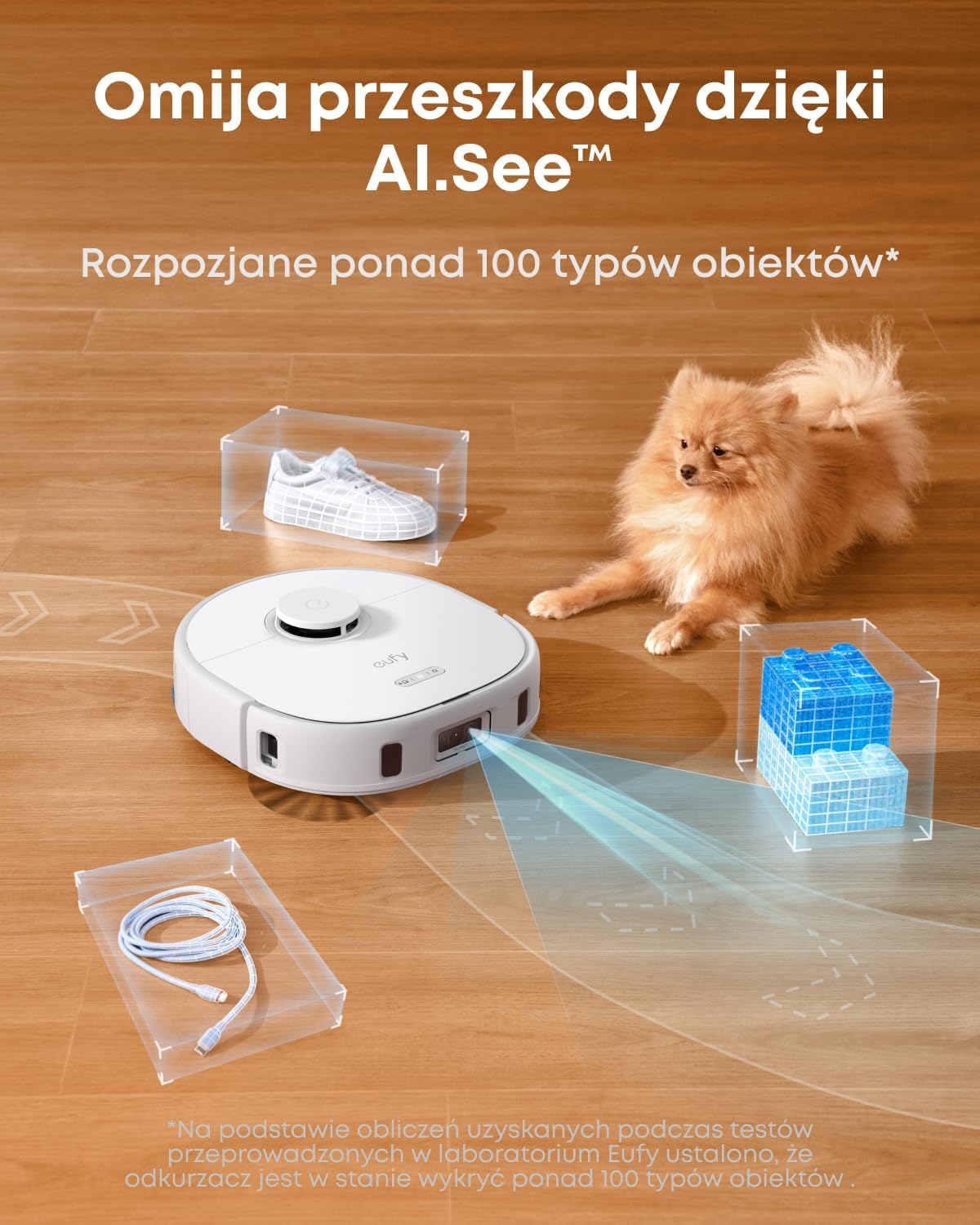
Image 5.4: The AI.See technology enables the robot to recognize and avoid common household obstacles.

Image 5.5: Intelligent navigation allows the robot to detect and avoid over 100 types of obstacles.
5.6 Suction Power
With 8000 Pa of suction power, the Eufy X10 Pro Omni effectively removes pet hair, dust, and debris from both hard floors and carpets in a single pass. The specialized filter captures microscopic particles (0.3 µm+) and allergens, contributing to cleaner air.

Image 5.6: The 8000 Pa suction power is ideal for homes with pets, effectively removing pet hair.

Image 5.7: The Pro-Detangle comb automatically removes tangled hair and fur from the brush roll, reducing manual cleaning.
6. Maintenance
Regular maintenance ensures optimal performance and extends the lifespan of your Eufy X10 Pro Omni.
6.1 Omni Station Maintenance
The Omni Station is designed for hands-free maintenance, performing several tasks automatically:
- Automatic Emptying: The robot automatically empties its dust bin into a 2.5L dust bag in the station, which can last up to 2 months depending on usage.
- Automatic Mop Cleaning: The station washes the mop pads with clean water after each cleaning session.
- Automatic Refilling: The station refills the robot's water tank from its 3L clean water tank, allowing for extensive mopping coverage.
- Automatic Mop Drying: After cleaning, the mop pads are dried with 45°C warm air for 2 hours to prevent mold and odors.

Image 6.1: The 4-in-1 Omni Station handles automatic mop washing, drying, dust emptying, and water refilling.

Image 6.2: The robot automatically empties its dust bin into the station's 2.5L dust bag.

Image 6.3: Mop pads are automatically dried with 45°C warm air to prevent odors and bacterial growth.
6.2 Dust Bin and Filter Maintenance
Although the dust bin is automatically emptied, it is recommended to periodically check and clean the dust bin and filter. Tap the dust bin to remove loose dirt and brush off the filter. Replace the filter every 3-6 months, or as needed.
6.3 Mop Pad Cleaning and Replacement
The mop pads are self-cleaned by the station. However, for thorough cleaning, you can detach the mop pads and hand wash them or machine wash them gently. Replace mop pads every 1-3 months, depending on usage.
6.4 Brush Roll Cleaning
Periodically remove the main brush roll and use the cleaning tool to remove any tangled hair or debris. The Pro-Detangle comb helps reduce tangles, but manual inspection is still recommended.
6.5 Sensor Cleaning
Wipe all sensors (cliff sensors, wall sensor, charging contacts) on the robot and the Omni Station with a clean, dry cloth to ensure proper functionality and navigation.
7. Troubleshooting
If you encounter issues with your Eufy X10 Pro Omni, refer to the following common problems and solutions:
| Problem | Possible Cause | Solution |
|---|---|---|
| Robot does not start or respond. | Low battery; Power switch off; Robot stuck. | Charge the robot; Turn on the power switch; Clear obstacles. |
| Robot cannot return to charging station. | Charging station blocked; Robot too far from station. | Ensure clear path to station; Manually place robot on station. |
| Poor cleaning performance. | Dust bin full; Filter clogged; Brush roll tangled; Mop pads dirty. | Empty dust bin; Clean/replace filter; Clean brush roll; Clean/replace mop pads. |
| Robot gets stuck frequently. | Too many obstacles; Virtual boundaries not set. | Clear floor of small items; Set virtual boundaries in the app. |
| Mop pads not drying properly. | Drying vent blocked; Environmental humidity. | Ensure drying vent is clear; Allow more time for drying. |
For more detailed troubleshooting, refer to the Eufy Clean app or contact customer support.
8. Specifications
| Feature | Specification |
|---|---|
| Brand | eufy |
| Model Name | Eufy X10 Pro Omni |
| Model Number | T2351 |
| Color | White |
| Robot Dimensions | 32.7 x 35.3 x 11.35 cm |
| All-in-One Station Dimensions | 36.6 x 48 x 46 cm |
| Suction Power | 8000 Pa |
| Mop Pressure | 1 kg |
| Mop Rotation Speed | 180 RPM |
| Mop Lift Height | 12 mm |
| Dust Bag Capacity | 2.5 L |
| Clean Water Tank Capacity | 3 L (in station) |
| Battery Composition | Lithium-ion |
| Controller Type | App |
| Compatible Models | Smartphones |
| Surface Recommendation | Marble, laminate, linoleum, tiles, carpet, wood, vinyl, concrete, wood-based material |
| Included Components | Filter |
| Filter Type | Standard |

Image 8.1: Detailed dimensions of the Eufy X10 Pro Omni robot and its Omni Station.
9. Warranty Information
Eufy products are covered by a limited warranty from the date of purchase. Please refer to the warranty card included in your package or visit the official Eufy website for detailed warranty terms and conditions. Keep your proof of purchase for warranty claims.
10. Support
For technical support, product inquiries, or service requests, please contact Eufy Customer Support through the following channels:
- Eufy Clean App: Access FAQs, troubleshooting guides, and direct support within the app.
- Official Website: Visit www.eufylife.com for support resources, product registration, and contact information.
- Email Support: Refer to your product documentation for the specific support email address for your region.
- Phone Support: Check the Eufy website for regional phone support numbers.