
Introduction
This manual provides instructions for the KEFEYA P5-15.6" Laptop Screen Extender, a portable monitor designed to expand your laptop's display capabilities. It offers a 15.6-inch Full HD 1080P IPS display, enhancing productivity and visual experience for various applications. This device is compatible with a wide range of operating systems including MAC, Windows, Android, Linux, and Chrome OS.
Package Contents
Verify that all items are present in the package:
- Monitor * 1
- Type-C to Type-C Cable * 1
- USB-A to Type-C Cable * 1
- HDMI to Type-C Cable * 1
- Single Screen Stand * 1
- User Manual * 1
- Quick Start Guide * 1
- Box * 1

Image: The KEFEYA P5-15.6" Laptop Screen Extender shown with its packaging and all included cables and accessories, including the monitor, Type-C cables, HDMI cable, stand, and documentation.
Setup and Installation
The KEFEYA P5-15.6" Laptop Screen Extender is designed for easy plug-and-play setup.
Attaching the Extender to Your Laptop
The extender features a design that allows it to attach securely to your laptop. Ensure your laptop is between 13 and 17.3 inches diagonally for optimal fit.

Image: A KEFEYA P5-15.6" Laptop Screen Extender attached to a laptop, illustrating its compatibility with laptops ranging from 13 to 17.3 inches.
Using the Detachable Stand
The portable dual screen extender includes a detachable stand for stable support and 360° rotation. This allows for horizontal or vertical use after removal from the laptop.

Image: Rear view of the KEFEYA P5-15.6" screen extender, highlighting the detachable stand that supports 360-degree rotation and the transparent back cover.
Connection Modes
The KEFEYA P5-15.6" Laptop Screen Extender supports multiple connection methods to ensure broad compatibility.
Type-C Connection
For a single-cable connection, ensure your laptop has a full-featured Type-C port that supports video output and power delivery.
Image: A diagram illustrating the Type-C connection method, showing a single Type-C cable connecting the laptop to the screen extender. It also indicates compatible and incompatible Type-C port icons.
USB-A + HDMI Connection
If your laptop does not have a full-featured Type-C port, you can use a combination of USB-A and HDMI cables. Connect the HDMI cable to the port labeled "USB C with DP" on the back of the screen.
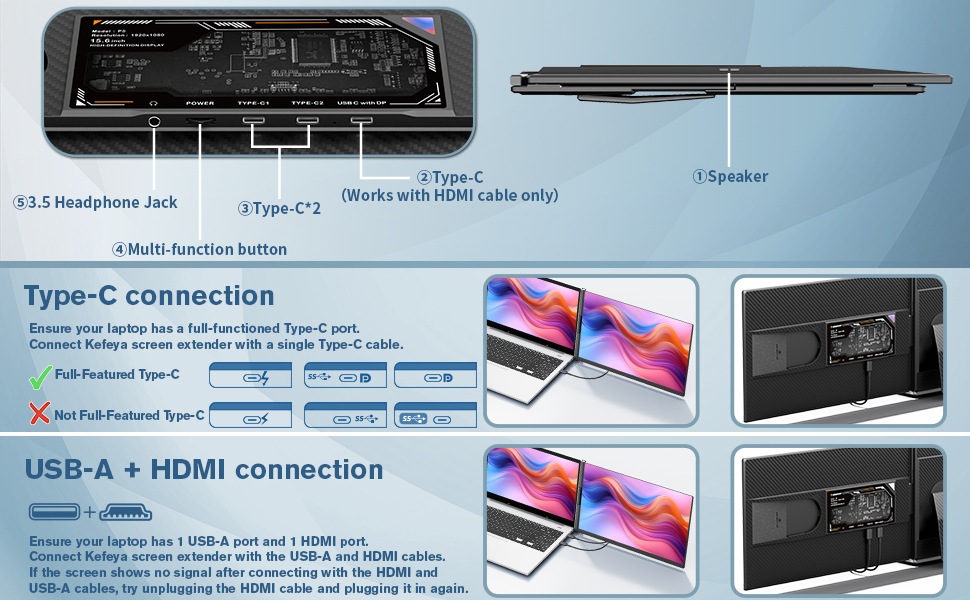
Image: A diagram illustrating the USB-A and HDMI connection method, showing both cables connecting the laptop to the screen extender. It notes to plug the HDMI cable into the correct port on the screen.
Operating the Extender
Display Modes
The extender supports various display modes to suit your workflow:
- Extended Mode: Expands your desktop across both screens, allowing for more workspace.
- Duplicated Mode: Mirrors your laptop's display on the extender.
- Portrait Mode: Displays content vertically, ideal for coding or long documents.
- Horizontal Mode: Standard landscape display.

Image: Visual representations of the four primary display modes: Extended, Duplicated, Vertical, and Horizontal, demonstrating how the screen extender can be configured.
Controls and Adjustments
The monitor features a multi-function button for independent adjustment of brightness, sound, and contrast. It also includes a 3.5mm headphone jack.

Image: A detailed view of the screen extender's side, showing the 3.5mm headphone jack, power port, two Type-C ports (one for HDMI), and the multi-function button.
Maintenance
To ensure the longevity and optimal performance of your KEFEYA P5-15.6" Laptop Screen Extender, follow these maintenance guidelines:
- Cleaning: Use a soft, lint-free cloth to gently wipe the screen and exterior. For stubborn marks, slightly dampen the cloth with water or a screen-safe cleaner. Avoid harsh chemicals or abrasive materials.
- Storage: When not in use, fold the extender into its compact size and store it in a protective bag or case to prevent scratches and damage.
- Handling: Always handle the extender with care. Avoid dropping it or applying excessive pressure to the screen.
- Temperature: Operate and store the device within recommended temperature ranges to prevent damage to internal components.
Troubleshooting
If you encounter issues with your KEFEYA P5-15.6" Laptop Screen Extender, refer to the following common problems and solutions:
No Signal / Black Screen
- Check Cables: Ensure all cables (Type-C, HDMI, USB-A) are securely connected to both the extender and your laptop. Try unplugging and re-plugging them.
- Power Supply: Verify that the extender is receiving sufficient power. If using USB-A + HDMI, ensure the USB-A cable is connected for power.
- Laptop Port Compatibility: If using Type-C, confirm your laptop's Type-C port supports video output (DisplayPort Alternate Mode). Not all Type-C ports are full-featured.
- Display Settings: On your laptop, check display settings (e.g., Windows Display Settings, macOS System Preferences > Displays) to ensure the external monitor is detected and configured for extended or duplicated mode.
- Driver Updates: Ensure your laptop's graphics drivers are up to date.
Flickering Screen
- Cable Quality: Try using different cables, especially if the current ones are old or damaged.
- Resolution/Refresh Rate: Lower the display resolution or refresh rate in your laptop's display settings to see if it resolves the issue.
- Power Fluctuation: Ensure a stable power source. If using a USB hub, try connecting directly to the laptop.
Image Quality Issues (Blurry, Incorrect Colors)
- Resolution: Ensure the extender's resolution is set to its native 1920x1080 (1080P) in your laptop's display settings.
- Cable Connection: Re-seat the video cables. A loose connection can cause image degradation.
- Monitor Settings: Use the multi-function button on the extender to adjust brightness, contrast, and color settings.
Audio Not Working
- Volume: Check the volume level on both the extender (using the multi-function button) and your laptop.
- Audio Output: Ensure the KEFEYA extender is selected as the audio output device in your laptop's sound settings.
- Cable: If using HDMI, ensure the HDMI cable is properly connected as it carries audio.
If problems persist, please contact KEFEYA customer support for further assistance.
Specifications
| Feature | Detail |
|---|---|
| Model | P5 |
| Screen Size | 15.6 Inches |
| Resolution | 1920 x 1080 Pixels (FHD 1080p) |
| Aspect Ratio | 16:9 |
| Image Brightness | 300 nits |
| Screen Surface | Glossy |
| Product Dimensions | 0.98 x 14.37 x 8.27 inches |
| Item Weight | 2.76 pounds |
| Compatibility | MAC, Windows, Android, Linux, Chrome OS (for 13-17.3" laptops) |
Warranty and Support
KEFEYA provides a one-year warranty for the P5-15.6" Laptop Screen Extender.
For any connection problems, technical issues, or other inquiries, please contact our after-sales support team directly.
You can find additional support and information on the official KEFEYA store page: Visit KEFEYA Store
For the full User Manual in PDF format, please refer to: User Manual (PDF)

