
1. Introduction
This manual provides detailed instructions for the setup, operation, and maintenance of your HMD Gaming Outfit FSN-CTRL. This gamepad is designed to enhance your mobile gaming experience, offering precise controls and a comfortable grip. It is primarily intended for use with the HMD Fusion device via Smart Pins connection, and is also compatible with Android TV and Android smartphones supporting OTG via USB-C.
2. Product Overview
The HMD Gaming Outfit FSN-CTRL features an ergonomic design with 18 responsive buttons, including two triggers and two joysticks, for comprehensive control during gameplay. It integrates seamlessly with the HMD Fusion via Smart Pins for ultra-low latency connectivity.
2.1. Package Contents
- HMD Gaming Outfit FSN-CTRL Gamepad
- Instruction Manual (this document)
2.2. Component Identification
Refer to the images below for a visual guide to the gamepad's components.

Figure 1: Front view of the HMD Gaming Outfit FSN-CTRL with an HMD Fusion device inserted. This image displays the left and right gamepad sections, including the D-pad, left joystick, HMD logo button, and action buttons (A, B, X, Y), and the right joystick. The phone screen is visible in the center.
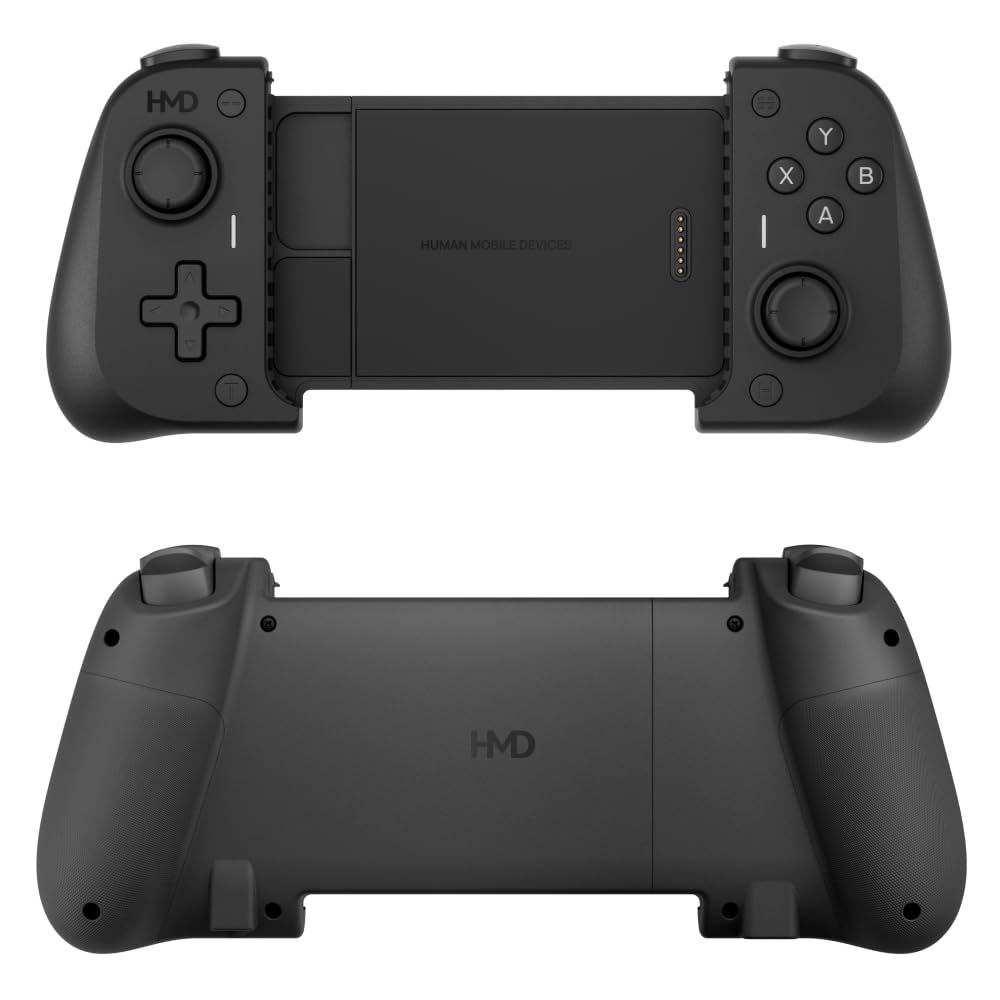
Figure 2: Top image shows the front view of the HMD Gaming Outfit FSN-CTRL without a phone, highlighting the central slot for device insertion and the Smart Pins connector. The bottom image shows the rear view of the gamepad, displaying the ergonomic grips and the HMD branding.
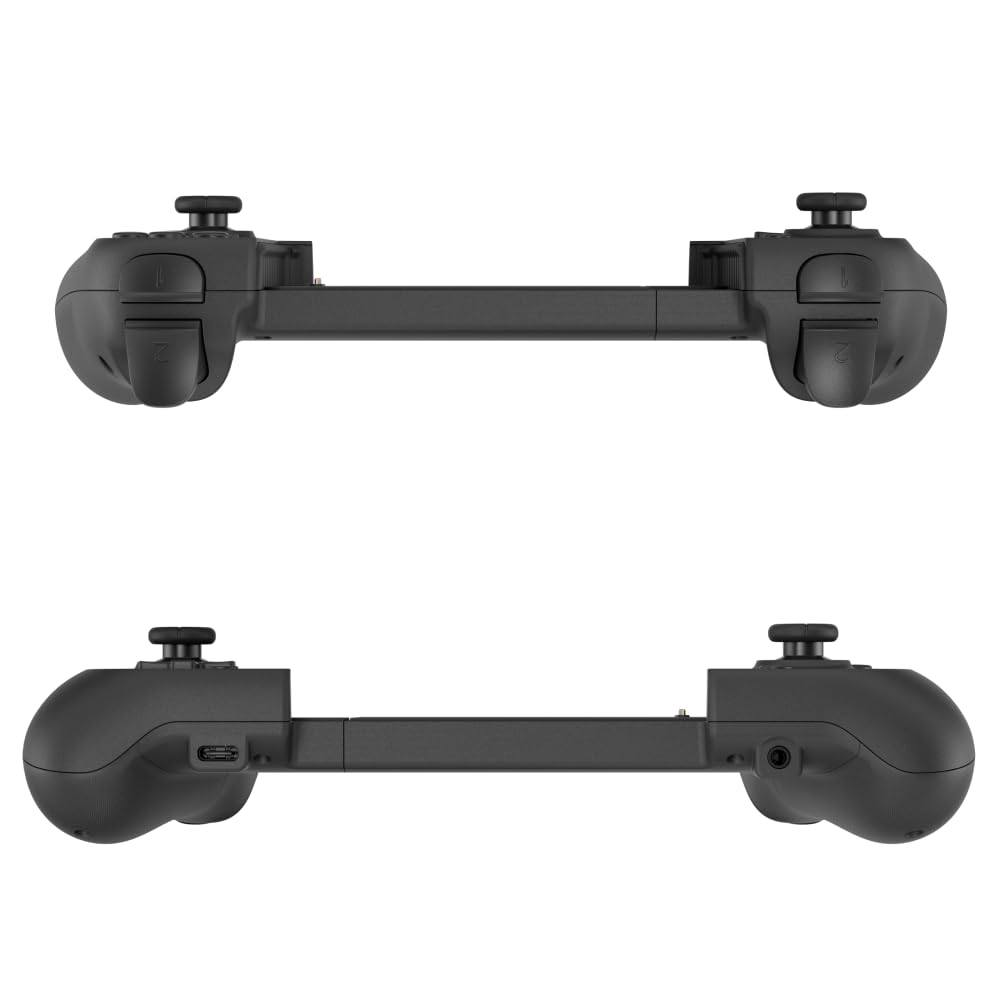
Figure 3: Top image shows the top edge of the gamepad, illustrating the shoulder buttons (L1, R1) and triggers (L2, R2). The bottom image shows the bottom edge, revealing the USB-C port on the left side and the 3.5mm audio jack on the right side.
2.3. Key Features
- 18 Buttons: Includes D-pad, action buttons (A, B, X, Y), two joysticks, two triggers, and two shoulder buttons for comprehensive control.
- Smart Pins Connection: Provides ultra-low latency connectivity specifically for the HMD Fusion device.
- Turbo Mode: Allows for automatic repeating clicks for selected buttons.
- 3.5mm Audio Jack: Integrated audio port for connecting headphones or headsets.
- USB-C Connectivity: Supports connection to Android TV and Android smartphones with OTG support.
- No Software Needed: Plug-and-play functionality for immediate use.
3. Setup
3.1. Connecting to HMD Fusion (Smart Pins)
- Gently expand the gamepad by pulling the left and right sections apart.
- Carefully align your HMD Fusion device with the central slot of the gamepad.
- Ensure the Smart Pins on the gamepad connect securely with the corresponding port on your HMD Fusion.
- Release the gamepad sections, allowing them to grip the HMD Fusion firmly.
- The gamepad should be automatically recognized by your HMD Fusion. No additional software installation is required.
Note: Ensure your HMD Fusion is properly seated to establish a stable connection and prevent potential display issues.
3.2. Connecting to Android TV / Android Smartphone (USB-C OTG)
- Connect a USB-C to USB-C cable (not included) from the USB-C port on the HMD Gaming Outfit (refer to Figure 3) to your Android TV or Android smartphone.
- Ensure your Android device supports USB On-The-Go (OTG) functionality.
- The gamepad should be recognized as an input device. Some devices may require enabling OTG in settings.
Note: This connection method does not utilize the Smart Pins and may not offer the same integrated experience as with the HMD Fusion.
4. Operating Instructions
Once connected, the HMD Gaming Outfit functions as a standard gamepad. Button mapping may vary depending on the game or application. Most modern games with controller support will automatically detect and map the buttons.
4.1. Basic Controls
- D-Pad: Directional input (Up, Down, Left, Right).
- Left Joystick: Primary movement control.
- Right Joystick: Camera control or secondary movement.
- Action Buttons (A, B, X, Y): Context-sensitive actions within games (e.g., jump, attack, interact).
- Shoulder Buttons (L1, R1): Often used for quick actions or weapon switching.
- Triggers (L2, R2): Analog input for actions like accelerating, braking, or firing.
- HMD Button: May function as a home button or menu button depending on the device/game.
4.2. Turbo Mode Function
The Turbo function allows a selected button to repeatedly register input as long as it is held down, which can be useful in certain games.
- Press and hold the desired action button (e.g., A, B, X, Y, L1, R1, L2, R2).
- While holding the action button, press the Turbo button (location may vary, typically a dedicated button or a combination with a function button).
- Release both buttons. The selected button is now in Turbo mode.
- To deactivate Turbo mode for that button, repeat the process: hold the button, then press the Turbo button again.
Note: Not all games benefit from or support Turbo mode. Use it as appropriate for your gaming style.
4.3. Using the 3.5mm Audio Jack
The integrated 3.5mm audio jack allows you to connect a standard wired headset or headphones directly to the gamepad for in-game audio and voice communication.
- Plug your 3.5mm headset into the audio jack located on the right side of the gamepad (refer to Figure 3).
- Audio output and microphone input will be routed through the gamepad.
- Adjust volume settings on your connected device (HMD Fusion, Android TV, or smartphone).
5. Maintenance
- Cleaning: Use a soft, dry cloth to wipe the surface of the gamepad. For stubborn dirt, a slightly damp cloth can be used, followed by immediate drying. Avoid abrasive cleaners or solvents.
- Storage: Store the gamepad in a cool, dry place away from direct sunlight and extreme temperatures.
- Handling: Avoid dropping the gamepad or subjecting it to strong impacts. Do not attempt to disassemble the device, as this will void the warranty.
6. Troubleshooting
6.1. Gamepad Not Responding
- HMD Fusion Connection: Ensure the HMD Fusion device is securely seated and the Smart Pins are making proper contact. Try removing and re-inserting the device.
- USB-C Connection: Verify the USB-C cable is fully inserted into both the gamepad and the host device. Try a different USB-C cable if available.
- OTG Support: For Android smartphones/TVs, confirm that OTG functionality is enabled in your device's settings.
- Restart Device: Restart your HMD Fusion, Android TV, or smartphone and reconnect the gamepad.
6.2. Buttons Not Working Correctly
- Game Compatibility: Not all games support external gamepads. Check the game's settings or description for controller support.
- Calibration: Some operating systems or emulators offer gamepad calibration tools. Refer to your device's documentation.
- Physical Obstruction: Ensure no debris is lodged around the buttons or joysticks.
6.3. Audio Issues with 3.5mm Jack
- Headset Connection: Ensure your headset is fully plugged into the gamepad's 3.5mm jack.
- Volume Settings: Check the volume levels on your connected device and within the game/application.
- Headset Functionality: Test your headset with another device to confirm it is working correctly.
7. Specifications
| Feature | Detail |
|---|---|
| Model Number | FSN-CTRL |
| Brand | HMD |
| Connectivity | Smart Pins (for HMD Fusion), USB-C (for Android TV/Smartphones with OTG) |
| Number of Buttons | 18 (including 2 triggers, 2 joysticks) |
| Audio Port | 3.5mm Audio Jack |
| Special Features | Turbo Mode, Ultra Low Latency (via Smart Pins) |
| Dimensions (LxWxH) | 22 x 10.1 x 5.1 cm |
| Weight | 200 g |
| Manufacturer | Dongguan Bingfeng Electronic Technology Co., Ltd. |
| Country of Origin | China |
8. Warranty and Support
For warranty information and technical support, please refer to the official HMD website or contact your local HMD customer service. Keep your proof of purchase for warranty claims.
Online Support: www.hmd.com/support