
Introduction
The Verbatim Metal Mini SSD is a portable storage solution designed for high-speed data transfer. Its compact and durable metal design makes it ideal for professionals requiring fast and reliable storage on the go. This manual provides essential information for setting up, operating, maintaining, and troubleshooting your Verbatim Metal Mini SSD.
What's in the Box
- Verbatim Metal Mini SSD
- Hybrid USB-C to USB-C with USB-A adapter cable
- Quick Start Guide
- Nero backup software (Note: not compatible with Mac OS)
Product Overview
The Verbatim Metal Mini SSD offers ultra-fast read speeds of up to 2000 MB/s and write speeds of up to 1750 MB/s, facilitating quick transfer of large files such as high-resolution photos and videos. It features a robust metal housing for durability and efficient heat dissipation.

Figure 1: Top view of the Verbatim Metal Mini SSD, showcasing its textured metal surface and Verbatim logo.

Figure 2: The Verbatim Metal Mini SSD alongside its versatile USB-C to USB-C cable, which includes a detachable USB-A adapter for broad compatibility.

Figure 3: Rear view of the SSD, highlighting the USB-C port and the LED status indicator, along with product information.

Figure 4: Technical diagram illustrating the dimensions of the SSD, along with labels for the LED status, USB-C port, and keyring hole.
Setup
Setting up your Verbatim Metal Mini SSD is straightforward. Follow these steps to connect it to your device:
- Connect the Cable: Use the included USB-C to USB-C cable. If your device only has a USB-A port, attach the provided USB-A adapter to the USB-C end of the cable.
- Plug into Device: Insert the appropriate end of the cable (USB-C or USB-A) into a compatible port on your computer, smartphone, or gaming console.
- Connect to SSD: Plug the other end of the cable into the USB-C port on the Verbatim Metal Mini SSD.
- Device Recognition: Your operating system should automatically detect the SSD. For first-time use, you may need to format the drive depending on your operating system and intended use. Refer to your operating system's documentation for formatting instructions.

Figure 5: The Verbatim Metal Mini SSD connected via its cable to a laptop, demonstrating a typical setup for data transfer.
Operating Instructions
Once connected, the Verbatim Metal Mini SSD functions like any other external storage device. You can drag and drop files, use it for backups, or store large media files.
- Data Transfer: To transfer files, simply drag them to and from the SSD's drive icon on your computer. The high-speed USB-C 3.2 Gen 2x2 interface ensures rapid data transfer.
- Backup Software: The included Nero backup software can be installed on Windows PCs for automated backups. Please note that this software is not compatible with Mac OS.
- Compatibility: The SSD is compatible with Mac, PC, smartphones, and gaming consoles, making it a versatile storage solution for various devices.
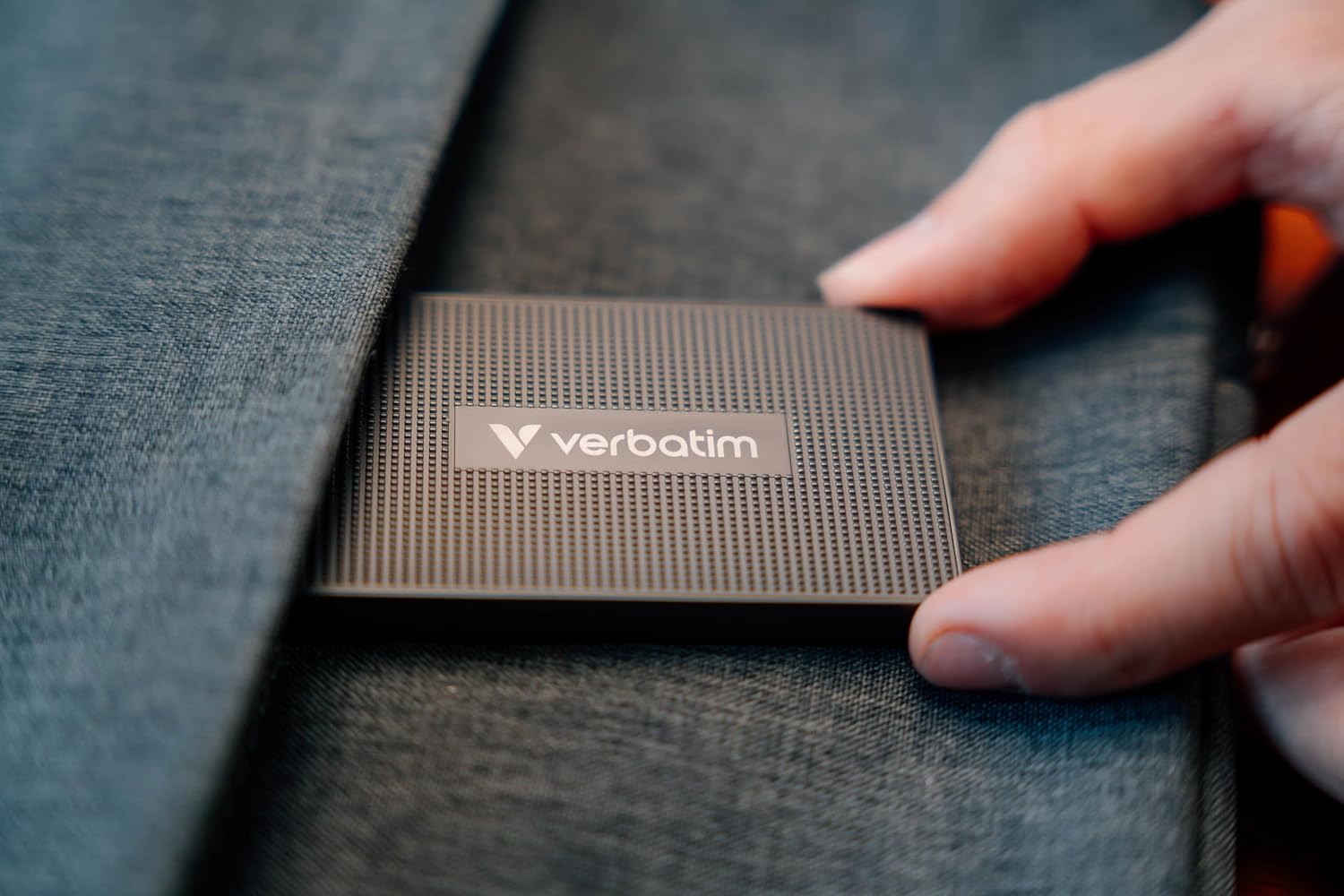
Figure 6: A close-up view of the Verbatim Metal Mini SSD being held, emphasizing its compact and portable design.

Figure 7: A user holding the Verbatim Metal Mini SSD, illustrating its small form factor and ease of handling for mobile use.
Maintenance
To ensure the longevity and optimal performance of your Verbatim Metal Mini SSD, consider the following maintenance tips:
- Safe Removal: Always safely eject or unmount the SSD from your operating system before physically disconnecting it. This prevents data corruption.
- Physical Care: While durable, avoid dropping the SSD or exposing it to extreme temperatures or moisture. Clean the exterior with a soft, dry cloth if needed.
- Firmware Updates: Periodically check the Verbatim website for any available firmware updates for your SSD model to ensure continued performance and compatibility.
- Data Backup: Regularly back up important data stored on the SSD to another location to prevent data loss in case of unforeseen issues.
Troubleshooting
If you encounter issues with your Verbatim Metal Mini SSD, try the following troubleshooting steps:
- SSD Not Detected:
- Ensure the cable is securely connected to both the SSD and your device.
- Try a different USB port on your device.
- Test the SSD with a different cable or on another computer to rule out cable or port issues.
- Check your device's Disk Management (Windows) or Disk Utility (Mac) to see if the drive is recognized but unformatted.
- Slow Transfer Speeds:
- Ensure you are connected to a USB 3.2 Gen 2x2 compatible port for optimal performance. Older USB ports will result in slower speeds.
- Close other applications that might be using system resources or performing background transfers.
- Ensure your device's drivers are up to date.
- LED Indicator Behavior:
- Refer to the Quick Start Guide for specific LED patterns and their meanings. Generally, a solid light indicates power, and a blinking light indicates data activity.
If these steps do not resolve the issue, please refer to the support section for further assistance.
Specifications
| Feature | Detail |
|---|---|
| Brand | Verbatim |
| Model Number | 32030 |
| Digital Storage Capacity | 512 GB |
| Hard Disk Interface | USB-C |
| Connectivity Technology | USB Type-C |
| Item Weight | 4.6 ounces |
| Product Dimensions (LxWxH) | 0.3 x 0.41 x 0.12 inches |
| Compatible Devices | Mac, PC, Smartphone, Gaming Console |
| Special Feature | Metal housing |
| Manufacturer | Verbatim |
| First Available Date | September 27, 2024 |
Warranty and Support
For warranty information and technical support, please refer to the official Verbatim website or contact their customer service. Keep your proof of purchase for warranty claims.
The product typically comes with a manufacturer's warranty. For details on coverage and duration, please visit www.verbatim.com or consult the warranty card included with your product.
Return Policy: This product is subject to a 30-day refund/replacement return policy from the date of purchase, as per the seller's terms.