
MSI Z890ACE
MSI MEG Z890 ACE Gaming Motherboard User Manual
Brand: MSI
Model: Z890ACE
Introduction
The MSI MEG Z890 ACE Gaming Motherboard is engineered for enthusiasts seeking peak performance and reliability. Designed to support Intel Core Ultra Series 2 Processors, this motherboard integrates cutting-edge technologies such as DDR5 memory, PCIe 5.0, Wi-Fi 7, and 10Gbps LAN to deliver an unparalleled computing experience. This manual provides essential information for setting up, operating, maintaining, and troubleshooting your motherboard.

Figure 1: MSI MEG Z890 ACE Gaming Motherboard with its retail packaging and included Wi-Fi antenna.
Setup and Installation
Proper installation is crucial for optimal performance and system stability. Follow these steps carefully.
1. Unpacking and Inspection
Carefully remove all components from the packaging. Verify that all accessories listed in the product's packing list are present. Inspect the motherboard for any visible damage before proceeding.
Figure 2: Overview of the MSI MEG Z890 ACE Motherboard and its included accessories, such as SATA cables, Wi-Fi antenna, USB drive, and various extension cables.
2. Motherboard Layout
Familiarize yourself with the key components and connectors on the motherboard.

Figure 3: Top-down view of the motherboard, highlighting the CPU socket (LGA 1851), DDR5 DIMM slots, PCIe slots, and M.2 slots with heatsinks.

Figure 4: Detailed view of the rear I/O panel, showing various USB 10G ports, USB Type-C ports, Thunderbolt 4 ports, 10Gbps LAN port, Wi-Fi 7 antenna connectors, and audio jacks.
3. Component Installation
- CPU Installation: Open the CPU socket lever. Align the CPU with the socket's notch and gently place it. Close the lever to secure the CPU.
- DDR5 Memory Installation: Open the clips on both ends of the DIMM slots. Align the memory module with the slot key and press down firmly until the clips snap into place.
- M.2 SSD Installation: Locate the M.2 slots, often covered by heatsinks. Remove the heatsink, insert the M.2 SSD into the slot, and secure it with the tool-less mechanism or screw. Reattach the heatsink.
- Graphics Card (GPU) Installation: Open the PCIe slot latch. Align the GPU with the PCIe 5.0 slot and press firmly until it clicks into place. Secure the GPU to your PC case.
- Power Supply Connections: Connect the 24-pin ATX power connector and the 8-pin + 4-pin CPU power connectors from your power supply to the motherboard.
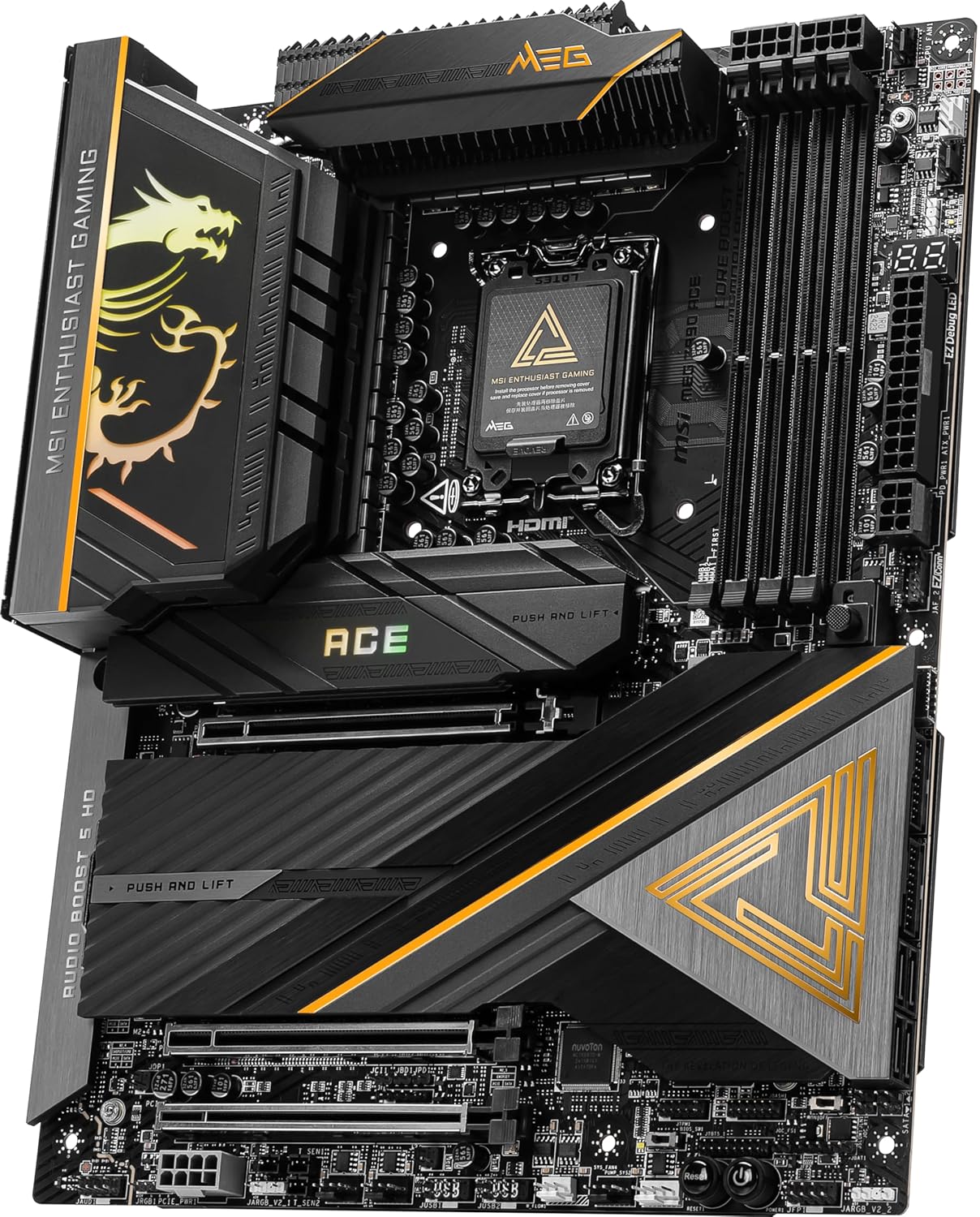
Figure 5: Angled view showcasing the CPU socket area, DDR5 memory slots, and the primary M.2 slots with their robust heatsinks, designed for optimal thermal performance.
4. Case Connections
Connect your PC case's front panel connectors (power button, reset button, USB ports, audio jacks) to the corresponding headers on the motherboard. Refer to the motherboard's detailed diagram for exact pin assignments.
Operating Instructions
1. Initial Boot and BIOS/UEFI Setup
Upon first boot, press the DEL key repeatedly to enter the BIOS/UEFI setup utility. Here you can configure boot order, enable XMP for memory, adjust fan curves, and fine-tune system settings. MSI's BIOS is designed for ease of use and offers extensive options for performance tuning.
2. Driver Installation
After installing your operating system, install the latest drivers for the chipset, LAN, Wi-Fi, audio, and other components. These can be found on the included USB drive or downloaded from the official MSI website. Keeping drivers updated ensures optimal performance and compatibility.
3. Network Connectivity
- 10Gbps LAN: Connect an Ethernet cable to the 10Gbps LAN port on the rear I/O panel for high-speed wired network access.
- Wi-Fi 7: Attach the included Wi-Fi antenna to the connectors on the rear I/O panel. Configure your wireless network settings within your operating system.
4. Thunderbolt 4 Usage
The motherboard features Thunderbolt 4 ports, providing high-bandwidth connectivity for external devices, displays, and docking stations. Ensure your Thunderbolt devices are compatible and have the latest drivers installed.
Maintenance
Regular maintenance helps prolong the lifespan and maintain the performance of your motherboard.
- Dust Removal: Periodically clean dust from the motherboard and heatsinks using compressed air. Ensure the system is powered off and unplugged before cleaning.
- BIOS Updates: Check the MSI support website for the latest BIOS updates. BIOS updates can improve stability, add new features, and enhance compatibility. Use the Flash BIOS Button on the rear I/O panel for convenient updates without a CPU or RAM installed.
- Driver and Software Updates: Regularly update your system drivers and MSI utility software to ensure optimal performance and security.
Troubleshooting
This section addresses common issues you might encounter.
- No Power/No Boot:
- Verify all power cables (24-pin ATX, 8-pin CPU, 4-pin CPU) are securely connected.
- Ensure the power supply is switched on.
- Check front panel connections (power button).
- No Display:
- Ensure the graphics card is properly seated in the PCIe slot and has sufficient power.
- Check monitor cable connections.
- If using integrated graphics, ensure your CPU supports it and the display cable is connected to the motherboard's video output.
- System Instability/Crashes:
- Check RAM seating and try one stick at a time.
- Ensure CPU cooler is properly installed and making good contact.
- Update BIOS and drivers to the latest versions.
- Reset BIOS settings to default using the Clear CMOS button on the rear I/O panel or by removing the CMOS battery for a few minutes.
- Peripheral Issues:
- Try different USB ports.
- Ensure drivers for the peripheral are installed.
- For network issues, check cable connections, Wi-Fi antenna, and driver status.
Specifications
Key technical specifications for the MSI MEG Z890 ACE Gaming Motherboard.
| Feature | Specification |
|---|---|
| CPU Socket | LGA 1851 |
| Compatible Processors | Core Ultra Series 2 Intel Processors |
| Chipset | Intel Z890 |
| RAM Technology | DDR5 |
| Max RAM Capacity | 256 GB |
| Memory Clock Speed | Up to 9200 MHz (OC) |
| LAN | 10Gbps Super LAN |
| Wireless Connectivity | Wi-Fi 7, Bluetooth 5.4 |
| Thunderbolt Ports | Thunderbolt 4 |
| Dimensions (LxWxH) | 12.86 x 11.26 x 3.38 inches |
| Item Weight | 5.94 pounds |
Warranty and Support
For warranty information, please refer to the warranty card included with your product or visit the official MSI website. MSI provides technical support for product assistance, driver downloads, and BIOS updates.
MSI Support Website: www.msi.com/support
For additional protection, consider purchasing an extended protection plan. Details on available plans can be found on the product's retail page.
Related documentsZ890ACE


Ask a question about this manual
Ask about setup, troubleshooting, compatibility, parts, safety, or missing instructions. Manuals+ will review the question and use this page’s manual context to help answer it.