
ATTACK SHARK M87 PRO
ATTACK SHARK M87 PRO Wireless Mechanical Gaming Keyboard User Manual
Model: M87 PRO | Brand: ATTACK SHARK
1. Product Overview
The ATTACK SHARK M87 PRO is a versatile mechanical gaming keyboard designed for high performance and customization. It features tri-mode connectivity (USB-C wired, 2.4Ghz wireless, and Bluetooth 5.0), allowing seamless switching between multiple devices. The keyboard boasts a hot-swappable design, enabling users to easily customize switches. Its gasket structure with five layers of padding ensures a pure and HIFI keystroke sound, while the vibrant 16.8M RGB illumination enhances the gaming atmosphere. Equipped with a 5000mAh battery, it offers extended usage on a single charge and is compatible with both Windows and Mac operating systems.

Figure 1: Top view of the ATTACK SHARK M87 PRO Wireless Mechanical Gaming Keyboard.
2. Package Contents
- ATTACK SHARK M87 PRO Wireless Mechanical Gaming Keyboard
- 2-in-1 Keycap Switch Puller
- USB Type-C Cable
- User Manual (this document)

Figure 2: The keyboard package includes the keyboard, a 2-in-1 keycap and switch puller, and a USB-C cable.
3. Setup and Connection
3.1 Charging the Keyboard
Before first use, it is recommended to fully charge the keyboard. Connect the provided USB Type-C cable to the keyboard's Type-C port and the other end to a USB power source (e.g., computer USB port, wall adapter). The keyboard features a 5000mAh battery for long-lasting performance.

Figure 3: The keyboard is equipped with a 5000mAh high-capacity battery for extended use.
3.2 Connection Modes
The M87 PRO supports three connection modes: 2.4Ghz Wireless, Bluetooth 5.0, and USB Type-C Wired. Use the toggle switch located on the keyboard to select your desired mode.
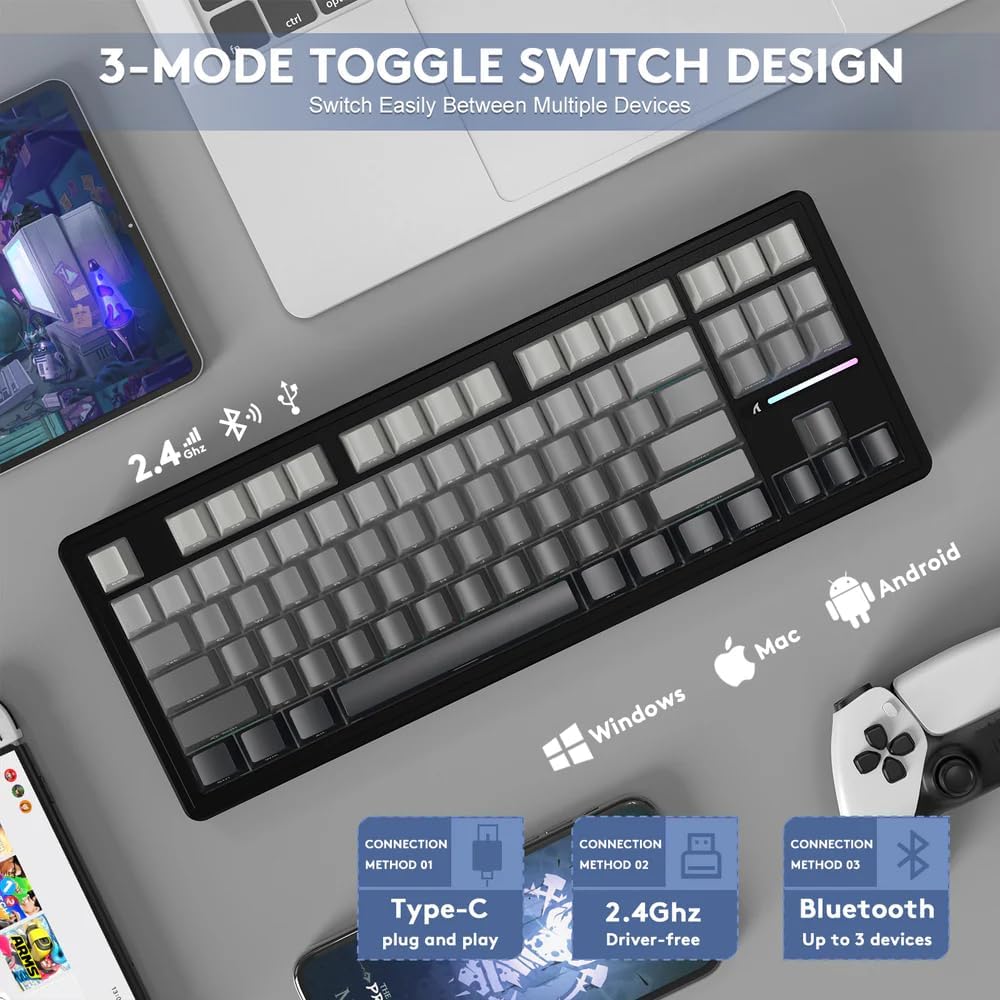
Figure 4: The keyboard features a 3-mode toggle switch for easy switching between Type-C wired, 2.4Ghz wireless, and Bluetooth connections.
3.2.1 2.4Ghz Wireless Connection
- Locate the 2.4Ghz USB receiver, usually stored in a compartment on the keyboard.
- Plug the USB receiver into an available USB port on your computer.
- Set the keyboard's mode switch to 2.4Ghz. The keyboard should automatically connect.
3.2.2 Bluetooth 5.0 Connection
- Set the keyboard's mode switch to Bluetooth.
- On your device (PC, Mac, Tablet), enable Bluetooth and search for new devices.
- Select "ATTACK SHARK M87 PRO" from the list of available devices to pair. The keyboard can connect to up to 3 Bluetooth devices.
3.2.3 USB Type-C Wired Connection
- Connect the provided USB Type-C cable to the keyboard's Type-C port.
- Connect the other end of the cable to a USB port on your computer.
- Set the keyboard's mode switch to Wired. The keyboard will function as a wired device and charge simultaneously.
4. Operating Instructions
4.1 RGB Backlight Control
The M87 PRO features vibrant RGB backlighting with 19 lighting effects and 8 color options. Use the following FN key combinations to control the backlight:
- FN + \ |: Switch Backlit Mode
- FN + Del: Switch Backlit Colors
- FN + Ctrl: Switch Side Backlit
- FN + ↑ / ↓: Adjust Backlight Brightness
- FN + ← / →: Adjust Backlight Speeds
- FN + End: Switch Function Bar Backlit
- FN + ESC: Restore to Factory Settings
- FN + Space: Turn Off/On the Backlight

Figure 5: Illustration of FN key combinations for controlling RGB backlight effects and brightness.
4.2 Hot-Swappable Switches and Keycaps
The M87 PRO is designed with a hot-swappable base, allowing you to easily change switches without soldering. It is compatible with most 3-pin or 5-pin mechanical switches. The default switches are pre-lubricated linear white jade switches.

Figure 6: The hot-swappable PCB allows for easy replacement of switches, compatible with 3 or 5-pin mechanical switches.
The keycaps are Cherry profile PBT keycaps with side-printed letters, offering a minimalist and clean aesthetic. Use the provided 2-in-1 keycap switch puller to remove and install keycaps and switches.
4.3 Battery Status Check
To check the battery level in wireless mode, press FN + ALT. A green light indicates sufficient power, while a red light indicates insufficient power, signaling that charging is required.
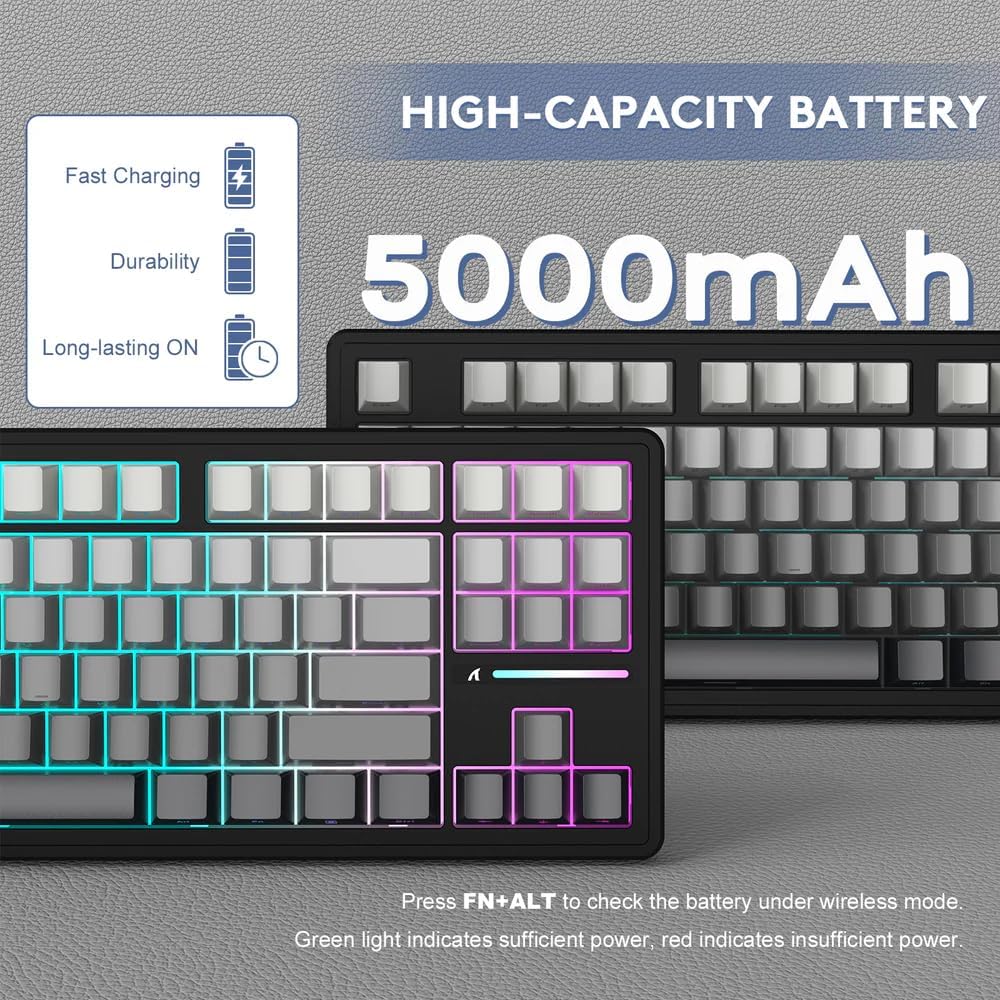
Figure 7: Press FN+ALT to check battery status. Green indicates sufficient power, red indicates low power.
5. Maintenance
5.1 Cleaning the Keyboard
To maintain the keyboard's appearance and functionality, regularly clean it. Use a soft, lint-free cloth to wipe down the keycaps and chassis. For deeper cleaning, you can remove keycaps using the provided puller and use compressed air to clear debris from underneath.
5.2 Replacing Switches
If a switch becomes faulty or you wish to customize your typing experience, you can replace the switches. Use the switch puller to gently remove the existing switch. Align the new 3-pin or 5-pin switch with the holes on the PCB and press down firmly until it clicks into place. Ensure the pins are straight before insertion to avoid bending them.
6. Troubleshooting
- Keyboard not responding:
- Ensure the keyboard is charged.
- Check the connection mode switch (wired, 2.4Ghz, Bluetooth) matches your intended connection.
- For 2.4Ghz, ensure the USB receiver is securely plugged in.
- For Bluetooth, ensure the keyboard is paired and selected on your device. Try re-pairing if necessary.
- Try connecting via USB-C cable to rule out wireless issues.
- RGB lights not working or incorrect:
- Ensure the backlight is turned on (FN + Space).
- Adjust brightness (FN + ↑).
- Try resetting to factory settings (FN + ESC).
- Keys not registering or double-typing:
- This could indicate a faulty switch. Use the switch puller to remove the problematic switch and replace it with a spare or new one.
- Ensure the switch is fully seated in the PCB.
- Connectivity issues (lag, disconnections):
- Ensure the keyboard is within range of the receiver/device.
- Minimize interference from other wireless devices.
- Ensure the keyboard battery is not low.
Video 1: Official product video demonstrating the ATTACK SHARK M87 PRO Tri-Mode Mechanical Keyboard features and usage. This video highlights the keyboard's design, hot-swappable switches, and connectivity options.
7. Specifications
| Feature | Description |
|---|---|
| Keyboard Name | M87 Pro V2 Custom Mechanical Keyboard |
| Layout | 80% with 87 keys |
| Color | Moonlight (Gradient Color Keycaps) |
| Switch | Custom Linear White Jade Switch |
| Axle-Beat | Kailh shaft seat |
| Structure | Gasket Structure, Full Key Hot Swappable, All Key Non-Conflict |
| Internal Filling | PORON foam, 10x IXPE switch pad, PET noise cancellation pad, Japanese DEPEM dampening pad, Silicon pad |
| Light Position | South Facing LED |
| Backlight | About 16.8 million RGB, 19 lighting effects and 8 light colors |
| Keycap Height | Cherry Profile |
| Keycap Technology | Double shot injection PBT keycaps/Side engraved luminous character |
| Locating Plate | Slot PC positioning plate |
| PCB | 1.2mm Single key slotted |
| Battery Capacity | 5000mAh |
| Connection Mode | Tri-mode connection (Type-C Wired, 2.4Ghz Wireless, Bluetooth 5.0) |
| Actuate | Full key User-defined keys |
| System Support | Windows / MacOS / Linux |
| Package Dimensions | 15.94 x 7.28 x 2.09 inches |
| Item Weight | 2.61 pounds |

Figure 8: Detailed specifications and features of the M87 PRO keyboard, including its gasket structure and PCB design.
8. Warranty and Support
Specific warranty information for the ATTACK SHARK M87 PRO Wireless Mechanical Gaming Keyboard is typically provided with your purchase documentation or can be found on the official ATTACK SHARK website. For technical support, troubleshooting assistance, or warranty claims, please refer to the contact information provided by the manufacturer or your retailer.
You can visit the official ATTACK SHARK store for more information: ATTACK SHARK Store.
Related documentsM87 PRO


Ask a question about this manual
Ask about setup, troubleshooting, compatibility, parts, safety, or missing instructions. Manuals+ will review the question and use this page’s manual context to help answer it.