
1. Introduction
This manual provides comprehensive instructions for the setup, operation, and maintenance of your EWEADN X87 Wireless Mechanical Keyboard. Designed for versatility and performance, the X87 features tri-mode connectivity, a gasket structure, hot-swappable switches, and customizable RGB backlighting. Please read this manual thoroughly before using the keyboard to ensure optimal performance and longevity.

Figure 1.1: EWEADN X87 Wireless Mechanical Keyboard. This image shows the keyboard from an elevated angle, highlighting its gradient green keycaps and compact layout.
2. Key Features
The EWEADN X87 keyboard is equipped with advanced features to enhance your typing and gaming experience:
- Tri-Mode Connection: Supports Bluetooth 5.0, 2.4GHz wireless, and USB-C wired connections for maximum flexibility.
- Five-Layer Gasket Structure: Incorporates sound-absorbing foam, IXPE switch bottom pad, FR4 PCB, PET film, and silicone bottom pad for reduced noise and enhanced typing feel.
- 10,000mAh Large-Capacity Battery: Provides extended usage, up to 460 hours with RGB off and 40-46 hours with RGB on.
- Hot-Swappable Design: Compatible with 3-pin or 5-pin mechanical switches, allowing for easy customization without soldering.
- 16.8 Million RGB Backlit: Offers 19 dynamic RGB lighting effects with a full spectrum of colors.
- Side-Printed PBT Keycaps: Durable, fade-resistant, and soft-to-touch keycaps with a classic Cherry profile for ergonomic comfort.
- N-Key Rollover (NKRO): Ensures all simultaneous key presses are registered accurately, crucial for gaming.
- Macro Customization: Supports programmable keys and macro recording via dedicated software.
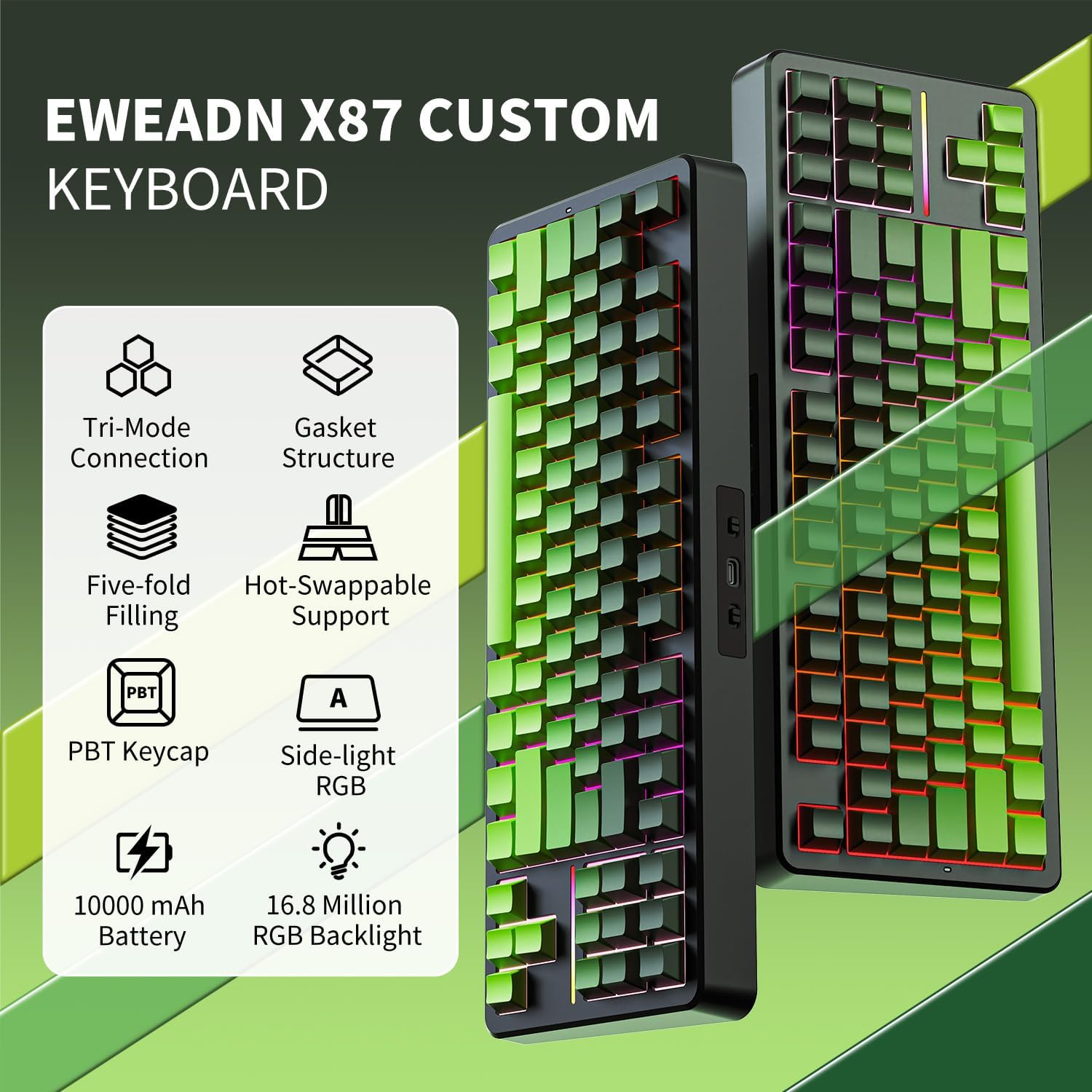
Figure 2.1: Overview of EWEADN X87 Custom Keyboard features, including Tri-Mode Connection, Gasket Structure, Five-fold Filling, Hot-Swappable Support, PBT Keycap, Side-light RGB, 10000 mAh Battery, and 16.8 Million RGB Backlight.
3. Package Contents
Please verify that all items are present in your package:
- EWEADN X87 Wireless Mechanical Keyboard
- USB-C to USB-A Cable
- 2.4GHz USB Receiver
- Keycap Puller
- Switch Puller
- User Manual (this document)

Figure 3.1: Contents of the EWEADN X87 keyboard package, showing the keyboard, USB cable, 2.4G receiver, keycap puller, switch puller, and quick guide.
4. Setup
Follow these steps to set up your EWEADN X87 keyboard:
4.1 Charging the Battery
Before first use, it is recommended to fully charge the keyboard. Connect the provided USB-C cable to the keyboard's USB-C port and the other end to a USB power source (e.g., computer USB port, wall adapter). The charging indicator will show the charging status.
4.2 Connectivity Modes
The X87 supports three connection modes: Wired (USB-C), 2.4GHz Wireless, and Bluetooth. Use the switch located on the top edge of the keyboard to select your desired mode.

Figure 4.1: Close-up of the keyboard's side, showing the Bluetooth/Wired/2.4G switch, Type-C charging port, and WIN/MAC switch.
4.2.1 Wired Mode (Type-C)
- Set the mode switch to "Line" (or Wired).
- Connect the USB-C cable to the keyboard and your computer.
- The keyboard will be automatically recognized and ready for use.
4.2.2 2.4GHz Wireless Mode
- Set the mode switch to "2.4G".
- Insert the 2.4GHz USB receiver into an available USB port on your computer.
- The keyboard will automatically connect.
4.2.3 Bluetooth Mode
- Set the mode switch to "BT".
- Press and hold FN + Q, FN + W, or FN + E for 3 seconds to enter pairing mode for BT1, BT2, or BT3 respectively. The indicator light will flash rapidly.
- On your device (PC, laptop, tablet, smartphone), search for Bluetooth devices and select "EWEADN X87".
- Once connected, the indicator light will stop flashing. You can connect up to three Bluetooth devices and switch between them using FN + Q/W/E.

Figure 4.2: Visual guide for Tri-Mode Connection: Type-C wired, 2.4G wireless, and Bluetooth. Shows the keyboard connected to a laptop, phone, and tablet.
4.3 Operating System Compatibility
The X87 keyboard includes a switch to optimize compatibility between Windows and Mac operating systems. Locate the WIN/MAC switch on the top edge of the keyboard and slide it to the appropriate position for your system.

Figure 4.3: The keyboard is compatible with Windows, Mac, and Android operating systems, indicated by respective logos.
5. Operating Instructions
5.1 Battery Management
The X87 keyboard is equipped with a 10,000mAh battery. To maximize battery life:
- Turn off RGB lighting when not needed (see Section 5.2).
- Connect via USB-C when possible for continuous power and charging.
- The keyboard can last up to 460 hours with RGB off and approximately 40-46 hours with RGB on. Full recharge takes 10-12 hours.

Figure 5.1: Battery life details for the 10,000 mAh battery, showing 460 hours with RGB off and 46 hours with RGB on, with 10-12 hours for fast charging.
5.2 RGB Backlighting Control
The X87 features 16.8 million color RGB backlighting with 19 lighting effects. Use the following FN key combinations to control the lighting:
- FN + ESC (hold 3 seconds): Restore factory settings.
- FN + Back: Turn RGB lighting On/Off.
- FN + \|: Switch lighting effect mode.
- FN + END: Switch light bar function mode.
- FN + DEL: Switch the light color.
- FN + Home: Switch the light bar color.
- FN + ↑: Increase brightness.
- FN + ↓: Decrease brightness.
- FN + →: Speed up light effect.
- FN + ←: Slow down light effect.

Figure 5.2: Visual representation of FN key combinations for controlling RGB lighting effects, brightness, and color on the EWEADN X87 keyboard.

Figure 5.3: A monitor displaying the 16.8 Million RGB Backlight feature, with a list of FN key shortcuts for controlling lighting effects, brightness, and color.
5.3 Hot-Swappable Switches
The X87 keyboard features a hot-swappable PCB, allowing you to change mechanical switches without soldering. This supports both 3-pin and 5-pin switches.
5.3.1 Replacing Switches
- Gently remove the keycap using the provided keycap puller.
- Use the switch puller to carefully grip the switch from its top and bottom clips.
- Pull the switch straight up to remove it from the PCB.
- Align the pins of the new switch with the holes on the PCB. Ensure the pins are straight.
- Gently push the new switch down until it clicks into place. Do not force it.
- Replace the keycap.

Figure 5.4: Close-up of a Kailh Dark Horse Switch with light guide, showing its specifications (Conduction Stroke, Total Travel, Operating Force) and a switch puller tool.

Figure 5.5: Detailed specifications for the Kailh Dark Horse Switch, including it being a linear switch, factory lubed, with an operating force of 45±5gf, conduction stroke of 2.0±0.5mm, and total travel of 3.6±0.4mm.

Figure 5.6: Detailed specifications for the WUMEIZI Switch, including it being a linear switch with a 22MM extended spring, factory lubed, with an operating force of 38±7gf, conduction stroke of 2.0±0.5mm, and total travel of 3.3mm.
5.4 Side-Printed PBT Keycaps
The X87 features durable double-shot, side-printed PBT keycaps. These keycaps are resistant to fading and wear, and their Cherry profile provides an ergonomic typing experience.

Figure 5.7: Illustration of Double-Shot PBT Keycaps and a Force-Travel diagram for the Dark Horse Switch, showing conduction stroke, total travel, and operating force.
5.5 Programmable Software and NKRO
The X87 supports macro customization and key remapping through dedicated software. This allows for personalized key functions and lighting effects. Additionally, the keyboard features N-Key Rollover (NKRO), ensuring that every key press is registered, even during rapid, simultaneous inputs, which is beneficial for gaming.

Figure 5.8: Screenshot of the programmable software interface for the EWEADN X87, showing options for Macro Manage, Lighting Mode, System Settings, Music Rhythm, DIY Lighting, and Custom Configuration.

Figure 5.9: Illustration demonstrating the N-Key Rollover (NKRO) feature, showing multiple simultaneous key presses being registered, ensuring full anti-ghosting for an improved gaming experience.
6. Maintenance
Proper maintenance ensures the longevity and performance of your keyboard:
- Cleaning: Use a soft, dry cloth to wipe the keyboard surface. For deeper cleaning, remove keycaps and use compressed air to clear debris from between switches.
- Keycap Cleaning: Keycaps can be washed with mild soap and water. Ensure they are completely dry before reattaching.
- Storage: Store the keyboard in a cool, dry place away from direct sunlight and extreme temperatures.
- Avoid Liquids: Do not expose the keyboard to liquids. In case of spills, immediately disconnect the keyboard and allow it to dry completely before reconnecting.
7. Troubleshooting
If you encounter issues with your EWEADN X87 keyboard, refer to the following common solutions:
| Problem | Possible Cause | Solution |
|---|---|---|
| Keyboard not responding (Wired) | Loose cable connection, incorrect mode. | Ensure USB-C cable is securely connected. Set mode switch to "Line". Try a different USB port or cable. |
| Keyboard not responding (2.4GHz) | Receiver not plugged in, incorrect mode, low battery. | Ensure 2.4GHz receiver is plugged in. Set mode switch to "2.4G". Charge the keyboard. Try a different USB port for the receiver. |
| Keyboard not responding (Bluetooth) | Not paired, incorrect mode, low battery, device Bluetooth off. | Set mode switch to "BT". Re-enter pairing mode (FN+Q/W/E). Ensure device Bluetooth is on and keyboard is selected. Charge the keyboard. |
| RGB lighting not working | Lighting turned off, low battery. | Press FN + Back to toggle lighting. Charge the keyboard. |
| Keys not registering / Double input | Faulty switch, debris under keycap. | Remove keycap and clear debris. If issue persists, replace the switch (see Section 5.3.1). |
| Keyboard not recognized by Mac/Windows | Incorrect OS switch setting. | Ensure the WIN/MAC switch is set to the correct operating system. |
8. Specifications
| Feature | Detail |
|---|---|
| Model Number | EWEADN-X87 |
| Connectivity Technology | Bluetooth 5.0, 2.4GHz Wireless, USB-C Wired |
| Keyboard Description | Mechanical |
| Layout | 80% (87-key) |
| Keycaps | Double-shot, Side-Printed PBT, Cherry Profile |
| Switches | Kailh Dark Horse Switch (Hot-Swappable 3-pin/5-pin) |
| Backlighting | 16.8 Million RGB, 19 Effects |
| Battery Capacity | 10,000mAh Lithium Ion |
| Battery Life (RGB Off) | Up to 460 hours |
| Battery Life (RGB On) | Up to 40-46 hours |
| Charging Time | 10-12 hours (Fast Charging) |
| Product Dimensions | 14.4 x 5.5 x 1.77 inches (36.6 x 14 x 4.5 cm) |
| Item Weight | 2.42 pounds (1.1 kg) |
| Compatible Devices | Laptop, PC, Gaming Console, Tablet, Smartphone |
| Operating Systems | Windows, macOS, Android |
Note: Specifications are subject to change without prior notice.
9. Warranty and Support
The EWEADN X87 keyboard comes with a standard manufacturer's warranty. For specific warranty terms and conditions, please refer to the product packaging or contact SEUNKWANG customer support. If you require technical assistance or have questions not covered in this manual, please reach out to our support team via the contact information provided on the official SEUNKWANG website or your purchase platform.

