Download PDFFree PDF. The Save button below keeps a bookmark and private notes in your account.
CHONCHOW W300 Wireless RGB Backlit Keyboard and Mouse Combo User Manual
Model: W300
Introduction
Thank you for choosing the CHONCHOW W300 Wireless RGB Backlit Keyboard and Mouse Combo. This manual provides essential information for setting up, operating, and maintaining your new device. Please read it thoroughly before use to ensure optimal performance and longevity.
Safety Information
Keep the device away from water, moisture, and extreme temperatures.
Avoid dropping or subjecting the device to strong impacts.
Do not attempt to disassemble or repair the device yourself. Contact customer support for assistance.
Dispose of electronic components responsibly according to local regulations.
Package Contents
CHONCHOW W300 Wireless RGB Backlit Keyboard
CHONCHOW W300 Wireless Mouse
USB Nano Receiver (stored in the mouse)
User Manual
Setup
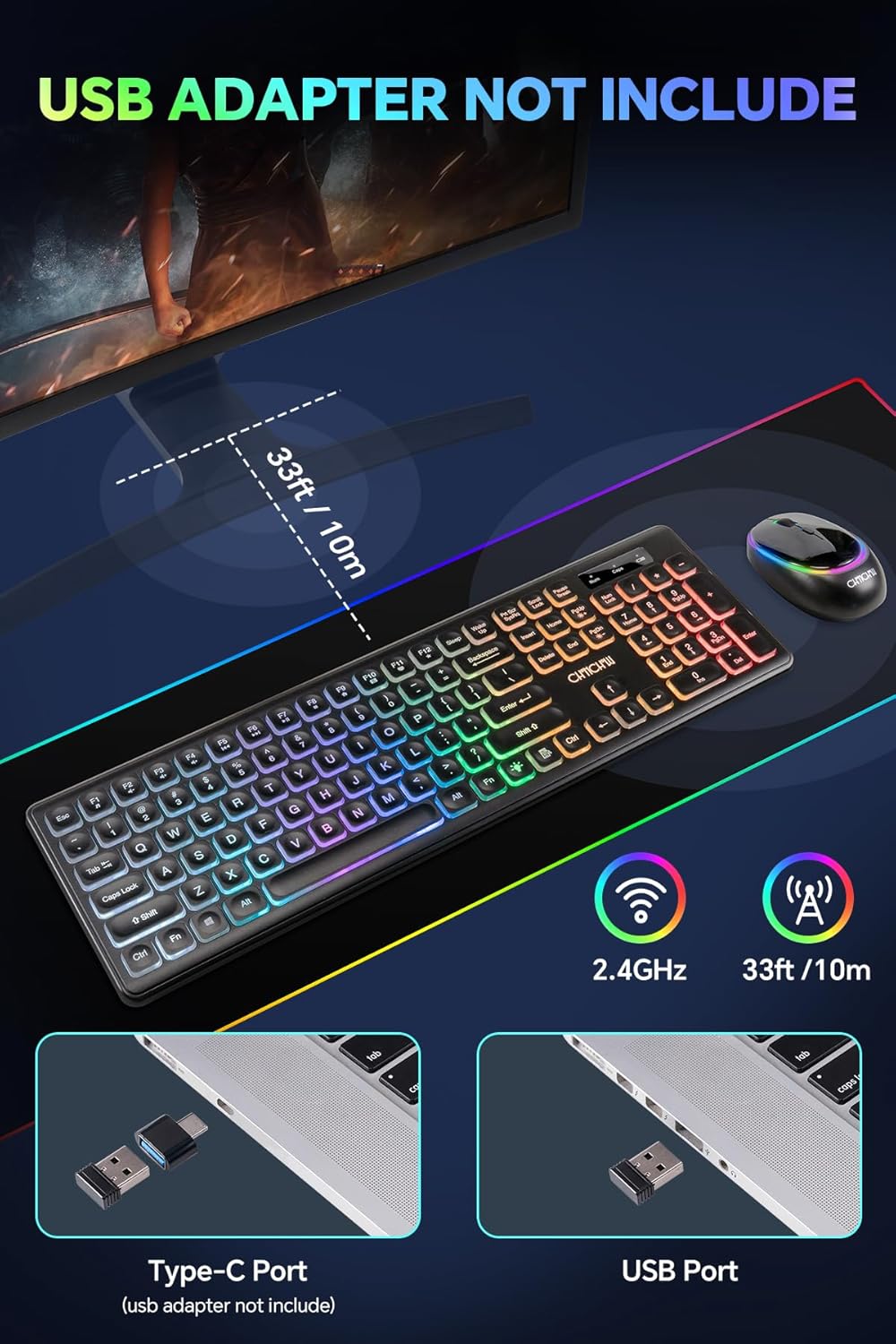
1. Connecting the USB Nano Receiver
The USB nano receiver is stored in the battery compartment of the mouse. Carefully remove it. Plug the nano receiver into an available USB port on your computer (Windows PC, Mac, or Linux laptop/desktop).
Image: The USB nano receiver, shown being inserted into a USB port on a laptop. The image also displays a Type-C port, indicating compatibility with various connection types, though the receiver itself is standard USB-A.
2. Powering On and Automatic Connection
Ensure both the keyboard and mouse are powered on. The devices should automatically connect to your computer within a few seconds. No additional software or drivers are typically required for basic functionality.
Operating Instructions
Keyboard Functions
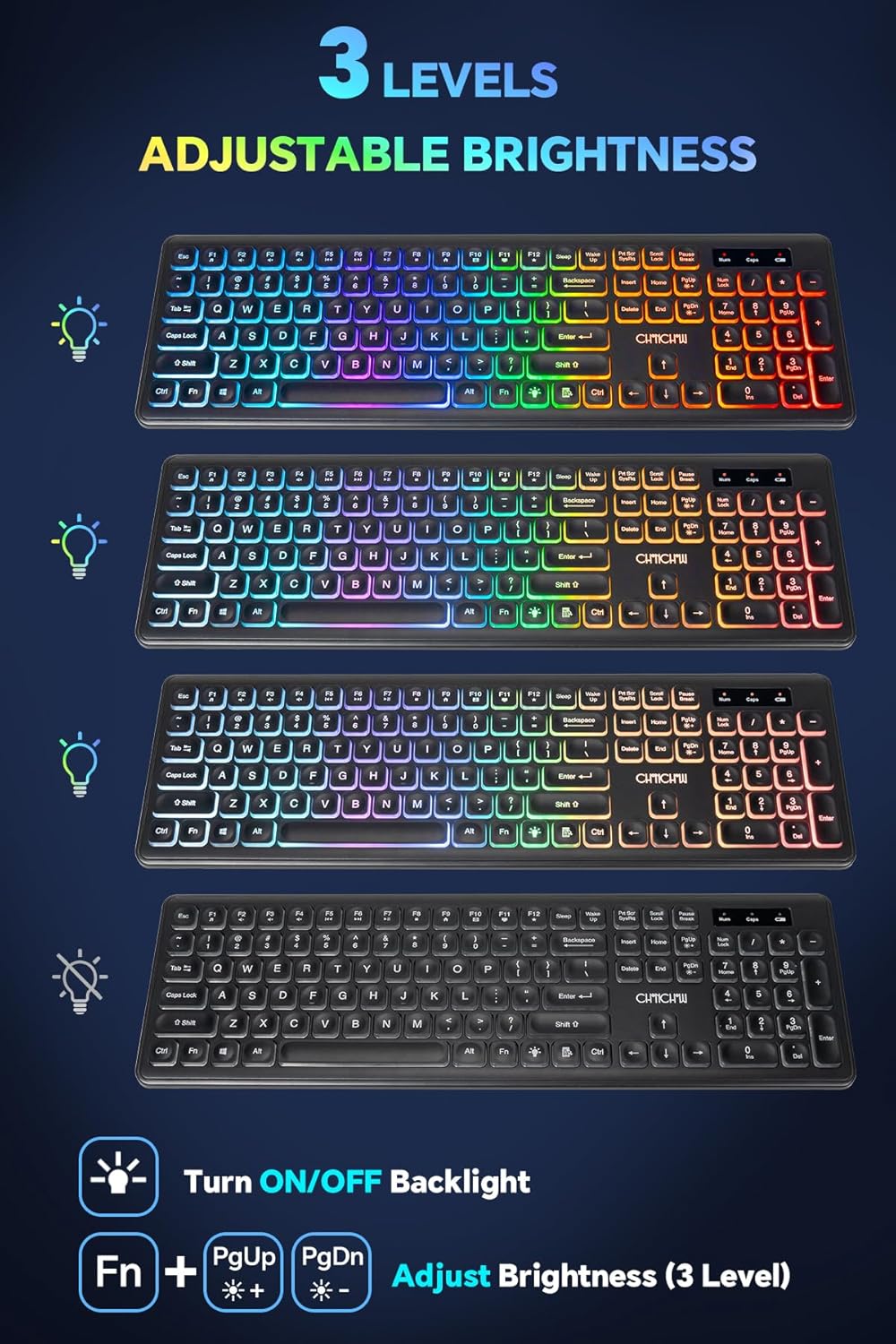
Backlight Control: The keyboard features RGB backlighting.
Press the Fn + Light Bulb icon key to turn the backlight ON/OFF.
Press Fn + PgUp to increase backlight brightness (3 levels).
Press Fn + PgDn to decrease backlight brightness (3 levels).
Multimedia Keys: Use the Fn key in combination with the F1-F12 keys for various multimedia functions (e.g., volume control, media playback).
Silent Typing: The keyboard is designed for quiet operation, reducing typing noise.
Image: The CHONCHOW W300 keyboard demonstrating its three levels of adjustable RGB backlighting, from brightest to off, highlighting the light bulb icon key for control.
Mouse Functions
DPI Adjustment: The mouse offers adjustable DPI settings (800/1200/1600) for varying cursor speeds. Press the DPI button on the top of the mouse to cycle through the settings.
Silent Click: The mouse features quiet click buttons to minimize noise during use.
RGB Lighting: The mouse has circular lighting that changes color randomly.
On/Off Switch: A switch on the underside of the mouse controls its power.
Image: The CHONCHOW W300 wireless mouse, illustrating the DPI button on top, the ON/OFF/LED switch and USB receiver storage on the bottom, and its ergonomic shape with quiet click functionality.
Charging Instructions
Both the keyboard and mouse are rechargeable via a Type-C port. Use a standard USB-C charging cable (not included) to charge the devices.
Keyboard Charging: Connect a USB-C cable to the keyboard's charging port. A full charge takes approximately 8 hours and provides up to 30 days of normal working supply.
Mouse Charging: Connect a USB-C cable to the mouse's charging port. A full charge takes approximately 3 hours and provides up to 45 days of normal working supply.
The devices feature a smart sleep mode to conserve battery life when not in use.
Image: The CHONCHOW W300 keyboard and mouse connected via Type-C cables for charging, illustrating their respective charging times and battery life estimates.
Maintenance
Cleaning: Use a soft, dry cloth to clean the surfaces of the keyboard and mouse. For stubborn dirt, a slightly damp cloth can be used, but ensure no liquid enters the device.
Storage: When not in use for extended periods, store the devices in a cool, dry place.
Dust Protection: The keyboard features a dustproof design.
Troubleshooting
Keyboard or Mouse Not Responding
Step 1: Ensure both the keyboard and mouse are powered on and fully charged. Turn off any other wireless devices nearby that might cause interference.
Step 2 (Keyboard Reconnection): Plug the USB nano receiver into your computer. Press the ESC + Q keys simultaneously on the keyboard for three seconds. The keyboard should reconnect.
Step 3 (Mouse Reconnection): Unplug the receiver and then plug it back in. Wait a moment, then press the left and right mouse buttons simultaneously for several seconds until the mouse resumes normal operation.
Notice: If the above steps do not resolve the issue, try repeating them or contact CHONCHOW customer support for further assistance.
Backlight Not Working
Ensure the keyboard is sufficiently charged.
Press Fn + Light Bulb icon key to toggle the backlight.
CHONCHOW products come with a standard manufacturer's warranty. For detailed warranty information, technical support, or any questions regarding your product, please refer to the warranty card included in your package or visit the official CHONCHOW website. You may also contact your retailer for support.
Video: An overview of the CHONCHOW wireless keyboard and mouse combo, highlighting features like silent typing, ergonomic design, and RGB backlighting. This video demonstrates the product's general appearance and functionality.
Video: A demonstration of the CHONCHOW wireless keyboard and mouse combo, focusing on its ultra-slim design, water-dropping alike keycaps, and the simple plug-and-play setup using a single USB nano receiver for both devices.
Ask a question about this manual
Ask about setup, troubleshooting, compatibility, parts, safety, or missing instructions. Manuals+ will review the question and use this page’s manual context to help answer it.