
1. Introduction
This manual provides detailed instructions for the SEUNKWANG EWEADN X87 Wireless Mechanical Keyboard. The X87 is an 80% layout, 87-key keyboard featuring tri-mode connectivity (Bluetooth 5.0, 2.4GHz wireless, and USB-C wired), a five-layer gasket structure for enhanced typing feel, hot-swappable switches, and customizable RGB backlighting. It is designed for compatibility across various operating systems and devices.

Image 1.1: The EWEADN X87 Wireless Mechanical Keyboard showcasing its design and RGB backlighting.
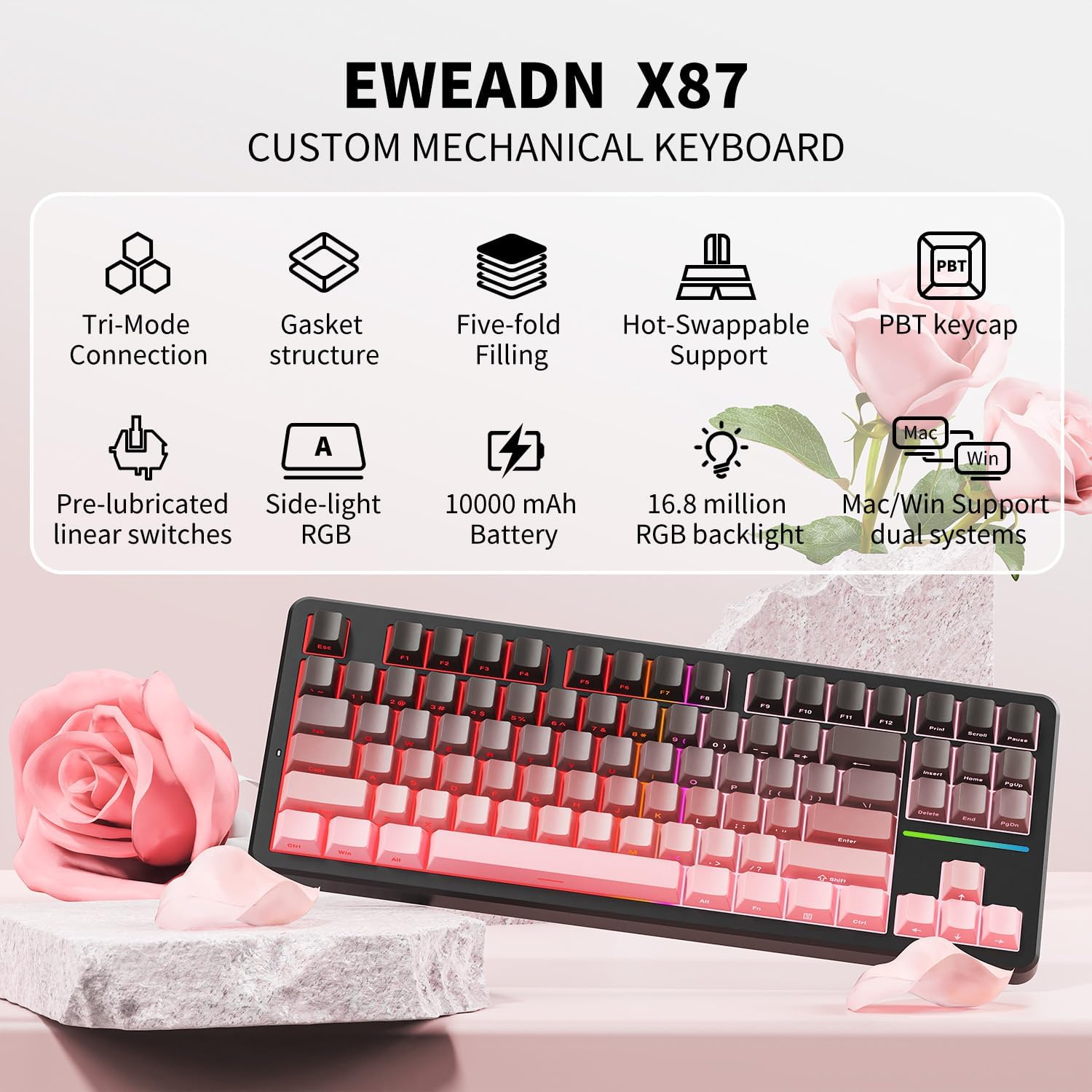
Image 1.2: Overview of the EWEADN X87's main features, including tri-mode connectivity, gasket structure, hot-swappable switches, PBT keycaps, and RGB lighting.
2. Setup
2.1 Initial Charging
Before first use, it is recommended to fully charge the keyboard. Connect the keyboard to a USB power source using the provided USB-C cable. The keyboard is equipped with a 5,000mAh battery, providing extended usage.

Image 2.1: Battery performance details for the EWEADN X87 keyboard, indicating up to 460 hours with RGB off and 46 hours with RGB on.
2.2 Connection Methods
The EWEADN X87 supports three connection modes: USB-C wired, 2.4GHz wireless, and Bluetooth 5.0.

Image 2.2: Visual guide to the tri-mode connection options: USB-C, 2.4GHz, and Bluetooth.
2.2.1 USB-C Wired Connection
- Locate the USB-C port on the keyboard.
- Connect the provided USB-C cable to the keyboard and your computer's USB port.
- The keyboard will automatically switch to wired mode.
2.2.2 2.4GHz Wireless Connection
- Insert the 2.4GHz USB receiver into an available USB port on your device.
- On the keyboard, press and hold FN + R to activate 2.4GHz mode.
- The keyboard will connect automatically.
2.2.3 Bluetooth Connection
The keyboard supports up to three Bluetooth devices.
- On the keyboard, press and hold FN + Q, FN + W, or FN + E to select Bluetooth channel 1, 2, or 3 respectively. The indicator light will flash, indicating pairing mode.
- On your device (PC, laptop, tablet, mobile phone), enable Bluetooth and search for "EWEADN X87".
- Select the keyboard to pair. The indicator light will become solid once connected.
- To switch between paired Bluetooth devices, press FN + Q, FN + W, or FN + E briefly.
3. Operating Instructions
3.1 System Compatibility Switch
The X87 keyboard includes a shortcut button to easily switch between Windows and Mac operating systems. Refer to the keyboard's physical switch or dedicated key combination for this function.
3.2 RGB Backlighting
The keyboard features 16.8 million RGB colors and 19 lighting effects.
- Use the dedicated function keys (e.g., FN + \ |) to cycle through different lighting effects.
- Adjust brightness and speed using other FN key combinations (refer to specific key legends if available).
3.3 Macro Customization
All keys support macro customization. Use the accompanying software (if provided by the manufacturer) to record and edit macros, and customize key functions. This allows for personalized shortcuts and complex command sequences.
3.4 N-Key Rollover
The X87 supports N-key rollover, meaning all simultaneous key presses are registered accurately. This feature is particularly beneficial for fast typing and intensive gaming.
4. Maintenance
4.1 Cleaning
- Disconnect the keyboard from all devices before cleaning.
- Use a soft, dry cloth to wipe the surface of the keyboard.
- For deeper cleaning, use a can of compressed air to remove debris from between keycaps.
- The PBT keycaps are durable and resistant to fading and sweat, making them easy to maintain.
4.2 Hot-Swappable Switches
The X87 features a hot-swappable base, allowing for easy replacement of 3-pin or 5-pin mechanical switches without soldering.
- Carefully remove the keycap using a keycap puller.
- Use a switch puller to gently extract the switch from the PCB.
- Align the pins of the new switch with the holes on the PCB and press firmly until it clicks into place. Ensure pins are not bent.
- Replace the keycap.

Image 4.1: Detailed view of a WUMEIZI mechanical switch and double-shot PBT keycap, illustrating the components and force-travel characteristics.
5. Troubleshooting
- Keyboard not responding:
- Ensure the keyboard is charged.
- Check the connection mode (wired, 2.4GHz, Bluetooth) and ensure it matches your device.
- For 2.4GHz, ensure the USB receiver is properly inserted.
- For Bluetooth, ensure the keyboard is paired and selected on your device. Try re-pairing if necessary.
- Try connecting via USB-C cable to rule out wireless issues.
- Keys not registering or double-typing:
- Remove the keycap and switch for the affected key. Inspect the switch pins for bends or damage.
- Clean any debris around the switch socket.
- Reinsert the switch firmly. If the issue persists, consider replacing the switch.
- RGB lighting not working:
- Ensure the keyboard is powered on and charged.
- Cycle through RGB effects using the designated FN key combinations.
- Check if RGB is disabled in the keyboard software.
- Bluetooth connection unstable:
- Ensure the keyboard is within range of your device.
- Minimize interference from other wireless devices.
- Remove the keyboard from your device's Bluetooth list and re-pair it.
6. Specifications
| Feature | Detail |
|---|---|
| Model Number | EWEADN-X87 |
| Connectivity | Bluetooth 5.0, 2.4GHz Wireless, USB-C Wired |
| Layout | 80% (87-key) |
| Switch Type | Huano Arctic Switch (Hot-swappable 3-pin/5-pin support) |
| Keycaps | Double-shot, Side-printed PBT, Cherry Profile |
| Structure | Five-layer Gasket Structure |
| Battery Capacity | 5,000mAh |
| Battery Life (RGB Off) | Up to 460 hours |
| Battery Life (RGB On) | Up to 46 hours |
| Backlighting | 16.8 Million RGB Colors, 19 Effects |
| Compatibility | PC, Laptops, Tablets, Mobile Phones, PS, XBOX (Windows/Mac systems) |
| Product Dimensions | 14.4 x 5.5 x 1.77 inches |
| Item Weight | 3.19 pounds |
| Manufacturer | EWEADN |
7. Warranty and Support
For warranty information and technical support, please refer to the product packaging or contact the manufacturer directly through their official website or customer service channels. Keep your purchase receipt for warranty claims.