
1. Introduction
This manual provides detailed instructions for the setup, operation, and maintenance of your EWEADN X87 Wireless Mechanical Keyboard. Please read this manual thoroughly before using the product to ensure optimal performance and longevity.
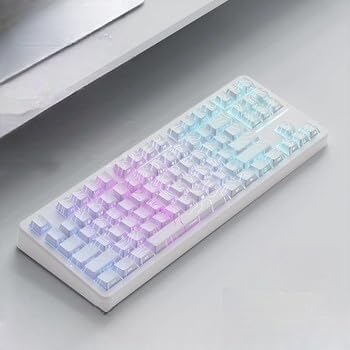
Image 1: EWEADN X87 Wireless Mechanical Keyboard with illuminated keys.
2. What's in the Box
Verify that all items are present in the package:
- EWEADN X87 Wireless Mechanical Keyboard
- USB Cable (Type-C)

Image 2: Overview of EWEADN X87 keyboard features and included components.
3. Setup and Connectivity
The EWEADN X87 keyboard supports three connection modes: Bluetooth 5.0, 2.4GHz wireless, and USB-C wired.

Image 3: Visual guide for switching between wired, 2.4GHz, and Bluetooth connection modes.
3.1. Wired Connection (USB-C)
- Locate the USB-C port on the keyboard.
- Connect the provided USB-C cable to the keyboard and your computer's USB port.
- Ensure the mode switch on the keyboard is set to 'LINE' (wired) mode.
- The keyboard will be automatically recognized by your computer.
3.2. 2.4GHz Wireless Connection
- Locate the 2.4GHz USB receiver, typically stored in a compartment on the keyboard.
- Plug the receiver into an available USB port on your computer.
- Ensure the mode switch on the keyboard is set to '2.4G' mode.
- Press and hold FN + R to activate 2.4G pairing. The keyboard's indicator light will confirm successful connection.
3.3. Bluetooth Connection (BT1/BT2/BT3)
- Ensure the mode switch on the keyboard is set to 'BT' (Bluetooth) mode.
- Press and hold FN + Q, FN + W, or FN + E for 3-5 seconds to enter pairing mode for BT1, BT2, or BT3 respectively. The indicator light will flash rapidly.
- On your device (PC, laptop, tablet, mobile phone), search for Bluetooth devices and select 'EWEADN X87' to connect.
- The indicator light will stop flashing once connected. You can pair up to three Bluetooth devices.
Tip: The keyboard is compatible with various operating systems including Windows and Mac. Use the shortcut button to switch between Windows and Mac systems as needed.
Video 1: Demonstrates the X87 Wireless Mechanical Keyboard's various connection modes and ease of setup.
Video 2: Shows the EWEADN X87 Wireless Mechanical Keyboard in action, highlighting its wireless capabilities.
4. Operating Instructions
4.1. Basic Functions
- FN + Q/W/E: Switch between Bluetooth devices (BT1/BT2/BT3).
- FN + R: Switch to 2.4GHz wireless mode.
- FN + T: Switch to wired mode.
- FN + Windows Key: Lock/Unlock Windows key.
- FN + Arrow Keys: Adjust brightness and speed of RGB lighting.
4.2. RGB Lighting Control
The X87 features 16.8 million RGB backlit keys with 19 lighting effects. You can cycle through these effects and adjust their brightness and speed.
- FN + Insert: Cycle through different RGB lighting effects.
- FN + Up/Down Arrow: Adjust backlight brightness.
- FN + Left/Right Arrow: Adjust lighting effect speed.
Video 3: Showcases the dynamic RGB lighting effects of the EWEADN X87 keyboard.
4.3. Customization Software
The EWEADN X87 supports custom software for macro-customization, key function remapping, and advanced RGB lighting control. This allows for a personalized user experience.
- Download the official software from the EWEADN website.
- Use the software to record and edit macros, customize key functions, and fine-tune RGB lighting effects and colors.

Image 4: EWEADN X87 custom software interface for advanced customization.
5. Key Features
5.1. Five-Layer Gasket Structure
The 80% layout, 87-key mechanical gaming keyboard features a five-layer gasket structure. This includes double layers of sound-absorbing foam, an IXPE switch bottom pad, an FR4 1.2 mm slotted PCB, PET film, and a silicone bottom pad. This design significantly reduces typing noise and resonance, providing a premium typing experience.
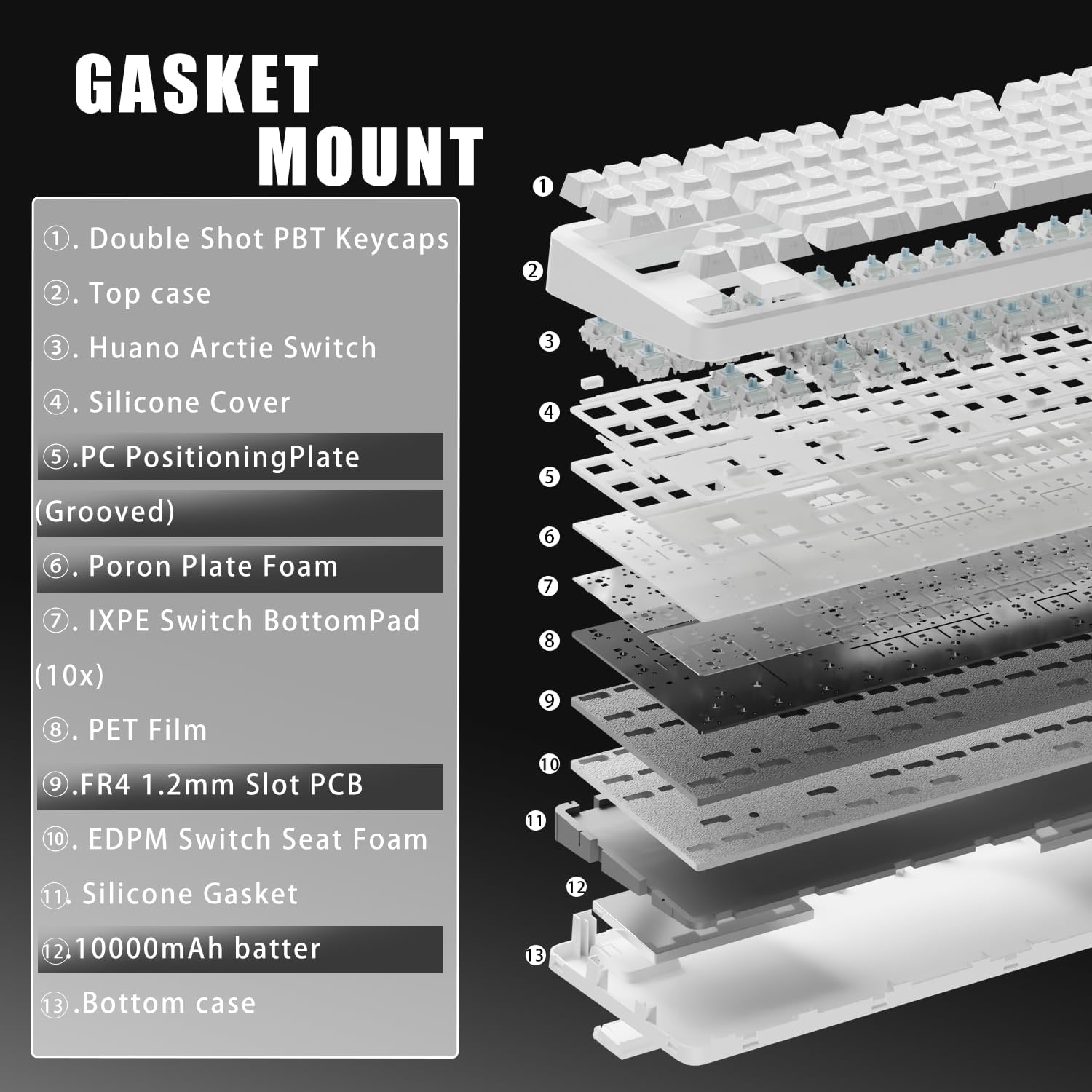
Image 5: Exploded view of the Gasket Mount structure, showing layers like PBT keycaps, top case, Huano Arctic Switch, silicone cover, PC positioning plate, poron plate foam, IXPE switch bottom pad, PET film, FR4 PCB, EPDM switch seat foam, silicone gasket, and bottom case.
Video 4: Demonstrates the sound profile of the EWEADN X87, highlighting its acoustic properties.
5.2. 10,000mAh Large-Capacity Battery
The X87 is equipped with a 10,000mAh battery, providing extended usage times. It lasts up to 40-46 hours with RGB lighting on and up to 460 hours with RGB lighting off. Charging time is approximately 5-6 hours.

Image 6: Battery life and charging details for the 10,000mAh battery.
5.3. Hot-Swappable Custom Keyboard
This keyboard features a hot-swappable base that supports 3-pin or 5-pin switch replacement. This allows for easy customization without soldering, making it ideal for keyboard enthusiasts. It comes with Huano Arctic Switches, known for their satisfying click.

Image 7: Hot-swappable feature with Huano Arctic Switches and keycap details.
5.4. Side-Printed PBT Keycaps
The X87 uses double-shot, side-printed PBT keycaps created through a double-injection molding and heat sublimation process. These keycaps are durable, fade-resistant, sweat-proof, and soft to touch, allowing the keyboard's RGB lighting to shine through the legends. The classic Cherry profile enhances comfort during long typing and gaming sessions.
6. Maintenance
6.1. Cleaning
- Use a soft brush or compressed air to remove dust and debris from between the keycaps.
- For deeper cleaning, carefully remove the keycaps using a keycap puller. Wipe the keycaps with a damp cloth and mild soap, then dry thoroughly before reattaching.
- Avoid using harsh chemicals or abrasive materials that could damage the keycaps or keyboard finish.
6.2. Switch Replacement
Thanks to its hot-swappable design, you can easily replace switches without soldering.
- Use a switch puller tool to gently remove the existing switch.
- Align the pins of the new 3-pin or 5-pin switch with the holes on the PCB.
- Gently press the new switch into place until it clicks. Ensure it is seated properly to avoid bent pins.
7. Troubleshooting
- Keyboard not responding: Check the connection mode (wired, 2.4GHz, Bluetooth) and ensure it matches your device. For wireless modes, verify the receiver is plugged in or Bluetooth is paired. Ensure the keyboard is charged.
- RGB lighting not working: Ensure the keyboard is powered on. Try cycling through lighting effects using FN + Insert. Adjust brightness with FN + Up/Down Arrow.
- Keys not registering: If specific keys are not working, try replacing the switch for that key using the hot-swappable feature.
- Connectivity issues: For 2.4GHz, try plugging the receiver into a different USB port. For Bluetooth, try unpairing and re-pairing the device. Ensure no other wireless devices are causing interference.
- Software not detecting keyboard: Ensure the keyboard is connected via wired mode when attempting to use the customization software. Reinstall the software if issues persist.
8. Specifications
| Feature | Detail |
|---|---|
| Model | X87 |
| Brand | EWEADN (Manufactured by SEUNKWANG) |
| Layout | 75% Layout (87-key) |
| Connectivity | BT5.0, 2.4GHz Wireless, USB-C Wired (Tri-Mode) |
| Switches | Huano Arctic Switch (Hot-Swappable 3/5-pin) |
| Keycaps | Side-Printed Double-Shot PBT, Cherry Profile |
| Backlight | 16.8 Million RGB, 19 Lighting Effects |
| Battery Capacity | 10,000mAh |
| Battery Life (RGB On) | 40-46 hours |
| Battery Life (RGB Off) | Up to 460 hours |
| Charging Time | 5-6 hours |
| Structure | Five-Layer Gasket Mount |
| Compatible Devices | PC, Laptops, Tablets, Mobile Phones, PS, XBOX |
| Material | Aluminum (as per specifications, though product description mentions PBT keycaps) |
| Item Weight | 2 pounds |
| Package Dimensions | 13.7 x 9.7 x 4.2 inches |
9. Warranty and Support
EWEADN provides comprehensive after-sales support for its products. For any inquiries, troubleshooting assistance, accessory requests, or returns/exchanges, please contact our support team.

Image 8: EWEADN After-Sales Support overview.
Email Support: eweadnkeyboard@outlook.com
Please retain your proof of purchase for warranty claims.


