
1. Introduction
Welcome to the artfone A400 4G Mobile Phone user manual. This guide provides detailed instructions to help you set up, operate, and maintain your new phone. The artfone A400 is designed with ease of use in mind, featuring large buttons, a clear display, and essential functions for seniors.

Image 1.1: Overview of artfone A400 key features.
2. Package Contents
Please check the box for the following items:
- 1 x artfone A400 Senior Mobile Phone
- 1 x 1800mAh Battery
- 1 x USB-C Cable
- 1 x EU Charger (Power Adapter)
- 1 x Charging Station (Desktop Charger)
- 1 x User Manual

Image 2.1: artfone A400 package contents.
3. Phone Overview
Familiarize yourself with the physical components of your artfone A400.
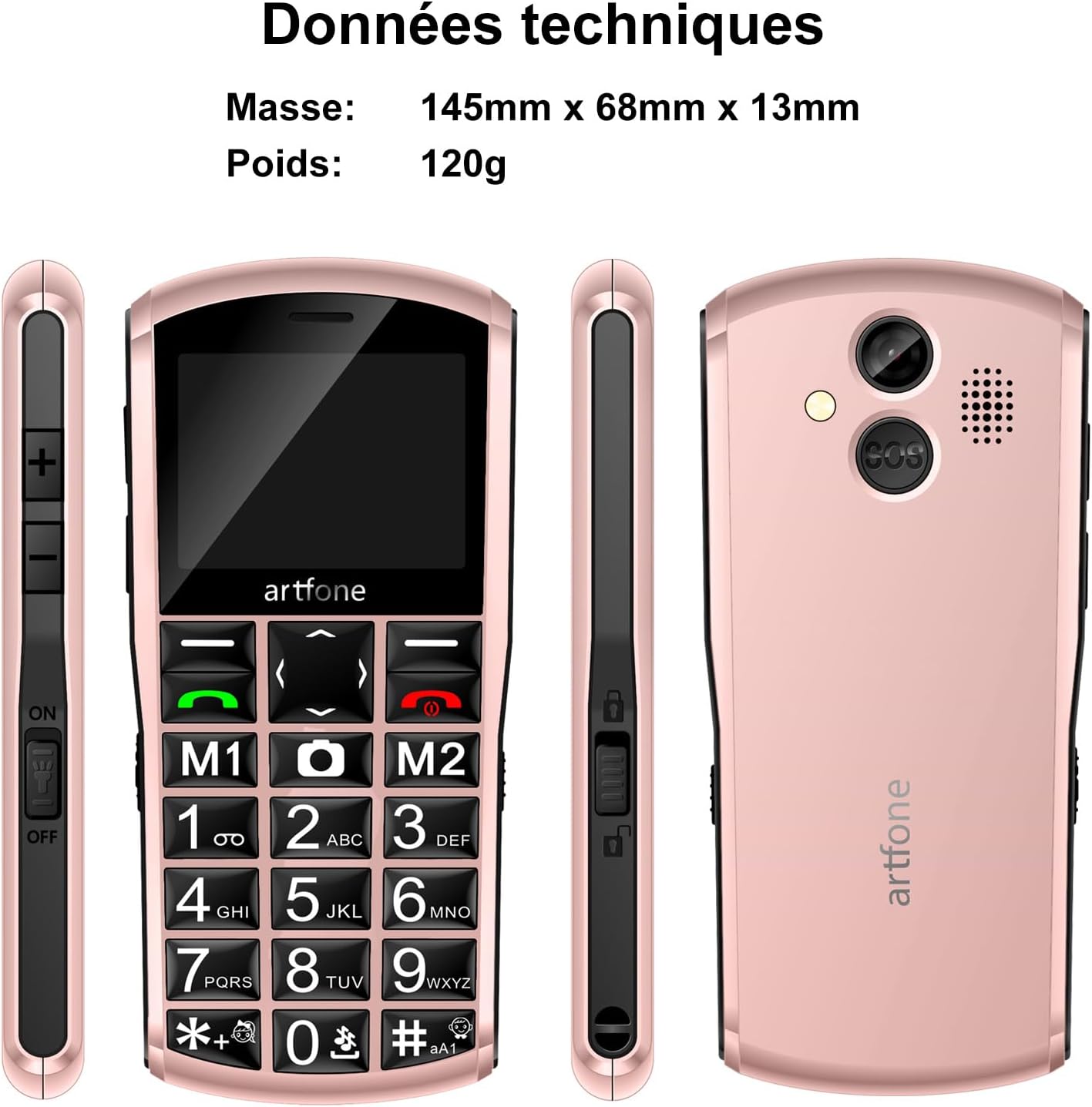
Image 3.1: artfone A400 phone views and basic dimensions.
Key Features and Components:
- Large Display: 2.4-inch LCD screen for clear visibility.
- Large Backlit Keys: Easy to press and see, with dedicated M1 and M2 quick dial buttons.
- SOS Button: Located on the back for emergency calls and SMS.
- Camera: For taking photos.
- Flashlight: Integrated for convenience.
- USB-C Port: For charging and data transfer.
- Volume Buttons: On the side for adjusting call and ringer volume.
- Key Lock Switch: On the side for easily locking/unlocking the keypad.
4. Getting Started
4.1. SIM Card and MicroSD Card Installation
The artfone A400 supports Dual Nano SIM cards and a MicroSD card for expandable memory up to 64GB.
- Carefully remove the back cover of the phone.
- Insert your Nano SIM card(s) into the designated SIM slots (SIM1, SIM2). Ensure the gold contacts face downwards.
- If desired, insert a MicroSD card into the MicroSD slot.
- Replace the back cover securely.

Image 4.1: SIM and MicroSD card installation.
4.2. Battery Installation
- After installing SIM/MicroSD cards, insert the 1800mAh battery into the battery compartment, ensuring the contacts align.
- Replace the back cover firmly until it clicks into place.
4.3. Charging the Phone
Before first use, fully charge the phone battery. The artfone A400 offers two charging methods:
- Using the USB-C Cable: Connect the USB-C cable to the phone's charging port and the other end to the EU charger. Plug the charger into a wall outlet.
- Using the Charging Station: Place the phone into the charging station. Ensure the phone is correctly seated and the charging indicator appears on the screen. Connect the USB-C cable to the charging station and the EU charger.

Image 4.2: Charging the artfone A400 using the charging station.

Image 4.3: Two charging options for the artfone A400.
5. Operating Instructions
5.1. Power On/Off
- To Power On: Press and hold the red End Call/Power button until the screen lights up.
- To Power Off: Press and hold the red End Call/Power button until the power off options appear, then select 'Power Off'.
5.2. Making Calls
- Ensure the keypad is unlocked (use the side switch if locked).
- Dial the phone number using the large numeric keys.
- Press the green Call button to initiate the call.
- To end a call, press the red End Call button.
5.3. Receiving Calls
When an incoming call rings, press the green Call button to answer. To reject a call, press the red End Call button.
5.4. Managing Contacts
You can save contacts to your phonebook. The artfone A400 also features quick dial buttons (M1, M2) and photo contacts for easy access.
- Quick Dial (M1/M2): Assign frequently called numbers to M1 and M2 buttons for one-touch dialing. Refer to the phone's menu for setup.
- Photo Contacts: For users with visual or memory difficulties, assign photos to contacts for easier recognition and dialing.

Image 5.1: Photo contacts feature for easy dialing.
5.5. Sending/Receiving SMS
Navigate to the 'Messages' menu to compose new SMS messages or read received ones. The large keys facilitate typing.

Image 5.2: Large font and backlit keys for improved readability and ease of use.
6. Special Features

Image 6.1: Overview of additional phone functions.
6.1. SOS Emergency Call Function
The SOS button on the back of the phone allows for quick access to emergency contacts.
- Setup: In the phone's settings, configure up to 5 emergency contacts.
- Activation: Press and hold the SOS button for 3 seconds. The phone will automatically call the emergency contacts in sequence and send an emergency SMS.

Image 6.2: SOS emergency call function details.

Image 6.3: SOS emergency help feature for quick dialing of 5 emergency contacts.
6.2. FM Radio
Access the FM Radio feature through the main menu. You can listen to your favorite radio stations without needing headphones.
6.3. Flashlight
Activate the built-in flashlight from the menu or via a dedicated shortcut (if available, check your phone's specific key assignments).
6.4. Bluetooth
The phone supports Bluetooth connectivity for pairing with compatible devices like headsets.
6.5. Time Announcement
Press and hold the '+' key to hear the current time announced audibly. This feature is beneficial for users with visual impairments.

Image 6.4: Time announcement feature activated by pressing the '+' button.
6.6. Camera
Use the integrated camera to capture photos. Access the camera function from the main menu.

Image 6.5: Capturing moments with the phone's camera.
6.7. Key Lock
Use the dedicated key lock switch on the side of the phone to prevent accidental key presses.
7. Maintenance
- Keep the phone dry. Moisture can damage electronic circuits.
- Do not expose the phone to extreme temperatures.
- Clean the phone with a soft, dry cloth. Avoid harsh chemicals.
- Handle the phone with care to prevent drops and impacts.
- Charge the battery regularly to maintain its lifespan. Avoid overcharging or letting it fully discharge for extended periods.
8. Troubleshooting
| Problem | Possible Cause | Solution |
|---|---|---|
| Phone does not power on | Low battery; Battery not installed correctly | Charge the battery; Reinstall the battery, ensuring contacts align. |
| Cannot make/receive calls | No SIM card; SIM card not installed correctly; No network signal | Install SIM card; Reinstall SIM card; Move to an area with better network coverage. |
| Poor call quality | Weak network signal; Obstructions | Move to an open area; Ensure nothing is blocking the phone's antenna. |
| SOS function not working | Emergency contacts not set; No network signal | Set up emergency contacts in settings; Ensure phone has network coverage. |
| Battery drains quickly | Frequent use; Old battery | Reduce usage of power-intensive features; Consider replacing the battery if it's old. |
9. Specifications
| Feature | Detail |
|---|---|
| Model Number | A400 |
| Operating System | artfone OS |
| Screen Size | 2.4 Inches |
| Resolution | 320 x 240 |
| Cellular Technology | 4G (Compatible with 2G, 3G, 4G European networks) |
| SIM Card Slots | Dual Nano SIM |
| Expandable Memory | MicroSD up to 64 GB |
| RAM | 48 MB |
| CPU Model | S3C2410 |
| CPU Speed | 128 MHz |
| Battery Capacity | 1800 mAh Li-ion |
| Talk Time | Up to 10 Days |
| Standby Time | 240-300 Hours |
| Charging Port | USB Type C |
| Dimensions (L x W x H) | 145mm x 68mm x 13mm |
| Weight | 120g |
| Loudness | Up to 130 dB |
| Water Resistance | Not waterproof |
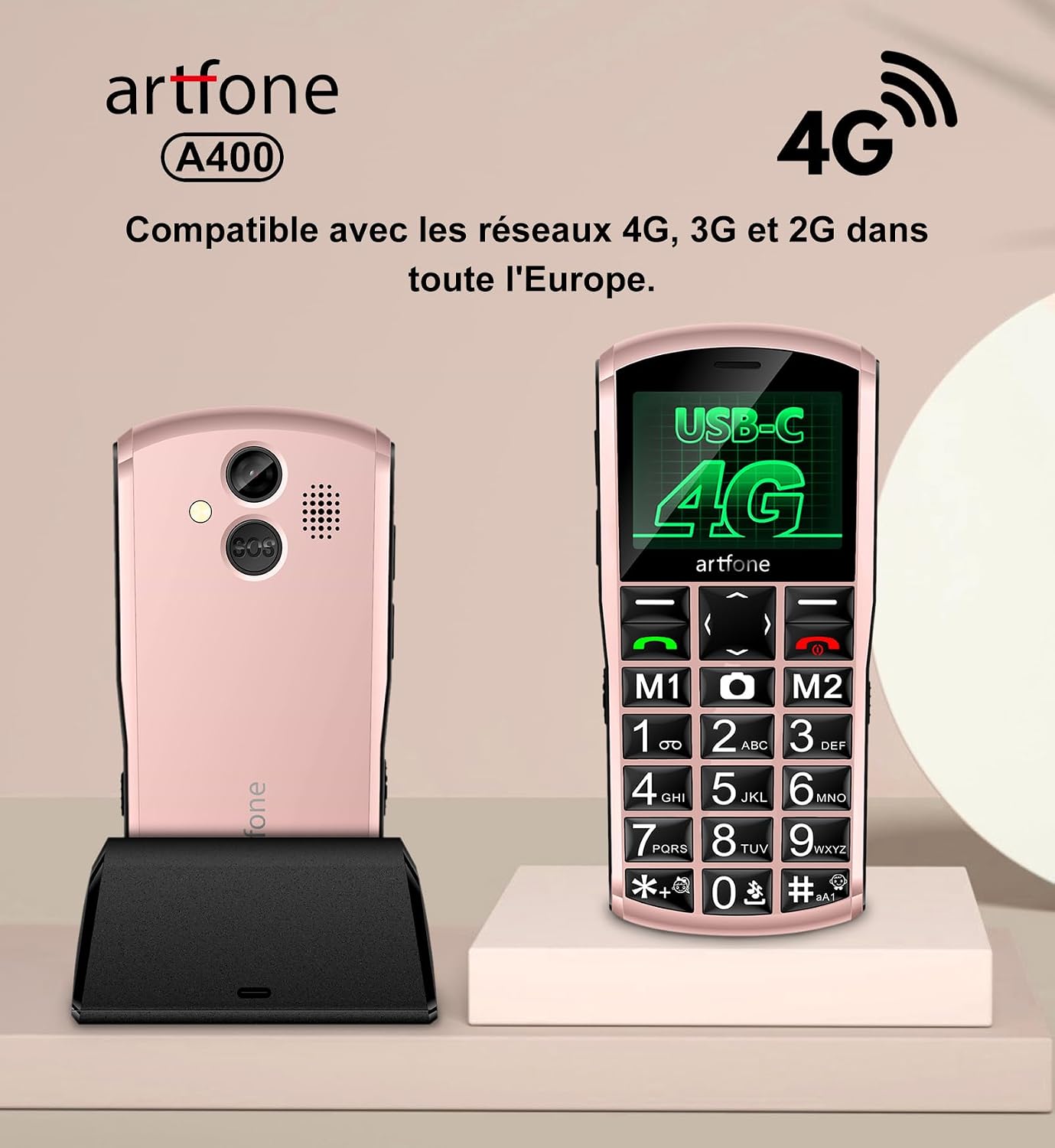
Image 9.1: artfone A400 4G network compatibility.
10. Warranty and Support
For warranty information and customer support, please refer to the documentation included in your product package or visit the official artfone website. Keep your purchase receipt as proof of purchase for any warranty claims.


