
Introduction
This manual provides comprehensive instructions for the Redragon K689 Wired Gasket RGB Gaming Keyboard. It covers setup, operation, maintenance, and troubleshooting to ensure optimal performance and longevity of your device. The K689 features a full-size 108-key layout, advanced gasket design for noise dampening, hot-swappable switches, and customizable RGB backlighting.

Figure 1: Redragon K689 Wired Gasket RGB Gaming Keyboard, showcasing its full layout and design.
Key Features
- Gasket Mounted Design: The body structure utilizes precision-locked covers with gaskets to reduce noise and enhance flexibility, providing a softer and cleaner typing feel.
- Full Size 108 Keys Layout: Includes 104 anti-ghosting keys for simultaneous input and 4 extra shortcut keys for added convenience.
- Custom Dragon Chant Switches: Thick-lubed linear switches offer cushioned, rich linear travel with silky, creamy, and comfortable typing feedback.
- Triple-Layer Noise Dampening: Equipped with 3.5mm PO foam, IXPE switch foam, and bottom socket foam, along with a silicone gasket, to significantly reduce hollow noise and create ultra-clean typing acoustics.
- Advanced Hot-Swappable Sockets: Compatible with 3/5-pin switches, allowing for easy customization and replacement of mechanical switches.
- Ergonomic Design: Features 2-stage adjustable feet for comfortable typing and wrist relaxation.
- Customizable RGB Backlighting: Offers 18 RGB backlight modes for vibrant visual effects.
- Pro Software Supported: Allows users to design custom modes, effects, macros, and keybindings for enhanced work and gaming efficiency.

Figure 2: Overview of the Redragon K689's advanced features, including its gasket design and noise dampening layers.
Package Contents
Please verify that all items are present in the package:
- Redragon K689 Wired Gasket RGB Gaming Keyboard
- Keycap Puller
- User Manual (this document)
Setup
Wired Connection
- Locate the USB-C port on the Redragon K689 keyboard.
- Connect the provided USB-C to USB-A cable to the keyboard and then to an available USB-A port on your computer.
- The keyboard will be automatically recognized by your operating system.
Adjusting Keyboard Angle
The keyboard features 2-stage adjustable feet on the underside. Flip out the feet to your preferred angle for improved ergonomic comfort during use.
Operating Instructions
RGB Backlighting Control
The Redragon K689 keyboard offers 18 pre-set RGB backlight modes. Use the dedicated hotkeys or the Redragon software to cycle through modes, adjust brightness, and change speed.
- Fn + Ins: Cycle through lighting modes.
- Fn + Home: Adjust lighting brightness.
- Fn + PgUp: Adjust lighting speed.
- Fn + Del: Change lighting direction/color.
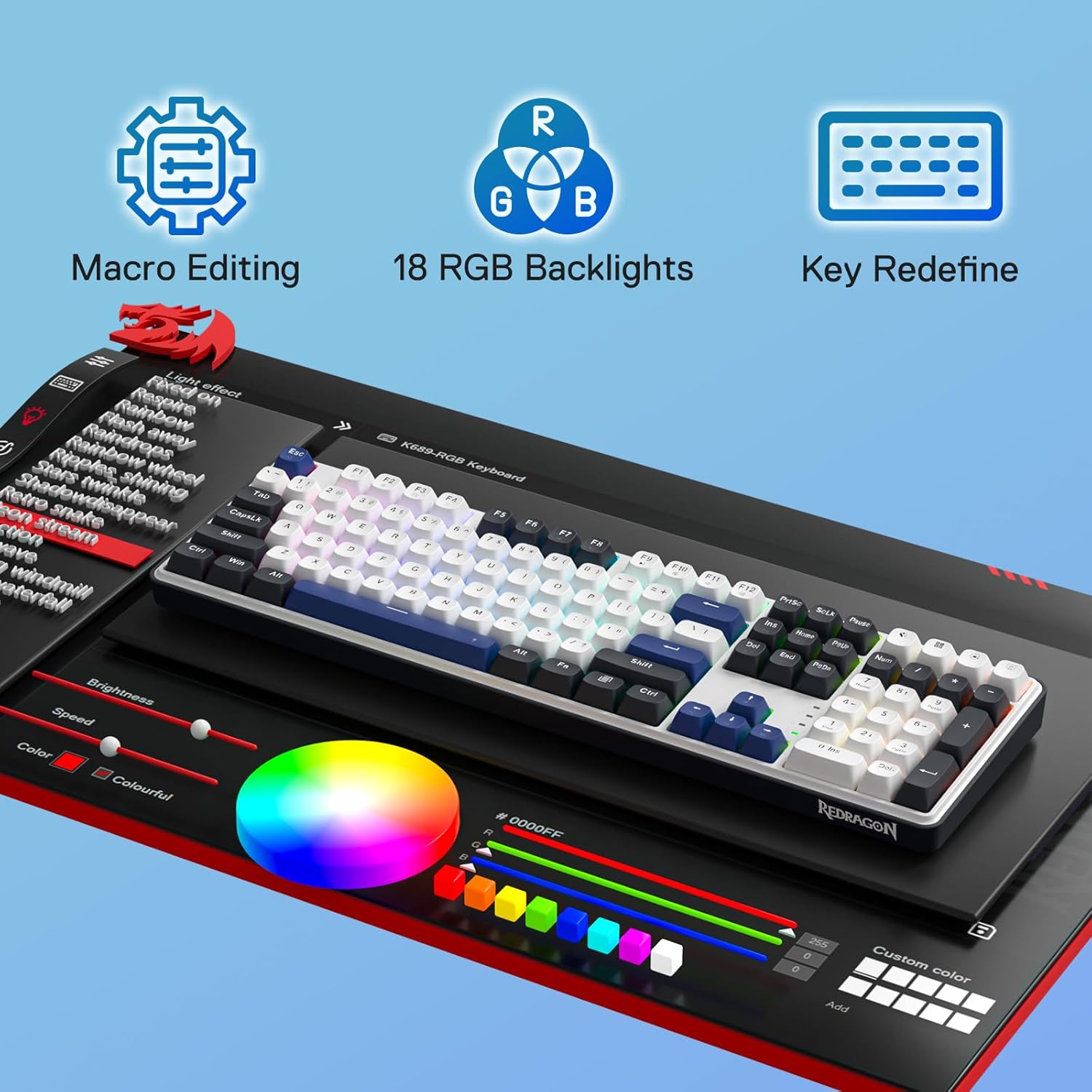
Figure 3: The Redragon K689's software interface for macro editing, RGB backlighting, and key redefinition.
Extra Hotkeys
The keyboard includes 4 dedicated hotkeys for quick access to common functions. Refer to the keycap legends for their specific functions.

Figure 4: A close-up view of the dedicated hotkeys on the Redragon K689 keyboard, designed for quick access to functions.
Software Customization
For advanced customization, download the official Redragon software from redragonshop.com. The software allows you to:
- Create and edit macros.
- Redefine key functions.
- Customize RGB lighting effects and colors.
- Save multiple profiles for different applications or games.
Maintenance
Cleaning the Keyboard
- Disconnect the keyboard from your computer before cleaning.
- Use a soft, lint-free cloth slightly dampened with water or a mild cleaning solution to wipe down the keycaps and chassis.
- For dust and debris between keys, use compressed air.
- Avoid using harsh chemicals or abrasive materials.
Hot-Swappable Switches
The K689 features hot-swappable sockets, allowing you to change switches without soldering. Use the provided keycap puller and switch puller (if included) to carefully remove and replace switches.

Figure 5: Illustration of the advanced hot-swappable sockets, compatible with 3/5-pin switches, allowing for easy switch replacement.
Ensure the new switch pins are straight before inserting them to avoid bending or damaging the socket.
Troubleshooting
| Problem | Possible Cause | Solution |
|---|---|---|
| Keyboard not responding | Loose cable connection, incorrect mode, driver issue. | Ensure USB-C cable is securely connected. Try a different USB port. Restart your computer. Check if the keyboard is in the correct operating mode (Windows/Mac). |
| RGB lighting not working | Lighting turned off, software conflict. | Press Fn + Ins to cycle through lighting modes. Adjust brightness with Fn + Home. Ensure Redragon software is updated or reinstalled. |
| Certain keys not working | Faulty switch, debris under keycap. | Remove the keycap and switch. Clean any debris. Reinsert the switch firmly. If the issue persists, replace the switch with a spare. |
Specifications
| Feature | Detail |
|---|---|
| Model | K689 |
| Number of Keys | 108 |
| Connectivity | USB-C Wired |
| Switch Type | Custom Linear Switch (Cerulean Polar) |
| Backlighting | RGB (18 modes) |
| Hot-Swappable | Yes (3/5-pin compatible) |
| Dimensions | 17.56 x 6.57 x 1.65 inches |
| Item Weight | 1.94 pounds |
| Compatible Devices | PC, Laptop |
Warranty and Support
Redragon products come with a standard warranty. For detailed warranty information, technical support, or to download the latest software and drivers, please visit the official Redragon website or refer to the included warranty card.
You can also find the official user manual in PDF format here: Redragon K689 User Manual (PDF)
For further assistance, please contact Redragon customer support.


