
1. Introduction
Thank you for choosing the PEI-M01 3-Axis Video Stabilizer. This device is designed to provide smooth, professional-quality video footage by eliminating shakes and vibrations, whether you are using a smartphone or a DSLR camera. Its intelligent features and long-lasting battery make it an ideal tool for vlogging, professional productions, and capturing life's moments with stability.
2. Product Overview
The PEI-M01 Gimbal features an ergonomic design for comfortable handling and intuitive controls for easy operation. Key components include the handle, control panel, smartphone/camera clamp, and the 3-axis stabilization system.
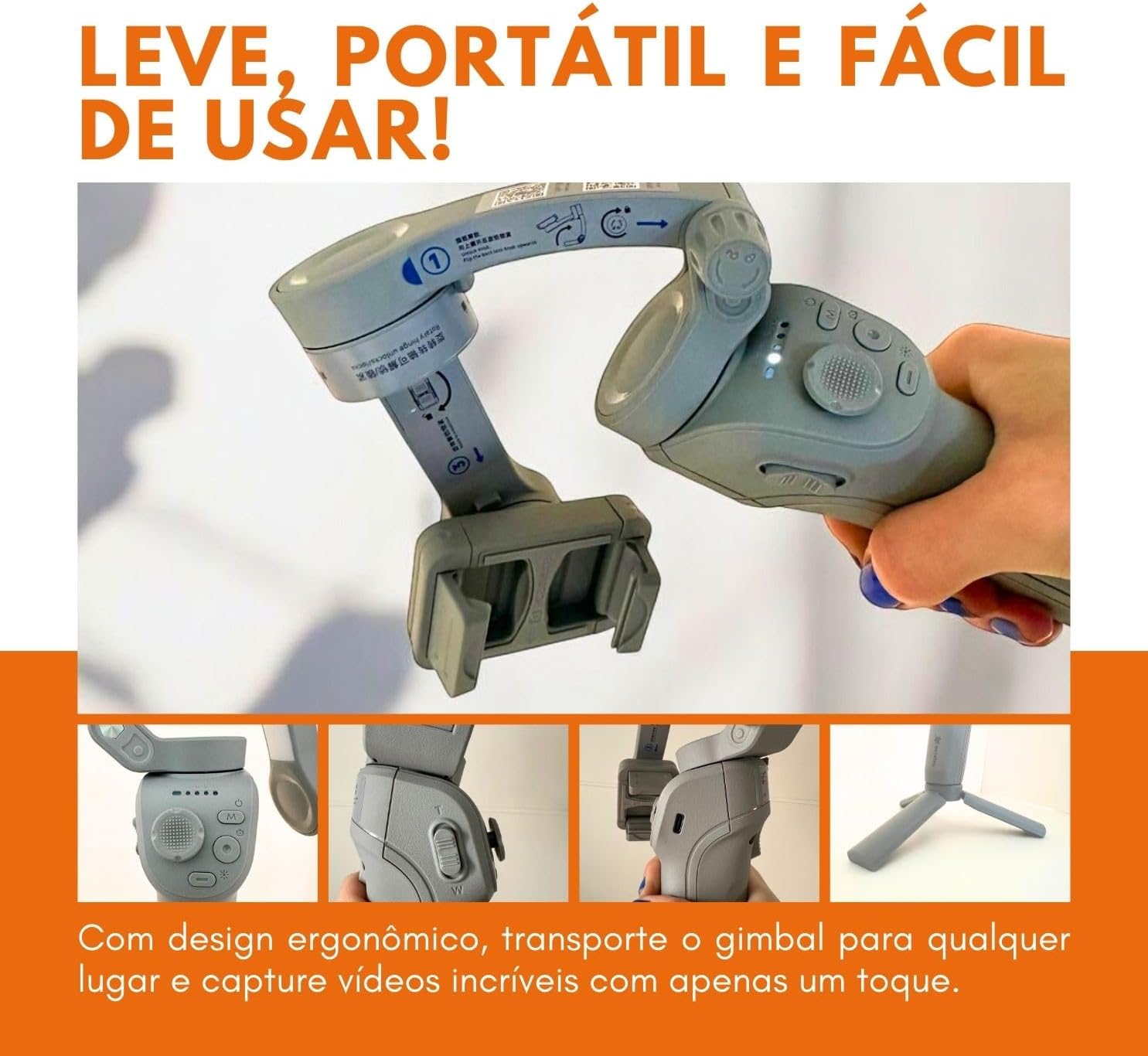
Figure 2.1: The PEI-M01 Gimbal showcasing its ergonomic design and control buttons.
The control panel typically includes a joystick for pan/tilt control, mode buttons, and a power button. The adjustable clamp securely holds your device, ensuring stability during use.
3. Setup
3.1 Mounting Your Device
- Unfold the Gimbal: Gently unfold the gimbal arms until they lock into position.
- Attach Smartphone/Camera: Open the device clamp and carefully insert your smartphone or camera. Ensure the device is centered and securely held.
- Balance the Device: Adjust the position of your device within the clamp until it is roughly balanced. This reduces strain on the gimbal motors and improves performance.
3.2 Powering On/Off
- Power On: Press and hold the power button (usually located on the handle) for a few seconds until the indicator lights illuminate.
- Power Off: Press and hold the power button again until the indicator lights turn off.
4. Operating Instructions
4.1 Basic Controls
- Joystick: Use the joystick to manually control the pan (left/right) and tilt (up/down) movements of your device.
- Mode Button: Press the mode button to cycle through different operating modes (e.g., Pan Follow, Lock Mode, POV). Refer to the specific mode descriptions below.
- Shutter Button: Press the shutter button to take photos or start/stop video recording when connected via Bluetooth to your smartphone.
4.2 Connecting via Bluetooth
To enable full control features, including the shutter button and advanced tracking, connect the gimbal to your smartphone via Bluetooth. Turn on the gimbal, enable Bluetooth on your phone, and select the gimbal from the list of available devices. An accompanying app may be available for enhanced functionality.
5. Modes of Operation
5.1 3-Axis Stabilization
The PEI-M01 utilizes a 3-axis stabilization system to counteract unwanted movements, ensuring your videos are consistently smooth and free from jitters, even during dynamic activities.

Figure 5.1: Capturing stable video footage even when the subject or operator is in motion.
5.2 Intelligent Tracking Mode
Activate the intelligent tracking mode to automatically follow a designated subject. This feature is particularly useful for vlogging or recording dynamic scenes where the subject is moving, keeping them consistently in the frame.

Figure 5.2: The gimbal's intelligent tracking feature, often complemented by integrated lighting for enhanced visibility.
5.3 Sport Mode
For fast-paced action and quick transitions, engage Sport Mode. This mode increases the gimbal's responsiveness, allowing it to keep up with rapid movements and sudden changes in direction, ideal for capturing sports or high-energy activities.
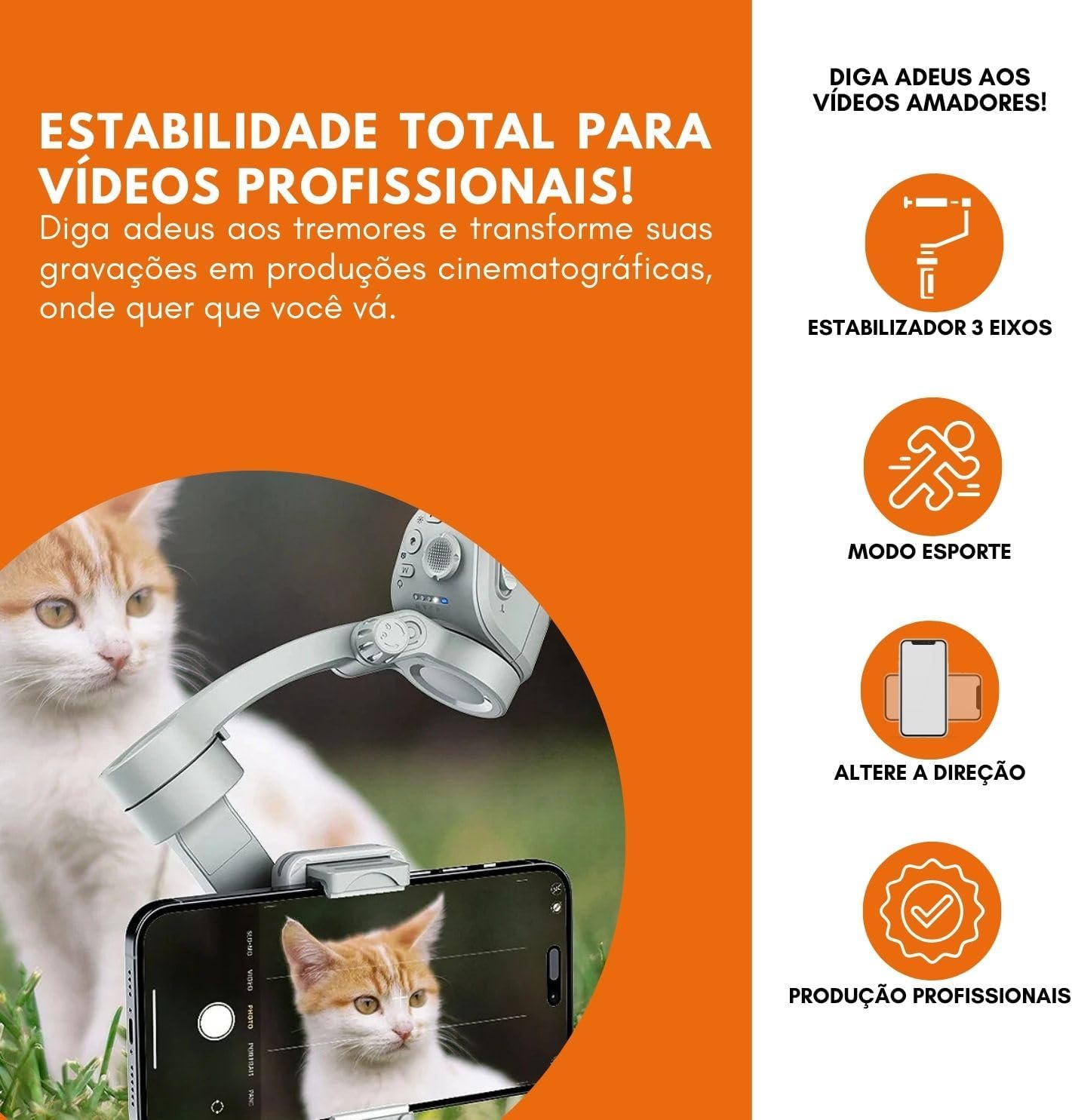
Figure 5.3: Visual representation of the gimbal's capabilities, including Sport Mode for dynamic shots.
6. Battery and Charging
The PEI-M01 Gimbal is equipped with a long-lasting battery, providing up to 8 hours of continuous use on a single charge. This allows for extended filming sessions without interruption.

Figure 6.1: The gimbal's extended battery life ensures prolonged usage for various events and productions.
6.1 Charging Instructions
- Connect the provided USB charging cable to the gimbal's charging port.
- Connect the other end of the cable to a USB power adapter (not included) or a computer's USB port.
- The indicator lights will show the charging status. Once fully charged, the lights will typically change or turn off.
7. Maintenance
- Cleaning: Use a soft, dry cloth to clean the gimbal. Avoid using liquid cleaners or solvents.
- Storage: Store the gimbal in a cool, dry place, away from direct sunlight and extreme temperatures.
- Battery Care: For optimal battery life, avoid fully discharging the battery frequently. Charge it regularly, even if not in use for extended periods.
- Avoid Impact: Protect the gimbal from drops or impacts, as this can damage the precision motors and internal components.
8. Troubleshooting
- Gimbal Not Powering On: Ensure the battery is charged. If not, connect it to a power source and try again.
- Unstable Footage: Check if your device is properly balanced in the clamp. Recalibrate the gimbal if necessary (refer to the app or manufacturer's website for calibration instructions).
- Bluetooth Connection Issues: Ensure Bluetooth is enabled on your phone and the gimbal is in pairing mode. Try restarting both devices.
- Motors Overheating: This can occur if the gimbal is improperly balanced or overloaded. Ensure your device is within the supported weight range and properly balanced.
9. Specifications
| Feature | Specification |
|---|---|
| Model | PEI-M01 |
| Stabilization | 3-Axis |
| Compatible Devices | DSLR Cameras, Mirrorless Cameras, Action Cameras, Smartphones (Apple iPhone, Android - Samsung, Huawei, Xiaomi) |
| Battery Life | Up to 8 hours |
| Product Weight | 617 Grams |
| Color | Gray |
10. Warranty and Support
For warranty information, technical support, or service inquiries, please refer to the documentation provided with your purchase or contact the manufacturer directly. Keep your proof of purchase for warranty claims.