
1. Introduction
Thank you for purchasing the DOYO Wireless Guitar Controller KT602B. This controller is designed to enhance your gaming experience on PlayStation 3, PlayStation 4, and PC platforms, offering wide compatibility with popular music rhythm games. This manual provides essential information for setup, operation, maintenance, and troubleshooting to ensure optimal performance.

Image 1.1: The DOYO Wireless Guitar Controller and its accompanying USB dongle.
2. Product Overview
Familiarize yourself with the components and controls of your DOYO Wireless Guitar Controller.

Image 2.1: Labeled diagram of the DOYO Wireless Guitar Controller, highlighting key components such as the strum bar, fret buttons, and power switch.
Key Components:
- Strum Bar: Used for strumming notes.
- 5-Color Fret Buttons: Green, Red, Yellow, Blue, Orange buttons on the neck for playing notes.
- Whammy Bar: For pitch bending effects.
- Tilt Sensor: Activates Star Power or similar in-game abilities by tilting the guitar.
- Game Mode Button: Switches between different game modes or functions.
- Sound Effect Switch: Controls sound effects.
- Arrow Keys (D-Pad): For menu navigation.
- PS/Mode Keys: PlayStation button or mode selection.
- Key (Select/Esc): Select or Escape function.
- Button (Pause/Start): Pause or Start game.
- Power Switch: Turns the controller on/off.
- Battery Compartment: Holds 4 AA batteries.
- USB Receiver: Wireless dongle for connecting to your console or PC.
- Detachable Neck: Allows for easy storage and transport.
- Adjustable Strap Buckle: For attaching and adjusting the guitar strap.
3. Setup
Follow these steps to set up your DOYO Wireless Guitar Controller.
3.1. Assembly
- Attach the Neck: Carefully slide the guitar neck into the body of the guitar until it clicks securely into place. Ensure the connection is firm.

Image 3.1: Illustration of the detachable guitar neck being assembled into the main body of the controller.
3.2. Battery Installation
- Locate the battery compartment on the back of the guitar body.
- Open the battery compartment cover.
- Insert 4 AA batteries, ensuring correct polarity (+/-).
- Close the battery compartment cover securely.
3.3. Connecting to Your Device
- Plug the USB receiver into an available USB port on your PlayStation 3, PlayStation 4, or PC.
- Flip the Power Switch on the guitar controller to the 'ON' position.
- The controller will automatically connect to the USB receiver. No manual pairing is required.

Image 3.2: Diagram illustrating the wireless connection of the guitar controller to PC, PS4, and PS3 via the USB dongle.
4. Operating Instructions
This section details how to use your guitar controller during gameplay.
4.1. Basic Gameplay
- Playing Notes: Hold down the corresponding fret button(s) and strum the strum bar.
- Whammy Bar: Use the whammy bar to alter the pitch of sustained notes.
- Star Power/Overdrive: Tilt the guitar upwards to activate in-game special abilities when available.
4.2. Control Buttons
- Game Mode Button: Press to cycle through different operational modes if applicable to your game or system.
- Sound Effect Switch: Toggle this switch to enable or disable specific sound effects from the controller.
- PS/Mode Keys: Functions as the PlayStation button on consoles or for mode selection on PC.
- Select/Esc Button: Used for menu selections or to exit certain screens.
- Pause/Start Button: Used to pause or start gameplay.
4.3. PC Specific Operation
When connected to a Windows 10 or Windows 11 PC, the guitar controller automatically operates in keyboard and mouse mode. This means the fret buttons and other controls are mapped to specific keyboard keys. This allows for compatibility with games like Fortnite and Clone Hero.
Note: Windows 7 is not supported. For PC, the controller typically functions as Player 1. Using a second guitar may require specific in-game settings adjustments, and some games might not fully support two controllers simultaneously in this mode.
5. Compatibility
The DOYO Wireless Guitar Controller KT602B offers broad compatibility across various platforms and game titles.
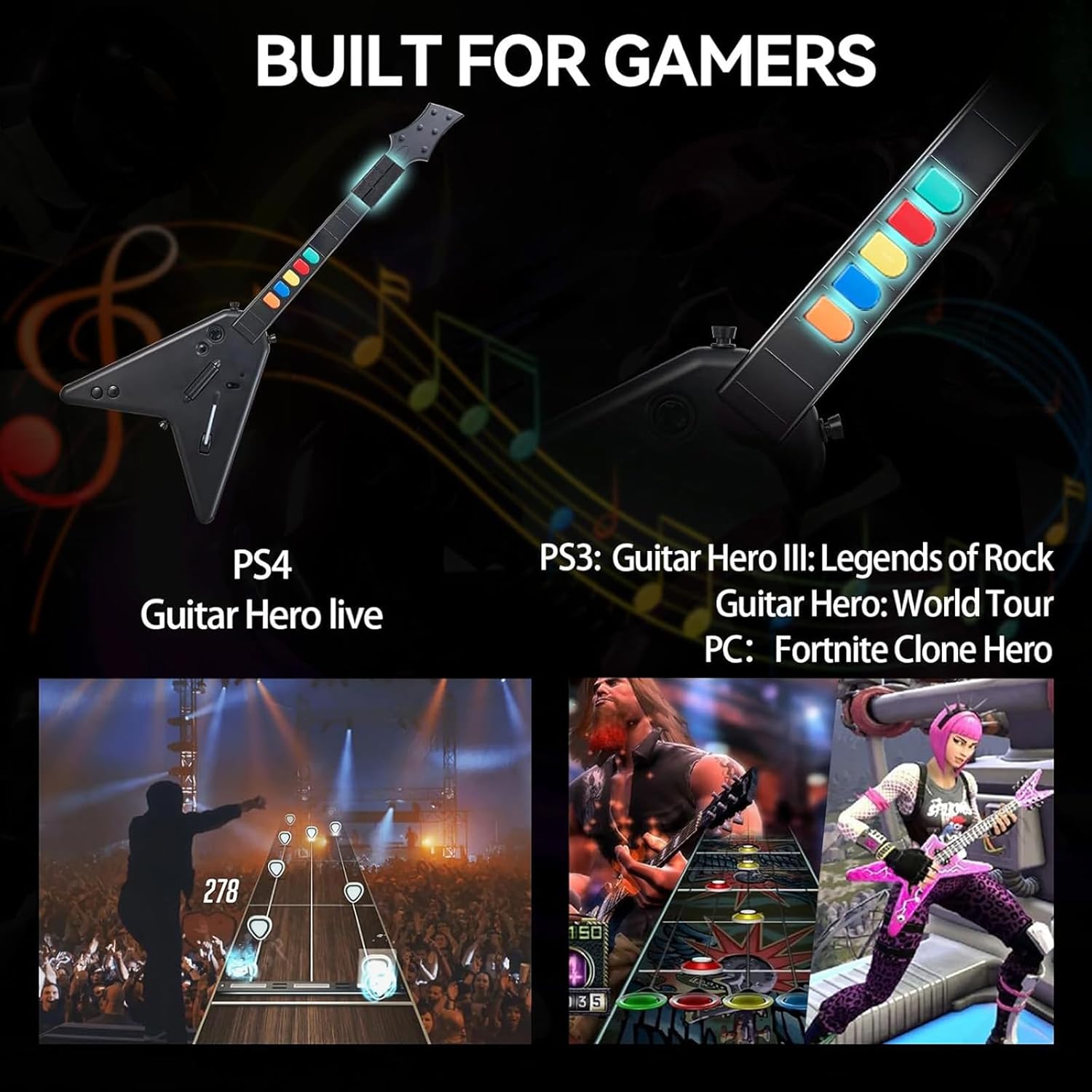
Image 5.1: Visual representation of the guitar controller's compatibility with various games on PS4, PS3, and PC.
- PlayStation 3 (PS3): Compatible with Guitar Hero III: Legends of Rock, Guitar Hero: World Tour, and Rock Band.
- PlayStation 4 (PS4): Supports Guitar Hero Live. Note: Not compatible with Rock Band 4.
- PC (Windows 10/11): Works with games such as Fortnite and Clone Hero.
6. Power Management
The controller is powered by 4 AA batteries. To conserve battery life, always turn the power switch to the 'OFF' position when not in use. If the controller will not be used for an extended period, it is recommended to remove the batteries.
7. Maintenance
Proper care will extend the life of your guitar controller.
- Cleaning: Use a soft, dry cloth to clean the surface of the controller. Avoid using harsh chemicals or abrasive materials.
- Storage: When not in use, store the controller in a cool, dry place. The detachable neck feature allows for more compact storage.
- Handling: Avoid dropping the controller or subjecting it to strong impacts.
8. Troubleshooting
If you encounter issues with your DOYO Wireless Guitar Controller, refer to the following common problems and solutions.
| Problem | Possible Cause | Solution |
|---|---|---|
| Controller does not power on. | Dead or incorrectly inserted batteries. | Replace with fresh AA batteries, ensuring correct polarity. |
| Controller does not connect to device. | USB receiver not plugged in; controller out of range; interference. | Ensure USB receiver is firmly plugged in. Move controller closer to receiver (within 7 meters). Check for other 2.4Ghz devices causing interference. |
| Buttons are unresponsive or sticky. | Debris under buttons; internal mechanism issue. | Ensure buttons are clean. If issue persists, contact customer support. |
| Controller disconnects frequently. | Low batteries; signal interference; distance from receiver. | Replace batteries. Reduce distance to receiver. Minimize other wireless device usage. |
| PC issues (e.g., 'sticky keys' pop-up). | Default keyboard key bindings (e.g., Orange button mapped to 'Left Shift'). | Adjust in-game key bindings if possible. For Windows 'sticky keys', disable the feature in Windows accessibility settings. |
| Second guitar not working on PC. | PC mode often defaults to Player 1; specific game limitations. | Check game settings for multi-controller support. Some games may not support two controllers simultaneously when operating in keyboard emulation mode. |
9. Specifications
| Feature | Detail |
|---|---|
| Model Number | KT602B |
| Connectivity | 2.4G Wireless (USB Dongle) |
| Wireless Range | Up to 7 meters |
| Power Source | 4 x AA Batteries |
| Compatibility | PlayStation 3, PlayStation 4, PC (Windows 10/11) |
| Dimensions (Package) | 18.54 x 14.41 x 3.23 inches |
| Item Weight | 2.57 pounds |
| Manufacturer | DOYO |
10. Warranty and Support
DOYO products are designed for reliability and performance. For any questions, concerns, or issues regarding your DOYO Wireless Guitar Controller KT602B, please contact our customer service team. If a product defect is identified, you may be eligible for a refund or replacement according to our warranty policy. Our customer service team aims to process inquiries within 24 hours.
Please refer to your purchase documentation or the official DOYO website for specific warranty terms and contact information.
