
1. Introduction
This manual provides essential information for the safe and efficient operation of your E GATE Atom 2X Smart Android Projector. Please read it thoroughly before using the device and retain it for future reference.

The E GATE Atom 2X Smart Android Projector offers a versatile viewing experience with its compact design and smart features.
2. Package Contents
Verify that all items are present in the package:
- E GATE Atom 2X Projector
- Power Cord
- Remote Control
- Warranty Card
3. Setup
3.1 Physical Placement
The Atom 2X projector features a 180-degree rotatable stand, allowing for flexible projection angles on walls, ceilings, or floors. Position the projector on a stable, flat surface.
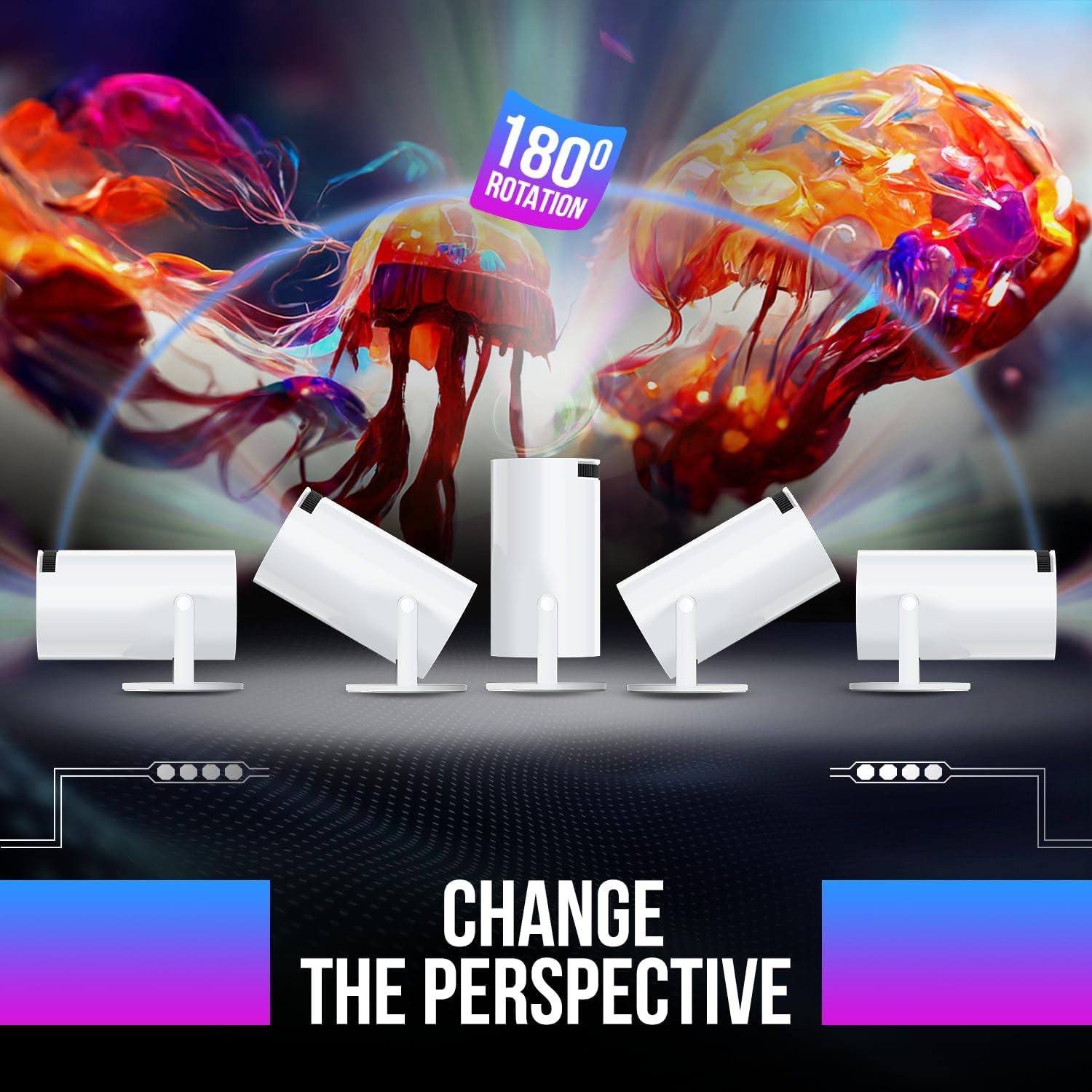
The projector's integrated stand allows for versatile projection angles, from 0 to 180 degrees.
3.2 Power Connection
- Connect the power cord to the projector's power input port.
- Plug the other end of the power cord into a suitable electrical outlet.
- Press the power button on the projector or remote control to turn on the device.
3.3 Initial Setup and Network Connection
Upon first use, follow the on-screen prompts to complete the initial setup, including language selection and network configuration.
- Wi-Fi Connection: Navigate to the settings menu, select 'Network & Internet', and connect to your desired Wi-Fi network (supports Dual Band Wi-Fi 6: 2.4GHz + 5GHz).
- Bluetooth Connection: For connecting external audio devices or game controllers, go to 'Connected Devices' in settings and pair your Bluetooth 5.0 compatible device.
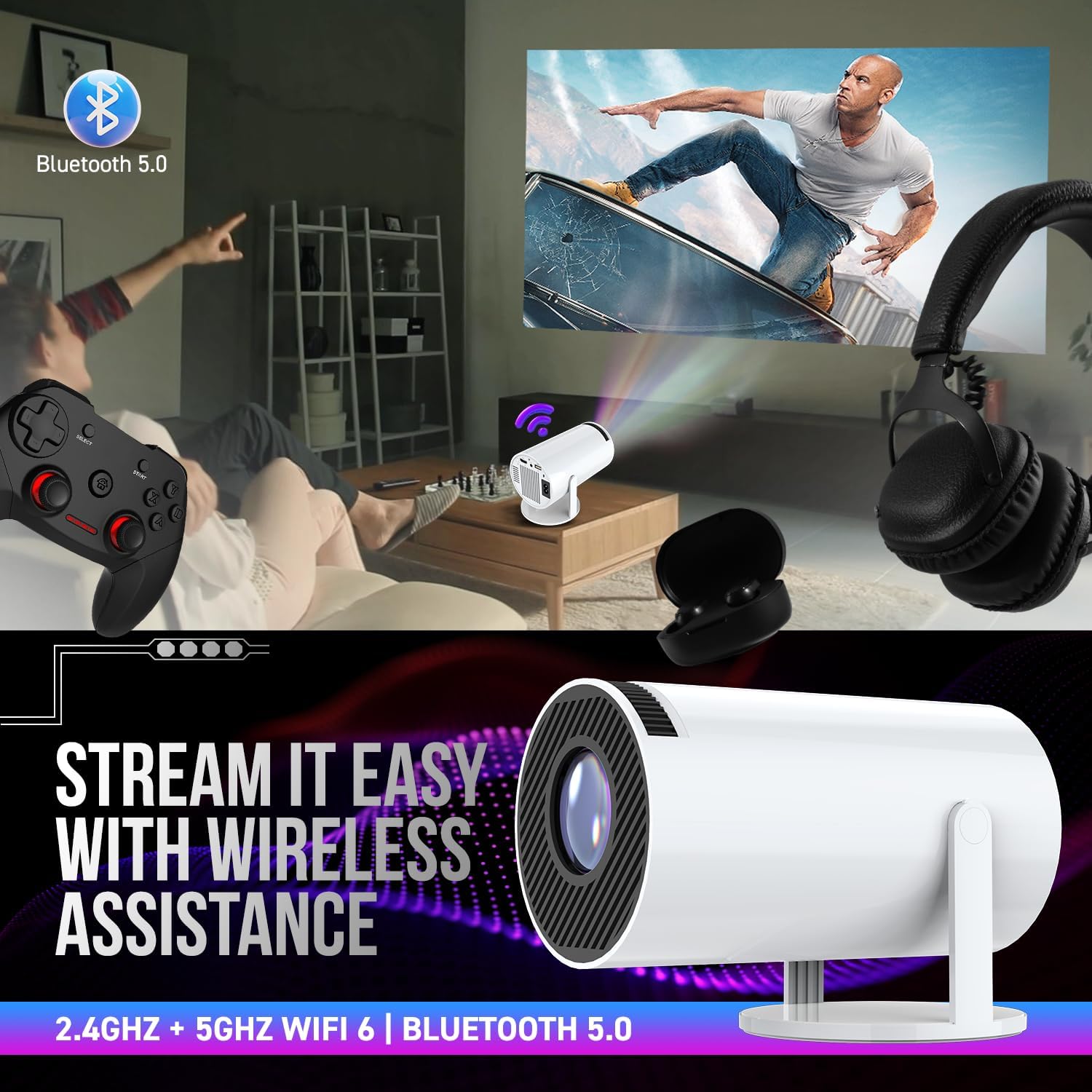
The projector supports Bluetooth 5.0 and Dual Band Wi-Fi 6 for seamless wireless connectivity.
3.4 Image Adjustment (Keystone and Focus)
The projector features automatic keystone correction and a manual focus wheel for optimal image clarity.
- Automatic Keystone: The projector will automatically adjust vertical distortion.
- 4P 4D Digital Control: For advanced keystone adjustments, navigate to the 'Projection' settings to manually correct horizontal and vertical angles.
- Focus Adjustment: Use the physical focus wheel on the projector body to achieve a sharp image.
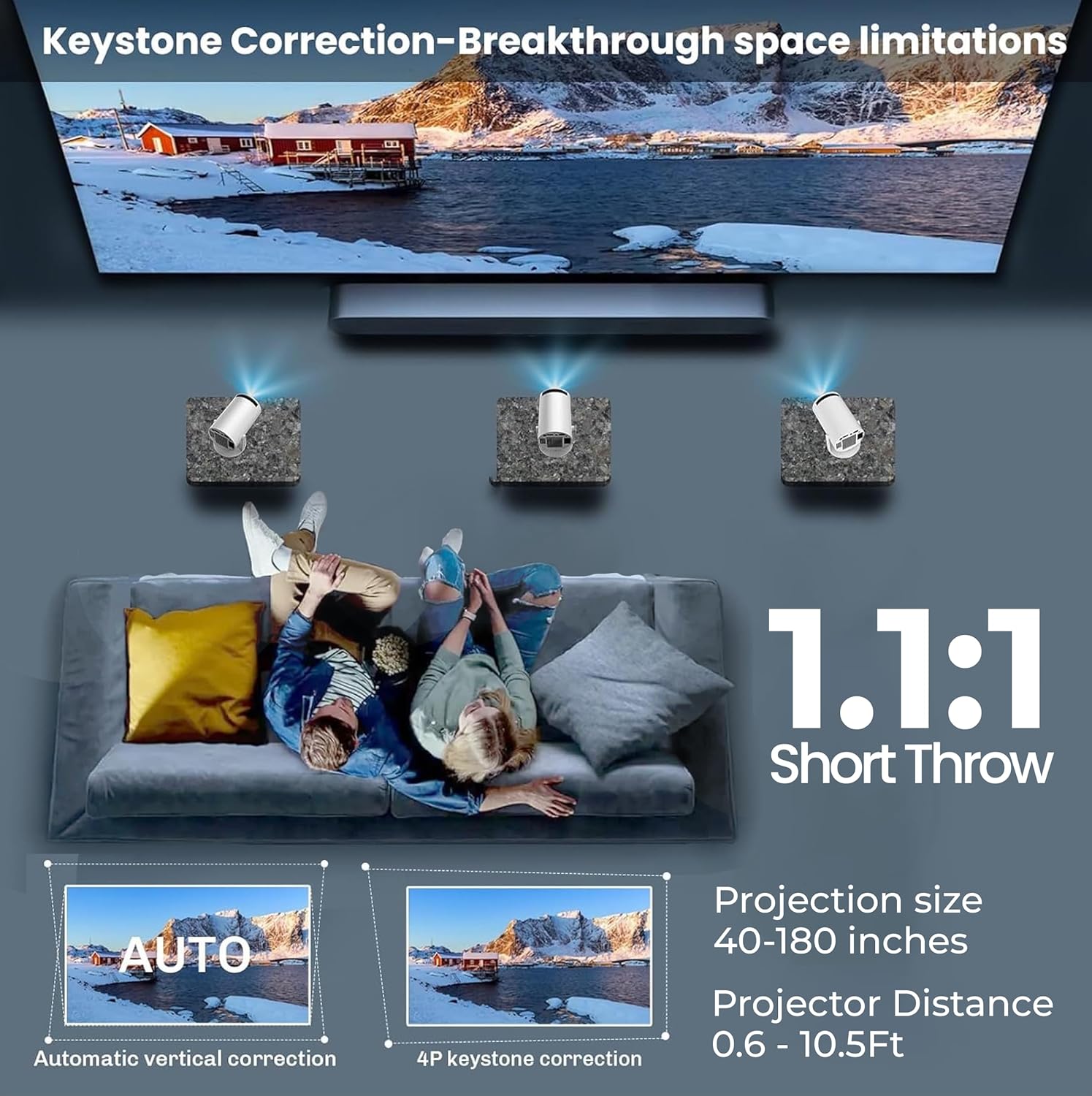
Automatic and 4P 4D keystone correction features ensure a perfectly rectangular image from various projection angles.
4. Operating Instructions
4.1 Android TV AOSP Interface
The projector runs on a built-in Android operating system (AOSP), providing access to a wide range of applications without external devices.
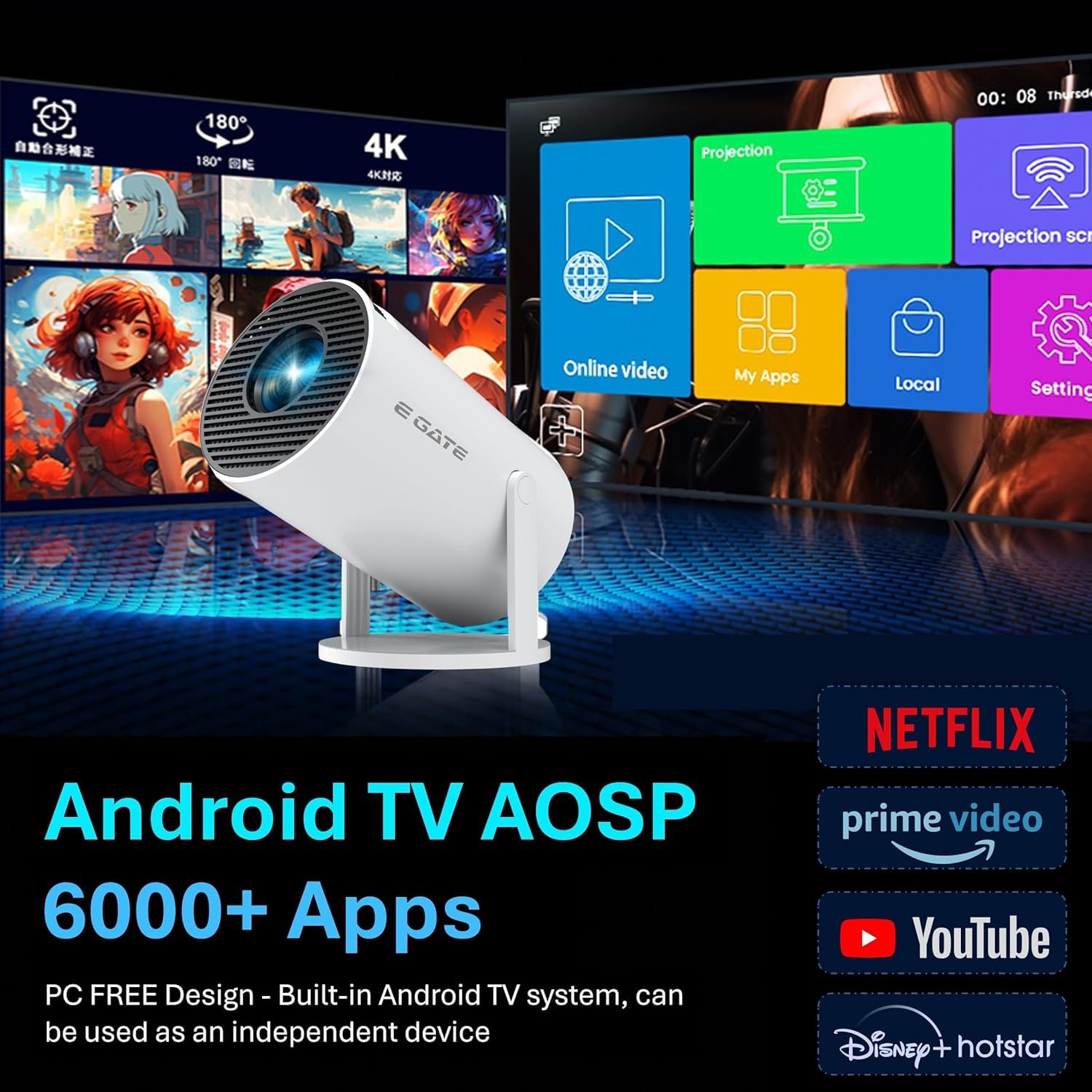
The Android TV AOSP interface provides access to pre-loaded streaming services and thousands of other applications.
4.2 Using Pre-loaded Applications
Access popular streaming services such as Netflix, Prime Video, and YouTube directly from the home screen. Ensure a stable internet connection for optimal performance.
4.3 Screen Mirroring
Mirror content from your smartphone or tablet to the projector. Navigate to the 'Screen Mirroring' application on the projector's home screen and follow the instructions for your specific device.
4.4 Connecting External Devices
Use the available ports to connect external devices:
- HDMI: Connect gaming consoles, Blu-ray players, or laptops via the HDMI port.
- USB: Play media files directly from a USB drive.
- Bluetooth: Connect Bluetooth speakers, headphones, or gamepads wirelessly.
5. Maintenance
5.1 Cleaning the Projector
To maintain optimal performance and image quality:
- Use a soft, dry cloth to clean the exterior of the projector.
- For the lens, use a specialized lens cleaning cloth and solution. Avoid abrasive materials.
- Ensure ventilation openings are clear of dust and obstructions.
5.2 Lamp Life
The projector's LED lamp has an estimated lifespan of up to 50,000 hours, providing long-term usage without frequent lamp replacement.
6. Troubleshooting
If you encounter issues, refer to the following common solutions:
| Problem | Possible Cause | Solution |
|---|---|---|
| No Power | Power cord disconnected; Power outlet issue | Check power connections; Try a different outlet. |
| No Image | Input source not selected; Lens cap on; Focus/Keystone issues | Select correct input; Remove lens cap; Adjust focus/keystone. |
| Blurred Image | Incorrect focus; Projector too far/close; Keystone not adjusted | Adjust focus wheel; Reposition projector; Use keystone correction. |
| No Sound | Volume too low; External audio device not connected; Muted | Increase volume; Check Bluetooth/HDMI audio settings; Unmute. |
| Wi-Fi/Bluetooth Disconnection | Interference; Out of range; Network issue | Move closer to router/device; Restart projector/router; Reconnect. |
7. Specifications
Detailed technical specifications for the E GATE Atom 2X Projector:
| Feature | Specification |
|---|---|
| Brand | E GATE |
| Model Name | Atom 2X |
| Model Number | Ei9027 |
| Native Resolution | 1280 x 720 (720p) |
| Maximum Display Resolution | 1080p Full HD (4K Decoding Support) |
| Projector Maximum White Brightness | 200 ANSI Lumens (ISO Brightness) |
| Display Type | LCD |
| Connectivity Technology | Bluetooth 5.0, HDMI, Wi-Fi 6 (2.4GHz + 5GHz) |
| Operating System | Android TV AOSP |
| Processor | Allwinner H713 Chip Quad Core Processor, ARM Cortex 450 GPU |
| Memory/Storage | 1GB RAM / 8GB ROM |
| Keystone Correction | Automatic Keystone, 4P 4D Digital Control |
| Maximum Image Size | 180 Inches |
| Throw Distance | Minimum 4 Feet, Maximum 12 Feet |
| Item Dimensions (L x W x H) | 11.8L x 21.8W x 15.5H Centimeters |
| Item Weight | 900 Grams |
| Color | White |

Understanding brightness measurements: The Atom 2X uses 200 ISO Lumens for accurate brightness representation.
8. Warranty and Support
8.1 Warranty Information
The E GATE Atom 2X Projector comes with a Manufacturer Warranty for 1 Year from the date of purchase. Please refer to the included Warranty Card for detailed terms and conditions.
8.2 Customer Support
For technical assistance, troubleshooting, or warranty claims, please contact Optroniq India, the manufacturer and importer.
- Manufacturer/Importer: Optroniq India
- Address: 504, SG Alpha Tower-II, Sector-9, Vasundhara, Ghaziabad, Uttar Pradesh 201012