
1. Introduction
Welcome to the AYANEO Flip DS user manual. This document provides essential information for the proper setup, operation, and maintenance of your new portable gaming PC. The AYANEO Flip DS is a high-performance handheld device featuring a unique dual-screen design, powered by an AMD Ryzen 7 8840U processor, designed to deliver an immersive gaming experience on the go.

Image 1.1: The AYANEO Flip DS with its dual screens in an open position.
2. Safety Information
- Do not expose the device to water, moisture, or extreme temperatures.
- Use only the provided power adapter and USB Type-C cable for charging.
- Avoid dropping or subjecting the device to severe impacts.
- Keep the device away from strong magnetic fields.
- Do not attempt to disassemble or repair the device yourself. Contact authorized service personnel.
3. Package Contents
Verify that all items are present in the package:
- 1x AYANEO Flip DS Portable Gaming PC
- 1x Power Adapter
- 1x USB Type-C Cable
- 1x User Manual
4. Product Overview
The AYANEO Flip DS features a clamshell design with two integrated displays and ergonomic controls for portable gaming.
4.1. Dual Screens
- Main Screen: 7-inch IPS display with 1080P resolution, 120 Hz refresh rate, and 368 PPI.
- Secondary Screen: 3.5-inch IPS display with 960x640 resolution, providing additional functionality for game controls, multitasking, or secondary information displays.
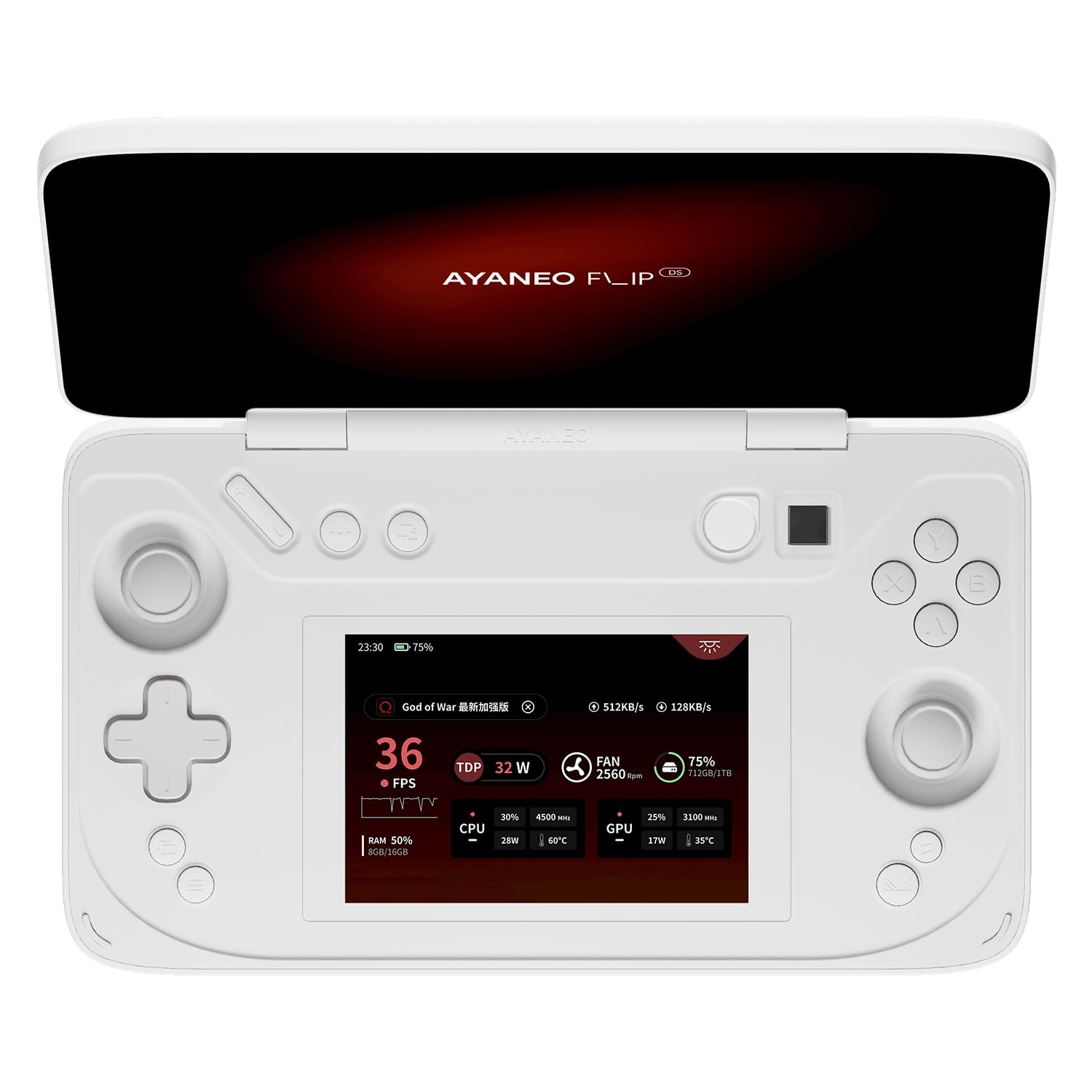
Image 4.1: The AYANEO Flip DS main 7-inch 120Hz display.
4.2. Controls and Input
The device is equipped with high-precision controls for an optimal gaming experience.
- Hall Sensing Joysticks: Zero-contact electromagnetic induction drive for high precision and no drift.
- Hall Triggers: Electromagnetic induction drive for higher input precision and stable feel, providing dynamic feedback.
- Buttons: Standard gaming buttons (A, B, X, Y), D-pad, shoulder buttons, and function keys.

Image 4.2: Overview of the AYANEO Flip DS control features.
4.3. Ports and Connectivity
The AYANEO Flip DS offers comprehensive connectivity options.
- 1x USB 4 Type-C (up to 40Gbps, supports DP 1.4 video output, PD charging)
- 1x USB 3.2 Gen 2 Type-C (up to 10Gbps)
- 1x Oculink (PCIe 4x4 protocol, 64Gbps effective bandwidth for external graphics)
- 1x Micro SD Card Reader (UHS-II, up to 300MB/s read speed)
- 1x 3.5mm Headphone Jack
- Wi-Fi 6E for high-speed wireless internet.
- Bluetooth 5.2 for wireless peripheral connections.

Image 4.3: High-speed transfer ports and wireless connectivity features.

Image 4.4: Rear view of the AYANEO Flip DS, highlighting ventilation and port placement.

Image 4.5: Explanation of the Oculink interface for enhanced performance.
5. Setup
5.1. Charging the Device
- Connect the provided USB Type-C cable to the charging port on the AYANEO Flip DS.
- Plug the other end of the USB Type-C cable into the power adapter.
- Insert the power adapter into a wall outlet. The device will begin charging.
5.2. Initial Power On
- Press and hold the Power Button (often integrated with fingerprint recognition) until the AYANEO logo appears on the main screen.
- Follow the on-screen instructions to complete the initial Windows setup, including language selection, network connection, and user account creation.
6. Operating Instructions
6.1. Power Management
- Power On: Press and hold the Power Button.
- Sleep Mode: Briefly press the Power Button to put the device into sleep mode.
- Power Off: From Windows, navigate to Start > Power > Shut down, or press and hold the Power Button for several seconds until the device powers off.
6.2. Using the Dual Screens
The secondary 3.5-inch screen can be utilized for various functions:
- Game Controls: Display custom controls or game-specific information.
- Multitasking: Run secondary applications, chat, or monitor system performance.
- Secondary Display: Extend your desktop for additional workspace.
6.3. AYASpace 2.0 Handheld Manager
AYASpace 2.0 is the integrated software designed to enhance your Windows handheld experience. It provides complete handheld and system settings, performance management, and quick access to features.
- Performance Scene Mode: Quickly switch between different performance profiles (e.g., balanced, performance, power-saving) to optimize for specific games or tasks.
- Quick Setting Window: Access essential settings like Wi-Fi, Bluetooth, brightness, and volume with ease.
- FPS Thunder: Monitor and display real-time performance parameters such as FPS, CPU/GPU usage, and temperature.

Image 6.1: The AYASpace 2.0 user interface for managing device settings and performance.
7. Maintenance
- Cleaning: Use a soft, dry cloth to clean the device. For screens, use a microfiber cloth and a screen-safe cleaning solution. Avoid abrasive materials.
- Storage: Store the device in a cool, dry place away from direct sunlight and extreme temperatures.
- Software Updates: Regularly check for and install Windows updates and AYASpace updates to ensure optimal performance and security.
8. Troubleshooting
If you encounter issues with your AYANEO Flip DS, refer to the following common solutions:
- Device Not Powering On: Ensure the device is fully charged. Connect it to the power adapter and wait a few minutes before attempting to power on again.
- Screen Not Responding: Try restarting the device. If the issue persists, check for system updates.
- Connectivity Issues (Wi-Fi/Bluetooth): Verify that Wi-Fi or Bluetooth is enabled in Windows settings. Restart the device and your router/Bluetooth peripheral if necessary.
- Performance Problems: Adjust performance settings in AYASpace 2.0. Ensure drivers are up to date. Close unnecessary background applications.
- Controls Not Responding: Restart the device. Check AYASpace settings for controller calibration or remapping.
For further assistance, please refer to the official AYANEO support resources.
9. Specifications
| Feature | Specification |
|---|---|
| Platform | Windows |
| Processor | AMD Ryzen 7 8840U (8 Cores, 16 Threads, up to 5.1 GHz) |
| Graphics | AMD Radeon 780M |
| RAM | 64 GB LPDDR5X |
| Storage | 2 TB M.2 2230 PCIe 4.0 SSD |
| Main Display | 7-inch IPS, 1920x1080 (1080P), 120 Hz, 368 PPI, 100% sRGB |
| Secondary Display | 3.5-inch IPS, 960x640 |
| Connectivity | Wi-Fi 6E, Bluetooth 5.2 |
| Ports | 1x USB 4 Type-C, 1x USB 3.2 Gen 2 Type-C, 1x Oculink, 1x Micro SD (UHS-II), 1x 3.5mm Headphone Jack |
| Color | Milky White |
| Weight | 650 Grams |
| Model Number | DS |
10. Warranty and Support
The AYANEO Flip DS comes with a limited manufacturer's warranty. Please refer to the warranty card included in your package or visit the official AYANEO website for detailed warranty terms and conditions.
For technical support, product registration, or frequently asked questions, please visit the official AYANEO support portal or contact their customer service.
Official AYANEO Website: www.ayaneo.com

