
1. Introduction
The Shelly Plug S Gen3 is a compact and powerful Wi-Fi Matter smart socket designed to control and monitor electrical appliances. It offers advanced features such as power consumption measurement, remote control, and integration with various smart home ecosystems. This manual provides essential information for the safe and efficient use of your Shelly Plug S Gen3.
Key Features:
- Matter Certified: Seamless integration with major smart home platforms.
- Power Measurement: Real-time power consumption monitoring up to 12A (2500W).
- Multi-color LED Indicator: Provides visual feedback, including Night Mode.
- Remote Control: Manage devices via the Shelly Smart Control app from anywhere.
- Voice Control: Compatible with Apple HomeKit, Amazon Alexa, and Google Home.
- Timers & Schedules: Automate device operation based on time or scenarios.
- Advanced Protection: Built-in safeguards against overheating, overload, current spikes, and overvoltage.
- Wi-Fi & BLE Gateway: Connects directly to Wi-Fi; acts as a BLE gateway.
2. Setup
Follow these steps to set up your Shelly Plug S Gen3 and integrate it into your smart home system.
2.1 Initial Power-On and Matter Integration
The Shelly Plug S Gen3 is Matter certified, allowing for easy integration into compatible smart home ecosystems without requiring a separate hub. Simply plug the device into a standard Type F wall socket.
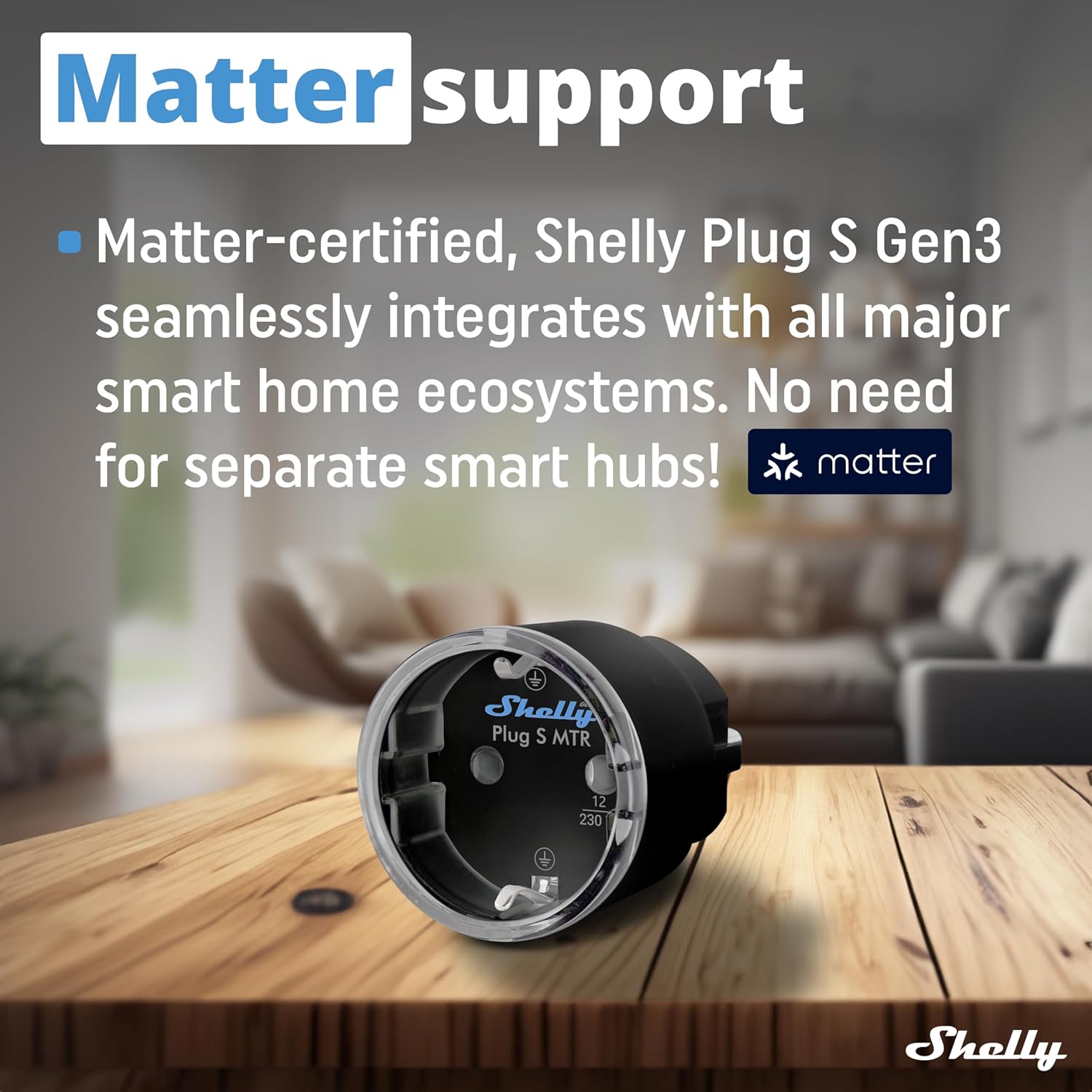
Image: Shelly Plug S Gen3 with Matter support logo. The Shelly Plug S Gen3 is Matter-certified, allowing seamless integration with various smart home ecosystems without a separate hub.
2.2 Wi-Fi Connection and App Pairing
The Shelly Plug S Gen3 connects directly to your Wi-Fi network. No additional hub is required for its operation. Bluetooth (BLE) is available for inclusion purposes, simplifying the initial pairing process.
- Download the Shelly Smart Control app from your device's app store.
- Create an account or log in.
- Plug the Shelly Plug S Gen3 into a power outlet.
- Follow the in-app instructions to add the device. This typically involves connecting to the device's temporary Wi-Fi hotspot and then configuring it to join your home Wi-Fi network.
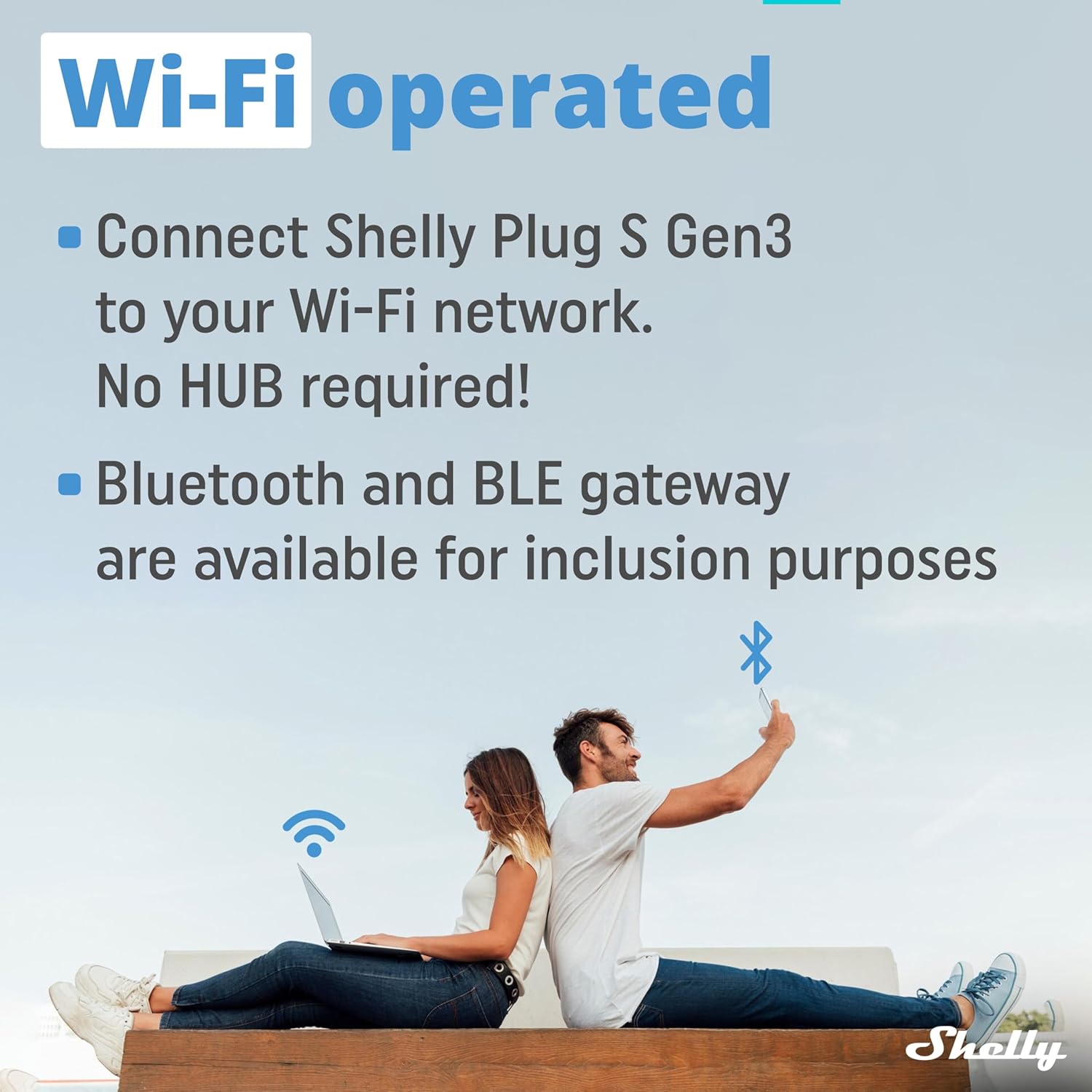
Image: People using devices connected via Wi-Fi, illustrating Wi-Fi operation of Shelly Plug S Gen3. The Shelly Plug S Gen3 connects directly to your Wi-Fi network, eliminating the need for a separate hub. It also supports Bluetooth and BLE for inclusion.
2.3 Device Insertion
Once configured, insert the Shelly Plug S Gen3 into a standard wall socket. The multi-color LED indicator will provide visual feedback on its status.
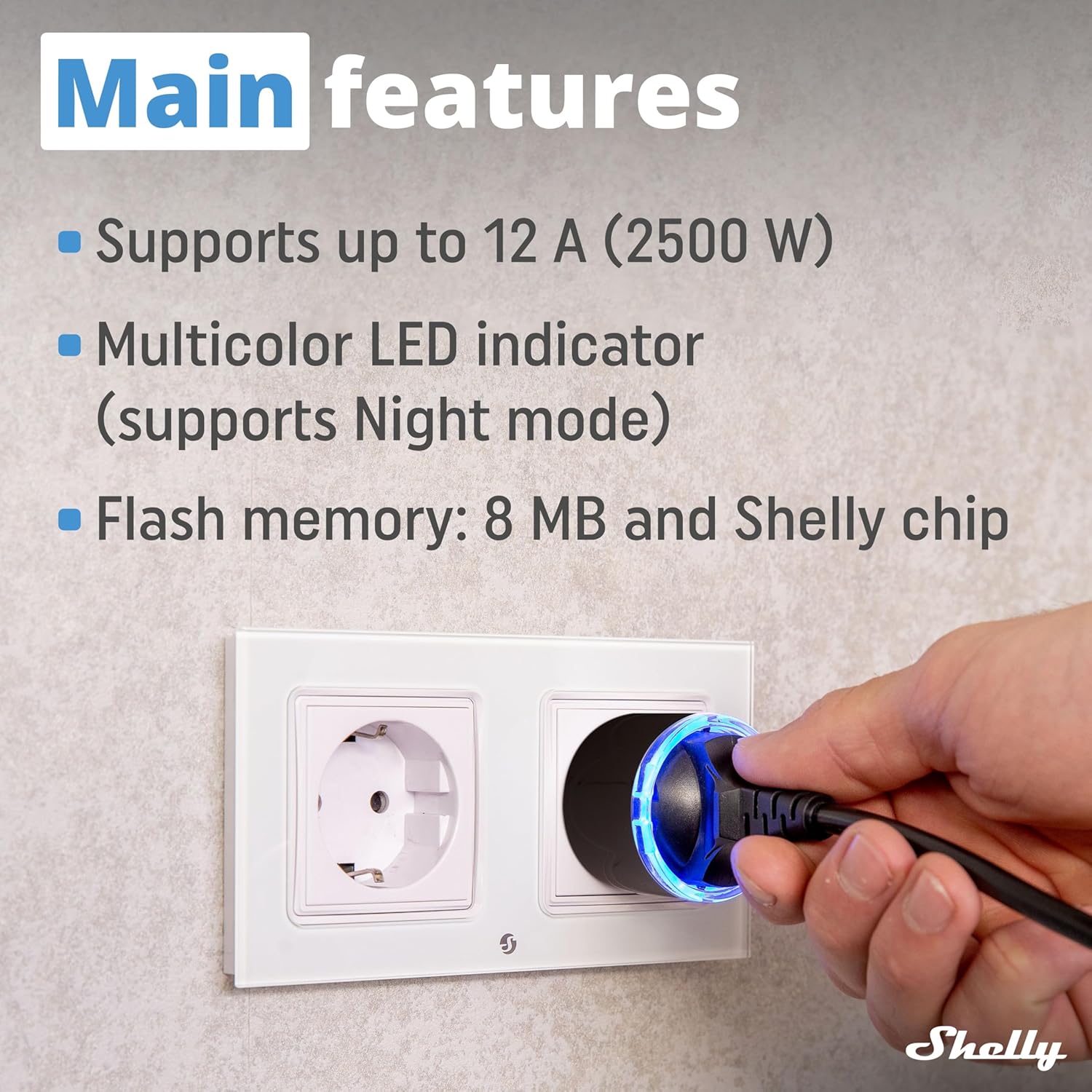
Image: Shelly Plug S Gen3 being inserted into a wall socket, showing its LED indicator. The Shelly Plug S Gen3 supports up to 12A (2500W) and features a multicolor LED indicator, which can operate in Night mode. It includes 8MB flash memory and a Shelly chip.
3. Operating Instructions
The Shelly Plug S Gen3 offers various methods for controlling connected devices and monitoring power consumption.
3.1 Remote Control via App
Use the Shelly Smart Control app to turn connected devices on or off, set schedules, and create smart scenarios from anywhere with an internet connection.
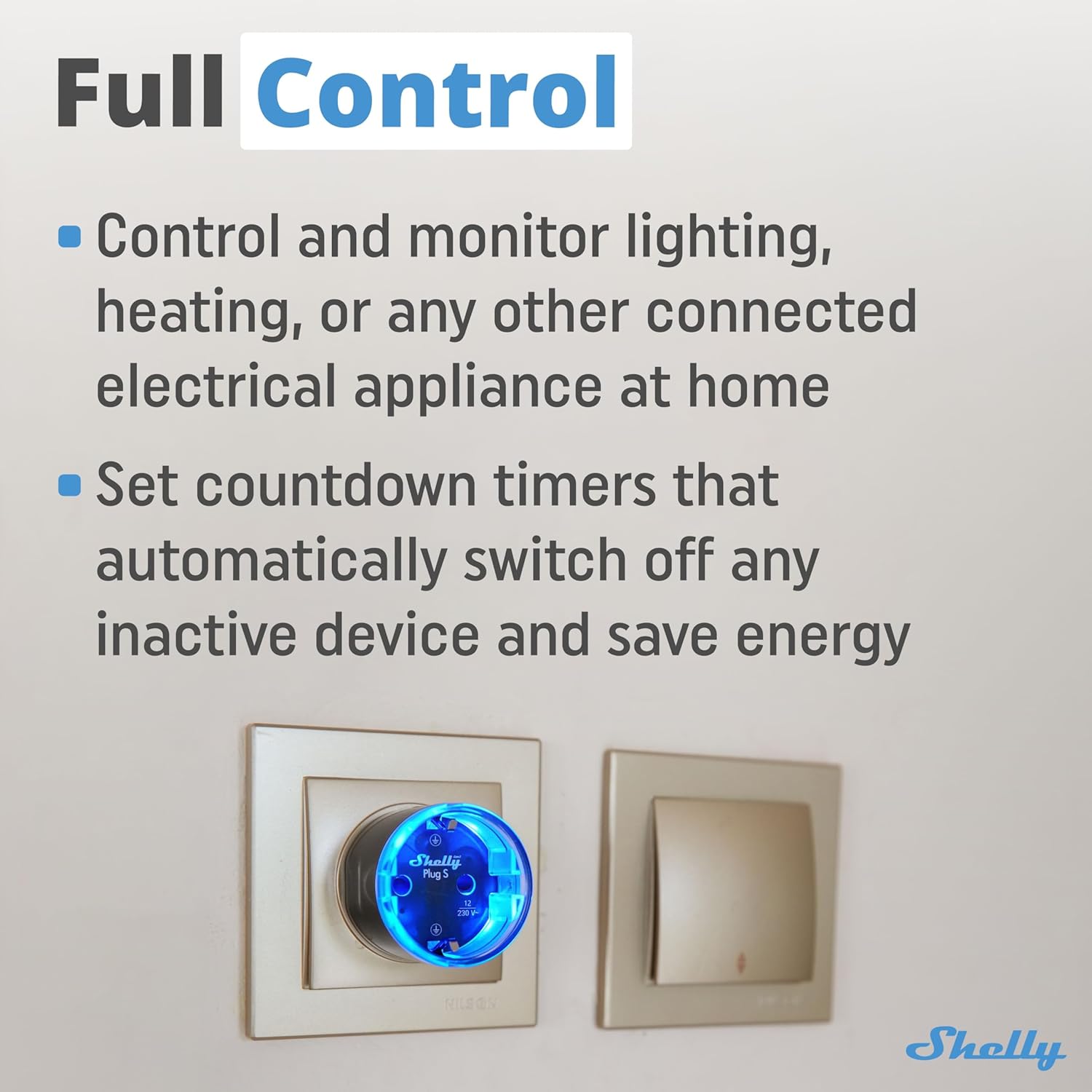
Image: Shelly Plug S Gen3 in a wall socket with a blue LED, next to a light switch. Control and monitor lighting, heating, or other connected electrical appliances. Set countdown timers to automatically switch off inactive devices, saving energy.
3.2 Voice Control
Integrate your Shelly Plug S Gen3 with popular voice assistants for hands-free control:
- Apple HomeKit: Control devices using the Apple Home app or Siri.
- Amazon Alexa: Use voice commands through Alexa-enabled devices.
- Google Home: Manage devices with Google Assistant.
3.3 Timers, Schedules, and Smart Scenarios
Automate your home by setting up timers and schedules:
- Timers: Set countdown timers to automatically switch devices off after a specified duration.
- Schedules: Program devices to turn on or off at specific times of the day or week.
- Smart Scenarios: Create custom automations by linking the Shelly Plug S Gen3 with other Shelly devices or smart home sensors. For example, turn on a heater when a temperature sensor detects a drop in room temperature.
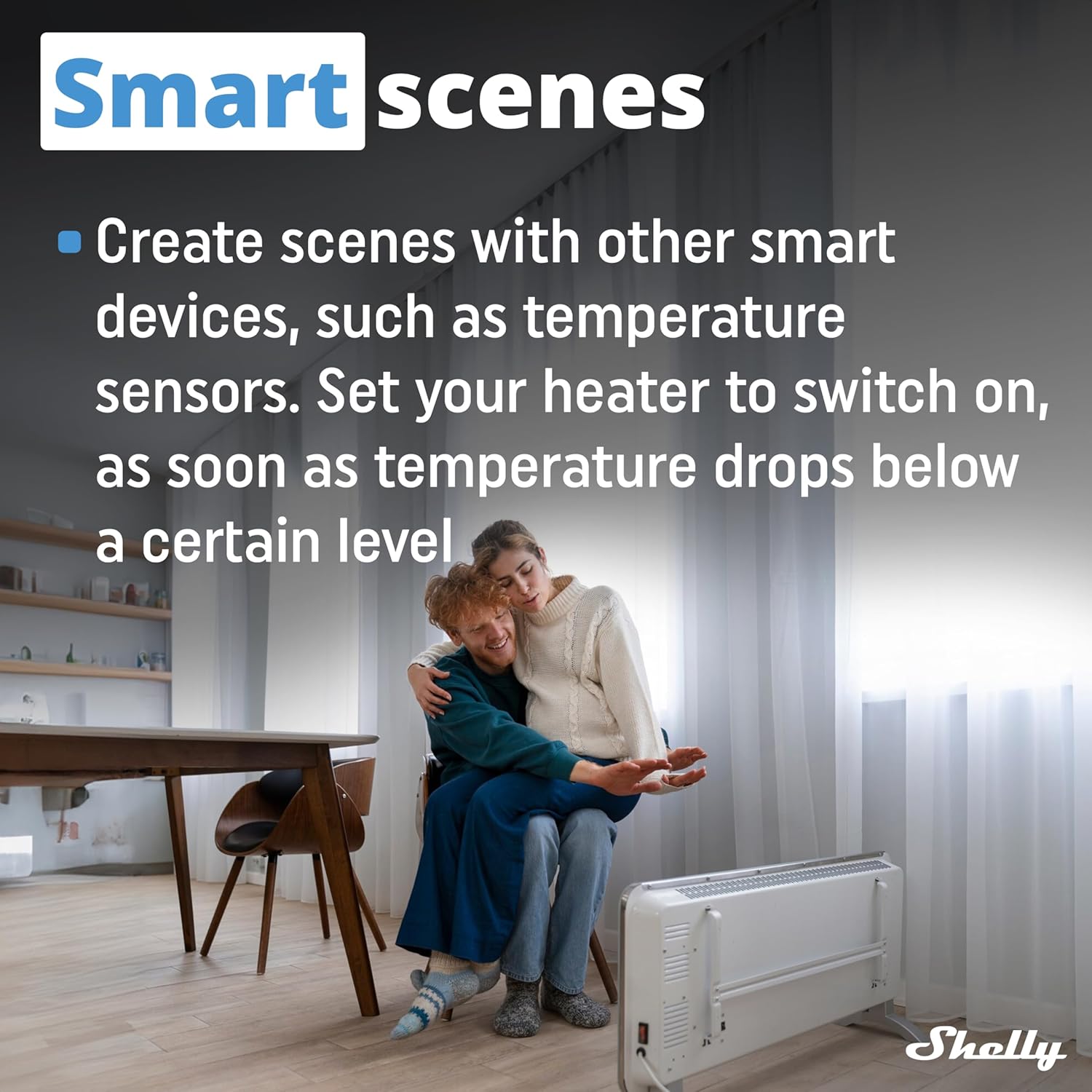
Image: Couple sitting near a heater, illustrating smart scene automation with Shelly Plug S Gen3. Create smart scenes by integrating the Shelly Plug S Gen3 with other smart devices, such as temperature sensors, to automate actions like turning on a heater when the temperature drops.
3.4 Power Monitoring
The Shelly Plug S Gen3 provides accurate, real-time power consumption data for connected appliances. This data is stored on the Shelly cloud and can be accessed through the Shelly Smart Control app, allowing you to track energy usage and identify opportunities for savings.
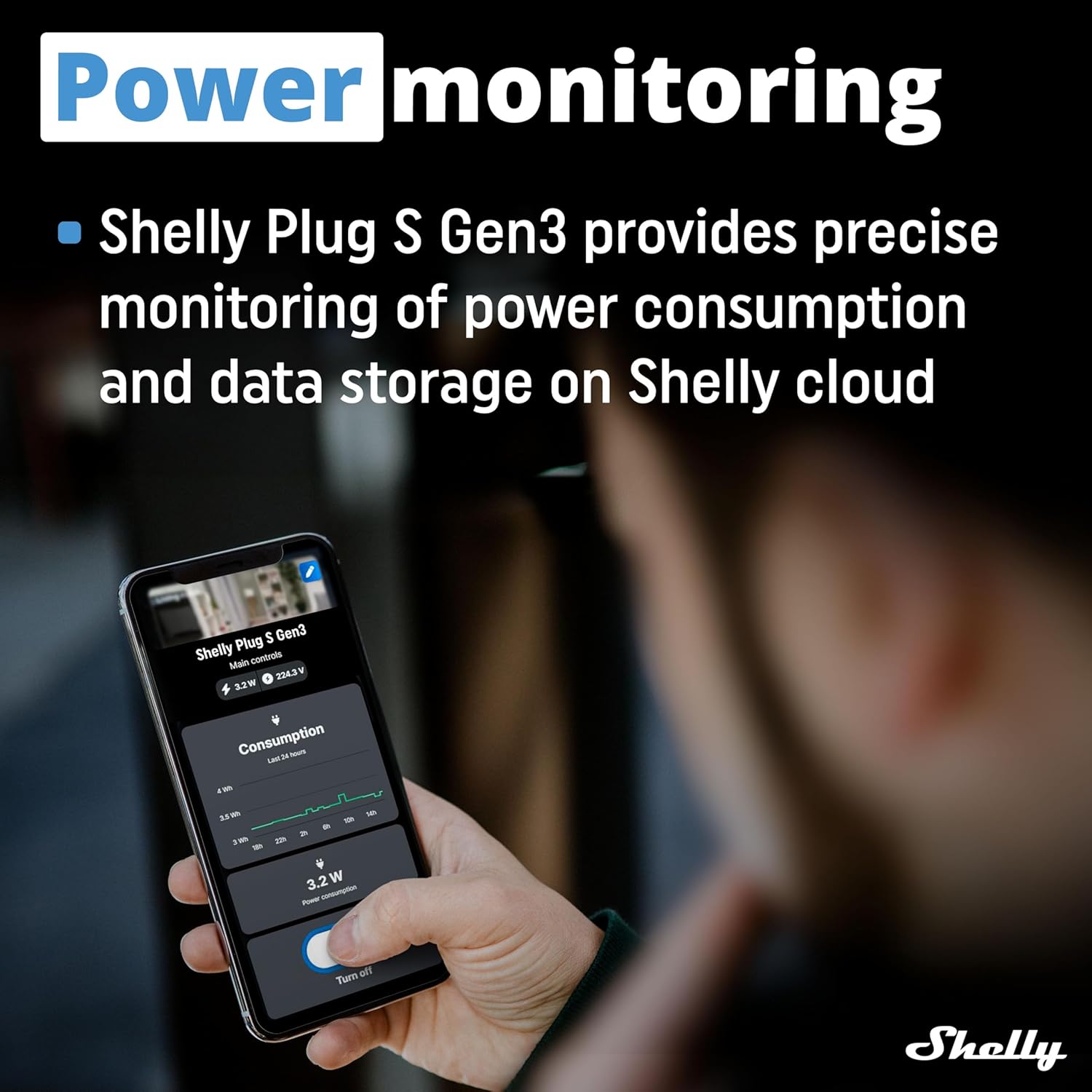
Image: Smartphone screen displaying real-time power consumption data from the Shelly app. The Shelly Plug S Gen3 provides precise monitoring of power consumption with data storage on the Shelly cloud, accessible via the Shelly Smart Control app.
4. Maintenance and Safety
To ensure the longevity and safe operation of your Shelly Plug S Gen3, observe the following guidelines:
4.1 General Care
- Keep the device clean and free from dust. Use a dry, soft cloth for cleaning.
- Avoid exposing the device to moisture or extreme temperatures.
- Do not attempt to disassemble or repair the device yourself. Refer to qualified service personnel.
4.2 Advanced Protection Features
The Shelly Plug S Gen3 is equipped with comprehensive safety features:
- Overheating Protection: Automatically shuts off if internal temperature exceeds safe limits.
- Overload Protection: Disconnects power if the connected load exceeds 12A (2500W). A color-changing LED warning indicates overload.
- Current Spikes and Overvoltage Protection: Safeguards connected appliances from electrical irregularities.
4.3 Kid-Friendly Design
The Shelly Plug S Gen3 incorporates a special cover to restrict direct access to electricity, enhancing safety in households with children.
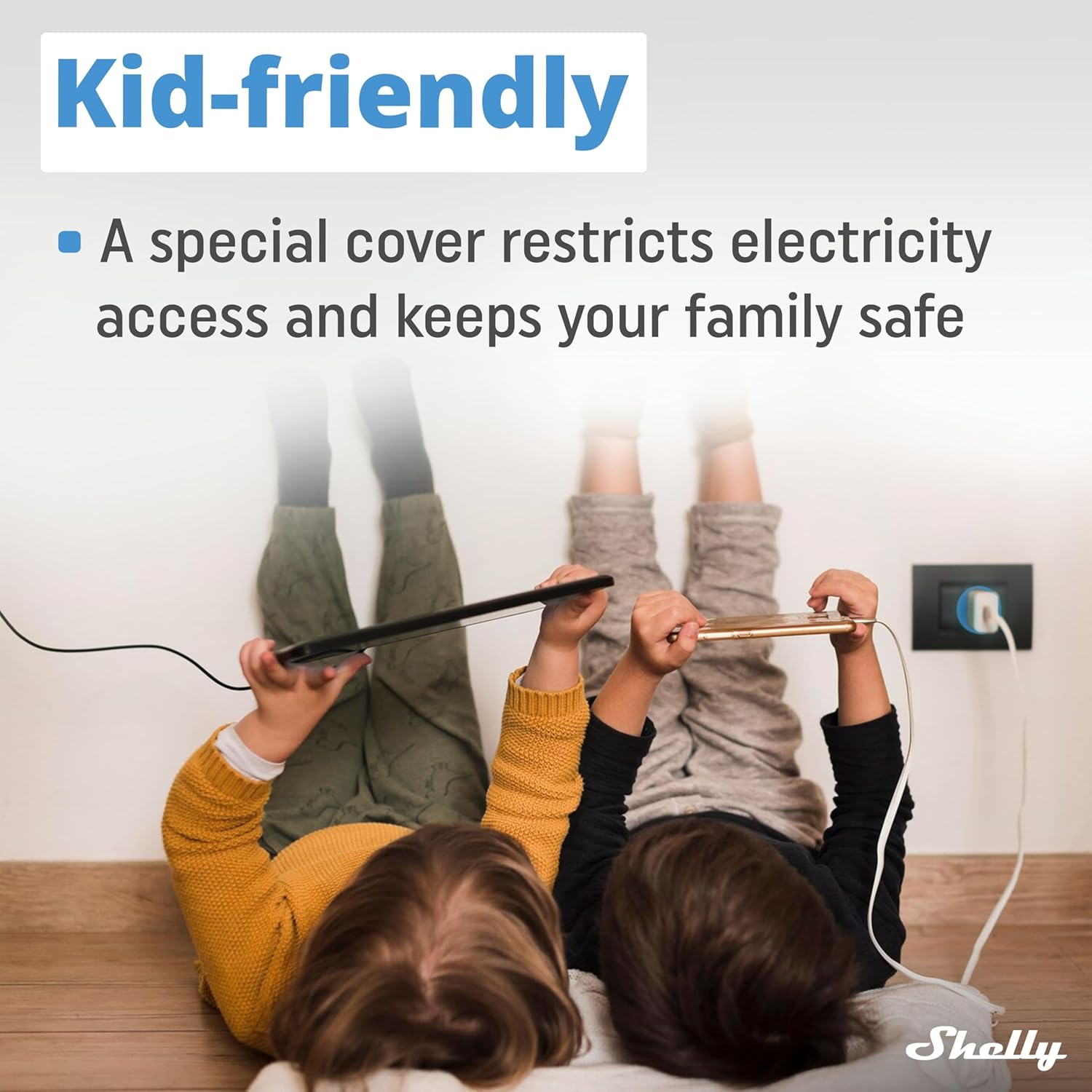
Image: Children playing near a wall socket, highlighting the kid-friendly design of the Shelly Plug S Gen3. The Shelly Plug S Gen3 features a special cover designed to restrict electricity access, enhancing safety for families.
5. Troubleshooting
If you encounter issues with your Shelly Plug S Gen3, refer to the following common troubleshooting steps:
- Device Not Responding: Ensure the plug is securely inserted into the wall socket and receiving power. Check your Wi-Fi network connection.
- Connectivity Issues: Verify that your Wi-Fi router is functioning correctly and the Shelly Plug S Gen3 is within range. Try restarting your router and the plug.
- Overload Warning (LED Color Change): If the LED indicator changes color to signal an overload, immediately unplug the connected appliance. Ensure the total power consumption does not exceed 2500W (12A).
- App Not Detecting Device: Ensure Bluetooth is enabled on your smartphone during the initial pairing process. Try resetting the device (refer to the Shelly app for specific reset instructions).
- Voice Control Not Working: Confirm that the Shelly Plug S Gen3 is correctly linked to your voice assistant account (Apple HomeKit, Alexa, Google Home) and that the device name is recognized.
6. Specifications
| Specification | Value |
|---|---|
| Brand | Shelly |
| Model | 3800235261859 |
| Color | Black |
| Compatible Devices | Lamps, heating appliances, smart home devices, electronic devices |
| Material | Plastic |
| Product Dimensions (L x W) | 1.73" x 1.73" |
| Voltage | 230 Volts (AC) |
| Power Plug Type | CEE 7/16 Europlug (Type F) |
| Amperage | 12 Amps |
| Wattage | 2500 Watts |
| Total Power Outlets | 1 |
| Item Weight | 60 Grams |
| Specification Met | CE |
7. Warranty and Support
7.1 Warranty Information
The Shelly Plug S Gen3 comes with an EU Spare Part Availability Duration of 3 Years. For specific warranty terms and conditions, please refer to the official Shelly website or your purchase documentation.
7.2 Technical Support
For technical assistance, firmware updates, or further information, please visit the official Shelly support website or use the Shelly Smart Control app. The app often provides access to FAQs, user forums, and direct support channels.


