Zyxel XGS1935-52HP 48-Port Gigabit Ethernet Smart Managed PoE+ Switch User Manual
Model: XGS1935-52HP
1. Introduction
This manual provides detailed instructions for the installation, operation, and maintenance of your Zyxel XGS1935-52HP 48-Port Gigabit Ethernet Smart Managed PoE+ Switch. This device is designed to provide reliable and high-performance network connectivity for various environments, supporting advanced features such as Power over Ethernet Plus (PoE+), 10 Gigabit SFP+ uplinks, and flexible management options including Zyxel Nebula Cloud.
Key Features:
- 48 Gigabit Ethernet ports with PoE+ support.
- 375W total PoE+ power budget.
- 4 10 Gigabit SFP+ uplink slots for high-bandwidth applications.
- Smart management capabilities with an intuitive web interface.
- Hybrid Cloud mode for unified network experience via Zyxel Nebula.
- Compact and quiet design suitable for various work environments.
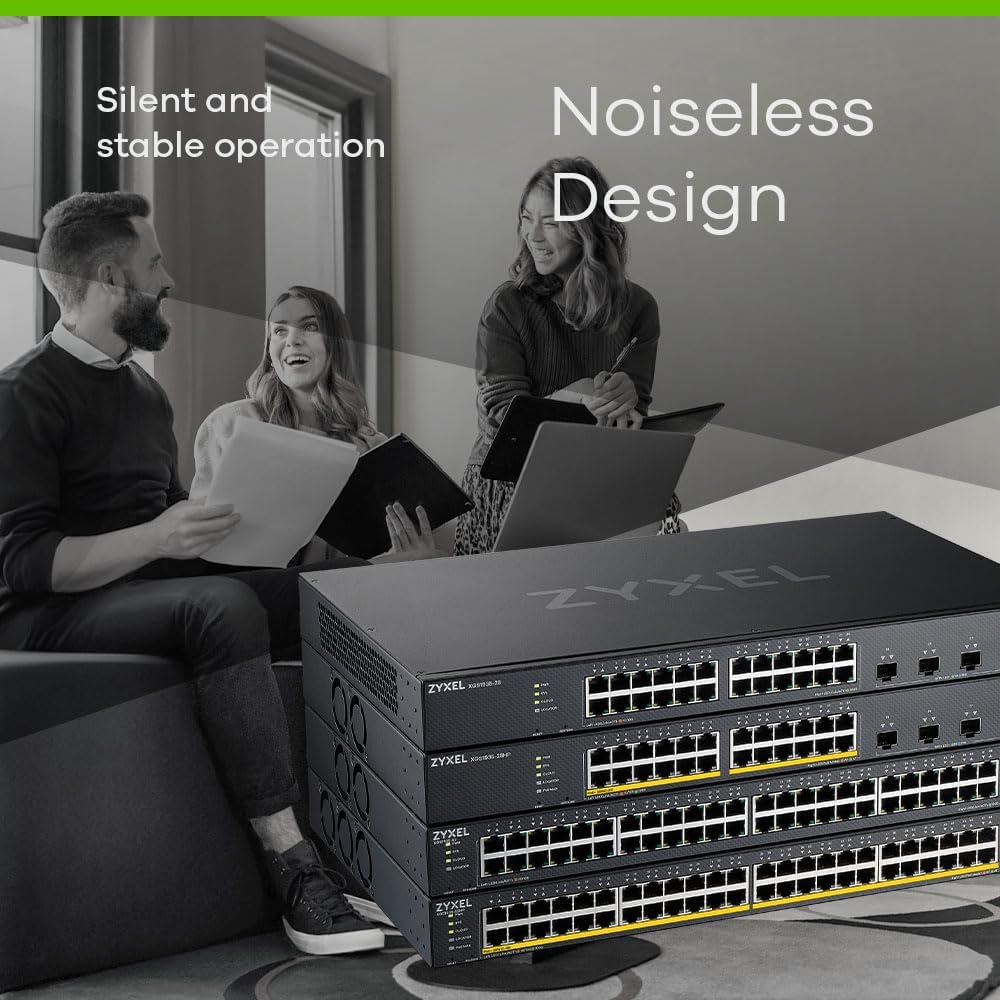
Image: Multiple Zyxel XGS1935-52HP switches stacked, highlighting the silent and stable operation design.
2. Physical Description
2.1 Front Panel
The front panel of the XGS1935-52HP switch features 48 Gigabit Ethernet ports, each with LED indicators for link/activity and PoE status. Additionally, there are four 10 Gigabit SFP+ uplink ports for high-speed connections to other network devices or servers. System status LEDs provide information on power, system health, and cloud connectivity.

Image: Front view of the Zyxel XGS1935-52HP switch, displaying all 48 Gigabit Ethernet ports and 4 SFP+ uplink ports, along with status LEDs.
2.2 Rear Panel
The rear panel includes the AC power input connector, a grounding screw, and a Kensington lock slot for security. Ensure proper grounding for stable operation.

Image: Rear view of the Zyxel XGS1935-52HP switch, highlighting the AC power input, retainer holder, and grounding point.
3. Setup
3.1 Unpacking and Inspection
Carefully unpack the switch and all accessories. Verify that all items listed in the package contents are present and undamaged. If any item is missing or damaged, contact your vendor immediately.
3.2 Installation
The XGS1935-52HP switch can be installed on a desktop or mounted in a standard 19-inch equipment rack. Ensure adequate ventilation around the device to prevent overheating.
- Desktop Installation: Place the switch on a flat, stable surface. Attach the rubber feet (if provided) to the bottom of the switch.
- Rack Mounting: Use the provided rack-mount brackets and screws to secure the switch into a standard 19-inch equipment rack.
3.3 Power Connection
- Connect the AC power cord to the power input on the rear panel of the switch.
- Plug the other end of the power cord into a suitable power outlet.
- Ensure the power source meets the voltage requirements (100-240VAC, 50/60Hz).
3.4 Network Connection
- Connect network devices (computers, servers, access points) to the Gigabit Ethernet ports using standard RJ-45 cables.
- For high-speed uplinks, insert compatible SFP+ transceivers into the 10G SFP+ slots and connect fiber optic cables to other 10G devices.
3.5 Initial Configuration
The switch can be configured via its web-based management interface or through the Zyxel Nebula Cloud platform. The intuitive setup wizard simplifies initial configuration tasks.

Image: A laptop and tablet displaying the Zyxel switch's intuitive web-based setup wizard, showing VLAN configuration steps.
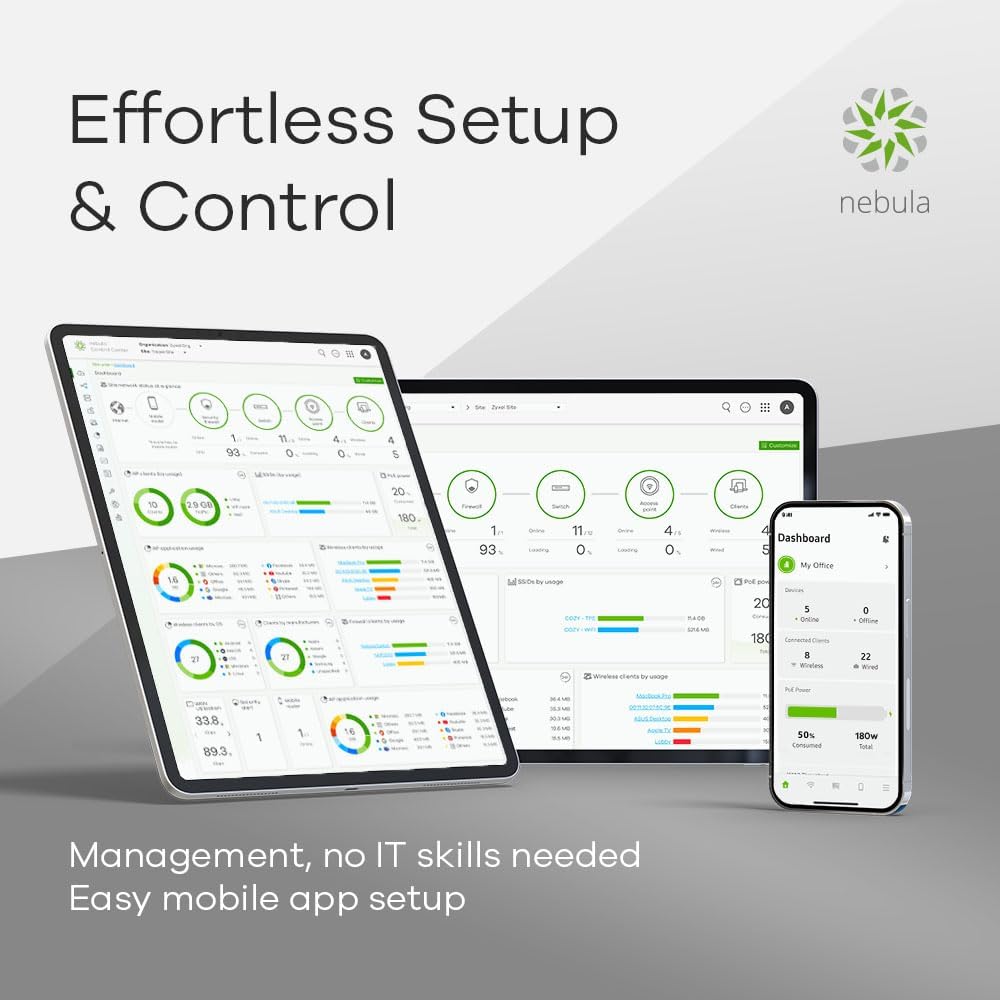
Image: Various devices (tablet, laptop, smartphone) displaying the Zyxel Nebula dashboard, illustrating effortless setup and control through the cloud.
4. Operating the Switch
4.1 Management Modes
The XGS1935-52HP supports two primary management modes:
- Standalone Mode: Manage the switch directly via its local web interface. This mode provides full control over all switch features.
- Hybrid Cloud Mode (Zyxel Nebula): Integrate the switch into the Zyxel Nebula cloud platform for centralized management of wired, wireless, and security devices. This offers remote management and simplified deployment.
4.2 Basic Network Configuration
Utilize the web interface or Nebula dashboard to configure essential network settings:
- VLAN (Virtual Local Area Network): Segment your network for improved security and performance.
- QoS (Quality of Service): Prioritize critical network traffic (e.g., voice, video) to ensure smooth operation.
- Link Aggregation: Combine multiple physical links into a single logical link for increased bandwidth and redundancy.
4.3 Power over Ethernet Plus (PoE+)
The switch provides PoE+ (802.3at) on its Gigabit Ethernet ports, delivering up to 30W per port with a total power budget of 375W. This allows you to power compatible devices such as IP cameras, wireless access points, and VoIP phones directly through the network cable.

Image: The Zyxel XGS1935-52HP switch positioned in a modern office setting, emphasizing its 375W PoE+ power budget and 802.3at support.
4.4 10 Gigabit SFP+ Uplinks
The four 10 Gigabit SFP+ slots enable high-speed connectivity for demanding applications, providing a robust backbone for your network. These uplinks are essential for connecting to servers, network storage, or other core network devices where high throughput is critical.

Image: A stack of Zyxel switches, demonstrating flexible 10 Gigabit Ethernet support through the integrated SFP+ uplink ports.
5. Maintenance
5.1 Firmware Updates
Regularly check the Zyxel support website for the latest firmware versions. Updating the firmware ensures optimal performance, security, and access to new features. Follow the instructions provided with the firmware update package carefully.
5.2 Cleaning
Keep the switch clean and free from dust. Use a soft, dry cloth to wipe the exterior. Do not use liquid or aerosol cleaners. Ensure ventilation openings are clear of obstructions.
5.3 Environmental Considerations
Operate the switch within the specified temperature and humidity ranges. Avoid exposing the device to direct sunlight, excessive heat, or moisture. Ensure proper airflow around the unit.
6. Troubleshooting
6.1 Power Issues
- No Power: Verify the power cord is securely connected to both the switch and the power outlet. Check the power outlet with another device.
- System LED Off: If the system LED is off, ensure the power supply is functioning correctly.
6.2 Network Connectivity Issues
- No Link/Activity: Check the Ethernet cable connections. Ensure the connected device is powered on and functioning. Verify the link/activity LED on the switch port.
- Slow Performance: Check for network congestion. Verify duplex settings on connected devices. Ensure cable quality.
6.3 PoE Issues
- PoE Device Not Powering On: Ensure the connected device is PoE compatible (802.3af/at). Check the PoE status LED for the port. Verify the total PoE budget is not exceeded.
6.4 Accessing the Web Interface
- Cannot Access: Ensure your computer is on the same subnet as the switch. Verify the switch's IP address. Check firewall settings on your computer.
7. Specifications
| Feature | Specification |
|---|---|
| Model Number | XGS1935-52HP |
| Brand | ZYXEL |
| Number of Ports | 48 Gigabit Ethernet, 4 10G SFP+ |
| Interface Type | SFP+, PoE+ |
| Data Transfer Rate | 1000 Megabits Per Second (Gigabit Ethernet) |
| PoE+ Budget | 375W |
| Case Material | Metal |
| Product Dimensions | 6 x 7 x 5 inches |
| Item Weight | 12.19 pounds (5.54 Kilograms) |
| Compatible Devices | Computer, Desktop, Printer, Server |
| Color | Black |
8. Warranty and Support
Zyxel products are backed by a manufacturer's warranty. For specific warranty terms and conditions, please refer to the warranty card included with your product or visit the official Zyxel website. For technical support, firmware downloads, and additional resources, please visit the Zyxel support portal:
https://www.zyxel.com/us/en/support
When contacting support, please have your product model number (XGS1935-52HP) and serial number ready.


