
1. Introduction
The Dell D6000 Universal Docking Station provides a seamless solution for connecting your laptop to multiple displays and peripherals. This dock supports up to three 4K displays or a single 5K display via USB-C, offering enhanced productivity and a streamlined workspace. It is compatible with a wide range of PC brands and operating systems through DisplayLink technology.
2. What's Included
Verify that all items are present in your package:
- Dell D6000 Universal Dock
- 130W Power Adapter
- USB-C Cable
- 4K HDMI Cable
- 4K DisplayPort Cable
- Microfiber Cloth (may be included by reseller)

Image: Contents of the Dell D6000 Universal Dock package.
3. Product Overview
The Dell D6000 Universal Dock is designed for versatility and high performance, supporting advanced display configurations and providing ample connectivity options.

Image: Dell D6000 Universal Dock features, including 130W power and 5K video resolution.
Key Features:
- Video Resolution: Supports up to 5K on a single screen or up to three 4K displays via USB-C.
- Power Delivery: 130W power adapter with up to 65W Power Delivery to compatible laptops.
- Universal Compatibility: Works with PC's equipped with USB 3.0 or USB-C port, supporting various PC brands and operating systems via DisplayLink technology.
Ports and Slots:

Image: Front and rear view of the Dell D6000 Docking Station with labeled ports.
- Power In
- HDMI Port (1x)
- DisplayPort (2x)
- Ethernet Port (1x)
- USB 3.0 Ports (4x)
- USB-C 3.0 Ports (1x)
- Speaker Output (1x)
- LED Indicator
4. Setup Instructions
Follow these steps to set up your Dell D6000 Universal Docking Station:
- Connect Power: Plug the 130W power adapter into the dock's Power In port and then into a wall outlet.
- Connect to Laptop: Use the provided USB-C cable to connect the dock to your laptop's USB-C port. If your laptop requires more than 65W of power, ensure an external power adapter is also connected to your laptop.
- Install Drivers: For optimal performance, download and install the latest DisplayLink drivers from the official DisplayLink website or Dell support page.
- Connect Displays: Connect your monitors to the dock using HDMI or DisplayPort cables. The dock supports up to three 4K displays or one 5K display.
- Connect Peripherals: Plug in your USB devices (keyboard, mouse, external drives) into the available USB 3.0 or USB-C ports. Connect an Ethernet cable for wired network access if desired.
- Audio Connection: If using external speakers or headphones, connect them to the Speaker Output port.
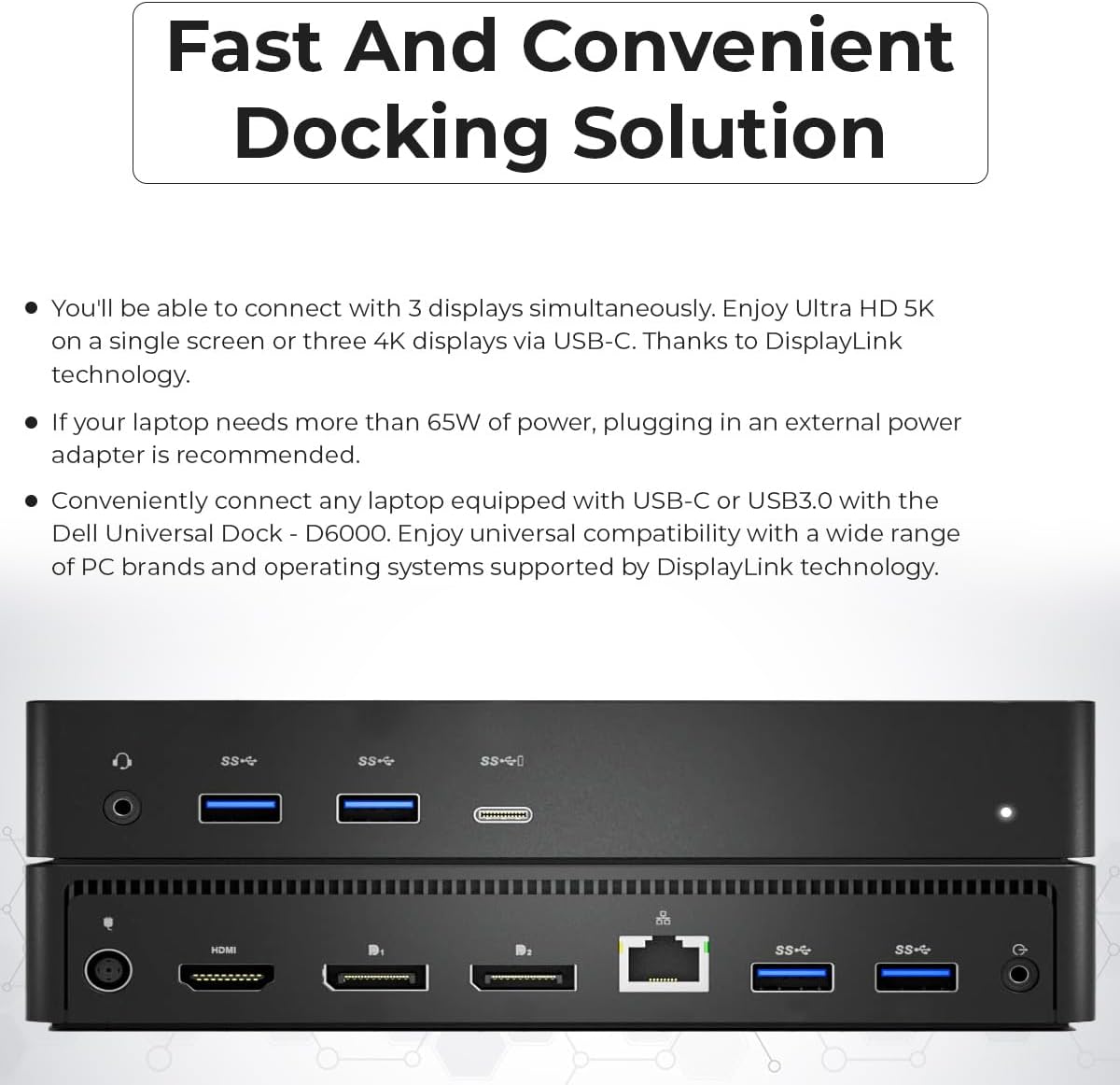
Image: Example setup of the Dell D6000 Universal Dock with a laptop and external display.
Video: Dell Docking Station Bundle with Cables and Adapter Set. This video demonstrates the components included and basic connectivity for the Dell D6000 Universal Dock.
5. Operating Instructions
Once set up, the Dell D6000 operates as a plug-and-play solution for expanding your workspace.
- Automatic Detection: Your operating system should automatically detect the connected displays and peripherals.
- Display Configuration: Adjust display settings (resolution, orientation, extended/duplicate mode) through your operating system's display settings.
- Power LED Indication:
- White light: Normal working mode.
- Amber light: Platform standby.
- Light Off: Power Off.
- LAN Port LED Indication:
- Green (Solid green): Connection established.
- Amber (Blinking): Active Link.

Image: Dell D6000 Docking Station LED indicators and dimensions.
6. Troubleshooting
If you encounter issues, refer to the following common troubleshooting steps:
- No Display/Monitors Not Detected:
- Ensure the dock's power adapter is securely connected and the power LED is white.
- Verify that the USB-C cable connecting the laptop to the dock is secure.
- Check all display cables (HDMI/DisplayPort) are firmly connected to both the dock and the monitors.
- Update your laptop's graphics drivers and the DisplayLink drivers to the latest versions. Incompatible display drivers can cause issues.
- Restart your laptop and the docking station.
- If using a non-Dell laptop, functionality may vary. Ensure your laptop's USB-C port supports video output (DisplayPort Alternate Mode).
- Peripherals Not Working:
- Ensure USB devices are properly plugged into the dock's USB ports.
- Try connecting the device directly to your laptop to rule out device issues.
- Restart the dock and laptop.
- No Network Connection (Ethernet):
- Check the Ethernet cable connection to both the dock and your router/modem.
- Verify the LAN port LED on the dock is green (solid) for connection and amber (blinking) for active link.
- Ensure your laptop's network settings are configured for wired connection.
- Laptop Not Charging:
- Confirm your laptop supports charging via USB-C (Power Delivery). The D6000 provides up to 65W.
- Ensure the 130W power adapter is correctly connected to the dock.
- Some high-performance laptops may require their original power adapter in addition to the dock for full power.
- Firmware Update: If experiencing persistent issues, try updating the dock firmware. Visit the Dell support website for the latest firmware and instructions.
7. Specifications
| Brand | Dell (Manufactured by ANYHDD) |
| Model | D6000 |
| Hardware Interface | DisplayPort, Ethernet, HDMI, USB 3.0, USB Type C |
| Total USB Ports | 5 (4x USB 3.0, 1x USB-C) |
| Total HDMI Ports | 1 |
| Total DisplayPort Ports | 2 |
| Ethernet Port | 1 (Gigabit Ethernet) |
| Audio Port | 1 (Speaker Output) |
| Power Adapter Wattage | 130W |
| Power Delivery (to laptop) | Up to 65W (5V/9V/15V@3A and 19.5V@3.25A) |
| Max Display Resolution | Single 5K display or up to three 4K displays (via USB-C, 3rd 4K display at 30Hz) |
| Operating System Support | Windows 7, 8, 8.1, 10 32/64bit or later |
8. Warranty and Support
The Dell D6000 Universal Docking Station comes with a 1-Year Warranty.
For technical support, driver downloads, firmware updates, or warranty claims, please visit the official Dell support website or contact your reseller (ANYHDD).
Ensure to have your product model (D6000) and any purchase information ready when seeking support.


