
Solid State Logic 729706X2
Solid State Logic SSL 2 MKII USB Audio Interface User Manual
Model: 729706X2
Introduction
The Solid State Logic SSL 2 MKII is a high-performance 2x2 USB audio interface designed for producers, podcasters, musicians, and content creators. It features professional-grade components, including two SSL-designed microphone preamps, 32-bit/192 kHz AD/DA converters, and the unique Legacy 4K analogue enhancement mode, inspired by classic SSL 4000 series consoles. This manual provides comprehensive instructions for setting up, operating, and maintaining your SSL 2 MKII interface.

Figure 1: Front angled view of the SSL 2 MKII USB Audio Interface.
Key Features
- Two SSL-Designed Microphone Preamps: High-quality preamps with excellent gain range and low noise performance.
- Legacy 4K Analogue Enhancement: Adds a touch of classic SSL 4000 series console character with harmonic distortion and high-frequency boost.
- Professional-Grade AD/DA Converters: Operates at up to 32-bit/192 kHz for pristine audio capture and playback.
- Dual Headphone Outputs: Independent headphone outputs for flexible monitoring.
- Monitor Mix Control: Allows for zero-latency monitoring of input signals.
- MIDI I/O: 5-pin DIN MIDI input and output for connecting MIDI devices.
- Bus Powered: Conveniently powered directly from your computer via USB.
- Comprehensive Software Bundle: Includes a suite of production software to get you started.
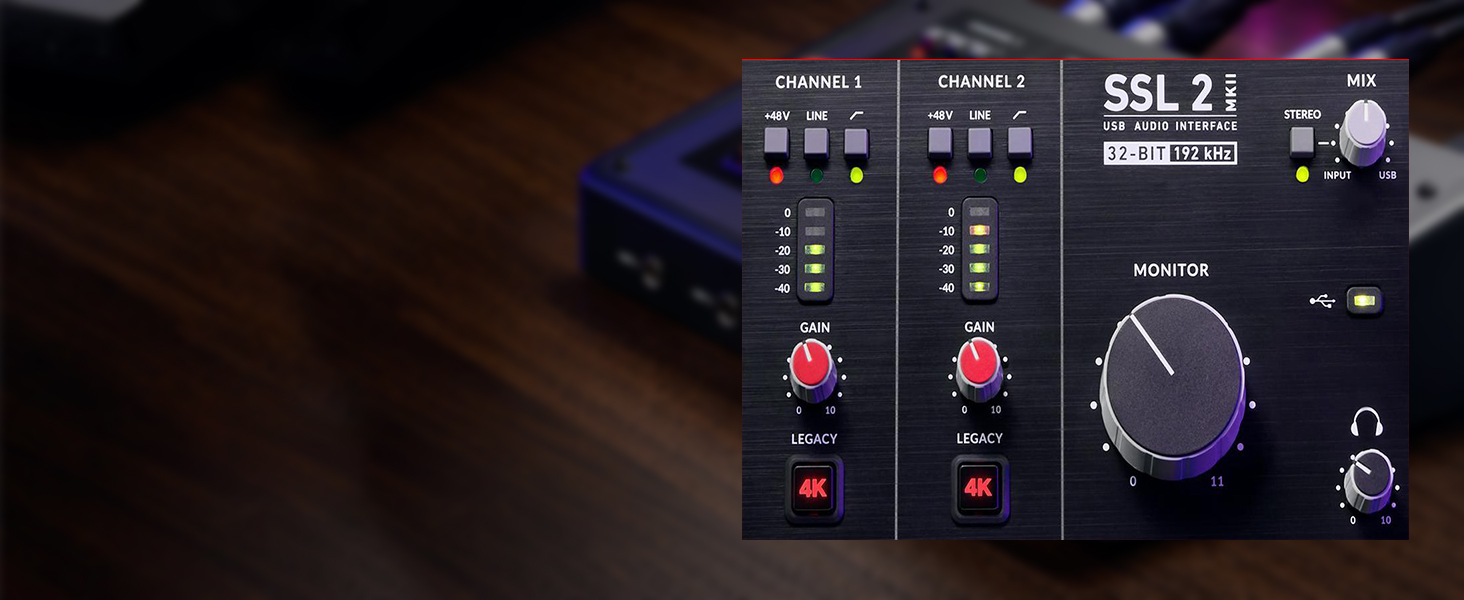
Figure 2: Detail of the SSL 2 MKII's top panel, highlighting the 32-bit 192 kHz conversion capability.

Figure 3: The Legacy 4K analogue enhancement buttons on each input channel.
Setup Guide
System Requirements
- Operating System: Windows 10 (64-bit) or higher, macOS 10.15 (Catalina) or higher.
- Available USB 2.0 port or higher.
- Internet connection for driver download and software registration.
Driver Installation
Before connecting your SSL 2 MKII, it is recommended to download and install the latest drivers from the Solid State Logic official website. This ensures optimal performance and compatibility with your operating system.
- Visit the Solid State Logic support page for the SSL 2 MKII.
- Download the appropriate driver for your operating system (Windows or macOS).
- Follow the on-screen instructions to complete the driver installation.
- Restart your computer if prompted.
Connecting the Interface
- Ensure your computer is powered on.
- Connect the SSL 2 MKII to an available USB port on your computer using the supplied USB cable. The interface is bus-powered, so no external power supply is needed.
- Once connected, the power indicator on the interface will illuminate.
- Connect your studio monitors to the 1/4" balanced outputs on the rear panel.
- Connect your headphones to one of the 1/4" headphone outputs on the front panel.

Figure 4: Rear panel connections of the SSL 2 MKII, including USB, outputs, and inputs.

Figure 5: Front panel connections of the SSL 2 MKII, including instrument inputs and headphone outputs.
Operating Instructions
Input Channels (1 & 2)
Each input channel features a combination XLR/TRS jack, allowing you to connect microphones, line-level instruments, or high-impedance instruments (guitars, basses).
- +48V Phantom Power: Press the +48V button to supply phantom power for condenser microphones. Ensure this is off when connecting dynamic microphones or line-level sources.
- Line/Hi-Z Switch: Select 'Line' for line-level sources (keyboards, preamps) or 'Hi-Z' for direct instrument connection (guitars, basses).
- Gain Knob: Adjusts the input gain for the connected microphone or instrument. Set this to achieve a healthy signal level without clipping (indicated by the red peak LED).
- Legacy 4K Button: Activates the 4K analogue enhancement circuit for that channel, adding a subtle harmonic richness and high-frequency lift.
Monitoring
- Monitor Knob: Controls the overall output level to your studio monitors.
- Headphone Level Knobs: Each headphone output has an independent level control.
- Monitor Mix Knob: Blends the direct input signal (INPUT) with the playback signal from your computer (USB). This allows for zero-latency monitoring during recording. Turn towards 'INPUT' to hear more of your live input, and towards 'USB' to hear more of your computer's playback.
- Stereo/Mono Switch: For the Monitor Mix, select 'Stereo' for stereo sources or 'Mono' for mono sources to ensure proper monitoring.

Figure 6: Top panel layout of the SSL 2 MKII, displaying all input and monitoring controls.
Recording Workflow
- Connect your microphone or instrument to an input channel.
- Open your Digital Audio Workstation (DAW) software.
- Select the SSL 2 MKII as your audio input and output device in your DAW's preferences.
- Create a new audio track in your DAW and select the corresponding input channel (e.g., Input 1 for Channel 1).
- Arm the track for recording.
- Adjust the Gain knob on the SSL 2 MKII until the input level meters in your DAW show a healthy signal, typically peaking around -6dB to -3dB, avoiding the red clip indicator.
- Use the Monitor Mix knob to balance your live input with any existing tracks from your DAW.
- Press record in your DAW to begin capturing audio.

Figure 7: A musician using the SSL 2 MKII to record bass guitar.

Figure 8: A musician recording vocals and acoustic guitar using the SSL 2 MKII in a home studio environment.
Maintenance
- Cleaning: Use a soft, dry cloth to clean the exterior of the unit. Avoid abrasive cleaners or solvents.
- Storage: Store the interface in a cool, dry place away from direct sunlight and extreme temperatures.
- Cable Management: Ensure cables are not excessively bent or strained to prevent damage to connectors and ports.
- Firmware Updates: Periodically check the Solid State Logic website for firmware updates to ensure optimal performance and access to new features.
Troubleshooting
| Problem | Possible Cause | Solution |
|---|---|---|
| No power/interface not recognized by computer. | USB cable not properly connected; faulty USB port; driver issue. | Ensure USB cable is securely connected. Try a different USB port or cable. Reinstall drivers. Try a different computer if possible. |
| No sound from monitors/headphones. | Monitor/headphone volume too low; incorrect output selected in DAW/OS; cables not connected. | Increase Monitor/Headphone volume. Verify SSL 2 MKII is selected as output device in your computer's sound settings and DAW. Check all audio cables. |
| Input signal too low or distorted. | Gain knob set incorrectly; incorrect input type selected (Line/Hi-Z); phantom power not engaged for condenser mics. | Adjust the Gain knob. Ensure Line/Hi-Z switch is set correctly for your instrument. Activate +48V for condenser microphones. |
| Latency during recording. | High buffer size in DAW; software monitoring enabled. | Reduce buffer size in your DAW's audio settings. Use the Monitor Mix knob on the SSL 2 MKII for zero-latency direct monitoring instead of software monitoring. |
Specifications
| Feature | Detail |
|---|---|
| Model Number | 729706X2 |
| Connectivity | USB 2.0 (Type-C connector) |
| I/O Channels | 2 Inputs / 2 Outputs |
| Preamps | 2 x SSL-designed microphone preamps |
| Phantom Power | +48V (switchable per channel) |
| A/D D/A Converters | Up to 32-bit / 192 kHz |
| Headphone Outputs | 2 x 1/4" TRS (independent level control) |
| Main Outputs | 2 x 1/4" TRS Balanced |
| MIDI I/O | 5-pin DIN In/Out |
| Power | USB Bus Powered |
| Dimensions (L x W x H) | 10.63 x 7.87 x 4.33 inches |
| Weight | 2.25 pounds |
| Compatible Operating Systems | Windows, macOS |
Warranty and Support
Solid State Logic products are manufactured to high standards and undergo rigorous quality control. For information regarding warranty coverage, technical support, driver updates, and product registration, please visit the official Solid State Logic website or contact their customer support directly. Keep your proof of purchase for warranty claims.
Official Website: www.solidstatelogic.com
Related documents729706X2


Ask a question about this manual
Ask about setup, troubleshooting, compatibility, parts, safety, or missing instructions. Manuals+ will review the question and use this page’s manual context to help answer it.