
cellularline BTIONWATCHK
User Manual: cellularline ION Bluetooth® Smartwatch
Model: BTIONWATCHK
1. Introduction
The cellularline ION Smartwatch is designed to seamlessly integrate into your daily activities, providing comprehensive health and activity monitoring alongside smart notifications. With its intuitive 1.83" HD IPS Full Touch LED display and a battery life of up to 5 days, the ION smartwatch keeps you connected and informed.
This manual provides detailed instructions on setting up, operating, and maintaining your ION Smartwatch to ensure optimal performance and longevity.
2. What's in the Box
- ION Smartwatch
- Charging cable
- Instruction Manual
3. Product Overview
The cellularline ION Smartwatch features a sleek design and a vibrant display, making it a versatile companion for both fitness and daily communication.

Figure 3.1: Cellularline ION Smartwatch, showcasing its rectangular display and grey strap.
Key Features:
- 1.83" HD IPS Full Touch LED Backlit Color Display: Experience clear visuals and easy navigation.
- Extended Battery Life: Enjoy up to 5 days of usage on a single charge.
- Comprehensive Health Monitoring: Track heart rate, blood pressure, blood oxygen, stress levels, and sleep patterns.
- Physical Activity Tracking: Monitor various physical activities and fitness modes.
- Smart Notifications: Receive and read notifications for calls and messages directly on your wrist.
- Dedicated App Compatibility: Seamlessly connect with the proprietary Cellularline ION application available for iOS and Android.
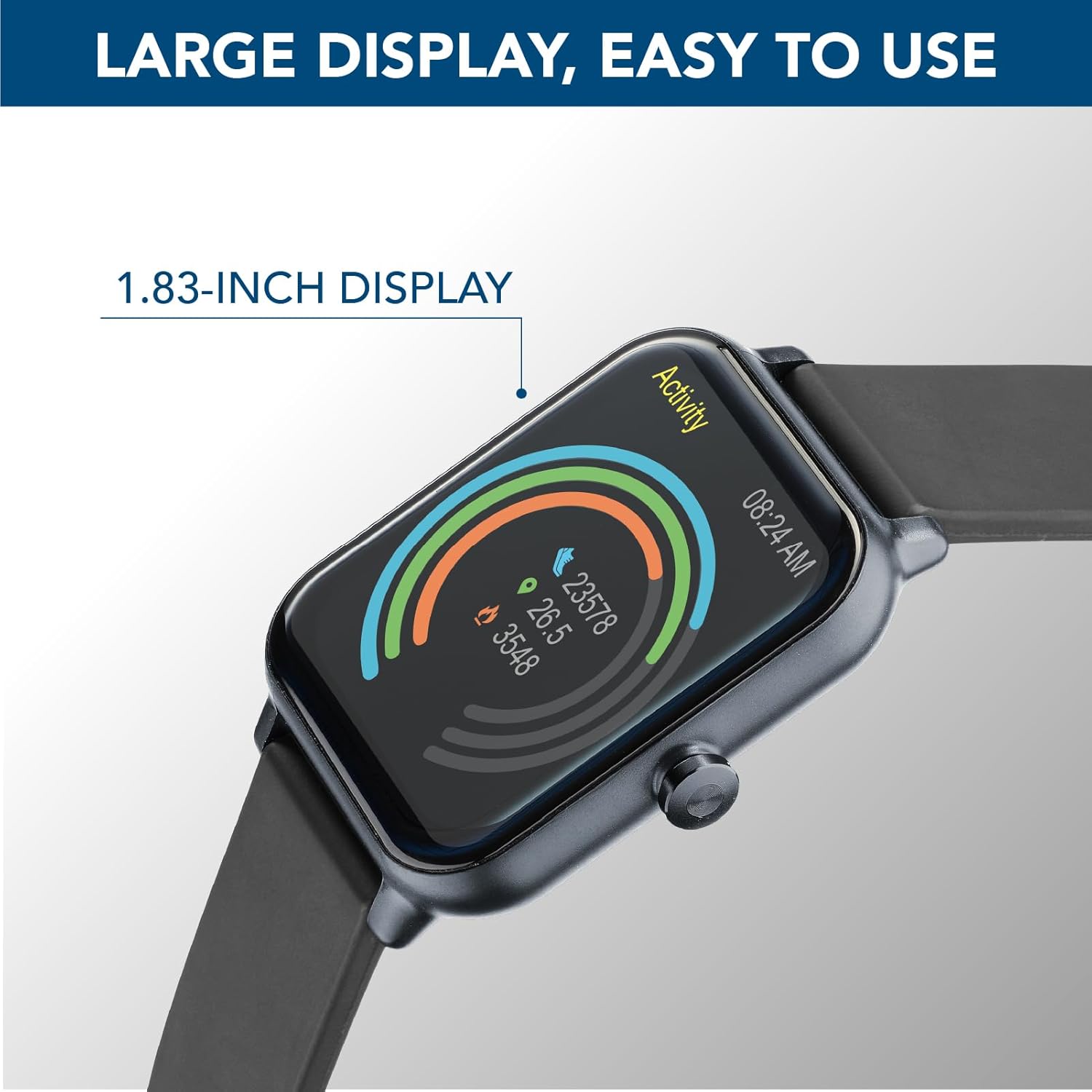
Figure 3.2: The 1.83-inch HD IPS Full Touch LED display, showing activity rings and time.

Figure 3.3: The smartwatch displaying a full battery charge, highlighting its 5-day battery life.
4. Setup Guide
4.1 Charging the Smartwatch
Before first use, fully charge your ION Smartwatch. Connect the provided charging cable to the charging port on the back of the smartwatch and plug the USB end into a standard USB power adapter (not included) or a computer's USB port. The watch display will show a charging indicator.
- A full charge typically takes approximately 2 hours.
- Ensure the charging pins are clean and properly aligned with the watch's contacts.
4.2 Downloading the App and Pairing
To unlock the full potential of your ION Smartwatch, download the proprietary Cellularline ION application on your smartphone.
- Download the App: Search for "Cellularline ION" in the Apple App Store (for iOS devices) or Google Play Store (for Android devices). Install the application.
- Enable Bluetooth: Ensure Bluetooth is enabled on your smartphone.
- Open the App: Launch the Cellularline ION app and follow the on-screen instructions to create an account or log in.
- Pair the Smartwatch: Within the app, navigate to the device pairing section. The app will search for nearby devices. Select "ION Smartwatch" from the list of discovered devices to initiate pairing.
- Confirm Pairing: A pairing request may appear on both your smartphone and the smartwatch. Confirm the pairing on both devices.
Once successfully paired, the smartwatch will synchronize data with the app, and you will begin receiving notifications.
5. Operating Instructions
5.1 Navigating the Interface
The ION Smartwatch features a full touch display for easy navigation. Swipe left, right, up, or down to access different functions and menus. Tap to select an option or confirm an action. The side button typically serves as a power button or a return-to-home function.
5.2 Health Monitoring
Your ION Smartwatch is equipped with an optical sensor to monitor various health metrics:
- Heart Rate: Access the heart rate function on the watch to measure your current heart rate. The app provides historical data and trends.
- Blood Pressure & Oxygen (SpO2): Initiate measurements from the watch. For accurate readings, ensure the watch is snug on your wrist and remain still.
- Stress Monitoring: The watch can estimate your stress levels throughout the day.
- Sleep Monitoring: Wear the watch to bed to track your sleep patterns, including deep sleep, light sleep, and awake times.
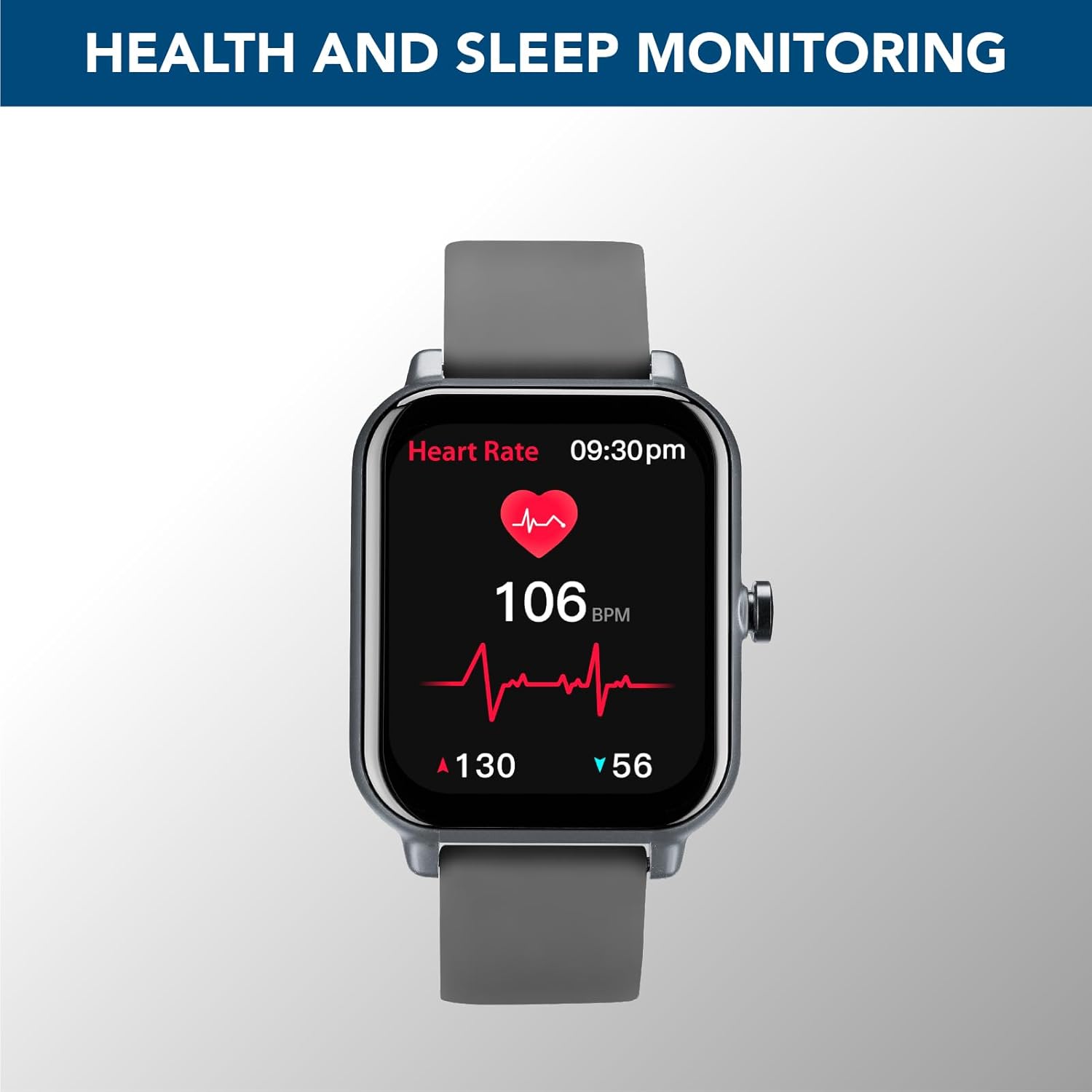
Figure 5.1: The smartwatch displaying real-time heart rate data, indicating health monitoring capabilities.
Note: The health data provided by the smartwatch is for reference only and should not be used for medical diagnosis or treatment. Consult a medical professional for any health concerns.
5.3 Physical Activity Monitoring
The ION Smartwatch tracks your daily physical activity and supports various sports modes:
- Steps, Distance, Calories: Automatically tracks your daily steps, distance covered, and calories burned.
- Sports Modes: Select from various pre-set sports modes (e.g., Walk, Run, Climbing, Fitness) to get more accurate data for specific activities.
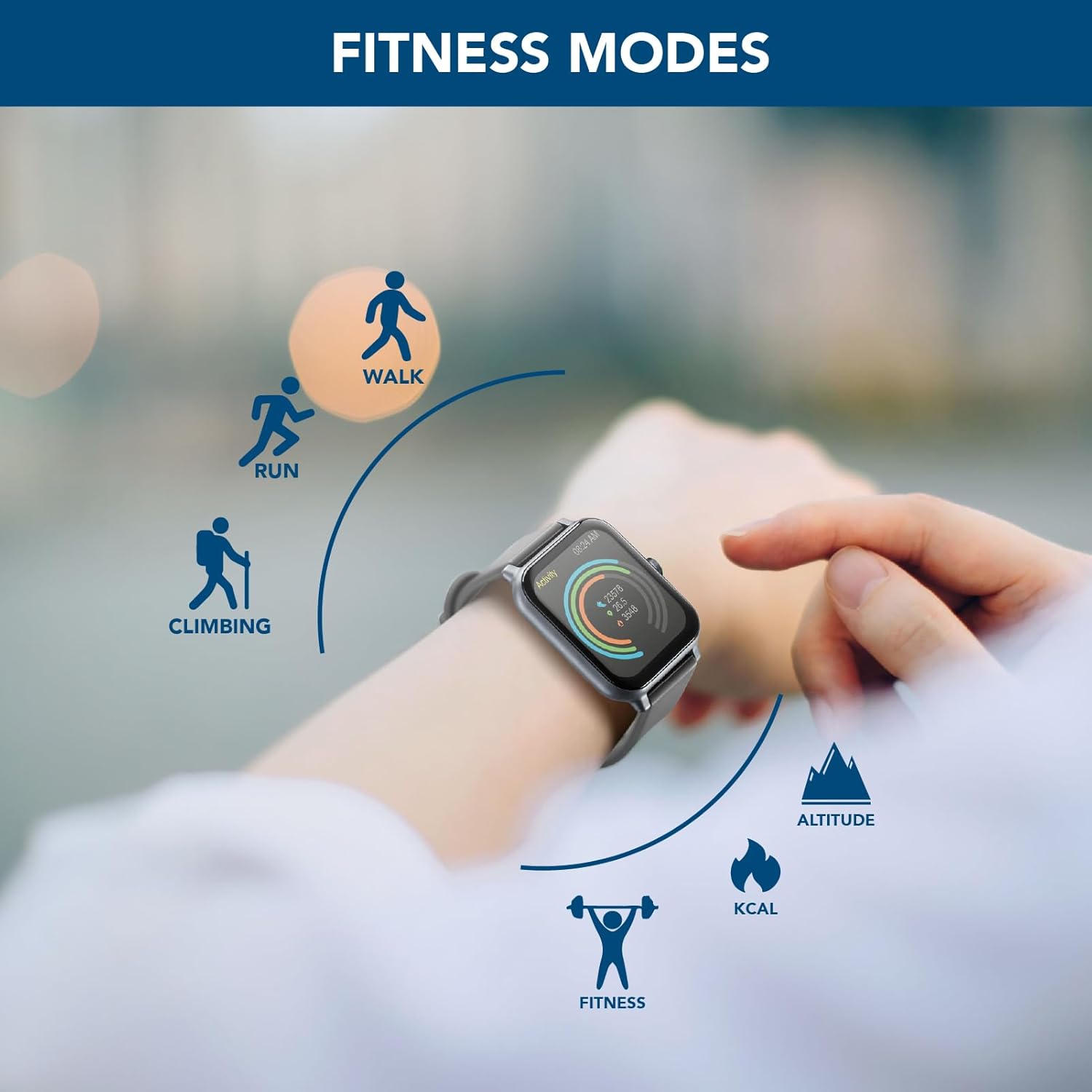
Figure 5.2: The smartwatch interface displaying icons for various fitness modes, including walk, run, climbing, and general fitness.
5.4 Notifications
Once paired with your smartphone, the ION Smartwatch can display notifications for incoming calls, messages, and alerts from various applications. Ensure notification permissions are granted in both your phone's settings and the Cellularline ION app.

Figure 5.3: The smartwatch showing a message notification, demonstrating its ability to display calls and messages.
6. Maintenance
- Cleaning: Regularly clean your smartwatch and strap with a soft, dry cloth. If necessary, use a slightly damp cloth and mild soap, then dry thoroughly. Avoid harsh chemicals or abrasive materials.
- Water Resistance: Refer to the specifications for the device's water resistance rating. Avoid exposing the watch to hot water, steam, or high-pressure water jets.
- Charging Contacts: Keep the charging contacts on the back of the watch clean and free of dust or debris to ensure proper charging.
- Storage: When not in use for extended periods, store the smartwatch in a cool, dry place.
7. Troubleshooting
| Problem | Possible Solution |
|---|---|
| Smartwatch won't turn on. | Ensure the watch is fully charged. Connect it to the charging cable and a power source for at least 30 minutes. |
| Cannot pair with smartphone. |
|
| Notifications are not received. |
|
| Inaccurate health data. | Ensure the watch is worn snugly on your wrist, about one finger's width above the wrist bone. Avoid excessive movement during measurements. Clean the optical sensor regularly. |
8. Specifications
| Feature | Detail |
|---|---|
| Model Name | BTIONWATCHK |
| Brand | cellularline |
| Screen Size | 1.83 Inches |
| Display Type | HD IPS Full Touch LED Backlit Color Display |
| Shape | Rectangular |
| Connectivity Technology | Bluetooth |
| Wireless Communication Standard | Bluetooth |
| Battery Life | Up to 5 days |
| Battery Capacity | 200 mAh (Lithium Ion) |
| GPS | No GPS |
| Package Dimensions | 17.7 x 9.1 x 4 cm; 90 g |
| Manufacturer | Cellularline S.p.A. |
9. Warranty and Support
The cellularline ION Smartwatch comes with a standard manufacturer's warranty. Please refer to the warranty card included in your product packaging for specific terms and conditions, including warranty period and coverage details.
For technical support, troubleshooting assistance, or warranty claims, please contact Cellularline customer service through their official website or the contact information provided in your product documentation.
Related documentsBTIONWATCHK


Ask a question about this manual
Ask about setup, troubleshooting, compatibility, parts, safety, or missing instructions. Manuals+ will review the question and use this page’s manual context to help answer it.