
1. Introduction
The Innex C831 is a 180° panoramic 4K wide-angle webcam designed for enhanced video conferencing and collaboration. It features multiple 12MP cameras, an advanced stitching algorithm, AI facial tracking, and customizable view angles to provide an immersive and clear visual experience. This manual provides instructions for setting up, operating, and maintaining your Innex C831 webcam.

Figure 1: Innex C831 180° Panoramic 4K Wide Angle Webcam
2. What's in the Box
- Innex C831 Webcam
- USB Cable
3. Setup
The Innex C831 webcam offers a plug-and-play experience for quick setup.
- Placement: Position the webcam on top of your monitor using its integrated clip, or mount it on a tripod.
- Connect USB Cable: Connect one end of the provided USB cable to the USB-C port on the webcam and the other end to an available USB port on your computer (Windows or Mac).

Figure 2: Connecting the USB cable to the webcam and computer.
- Driver Installation: The webcam is plug-and-play and typically does not require additional drivers. Your operating system should automatically recognize the device.
- Select Webcam in Application: Open your preferred video conferencing application (e.g., Zoom, Microsoft Teams, Google Meet) and select "Innex C831" as your video and audio input device in the settings.
For optimal performance and access to advanced features, it is recommended to install the Innex Studio software.
4. Operating Instructions
4.1 Immersive Panoramic View
The Innex C831 captures a full 180° panorama using its three 12MP cameras and advanced stitching algorithm, ensuring all participants are visible.

Figure 3: The webcam provides a 180° panoramic view.
4.2 Customizable View Angles
The webcam offers 5 preset view angles, ranging from 180° to 75°. You can adjust the angle by tapping the button on the device. A long tap allows you to pan the view.

Figure 4: Adjusting view angles with a tap on the device.
4.3 AI Facial Tracking
Utilize the advanced AI-powered facial tracking feature to automatically keep participants in frame and auto-zoom for optimal visibility. This feature is accessible through the Innex Studio software.

Figure 5: AI facial tracking keeps subjects in frame.
4.4 Wide Compatibility
The Innex C831 is compatible with major conferencing platforms, ensuring seamless integration into your existing workflow.
- Zoom
- Microsoft Teams
- Google Meet
- Skype
- Cisco Webex
- GoToMeeting
- RingCentral

Figure 6: Compatible with various video conferencing platforms.
5. Innex Studio Software
The complimentary Innex Studio software unlocks the full capabilities of your C831 webcam, providing advanced AI-powered features and customizable layouts.
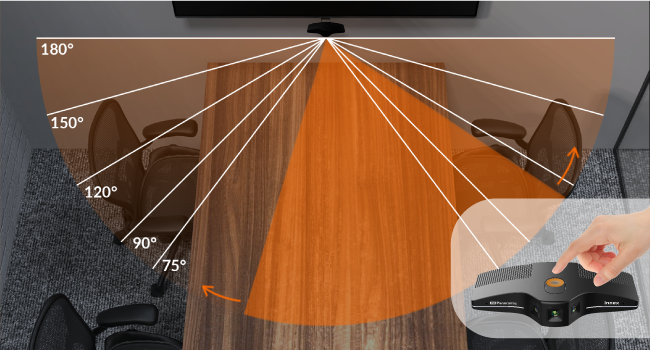
Figure 7: Innex Studio software interface for advanced controls.
Features include:
- Facial Tracking
- Auto-Zooming
- Customizable Layouts
- Seamless Interactions
- Speaker Tracking
- Whiteboard Mode (allows picture-in-picture with speaker and whiteboard)
Download the Innex Studio software from the official Innex website for your operating system (Windows or Mac).
6. Mounting Options
The Innex C831 offers flexible mounting options to suit various environments:
- Monitor Clip: Use the integrated clip to securely attach the webcam to the top of your monitor or display.
- Tripod Mount: The webcam features a standard tripod thread for mounting on a tripod, allowing for flexible positioning in meeting rooms or huddle spaces.

Figure 8: Webcam can be mounted on a monitor or tripod.
7. Specifications
| Feature | Detail |
|---|---|
| Brand | Innex |
| Model Number | C831 |
| Item Weight | 8.5 ounces |
| Product Dimensions | 2.91 x 5.75 x 1.3 inches |
| Color | Black |
| Special Features | Face Detection |
| Photo Sensor Technology | CMOS |
| Video Capture Resolution | 4K |
| Maximum Aperture | 2.2 f |
| Connectivity Technology | USB |
8. Troubleshooting
- Webcam not recognized: Ensure the USB cable is securely connected to both the webcam and your computer. Try a different USB port or restart your computer.
- No video/audio in conferencing app: Check the settings within your video conferencing application to ensure "Innex C831" is selected as the active camera and microphone.
- Poor video quality: Ensure adequate lighting in your environment. Update your computer's USB drivers if necessary. Check for any obstructions on the webcam lenses.
- AI features not working: Make sure the Innex Studio software is installed and running, and that the AI features are enabled within the software.
9. Maintenance
- Cleaning: Gently wipe the lens with a soft, lint-free cloth. Avoid using harsh chemicals or abrasive materials.
- Storage: When not in use, store the webcam in a clean, dry place to protect it from dust and damage.
- Cable Care: Avoid bending or twisting the USB cable excessively to prevent internal damage.
10. Product Videos
Watch the official product introduction video for the Innex C831 webcam:
Video 1: Innex C831 Short Introduction Video (0:36). This video provides a brief overview of the webcam's features and design.
Watch a video demonstrating the 180-degree panoramic view of a similar camera:
Video 2: Panoramic 180 degrees Video Camera (1:23). This video demonstrates the wide field of view in a meeting room setting.
11. Warranty and Support
For warranty information and technical support, please refer to the official Innex website or contact Innex customer service directly. Details can typically be found in the product packaging or on the manufacturer's support pages.


