
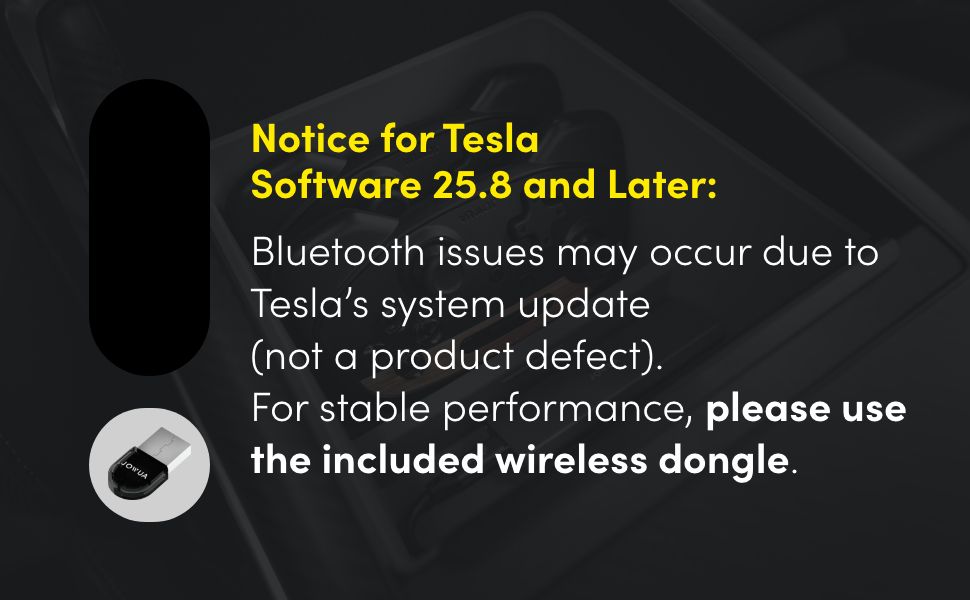
Important Notice: Tesla Software Update
Following Tesla’s 2024.37 software update, Bluetooth connectivity issues may occur, affecting controller connections via Bluetooth. This is a system-level issue from Tesla, not a product defect. For stable performance, Jowua controllers can still be used seamlessly through alternative connection methods:
- Using the Wireless USB Dongle: Install the included Wireless USB Dongle in the glovebox for a reliable connection. Detailed instructions are provided in the 'Setup and Pairing' section.
- Switching to S Mode (Switch Mode): Set the controller to S Mode to connect via Bluetooth. Note that in Tesla Bluetooth mode, certain games may have reversed A/B and X/Y buttons due to factory settings. We recommend switching to the 'Dongle' mode to resolve this issue and enhance your gameplay experience.
Product Overview
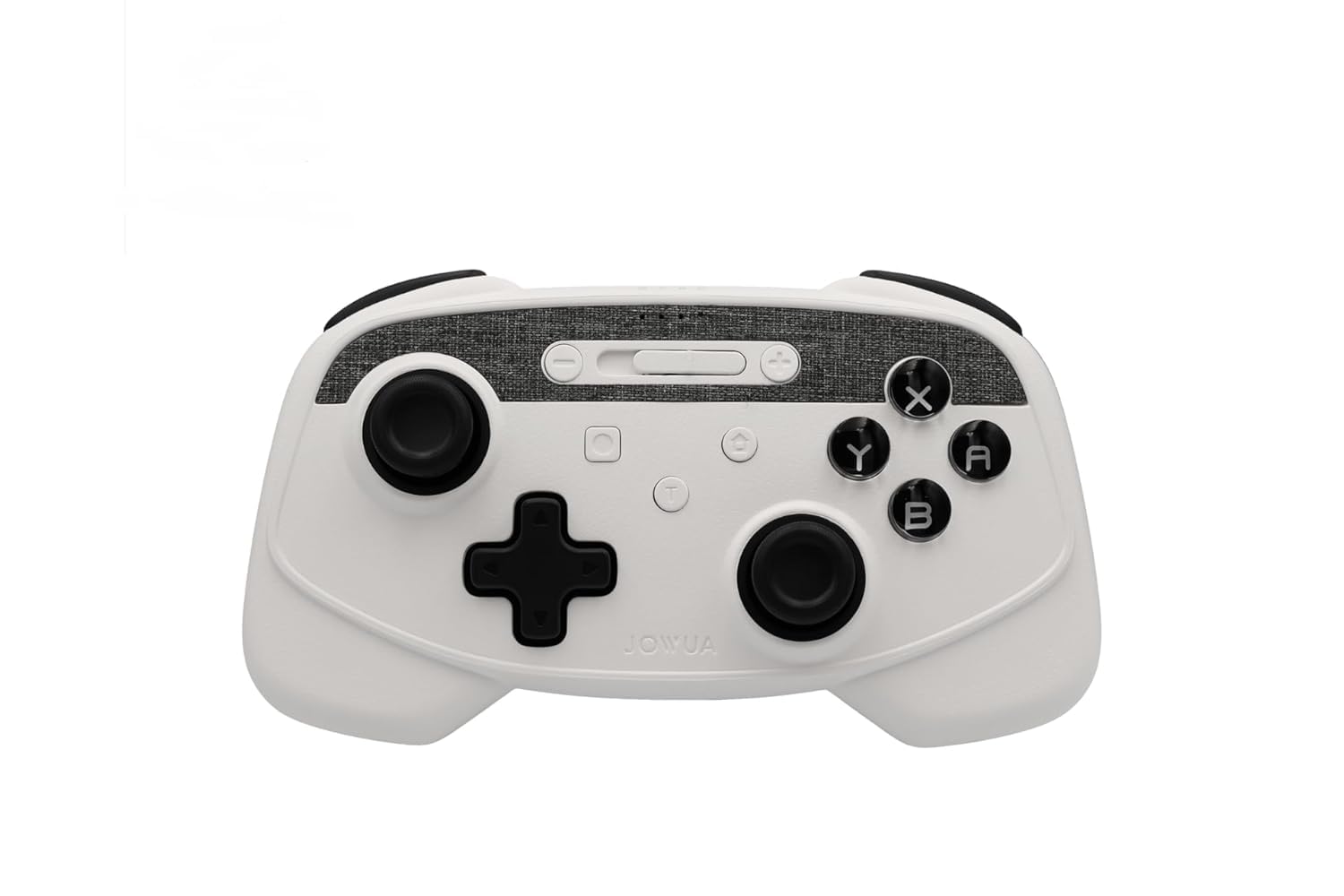
The Jowua Multi-Device Wireless Controller is designed to enhance your gaming experience across various platforms. It features powerful dual motor vibration, a built-in six-axis gyro sensor, and AUTO-burst functionality for immersive gameplay. Its multi-device switch allows for easy pairing and switching between different devices.
Setup and Pairing
Multi-Device Switch Setting
The controller supports multiple platforms. Use the slide switch on the top of the controller to select the desired mode for your device:
- Wired Connection: Connect via USB-C data cable for charging and playing simultaneously.
- Wireless Connection Modes:
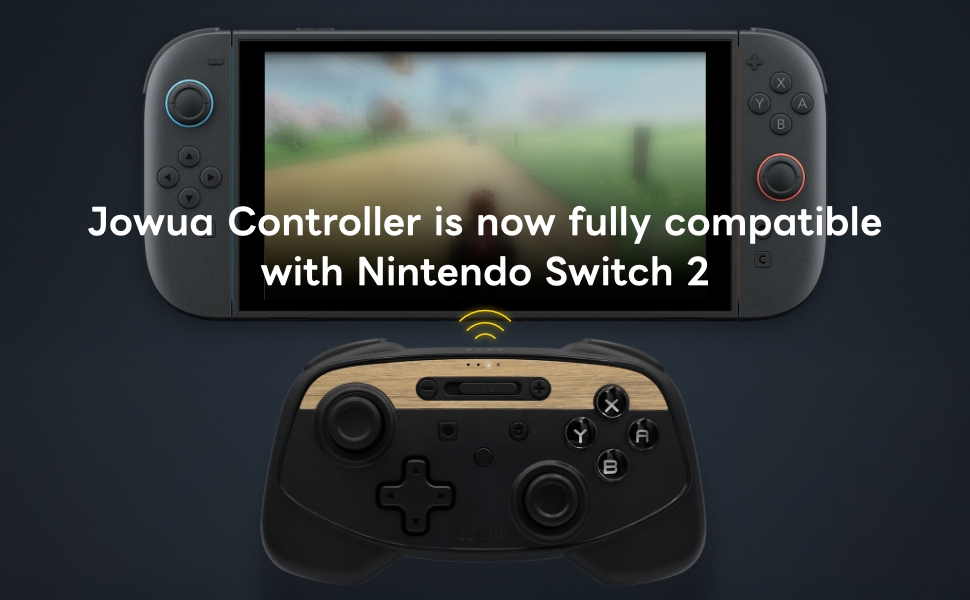
- Tesla Bluetooth mode & Nintendo Switch
- Apple Arcade & Android
- Tesla (Jowua Dongle)
Pairing with Wireless USB Dongle (Recommended for Tesla)
For optimal performance with Tesla vehicles, especially after the 2024.37 software update, using the Wireless USB Dongle is recommended.
- Plug the wireless dongle into your Tesla USB port. The dongle red light will flash slowly for 3 seconds and then turn off.
- Press the button on the dongle. The dongle red light will flash quickly, indicating it is ready to pair.
- Switch the controller (Multi-device switch) to the Tesla (Jowua Dongle) mode.
- Press and hold the controller's Sync button for 3 seconds until you see the 1st LED light flash quickly to start pairing.
- Both the dongle and controller LED lights will stop flashing and remain lit (all blue) once the connection is successful.


Video: This video demonstrates the process of connecting the Jowua controller to a device using the wireless dongle, showing the steps for successful pairing.
Pairing via Bluetooth (S Mode)
To connect the controller via Bluetooth, switch the controller to S Mode. Then, navigate to your device's Bluetooth settings and select the Jowua controller from the list of available devices to pair.
Video: This video illustrates how to connect the Jowua controller to a Tesla vehicle using Bluetooth, demonstrating the pairing process.
Charging and Battery
Wireless Charging
The Jowua controller supports wireless charging. Simply place the controller on a compatible wireless charging pad. It fits perfectly on Tesla's wireless charging pad, ensuring your controller is always charged and ready.

A built-in charging protection mechanism ensures that when the controller is placed on the wireless charging pad for extended periods, charging activates only when the battery level is below a specific threshold. This feature helps maintain battery health and extends its lifespan.

USB-C Wired Charging
The controller features a built-in 600mAh rechargeable battery. It supports USB-C cable charging, allowing you to charge and play simultaneously.

| Feature | Detail |
|---|---|
| Battery Capacity | 600mAh |
| Nonstop Playing Time | Up to 8 Hours |
| Full Charging Time | Approximately 2 Hours |
| Standby Time | Up to 25 Days |
Operation
Multi-Platform Compatibility
The Jowua controller is compatible with a wide range of devices and gaming platforms, including:
- Tesla Model S/3/X/Y
- Nintendo Switch
- Apple Arcade (iOS)
- Android devices
- PC/Mac/Linux/Unix

Video: A short demonstration of the Jowua controller being used to play a game, showcasing its responsiveness and functionality.
Specifications
| Feature | Detail |
|---|---|
| Compatible Devices | Android, Nintendo Switch, PC, Mac, Linux, Unix, iOS, Windows |
| Controller Type | Gamepad |
| Connectivity Technology | Bluetooth |
| Additional Features | Multiuse, Wireless, Dual Motor Vibration, Six-Axis Gyro Sensor, AUTO-burst |
| Button Quantity | 5 (excluding D-pad and joysticks) |
| Hardware Platform | Android, Nintendo Switch, PC/Mac/Linux/Unix, iOS |
| Power Source | Battery Powered (600mAh rechargeable) |
| Compatible Video Game Console Models | Nintendo Switch, Tesla (via Bluetooth/Dongle) |
| Color | White with wireless charging |
| Manufacturer | JOWUA |
| ASIN | B0DJBDTCB4 |
Troubleshooting
Bluetooth Connectivity Issues (Tesla)
As noted in the 'Important Notice' section, Tesla's 2024.37 software update may cause Bluetooth abnormalities. If you experience connection issues or incorrect button mapping (A/B, X/Y reversed) when using Bluetooth with your Tesla, please:
- Ensure your controller is in S Mode (Switch Mode) for Bluetooth connection.
- For a more stable and reliable connection, use the included Wireless USB Dongle. Refer to the 'Pairing with Wireless USB Dongle' section for detailed instructions.
General Pairing Issues
- Controller Not Pairing: Ensure the controller is fully charged. Verify that the correct mode is selected on the multi-device switch for your intended platform.
- Dongle Not Responding: If the dongle's red light does not flash or remains off, unplug and re-plug the USB dongle into the port.
- Intermittent Connection: Ensure there are no obstructions between the controller and the dongle/device. Keep the controller within the recommended operating range.
Warranty and Support
The Jowua Multi-Device Wireless Controller comes with a 1-year warranty from the date of purchase, covering manufacturing defects.
For technical support, warranty claims, or any product-related inquiries, please contact Jowua customer service directly. You can typically find contact information on the official Jowua website or through your purchase platform.
Manufacturer: JOWUA
