
1. Product Overview
The HXVIEW BU-WP-8004 is a comprehensive solar wireless security camera system designed for outdoor surveillance. It includes a 10-inch LCD monitor with a built-in 10-channel Network Video Recorder (NVR) and a pre-installed 500GB Hard Disk Drive (HDD). The system features four 4MP PTZ (Pan-Tilt-Zoom) WiFi battery-powered cameras, each equipped with a solar panel for continuous power. Key features include PIR human detection, 2-way audio, and color night vision.
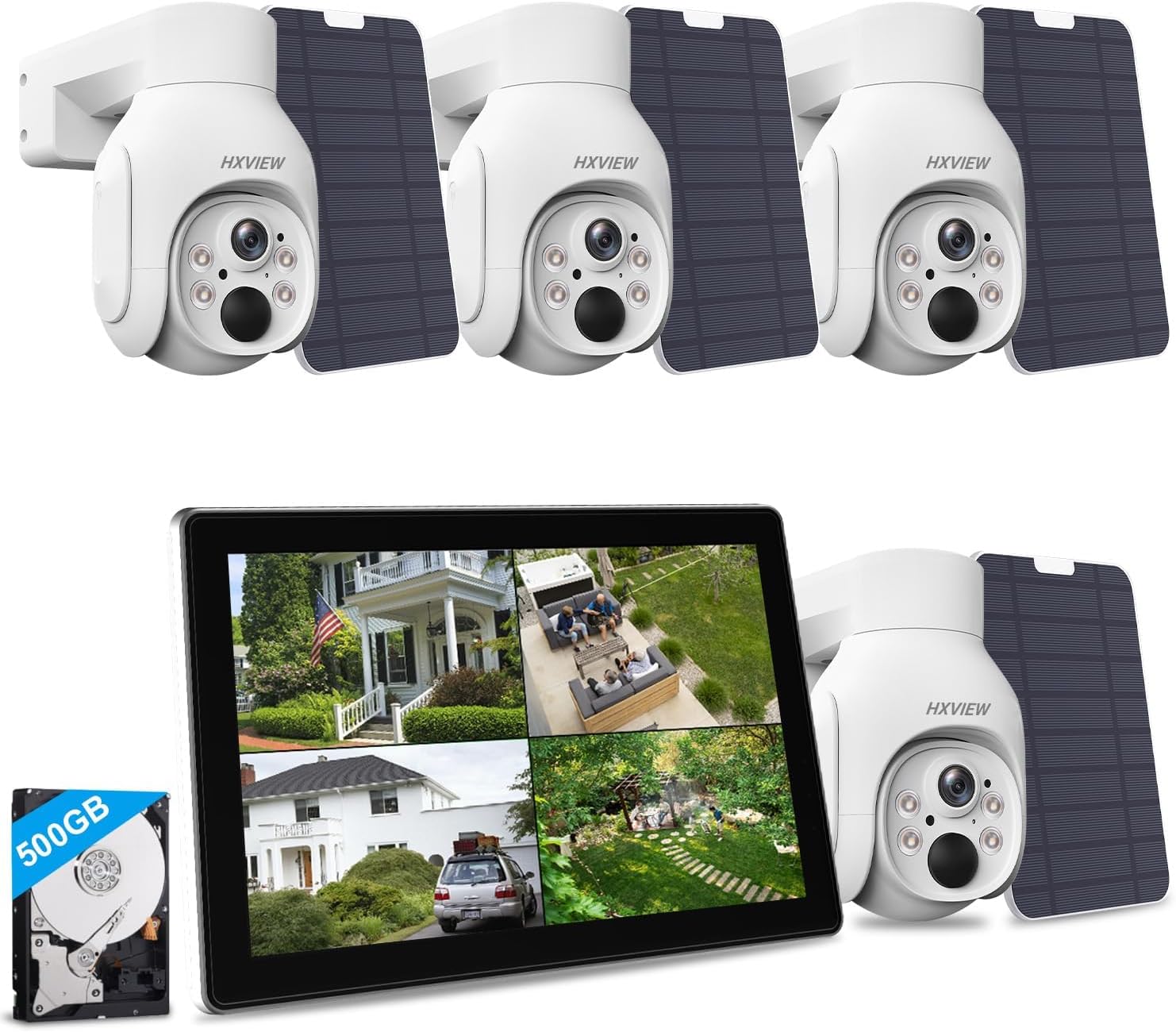
Image: Overview of the HXVIEW Solar Wireless Security Camera System, showing the 10-inch LCD monitor, four PTZ cameras, solar panels, and a 500GB HDD.
2. Package Contents
Verify that all items listed below are included in your package:
- 4MP Solar Security Cameras Wireless Outdoor (4 units)
- 10-inch LCD 10CH NVR Monitor (1 unit)
- 500GB HDD (pre-installed in NVR)
- Solar Panels (4 units, one for each camera)
- Screw Packs (for mounting)
- Power Adapter for NVR
- USB Mouse
- Ethernet Cable (Cat5e)
- USB-A to USB-C Charging Cables (4 units, for cameras)
- Metal Brackets (4 units, for camera mounting)
Video: An unboxing demonstration of the HXVIEW Solar Wireless Security Camera System, detailing the components included in the package.
3. System Setup
3.1 Initial NVR Setup
- Connect Power: Plug the NVR's power adapter into an electrical outlet.
- Connect Mouse: Insert the USB mouse into an available USB port on the NVR.
- Power On: The NVR will automatically power on and display the HXVIEW logo.
- Language Selection: Follow the on-screen prompts to select your preferred language.
- Set Password: Create a strong login password for your NVR. This is crucial for security.
- Network Setup: Configure the NVR's WiFi connection to your home network. This enables remote access and updates.
- Date and Time: Set the correct date and time for accurate recording timestamps.
- Storage Management: Verify the 500GB HDD is recognized and formatted.
The solar WiFi cameras and NVR are pre-paired for a plug-and-play experience. Once the NVR is set up, the cameras should automatically connect when powered on.
Video: A quick guide demonstrating the initial connection and setup process for the solar security camera system.
3.2 Camera Installation
Each camera comes with a solar panel and mounting hardware. Choose locations that receive ample direct sunlight for the solar panels and provide optimal surveillance coverage.
- Mounting Bracket: Secure the metal mounting bracket to your desired surface (e.g., wall, eaves) using the provided screws. Ensure the surface is stable.
- Attach Camera: Slide the camera onto the mounting bracket. The camera is designed to fit securely.
- Position Solar Panel: Mount the solar panel in a location that maximizes sun exposure throughout the day. It can be mounted separately from the camera but should be within reach of the camera's charging cable.
- Connect Solar Panel: Connect the USB-C cable from the solar panel to the charging port on the camera. Ensure the port cover is properly sealed after connection to maintain weather resistance.
- Adjust Angle: Adjust the camera's pan (355°) and tilt (90°) angles to achieve the desired viewing area.

Image: A solar-powered security camera mounted on an exterior wall with its connected solar panel, illustrating the wireless and self-sustaining design.

Image: A PTZ camera demonstrating its 355-degree pan and 90-degree tilt capabilities, providing extensive coverage.
4. Operating the System
4.1 Live View and Playback
View live feeds from all connected cameras directly on the 10-inch LCD monitor. Use the USB mouse to navigate the NVR interface for playback of recorded footage.

Image: The 10-inch LCD monitor showing a split-screen view of four different camera feeds, providing real-time surveillance.
For remote access, download the EseeCloud APP on your smartphone. Scan the QR code on the NVR to link your device. The app allows you to view live feeds, control camera angles, and access recorded events from anywhere.

Image: A smartphone screen showing a multi-view display of security camera feeds through the EseeCloud mobile application.
4.2 Motion Detection and Alerts
The cameras utilize a sensitive PIR sensor and advanced AI algorithms for human detection, minimizing false alarms. When motion is detected, the camera can trigger a floodlight and a 120dB siren, and send push notifications to your smartphone via the EseeCloud APP.

Image: A security camera with an activated floodlight and siren, indicating PIR human detection and an alert notification on a smartphone.
You can customize motion detection sensitivity and schedule specific working times through the EseeCloud App to optimize battery life and focus on relevant events.
4.3 Two-Way Audio
Each camera features a built-in microphone and speaker, enabling two-way audio communication. You can speak to visitors or deter intruders directly through the EseeCloud APP or the NVR monitor.

Image: Illustration of the two-way audio feature, showing a delivery person speaking to a homeowner via the camera and smartphone app.
4.4 Storage
The NVR comes with a pre-installed 500GB HDD, providing ample local storage for recorded footage. The system supports various recording modes, including motion-triggered recording and continuous recording (when cameras are wired for constant power). The 500GB HDD can support approximately 180 days of loop recording for 4 cameras.
4.5 Alexa Integration
The system is compatible with Amazon Alexa. You can use voice commands to view live camera feeds on compatible Alexa-enabled devices.

Image: A woman interacting with an Alexa-enabled smart display to view a live camera feed, demonstrating the system's compatibility with Alexa.
5. Maintenance
- Solar Panel Efficiency: Ensure solar panels are clean and free from obstructions (e.g., leaves, dirt) to maintain optimal charging efficiency.
- Battery Life: The cameras feature built-in rechargeable batteries. While solar panels provide continuous power, ensure sufficient sunlight exposure. If needed, cameras can be charged via the provided USB-C cables.
- Weather Resistance: The cameras are IP66 waterproof, designed to withstand various weather conditions (rain, sun, snow). Regularly check for any physical damage that might compromise their weatherproofing.
- Software Updates: Periodically check for firmware updates for the NVR and cameras through the system settings or EseeCloud APP to ensure optimal performance and security.

Image: The IP66 waterproof camera and solar panel are shown enduring different weather conditions, including rain, sun, and snow, highlighting their durability.
6. Troubleshooting
If you encounter issues with your system, refer to the following common troubleshooting tips:
- No Camera Feed: Check if the camera is powered on and the solar panel is receiving adequate sunlight. Ensure the camera is within range of the NVR's signal.
- NVR Connectivity: Verify the NVR is connected to power and your WiFi network. Restart the NVR if necessary.
- False Alarms: Adjust the PIR detection sensitivity and set privacy zones through the NVR interface or EseeCloud APP to reduce unwanted alerts.
- Recording Issues: Check the NVR's storage status to ensure the 500GB HDD is functioning correctly and has available space.
- App Connection: Ensure your smartphone has a stable internet connection and the EseeCloud APP is updated to the latest version.
For more detailed troubleshooting steps, consult the full user manual provided with your product or contact HXVIEW customer support.
7. Specifications
| Feature | Specification |
|---|---|
| Brand | HXVIEW |
| Model Number | BU-WP-8004 |
| Connectivity Technology | Wireless |
| Video Capture Resolution | 1440p (4MP HD) |
| Special Features | PTZ Control, Smart Playback, Two-Way Audio, Weatherproof, PIR Motion Detection, Color Night Vision |
| Number of Channels | 10 |
| Memory Storage Capacity | 500 GB HDD |
| Power Source | Solar Powered |
| Night Vision Range | 65 Feet |
| Frame Rate | 30 fps |
| Recording Mode | Motion Detection |
| Viewing Angle | 360 Degrees (PTZ) |
| Batteries | 1 Lithium Ion battery required (included) |
8. Warranty and Support
For warranty information and technical support, please refer to the official HXVIEW website or contact their customer service directly. Protection plans may be available for extended coverage.
Video: A short overview of the HXVIEW Solar Wireless Security Camera System, highlighting its features and ease of use.