
1. Introduction
This manual provides detailed instructions for the setup, operation, maintenance, and troubleshooting of your Rapoo V300SE Dual-Mode E-Sports Gaming Mouse. Please read this manual thoroughly before using the product to ensure optimal performance and longevity.

Figure 1: Top view of the Rapoo V300SE Gaming Mouse.
2. Package Contents
Ensure all the following items are present in your product package:
- Rapoo V300SE Wireless/Wired Gaming Mouse
- USB Dongle (located in the magnetic storage compartment at the bottom of the mouse)
- Type-C to USB Cable
- USB-A to Type-C Converter
- User Manual (this document)
3. Setup
3.1 Charging the Mouse
The Rapoo V300SE mouse features a built-in 500 mAh lithium battery. Before first use, or when the battery is low, connect the mouse to a USB power source using the provided Type-C to USB cable. A full charge typically takes approximately 2 hours.
- Connect the Type-C end of the cable to the mouse.
- Connect the USB-A end to a computer's USB port or a USB wall adapter.
- The mouse can be used while charging.
3.2 Connecting the Mouse
The V300SE supports dual-mode connectivity: 2.4G Wireless and Wired.
3.2.1 2.4G Wireless Connection
- Locate the USB dongle in the magnetic storage compartment at the bottom of the mouse.
- Remove the USB dongle.
- Plug the USB dongle into an available USB port on your computer.
- Turn on the mouse using the power switch located on the bottom.
- Your computer should automatically detect and install the necessary drivers. The mouse is ready for use.

Figure 2: Bottom view of the mouse with the USB dongle compartment.
3.2.2 Wired Connection
- Connect the Type-C end of the provided cable to the mouse.
- Connect the USB-A end to an available USB port on your computer.
- The mouse will automatically switch to wired mode and begin charging.
4. Operating Instructions
4.1 DPI Adjustment
The Rapoo V300SE features an adjustable DPI range from 400 to 12000 DPI, with 7 preset levels that can be quickly switched. Use the dedicated DPI button(s) on the mouse to cycle through the sensitivity settings to match your preference and game requirements.

Figure 3: High-performance DPI settings ranging from 400 to 12000.
4.2 Programmable Buttons
The mouse is equipped with 10 customizable buttons (1+9 programmable). These buttons can be configured using the Rapoo custom driver software (available for download from the official Rapoo website) to assign macros, key functions, or other commands.
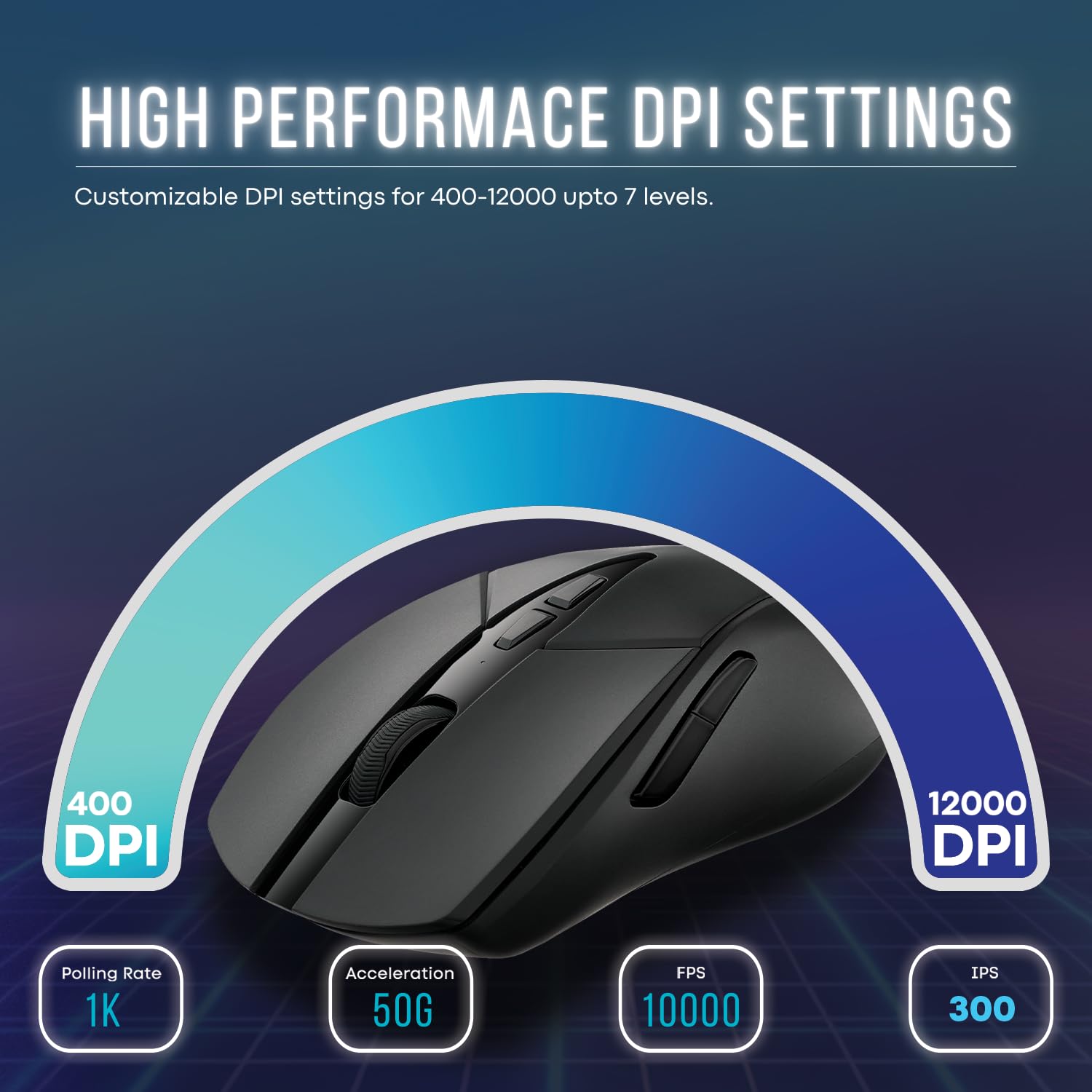
Figure 4: Side view illustrating the customizable buttons on the mouse.
4.3 Onboard Memory
The V300SE features onboard memory, allowing you to save your customized button configurations and DPI settings directly to the mouse. This enables you to use your personalized settings on different computers without needing to reinstall the driver software.
5. Key Features
- PAW 3311 Sensor: Equipped with an advanced PAW 3311 sensor, offering 300 IPS and 35G acceleration for precise tracking.
- V+ Wireless Gaming Technology: Ensures minimal latency and input lag for a smooth and precise wireless gaming experience.
- Lightweight Design: Weighs only 73g, providing comfort for extended gaming sessions and compatibility with various grip styles.
- C+Click Technology: Features split main buttons with micro switches rated for 50 million clicks, providing crisp presses and quick triggers.
- Ambidextrous Ergonomic Design: Symmetrical layout designed for comfort for both left and right-handed users.

Figure 5: The lightweight design of the mouse, weighing only 73 grams.

Figure 6: Illustration of the gaming-grade PAW 3311 sensor (image text shows PAW3395, but product description confirms PAW 3311).
6. Maintenance
- Cleaning: Use a soft, dry cloth to clean the mouse. For stubborn dirt, a slightly damp cloth can be used, but ensure no moisture enters the device.
- Storage: When not in use for extended periods, store the mouse in a cool, dry place. Ensure the USB dongle is securely stored in its magnetic compartment.
- Battery Care: Avoid fully discharging the battery frequently. Charge the mouse regularly to maintain battery health.
7. Troubleshooting
| Problem | Possible Solution |
|---|---|
| Mouse not responding (Wireless) |
|
| Mouse not responding (Wired) |
|
| DPI settings not changing |
|
| Buttons not programmable |
|
8. Specifications
| Model | V300SE |
| Connectivity | 2.4G Wireless, Wired (Type-C) |
| Sensor | PAW 3311 Optical Sensor |
| DPI Range | 400 - 12000 DPI (Adjustable) |
| Acceleration | 35G |
| IPS | 300 IPS |
| Buttons | 10 (Programmable) |
| Switch Life | 50 Million Clicks |
| Battery | 500 mAh Lithium Battery |
| Weight | 73g |
| Dimensions (LxWxH) | 12.3 x 6.8 x 0.1 cm |
| Color | Black |
| Hardware Platform | PC |
| Country of Origin | China |
9. Warranty and Support
Rapoo provides a 2-year warranty for this product from the date of purchase. Please retain your proof of purchase for warranty claims.
For technical support, driver downloads, or further assistance, please visit the official Rapoo website or contact their customer service.
Manufacturer: Shenzhen RAPOO Technology Co.Limited
Address: 22, Jinxiu Road East, Pingshan District, Shenzhen, China
Importer (India): Supertron Electronics PVT LTD
10. Official Product Videos
There are no official product videos available from the seller for this product at this time.


