
MSXTTLY U2A-L9 & U2C-AIR Pro
MSXTTLY U2A-L9 & U2C-AIR Pro Wireless Adapter User Manual
Your comprehensive guide to setting up and using your wireless Android Auto and CarPlay adapters.
Product Overview
The MSXTTLY U2A-L9 and U2C-AIR Pro are advanced wireless adapters designed to seamlessly integrate your smartphone with your car's infotainment system, enabling wireless Android Auto and Apple CarPlay functionality. These compact devices eliminate the need for tangled cables, providing a convenient and stable connection for navigation, music, and communication.

Image: The MSXTTLY U2A-L9 (left) and U2C-AIR Pro (right) wireless adapters, shown with various USB cable types and smartphone interfaces for Android Auto and CarPlay.
Key Features
- Wireless Android Auto & CarPlay: Transform your wired car system into a wireless experience.
- Fast and Stable Connection: Equipped with a 5G chip, supporting 5.8 GHz WiFi and Bluetooth 5.3 for low latency.
- Automatic Connection: After initial setup, the adapter automatically connects to your phone upon car startup.
- Compact Design: Smaller form factor for discreet integration into your car's interior.
- Gold-Plated USB: Enhances conductivity and durability for reliable performance.

Image: A close-up view of the adapter's gold-plated USB connector, highlighting the internal components and the gold plating technique designed for quick auto-connection and enhanced service life.

Image: A visual breakdown of the adapter's design, showing features like heat dissipation for optimal performance, gold-plated design for improved transmission stability, and an LED light for visual feedback. The image also shows the adapter discreetly plugged into a car's console.
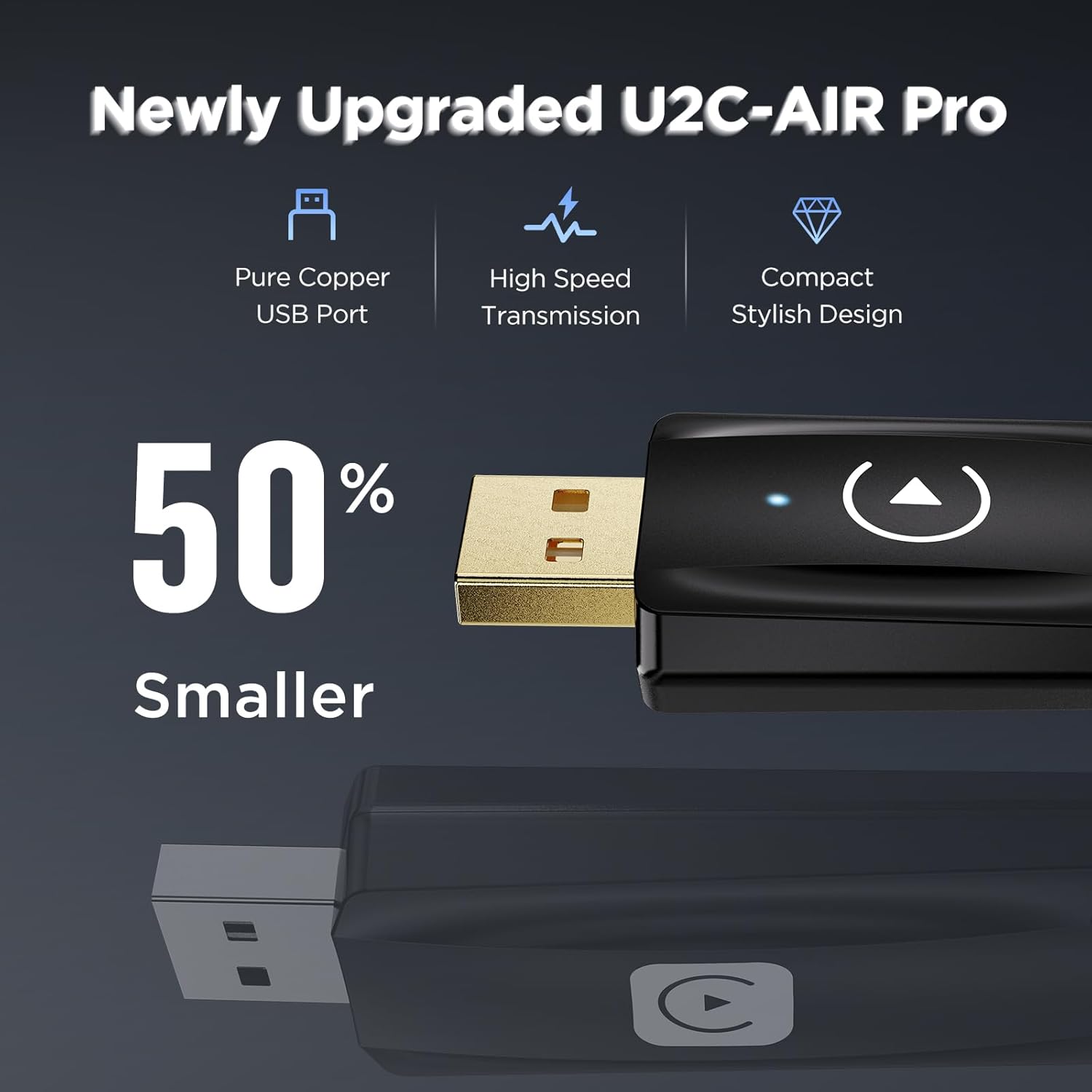
Image: A comparison highlighting the newly upgraded U2C-AIR Pro, emphasizing its 50% smaller size, pure copper USB port, high-speed transmission capabilities, and compact stylish design.

Image: A visual representation demonstrating how much smaller the adapter is compared to previous versions or expectations, illustrating its space-saving design.

Image: A side-by-side comparison showing a car's console "Before" the adapter, with a wired phone connection and visible cables, and "After" the adapter, with a clean, wireless setup and the compact adapter plugged in.
Setup Guide
What's in the Box
Please verify that all components are present:
- 1 x MSXTTLY U2A-L9 Wireless Android Auto Adapter
- 1 x MSXTTLY U2C-AIR Pro Wireless CarPlay Adapter
- 2 x USB Cables (USB-A to USB-C)
- 1 x USB Type-C Adapter
Installation Steps
Follow these steps to set up your wireless adapter:
- Prepare Your Vehicle: Ensure your car's infotainment system supports wired Android Auto or Apple CarPlay.
- Connect the Adapter: Plug the appropriate wireless adapter (U2A-L9 for Android Auto or U2C-AIR Pro for CarPlay) into your car's USB port that supports wired Android Auto/CarPlay. Use the provided USB cable or Type-C adapter if necessary.
- Power On: Start your car's engine. The adapter's LED indicator should light up, indicating it is powered on.
- Enable Bluetooth & Wi-Fi: On your smartphone, turn on both Bluetooth and Wi-Fi.
- Pair with Adapter: On your phone, search for Bluetooth devices and select the adapter's name (e.g., "MSXTTLY-AA" or "MSXTTLY-CP"). Follow any on-screen prompts to confirm pairing.
- Automatic Connection: Once paired, your phone will automatically connect to the adapter via Wi-Fi, and Android Auto or CarPlay will launch on your car's display.
- Initial Setup Complete: The adapter will now automatically connect every time you start your car.

Image: This image illustrates two connection methods for the adapter: directly plugging into a built-in USB port in the car's console, and connecting via a USB-A to USB-C data cable for more flexible placement.
Operating Instructions
Connecting to Your Device
After the initial setup, the adapter is designed for seamless, automatic connection. When you enter your vehicle and start the engine, the adapter will automatically establish a wireless connection with your paired smartphone.

Image: A user is shown interacting with their smartphone and car, demonstrating the automatic CarPlay connection process. The car's infotainment screen displays the CarPlay interface, indicating a successful wireless link.
Automatic Connection
The adapter prioritizes a fast and stable connection. Even if you are on a phone call when you get into the car, the system will connect without interrupting your call or requiring you to wait for the connection to establish.
Important Notes
- Compatibility: The wireless Android Auto adapter is compatible only with cars or audio systems equipped with wired Android Auto. The CarPlay adapter requires a wired CarPlay-enabled system.
- Smartphone Requirements: For optimal performance, it is highly recommended that your smartphone runs Android 11 or higher for Android Auto, and iOS 12 or higher for Apple CarPlay.
- Video Apps: Please note that video streaming applications (e.g., YouTube, Netflix) are NOT supported through these adapters. They are designed for navigation, audio, and communication functions.
- Power Cycle: If you experience connection issues, try restarting your car's infotainment system or unplugging and re-plugging the adapter.
Maintenance
To ensure the longevity and optimal performance of your MSXTTLY wireless adapters, follow these simple maintenance guidelines:
- Keep Clean: Regularly wipe the adapter with a soft, dry cloth to remove dust and debris. Avoid using liquid cleaners or abrasive materials.
- Avoid Extreme Temperatures: Do not expose the adapter to extreme heat or cold, as this can affect its internal components.
- Handle with Care: Avoid dropping the adapter or subjecting it to strong impacts.
- Proper Storage: If storing the adapter for an extended period, keep it in a cool, dry place away from direct sunlight.
Troubleshooting
If you encounter issues with your MSXTTLY wireless adapter, refer to the table below for common problems and their solutions:
| Problem | Possible Cause | Solution |
|---|---|---|
| Adapter not connecting automatically. | Bluetooth or Wi-Fi is off on phone; adapter not properly plugged in; initial pairing lost. | Ensure Bluetooth and Wi-Fi are enabled on your phone. Unplug and re-plug the adapter. Re-pair the adapter via Bluetooth settings on your phone. |
| No Android Auto/CarPlay display on car screen. | Car system does not support wired Android Auto/CarPlay; incorrect USB port used; phone compatibility issue. | Verify your car supports wired Android Auto/CarPlay. Try a different USB port in your car. Ensure your phone meets the minimum OS requirements (Android 11+/iOS 12+). |
| Intermittent connection or lag. | Interference; outdated phone OS; adapter firmware needs update (if applicable). | Ensure no other strong Wi-Fi signals are interfering. Update your phone's operating system. Check the manufacturer's website for any firmware updates for the adapter. |
| Audio issues (no sound, distorted sound). | Volume settings; car's audio source not selected correctly. | Check volume levels on both your phone and car system. Ensure the car's audio source is set to Android Auto/CarPlay. |
Specifications
| Model Name | U2A-L9 & U2C-AIR Pro |
| Brand | MSXTTLY |
| Product Dimensions | 2.61 x 1.06 x 0.49 inches |
| Connectivity Technology | Bluetooth 5.3, Wi-Fi 5.8 GHz |
| Compatible Devices | Smartphones (Android Auto/CarPlay enabled), Vehicles with wired Android Auto/CarPlay |
| Recommended OS | Android 11 / iOS 12 or higher |
| Included Components | 2 x USB Cable, 1 x USB Type-C Adapter |
| ASIN | B0DJ975BTK |
Warranty and Support
MSXTTLY products are designed for reliability and performance. For information regarding warranty coverage, technical support, or frequently asked questions, please refer to the official MSXTTLY website or contact their customer service directly.
When contacting support, please have your product model name (U2A-L9 & U2C-AIR Pro) and ASIN (B0DJ975BTK) ready for faster assistance.
Related documentsU2A-L9 & U2C-AIR Pro


Ask a question about this manual
Ask about setup, troubleshooting, compatibility, parts, safety, or missing instructions. Manuals+ will review the question and use this page’s manual context to help answer it.