
1. Introduction
Thank you for choosing the Loddery 7 Inch Android 13 Car Stereo. This manual provides essential information for the proper installation, operation, and maintenance of your new car multimedia system. Please read this manual thoroughly before use to ensure optimal performance and to prevent damage.
This car stereo is specifically designed for the Saab 9-3 93 models from 2007 to 2011, offering an integrated multimedia and navigation experience.
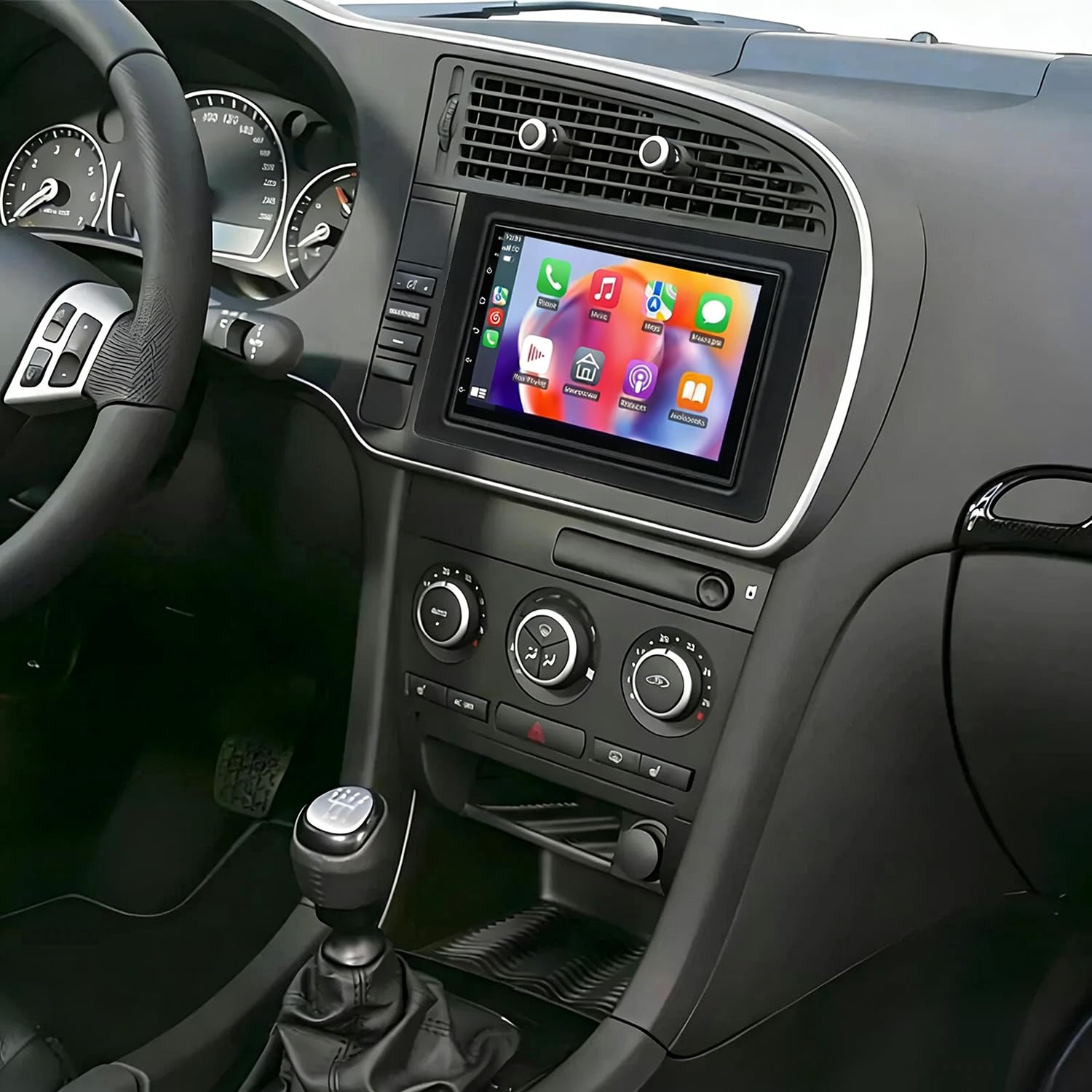
Image 1.1: Front view of the Loddery 7 Inch Android 13 Car Stereo. This image displays the main unit with its 7-inch touchscreen display, designed to integrate seamlessly into the dashboard of compatible Saab 9-3 models.
2. Package Contents
Please verify that all items listed below are included in your package:
- 1 x Car MP5 Player (Main Unit)
- 1 x Power Cable
- 1 x GPS Antenna
- 1 x Rear Camera Input Cable
- 1 x RCA Cable
- 2 x USB Cables
- 1 x Instruction Manual (this document)
- 1 x AHD Camera (Backup Camera)
3. Setup and Installation
This car stereo is designed for a plug-and-play installation in compatible Saab 9-3 93 models (2007-2011). While designed for ease of installation, professional installation is recommended to ensure correct wiring and functionality, especially for power connections and accessory integration.
3.1. Pre-Installation Checks
- Ensure the vehicle's ignition is off and the battery is disconnected before starting installation.
- Confirm all package contents are present.
- Review the wiring diagrams provided in the included physical instruction manual for specific vehicle connections.
3.2. Installation Steps (General)
- Remove Existing Unit: Carefully remove the factory radio from your Saab 9-3 dashboard.
- Connect Power Cable: Connect the provided power cable harness to the car stereo and the vehicle's wiring. Ensure all connections are secure.
- Connect GPS Antenna: Mount the GPS antenna in a location with a clear view of the sky (e.g., dashboard, under the windshield) and connect it to the stereo.
- Connect USB Cables: Route the USB cables to a convenient location (e.g., glove compartment) and connect them to the stereo.
- Connect Rear Camera (Optional): If installing the AHD backup camera, route the camera cable from the rear of the vehicle to the stereo and connect it to the 'Rear Camera Input' port. Connect the camera's power to the vehicle's reverse light circuit.
- Connect RCA Cables (Optional): If using external amplifiers or other audio/video devices, connect the RCA cables as needed.
- Test Functionality: Before fully reassembling the dashboard, reconnect the vehicle battery and power on the unit to test basic functions (power, audio, touchscreen, GPS signal, camera input).
- Secure Unit: Once tested, carefully slide the car stereo into the dashboard opening and secure it. Reassemble any removed trim pieces.
3.3. Steering Wheel Control
The unit supports the vehicle's steering wheel control function. After installation, you may need to access the unit's settings to map the steering wheel buttons to the desired functions.
4. Operating Instructions
This section details the primary functions and features of your Loddery Android 13 Car Stereo.
4.1. General Operation
- Power On/Off: Press and hold the power button (if available) or turn the vehicle ignition on/off.
- Touchscreen: The 7-inch 2.5D Tempered Glass Mirror display is a full capacitance touchscreen. Navigate the interface by tapping, swiping, and pinching.
- Home Screen: Access various applications and settings from the customizable home screen.
- Language Settings: The system supports multiple languages including English, Chinese, French, Italian, Korean, Japanese, Arabic, Spanish, Portuguese, Russian, Turkish, Vietnamese, Hebrew, Polish, and German. Adjust in system settings.
4.2. Connectivity
- Wi-Fi: Connect to available Wi-Fi networks or use your mobile phone's hotspot for internet access. Go to Settings > Network & Internet > Wi-Fi.
- Bluetooth 5.0: Pair your smartphone for hands-free calling, phone book synchronization, and audio streaming. Go to Settings > Connected devices > Bluetooth.
- USB: Use the double USB interfaces to connect USB drives for media playback or to charge compatible devices.
4.3. Navigation
- Built-in Offline Maps: The unit comes with built-in offline map capabilities. An internet connection is required to download map data initially.
- Online Navigation: Once connected to Wi-Fi, you can use online navigation applications for real-time traffic and updated maps.
- GPS: The dedicated GPS antenna ensures accurate positioning for navigation.
4.4. CarPlay / Android Auto
- Wireless & Wired CarPlay: For iOS devices, connect via Bluetooth for wireless CarPlay or use a USB cable for wired CarPlay. This integrates your iPhone's features like navigation, calls, messages, and music directly onto the car stereo display.
- Android Auto: Connect your Android smartphone via USB for Android Auto functionality, mirroring essential apps and features.
4.5. Multimedia Playback
- Audio Formats: Supports APE, FLAC, WAV, MP3, WMA, and other audio formats.
- Video Formats: Supports MKV, RMVB, AVI, MP4, MDV, and other video formats. Video output is supported for external displays.
- Picture Formats: Supports PNG, JPEG, JPG, GIF, WBMP, BNP, and other picture formats.
- Radio: Tune into FM radio stations. RDS (Radio Data System) is supported for displaying station information.
- DSP Function: The integrated DSP (Digital Signal Processor) ensures high-fidelity audio reproduction, closely matching the original sound quality.
4.6. Rear Camera Functionality
- The unit supports AHD (Analog High Definition) 1080P camera image input.
- When the vehicle is in reverse gear, the display will automatically switch to the rear camera view.
- You can switch between CVBS and AHD camera input types within the system settings if needed.
4.7. Split Screen
The split-screen feature allows you to run two applications simultaneously on the display, such as navigation and music playback.
5. Maintenance
Proper maintenance ensures the longevity and optimal performance of your car stereo.
- Screen Cleaning: Use a soft, lint-free cloth slightly dampened with water or a screen cleaner specifically designed for electronic displays. Avoid harsh chemicals or abrasive materials.
- Software Updates: Periodically check for system software updates via Wi-Fi to ensure you have the latest features and bug fixes.
- Environmental Conditions: Avoid exposing the unit to extreme temperatures, direct sunlight for prolonged periods, or excessive moisture.
- Connections: Ensure all cables and connections remain secure. Loose connections can lead to intermittent issues.
6. Troubleshooting
This section addresses common issues you might encounter. For more complex problems, please refer to the included physical manual or contact customer support.
- No Power:
- Check all power cable connections.
- Verify the vehicle's fuse for the radio is intact.
- Ensure the vehicle battery is properly connected and charged.
- Unit Does Not Turn Off with Car / Battery Drain:
- This indicates an incorrect wiring connection, specifically the ACC (accessory) wire. The unit's power should be cut when the ignition is off. Consult a professional installer to verify the ACC and constant power (B+) wires are correctly connected to the vehicle's harness.
- Check the unit's power settings for any 'always on' options, though this is typically a wiring issue.
- No Sound or Poor Sound Quality:
- Check speaker wire connections.
- Verify volume levels and mute settings.
- Adjust equalizer and DSP settings in the audio menu.
- Ensure RCA cables (if used) are securely connected.
- GPS Signal Not Found:
- Ensure the GPS antenna is securely connected and mounted in a location with a clear view of the sky.
- Check GPS settings in the system menu.
- Touchscreen Unresponsive:
- Restart the unit.
- Ensure the screen is clean and free of debris.
- CarPlay/Android Auto Not Connecting:
- For wireless CarPlay, ensure Bluetooth is on and paired.
- For wired connections, try a different USB cable.
- Ensure your phone's operating system is up to date.
- Check phone settings for CarPlay/Android Auto permissions.
- Factory Settings Keyword: If prompted for a factory setting password, use 000000.
7. Specifications
| Feature | Specification |
|---|---|
| System | Android 13 |
| Chipset | 8227L-DEMO |
| Screen Size | 7 inches |
| Screen Resolution | 1024x600 |
| Memory | 4GB RAM + 64GB ROM |
| Radio Chip | MT6625 |
| Power Output | 4x45W |
| Work Temperature | -20℃ to 75℃ |
| Power Amplifier Chip | TDA7388 |
| Radio Band | FM/RDS |
| Video Output | Support |
| Reversing Input | AHD/CVBS |
| External Microphone | Support |
| Split Screen | Support |
| Maps | Built-in offline maps (requires internet to download data) |
| Wi-Fi | Support |
| USB | Double USB interface |
| Connectivity Technology | Bluetooth |
| Audio Output Mode | Stereo |
| Mounting Type | Dashboard Mount |
| Item Weight | 4.98 pounds |
| Package Dimensions | 16.93 x 13.39 x 6.3 inches |
8. Warranty and Support
For warranty inquiries or technical support regarding your Loddery 7 Inch Android 13 Car Stereo, please contact the manufacturer or seller directly through your purchase platform. Please have your purchase details and product model number (fit for Saab 9-3 93 2007-2011) available when contacting support.