
Introduction
Thank you for choosing the PRT S1 Mini Thermal Printer. This compact and portable device is designed for convenient printing of stickers, labels, notes, and pictures directly from your smartphone or tablet via Bluetooth. This manual provides essential information on setting up, operating, maintaining, and troubleshooting your printer to ensure optimal performance and longevity.
What's in the Box
Please verify that all items are present in the package:
- 1 x PRT S1 Mini Printer
- 1 x Roll of Thermal Paper
- 1 x Power Cord
- 1 x Instruction Manual
Setup
Initial Setup
- Unpack the Printer: Carefully remove the printer and all accessories from the packaging.
- Charge the Printer: Connect the power cord to the printer and a suitable power source. Ensure the printer is fully charged before first use for optimal battery life.
- Load Thermal Paper:

Image Description: A four-panel image illustrating the steps to prepare and load paper into the PRT S1 Mini Printer. Step 1 shows opening the top cover. Step 2 shows placing the paper roll inside the printer. Step 3 shows pressing the power button. Step 4 shows connecting the app via Bluetooth.
- Open the top cover of the printer by gently pressing the release button or lifting the lid.
- Insert the thermal paper roll into the paper compartment, ensuring the smooth side of the paper faces upwards and the paper feeds out correctly.
- Close the top cover firmly until it clicks into place.
Operating Instructions
Connecting to the App
The PRT S1 Mini Printer operates via the "HerePrinter" mobile application. Follow these steps to connect your device:
- Download the App: Download the "HerePrinter" app from your device's app store (available for Android and iOS). You can also scan the QR code below or visit hereprint.hprt.com/app/hereprint.

Image Description: An image showing the PRT S1 Mini Printer, a smartphone displaying the HerePrinter app interface, and a tablet. A QR code for downloading the HerePrinter app is prominently displayed, along with a Bluetooth symbol indicating wireless connectivity.
- Power On the Printer: Press and hold the power button on the printer until the indicator light turns on.
- Enable Bluetooth: Ensure Bluetooth is enabled on your smartphone or tablet.
- Connect in App: Open the "HerePrinter" app. The app will automatically search for available printers. Select "PRT-S1" or a similar device name from the list to establish a connection. The indicator light on the printer may change to confirm connection.
Printing
Once connected, you can begin printing various content:
- Select Content: Within the HerePrinter app, choose the type of content you wish to print (e.g., text, images, labels, templates).

Image Description: The PRT S1 Mini Printer is shown centrally, surrounded by various examples of its printed output, including study notes, diagrams, coloring pages, photos, and labels, demonstrating its versatility. A roll of thermal paper and a smartphone with the app interface are also visible.
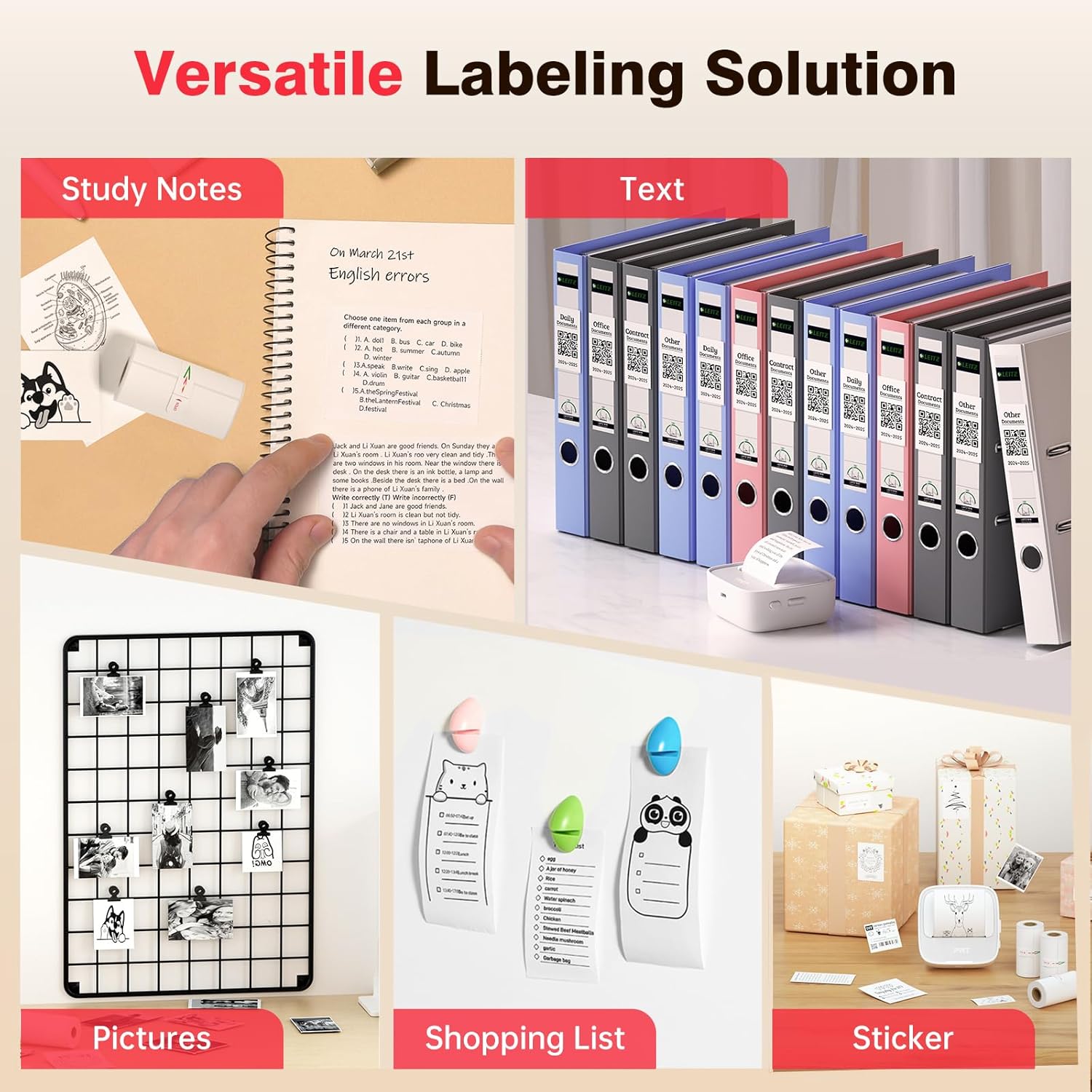
Image Description: A collage showcasing various applications of the PRT S1 Mini Printer. Examples include printing study notes in a notebook, text for binder labels, small pictures for a photo grid, shopping lists, and custom stickers for gifts.
- Customize (Optional): Use the app's editing tools to customize your print, such as adjusting size, adding frames, or applying filters.
- Print: Tap the print button in the app. The printer will feed the paper and print the selected content.
- Tear Off: Once printing is complete, gently tear the paper upwards against the printer's serrated edge.
App Usage
The HerePrinter app offers a wide range of features to enhance your printing experience:
- DIY Customization: Design your own stickers and labels with various text, image, and graphic options.

Image Description: A wide image showing the PRT S1 Mini Printer next to a smartphone displaying the HerePrinter app. The app interface shows various design elements like text, images, and templates, highlighting the DIY customization features for creating stickers.
- Templates and Fonts: Access a library of pre-designed templates for different purposes (e.g., study notes, to-do lists, labels) and a variety of fonts to personalize your prints.

Image Description: A wide image showcasing multiple smartphone screens, each displaying different templates and font options available within the HerePrinter app. This illustrates the wide variety of design choices users have for their prints.
- Image Printing: Print photos and images directly from your device's gallery. Note that the printer produces black and white thermal prints.
- Webpage Printing: Print content directly from web pages.
Maintenance
Proper maintenance ensures the longevity and performance of your PRT S1 Mini Thermal Printer:
- Cleaning the Print Head:
- Turn off the printer and disconnect the power cord.
- Open the top cover.
- Gently wipe the thermal print head (the black strip inside the printer) with a cotton swab lightly dampened with isopropyl alcohol. Allow it to dry completely before closing the cover.
- Clean the print head regularly, especially if print quality degrades.
- Paper Handling:
- Use only high-quality thermal paper designed for mini printers.
- Store thermal paper in a cool, dry place away from direct sunlight and heat to prevent fading.
- Avoid touching the thermal paper surface excessively, as oils from your skin can affect print quality.
- Battery Care:
- Charge the printer regularly, even if not in frequent use, to maintain battery health.
- Avoid fully discharging the battery frequently.
Troubleshooting
If you encounter issues with your PRT S1 Mini Thermal Printer, refer to the table below for common problems and solutions:
| Problem | Possible Cause | Solution |
|---|---|---|
| Printer does not turn on | Low battery; Power button not pressed correctly | Charge the printer; Press and hold the power button for a few seconds. |
| Cannot connect via Bluetooth | Bluetooth off on device; Printer not in pairing mode; App issue | Ensure Bluetooth is enabled on your phone/tablet; Restart printer and app; Forget device in Bluetooth settings and re-pair. |
| No print or blank page | No paper; Paper loaded incorrectly (upside down); Print head dirty | Load new paper; Ensure smooth side of paper faces up; Clean the print head. |
| Poor print quality (faint, lines) | Print head dirty; Low battery; Old/poor quality thermal paper | Clean the print head; Charge the printer; Replace thermal paper with a new roll. |
| Paper jam | Paper loaded incorrectly; Foreign object inside | Turn off printer, open cover, carefully remove jammed paper; Check for obstructions. |
Specifications
Key technical specifications for the PRT S1 Mini Thermal Printer:
| Feature | Detail |
|---|---|
| Model Name | PRT-S1 |
| Printing Technology | Thermal |
| Connectivity Technology | Bluetooth |
| Maximum Black and White Print Resolution | 203dpi Dots Per Inch |
| Maximum Media Size | 2 Inch |
| Compatible Devices | Android, Smartphones, iPhone |
| Control Method | App |
| Product Dimensions | 7.09 x 4.33 x 1.57 inches |
| Item Weight | 8.1 ounces |
| Batteries | 1 A batteries required (included) |
Warranty and Support
The PRT S1 Mini Thermal Printer comes with a limited warranty. For specific details regarding the warranty period and coverage, please refer to the warranty card included in your product packaging or contact PRT customer support.
For technical support, troubleshooting assistance, or inquiries about replacement parts and accessories, please visit the official PRT website or contact their customer service department. Contact information can typically be found on the product packaging or the brand's official online presence.
Note: No official seller videos were provided in the product data.

