
1. Product Overview
The JUQITECH Trackpad Keyboard Case is designed to enhance the functionality and protection of your Samsung Galaxy Tab. It combines a durable protective case with a magnetic detachable keyboard featuring a multi-touch trackpad and customizable backlighting. This manual provides detailed instructions for setup, operation, and maintenance.

Image: The JUQITECH Trackpad Keyboard Case shown with a Samsung Galaxy Tab, illustrating its integrated design.
2. Compatibility
This keyboard case is specifically designed for the following Samsung Galaxy Tab 14.6 inch models:
- Samsung Galaxy Tab S10 Ultra 14.6 inch 2024 (Models: SM-X920, SM-X926B)
- Samsung Galaxy Tab S9 Ultra 14.6 inch 2023 (Models: SM-X910, SM-X916B, SM-X918U)
- Samsung Galaxy Tab S8 Ultra 14.6 inch 2022 (Models: SM-X900, SM-X906)
Please verify your tablet model before use. The Samsung Tablet and S Pen are not included with this product.

Image: Visual representation of compatible Samsung Galaxy Tab models (S10 Ultra, S9 Ultra, S8 Ultra).
3. Features
- Magnetic Detachable Design: The keyboard can be easily attached or removed from the case, allowing for flexible use.
- Adjustable Kickstand: The integrated kickstand provides multiple viewing angles (30° to 160°) for typing, drawing, watching, or gaming.
- Touchpad & Backlit Keyboard: Features a multi-touch trackpad for laptop-like navigation and a backlit keyboard with 7 colors and 3 brightness levels for comfortable typing in various lighting conditions.
- 360° Full Protection: Constructed with soft PU and flexible TPU inner shell for drop-proof and scratch-resistant protection. Precise cutouts ensure full access to all ports and buttons.
- Built-in S Pen Holder: Securely stores your S Pen for easy access and transport.

Image: The keyboard illuminated with blue backlighting, showcasing the 7-color backlit feature.

Image: Illustration of the magnetic detachment mechanism, showing the keyboard separating from the tablet case.

Image: Diagram illustrating the scissor key structure for responsive and comfortable typing.
4. Setup
4.1 Charging the Keyboard
Before initial use, fully charge the keyboard using the provided Type-C charging cord. The charging port is located on the side of the keyboard.

Image: The keyboard connected via a Type-C charging cable, highlighting its quick rechargeable feature and stable Bluetooth connection.
4.2 Pairing with Your Tablet
- Ensure the keyboard is charged.
- Turn on the keyboard using the power switch.
- On your Samsung Galaxy Tab, go to Settings > Connected devices > Bluetooth.
- Enable Bluetooth and search for available devices.
- Select the keyboard (usually named "Bluetooth Keyboard" or similar) from the list to pair.
- Once paired, the keyboard's indicator light will turn off, and it will be ready for use.
5. Operating Instructions
5.1 Attaching and Detaching the Keyboard
Align the keyboard with the magnetic strip at the bottom of the tablet case. The magnets will securely hold the keyboard in place. To detach, simply pull the keyboard away from the case.
5.2 Using the Trackpad
The integrated multi-touch trackpad allows for precise cursor control. Standard gestures like tapping, scrolling, and pinch-to-zoom are supported. Refer to your tablet's operating system for specific multi-touch gesture functionalities.

Image: Visual guide to multi-touch gestures on the trackpad, including managing files.
5.3 Adjusting Backlight and Brightness
The keyboard features 7 backlight colors and 3 brightness levels. Use the dedicated function keys (Fn + Shift + Light icon) to cycle through colors and adjust brightness. A breathing backlight mode is also available.

Image: A user typing on the backlit keyboard, illustrating the 7 backlight colors and 3 brightness levels.
5.4 Function Keys Overview
The top row of the keyboard includes various function keys for quick access to tablet features such as screen brightness, volume control, media playback, and more.

Image: Detailed layout of the keyboard, highlighting the function keys and their corresponding actions.
5.5 Versatile Usage Modes
The case and keyboard support various modes for different activities:
- Laptop Mode: Tablet in case with keyboard attached for typing and productivity.
- Tablet Mode: Keyboard detached, using the case with its kickstand for reading or media consumption.
- Portrait Mode: The kickstand allows for vertical orientation, ideal for video calls or document viewing.
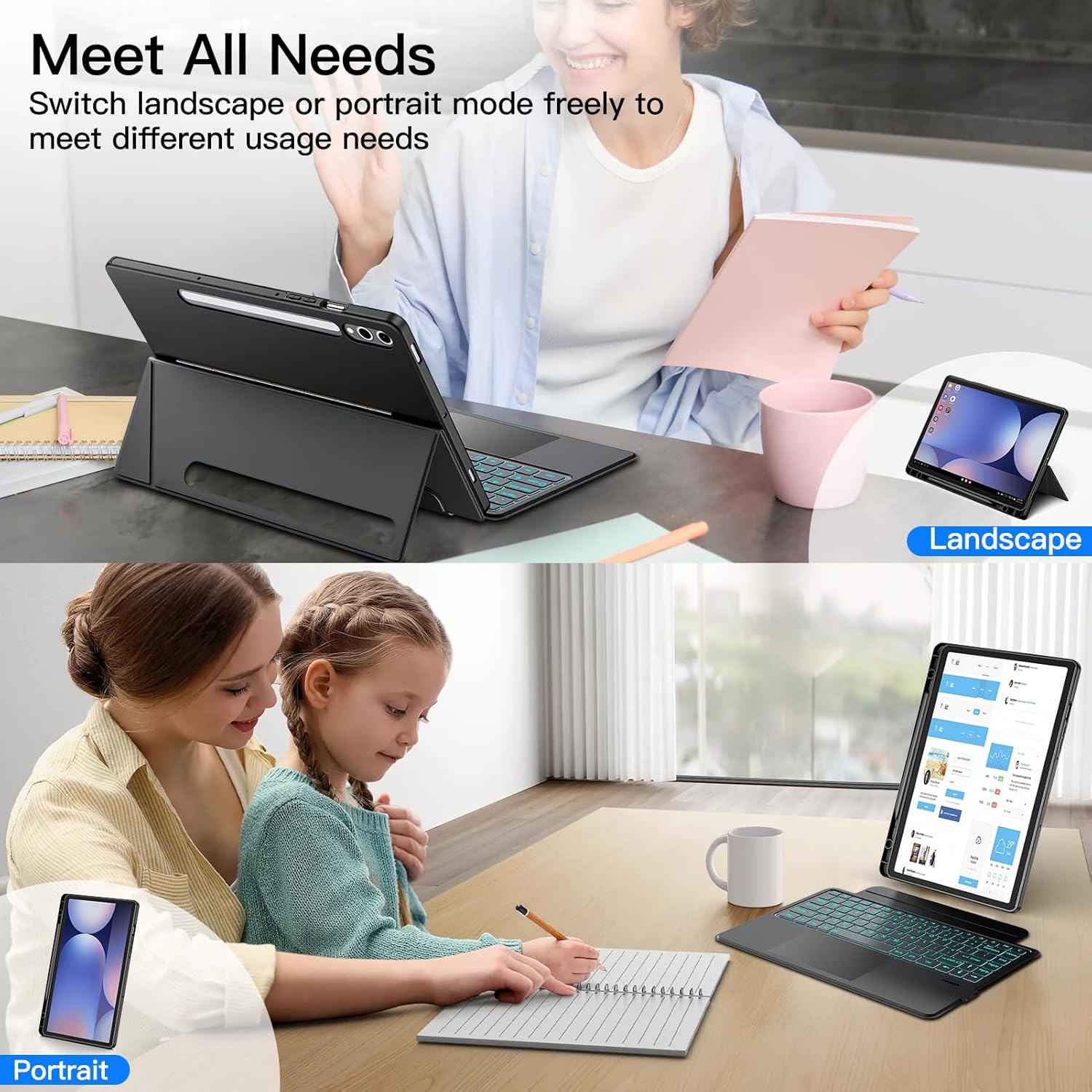
Image: The tablet and keyboard case configured in both landscape and portrait modes to meet different usage needs.

Image: The detachable soft case used independently for reading and sketching, demonstrating its adaptability.

Image: A user engaged in working and studying activities with the keyboard case, highlighting its utility.

Image: A user reading and painting using the tablet case, showcasing its versatility for leisure and creative tasks.
5.6 Auto Wake/Sleep Function
The case supports auto wake/sleep functionality. Opening the case will wake your tablet, and closing it will put your tablet to sleep, conserving battery life.
6. Maintenance
To ensure the longevity of your JUQITECH Trackpad Keyboard Case, follow these maintenance guidelines:
- Cleaning: Wipe the case and keyboard with a soft, damp cloth. Avoid using harsh chemicals or abrasive cleaners.
- Storage: Store the case and keyboard in a cool, dry place when not in use.
- Avoid Liquids: Do not expose the keyboard to excessive moisture or liquids.

Image: Close-up view of the case highlighting features like oil resistance, dustproof, impact resistance, anti-fingerprints, and scratch proof materials.
7. Troubleshooting
- Keyboard not connecting:
- Ensure the keyboard is charged and turned on.
- Verify Bluetooth is enabled on your tablet and the keyboard is in pairing mode.
- Forget the device on your tablet's Bluetooth settings and re-pair.
- Trackpad not responding:
- Ensure the trackpad is enabled (check keyboard function keys).
- Restart the keyboard and tablet.
- Backlight not working:
- Ensure the keyboard is turned on.
- Press the backlight function keys to activate or adjust.
Video: A short demonstration of the Magnetic Keyboard Case for Samsung Galaxy Tab, showing its features and functionality.
8. Specifications
| Feature | Detail |
|---|---|
| Product Dimensions | 14.5 x 7.48 x 0.78 inches |
| Item Weight | 1.65 pounds |
| Manufacturer | JUQITECH |
| Batteries | 1 Lithium Ion batteries required (included) |
| Connectivity Technology | Bluetooth |
| Keyboard Description | Bluetooth Backlit Trackpad Detachable Keyboard |
| Special Feature | Portable, Backlit, Magnetic Detachable Keyboard, Trackpad, Rechargeable |
| Color | Black S10Ultra S9Ultra (RGB Backlighting) |
| Number of Keys | 86 |
9. What's in the Box
Upon opening your JUQITECH Trackpad Keyboard Case package, you should find the following items:
- 1 x Kickstand Soft Case
- 1 x Wireless Trackpad Keyboard
- 1 x Type-C Charging Cord
- 1 x Manual
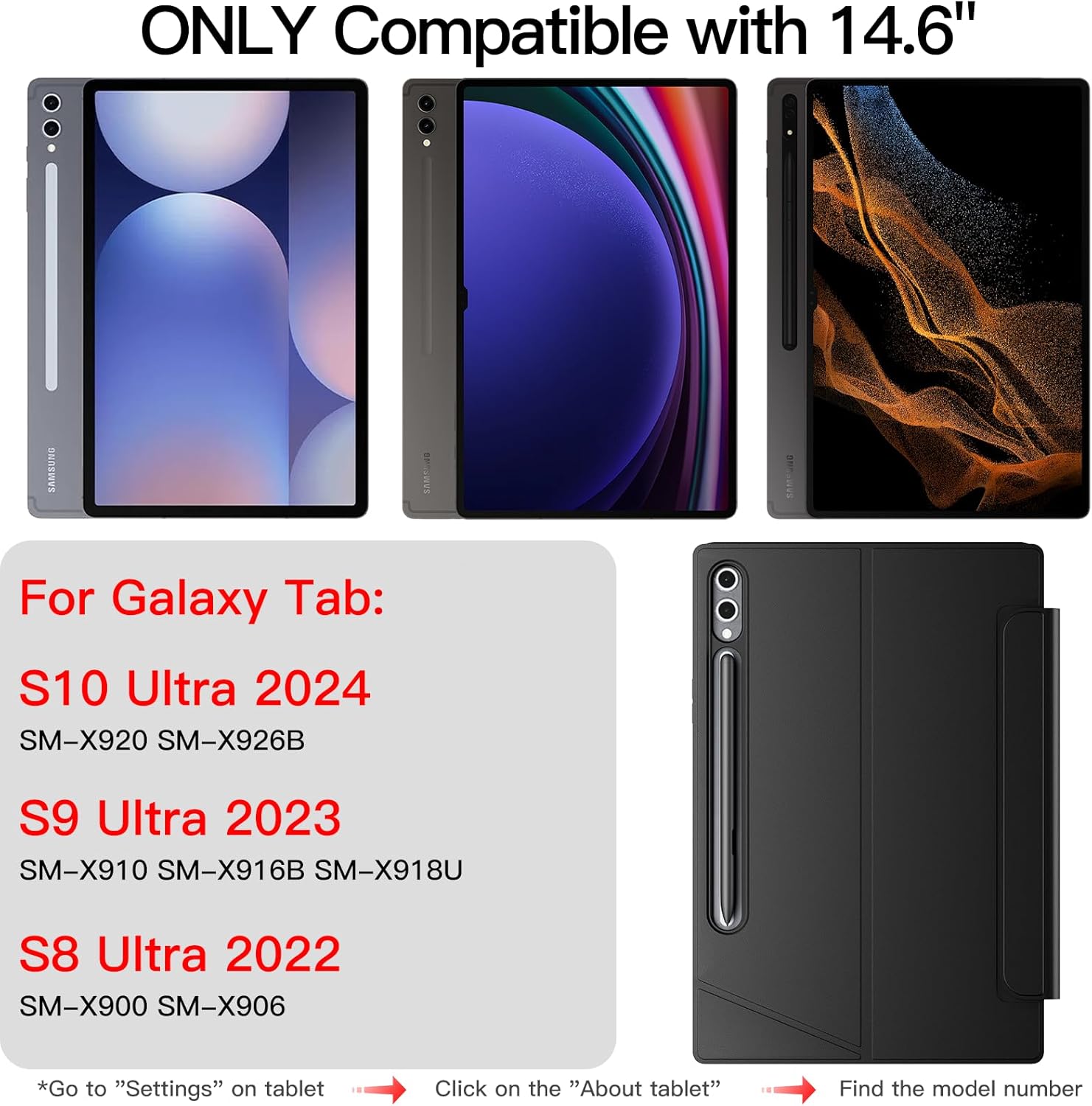
Image: The complete package contents, including the case, keyboard, charging cable, and user manual.
10. Warranty and Support
For warranty information and customer support, please refer to the contact details provided in the included manual or visit the official JUQITECH website. Keep your purchase receipt for any warranty claims.