
LUNA HOME Luna Baby Eye Baby Monitor & Floor Stand
LUNA HOME Luna Baby Eye User Manual
2.4GHz WiFi Baby Camera Monitor & Floor Stand
1. Introduction
The LUNA HOME Luna Baby Eye is an advanced 2.4GHz WiFi baby camera monitor designed to provide comprehensive monitoring of your infant without the need for wearables. This system includes a camera and a floor stand, offering features such as sensor-free breathing detection, smart AI monitoring, sleep tracking, crying detection, night vision, and two-way audio. This manual provides instructions for setup, operation, and maintenance to ensure optimal performance and peace of mind.

Image: Luna Baby Eye Camera Monitor with Floor Stand and smartphone app interface.
2. What's Included
Verify that all components are present in the package:
- 1x Luna Baby Eye Camera
- 1x Base Plate
- 1x Flex Arm
- 1x Power Adapter
- 4x Stand Components

Image: Unboxing the Luna Baby Eye components.
3. Setup Guide
3.1 Assembling the Floor Stand
- Connect the four stand components securely to form the main pole.
- Attach the base plate to the bottom of the assembled pole.
- Attach the flex arm to the top of the pole.
- Mount the Luna Baby Eye camera onto the flex arm.
3.2 Camera Placement
- Position the floor stand next to the crib.
- Ensure the camera is placed approximately 3 feet (90cm) away from the baby for optimal top-down view and accurate monitoring.
- Adjust the flex arm to center the camera's view over the crib mattress.
3.3 Power Connection
- Connect the power adapter to the camera and plug it into a standard electrical outlet.
- Wait for the camera's indicator light to show it is powered on and ready for pairing.
3.4 App Download and Pairing
- Download the 'Luna AI' app from your smartphone's app store (iOS or Android).
- Open the app and follow the on-screen instructions to create an account or log in.
- Select 'Add Device' and follow the prompts to pair your Luna Baby Eye camera with your smartphone via your 2.4GHz WiFi network.
4. Operating Instructions
4.1 Mobile App Monitoring
The Luna AI app is your primary interface for monitoring your baby. It provides live video, smart alerts, and control over your camera from anywhere.
4.2 Breathing Detection
The Luna Baby Eye monitors your baby's breathing patterns in real-time. The system will alert you instantly if irregularities are detected. This feature requires an active subscription after the initial 7-day free trial.

Image: Breathing Detection feature in action.
4.3 Cry Detection
The camera intelligently distinguishes between different sounds. When your baby cries, the app will send instant alerts to your smartphone, allowing for a faster response.
4.4 Two-Way Audio
Use the two-way audio feature to comfort your baby remotely. Speak through your smartphone, and your voice will be projected through the camera's speaker. This feature is accessible via the Luna AI app.

Image: Two-Way Audio feature demonstration.
4.5 Night Vision
The Luna Baby Eye automatically activates night vision in low-light conditions, providing clear, high-definition video monitoring even in complete darkness.
4.6 Sleep & Wake Logs
Track your baby's sleep patterns effortlessly through the Luna AI app. Detailed logs provide insights into sleep onset, duration, and wake times, helping you optimize their rest. This feature requires an active subscription.

Image: Activity Logs displaying sleep breakdown.
4.7 Heat Mapping
Understand your baby's movement patterns during sleep by viewing colored heat maps within the app. This visual representation helps identify areas of activity. This feature requires an active subscription.
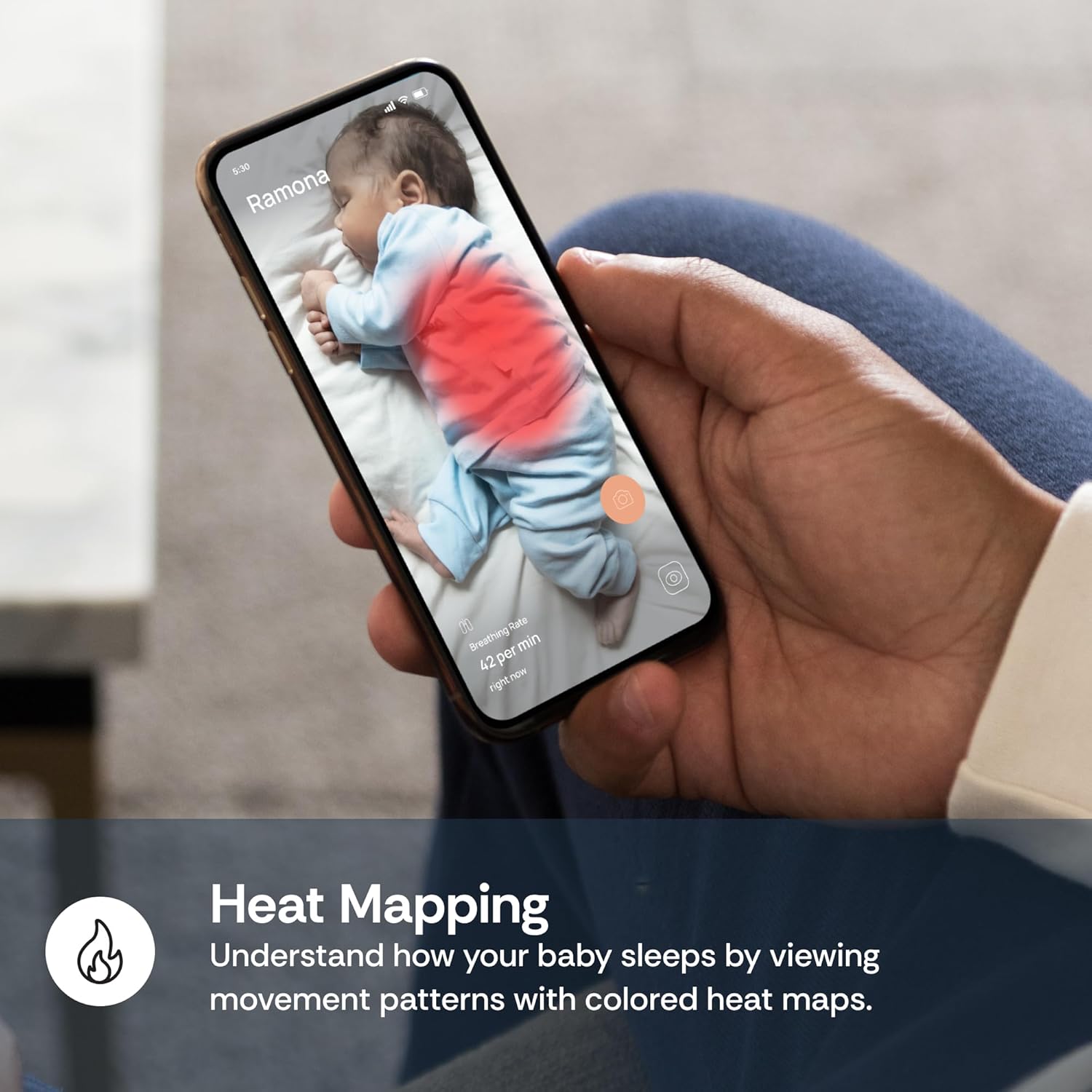
Image: Heat Mapping feature on the Luna AI app.
4.8 Subscription Features
Many advanced features, including breathing detection, sleep & wake logs, and heat mapping, require a subscription after a 7-day free trial. Refer to the Luna AI app or Luna Home website for subscription details.
5. Maintenance
5.1 Cleaning the Camera
- Ensure the camera is unplugged before cleaning.
- Use a soft, dry cloth to gently wipe the camera lens and body.
- Do not use liquid cleaners, aerosols, or abrasive solvents.
5.2 Software Updates
Periodically check the Luna AI app for available software updates. Keeping your camera's firmware and app up-to-date ensures optimal performance, security, and access to new features.
5.3 Environmental Considerations
- Operate the camera within recommended temperature and humidity ranges.
- Avoid placing the camera in direct sunlight or near heat sources.
- Keep the camera away from water or excessive moisture.
6. Troubleshooting
6.1 Connectivity Issues
- No Wi-Fi Connection: Ensure your router is broadcasting a 2.4GHz Wi-Fi signal. Move the camera closer to the router. Restart your router and the camera.
- Frequent Disconnections: Check for Wi-Fi interference from other devices. Ensure strong signal strength. Update camera firmware via the app.
6.2 App Not Responding
- Close and reopen the Luna AI app.
- Ensure your smartphone's operating system is up-to-date.
- Clear the app's cache or reinstall the app if issues persist.
6.3 Inaccurate or False Alerts
- Ensure the camera is positioned correctly, approximately 3 feet (90cm) above the crib.
- Check for any objects in the crib that might obstruct the camera's view or cause false motion detection.
- Review and adjust sensitivity settings within the Luna AI app.
6.4 Camera Not Powering On
- Verify the power adapter is securely connected to both the camera and a working electrical outlet.
- Try a different outlet to rule out power source issues.
6.5 Subscription Issues
- If you experience issues with subscription features or cancellation, contact Luna Home customer support directly.
- Keep records of any communication regarding subscription changes.
7. Specifications
| Feature | Detail |
|---|---|
| Brand | LUNA HOME |
| Model Name | Luna Baby Eye Baby Monitor & Floor Stand |
| Part Number | Luna.AI.Baby.2k.W |
| Material | Plastic |
| Color | White |
| Compatible Devices | Smartphones |
| Item Weight | 1.7 Kilograms |
| Sensor Type | Auditory, Motion |
| UPC | 850065480022 |
| Floor Stand Height | 190cm / 6.23ft (approx.) |
| Recommended Camera Distance | 3 feet (90cm) from baby |

Image: Product dimensions and recommended camera placement.
8. Warranty Information
The Luna Baby Eye Baby Monitor & Floor Stand comes with a 1-year limited product warranty. This warranty covers manufacturing defects and malfunctions under normal use. For detailed terms and conditions, please refer to the warranty documentation included with your product or contact Luna Home customer support.
9. Customer Support
For questions, technical assistance, or warranty claims, please contact Luna Home customer support:
- Phone: (855) 604-5862
- Website: lunahomeai.com
- Email: support@lunahome.com

Image: Luna Home customer support contact information.
Related documentsLuna Baby Eye Baby Monitor & Floor Stand

Ask a question about this manual
Ask about setup, troubleshooting, compatibility, parts, safety, or missing instructions. Manuals+ will review the question and use this page’s manual context to help answer it.