
1. Introduction
Thank you for choosing the ATTACK SHARK R6PRO Wireless Gaming Mouse. This manual provides detailed instructions for setting up, operating, and maintaining your new gaming mouse. The R6PRO is designed for high-performance gaming, featuring advanced sensor technology, multiple connectivity options, and a lightweight design.
2. Package Contents
Ensure all items are present in the package:
- ATTACK SHARK R6PRO Wireless Gaming Mouse
- C06 Mouse Cable (Coiled USB-C Cable)
- Standard USB-C Cable
- 8K Receiver
- User Manual
- Spare Mouse Feet (Anti-slip stickers)

Image: Contents of the ATTACK SHARK R6PRO mouse package, including the mouse, cables, receiver, manual, and spare feet.
3. Product Overview
The ATTACK SHARK R6PRO mouse is engineered for precision and speed. Key features include:
- PixArt PAW3950MAX Sensor: Up to 42000 DPI for extreme accuracy.
- Nordic 52840 MCU: High-performance, low-latency processing.
- 8K Polling Rate: Ultra-fast response time for competitive gaming.
- Tri-Mode Connectivity: Wired USB-C, 2.4GHz wireless, and Bluetooth.
- 39g Ultra-light Design: Facilitates quick and smooth movements.
- Omron Optical Micro Switches: Durable with an 80 million click life, offering rapid response.
- Ice-Feel Coating: Enhances grip and reduces fatigue during extended use.

Image: The ATTACK SHARK R6PRO mouse showcasing its core specifications like Nordic 52840, 8000Hz Polling Rate, 39g Ultra-light, PixArt PAW 3950, and up to 42000 DPI.

Image: A close-up view highlighting the Nordic 52840 MCU, emphasizing its high-performance and low-latency capabilities.

Image: Visual representation of the PAW 3950 sensor, detailing its 50G acceleration, 42000 MAX DPI, 8K Hz polling rate, and 750 IPS.

Image: An X-ray view of the mouse highlighting the Omron Optical Micro switches, indicating a 0.2mm trigger distance and 80 million click lifespan.
4. Setup and Connectivity
4.1 Wired USB-C Mode
Connect the mouse directly to your computer using the provided USB-C cable. This mode allows you to use the mouse while charging and ensures the lowest latency connection.
4.2 2.4GHz Wireless Mode
- Insert the 8K receiver into an available USB port on your computer.
- Locate the switch on the bottom of the mouse and set it to the 2.4Ghz position.
- The mouse should automatically connect to the receiver.
4.3 Bluetooth Mode
- Locate the switch on the bottom of the mouse and set it to the Bluetooth position.
- On your computer or device, open Bluetooth settings and search for new devices.
- Select "ATTACK SHARK R6PRO" from the list of available devices to pair.

Image: The ATTACK SHARK R6PRO mouse connected via wired USB-C, 2.4GHz wireless (with receiver), and Bluetooth, illustrating its tri-mode connectivity.
Video: An official product video demonstrating the unboxing, setup, and tri-mode connectivity of the ATTACK SHARK R6PRO Wireless Gaming Computer Mouse.
5. Customization with Web Driver
The ATTACK SHARK R6PRO supports a web-based driver for comprehensive customization without requiring software installation. This allows you to adjust various settings to personalize your gaming experience.
5.1 Accessing the Web Driver
To access the web driver, open your web browser and navigate to the URL provided in your product documentation or search for "ATTACK SHARK R6PRO web driver".
5.2 Customizable Settings
- DPI Sensitivity: Adjust the mouse's sensitivity from 50 to 42000 DPI.
- Polling Rate: Set the polling rate up to 8000Hz for optimal responsiveness.
- Button Functions: Remap buttons to perform specific actions or macros.
- Lift-Off Distance (LOD): Fine-tune the distance at which the sensor stops tracking when the mouse is lifted.
- Macro Management: Create and assign complex macros to buttons.
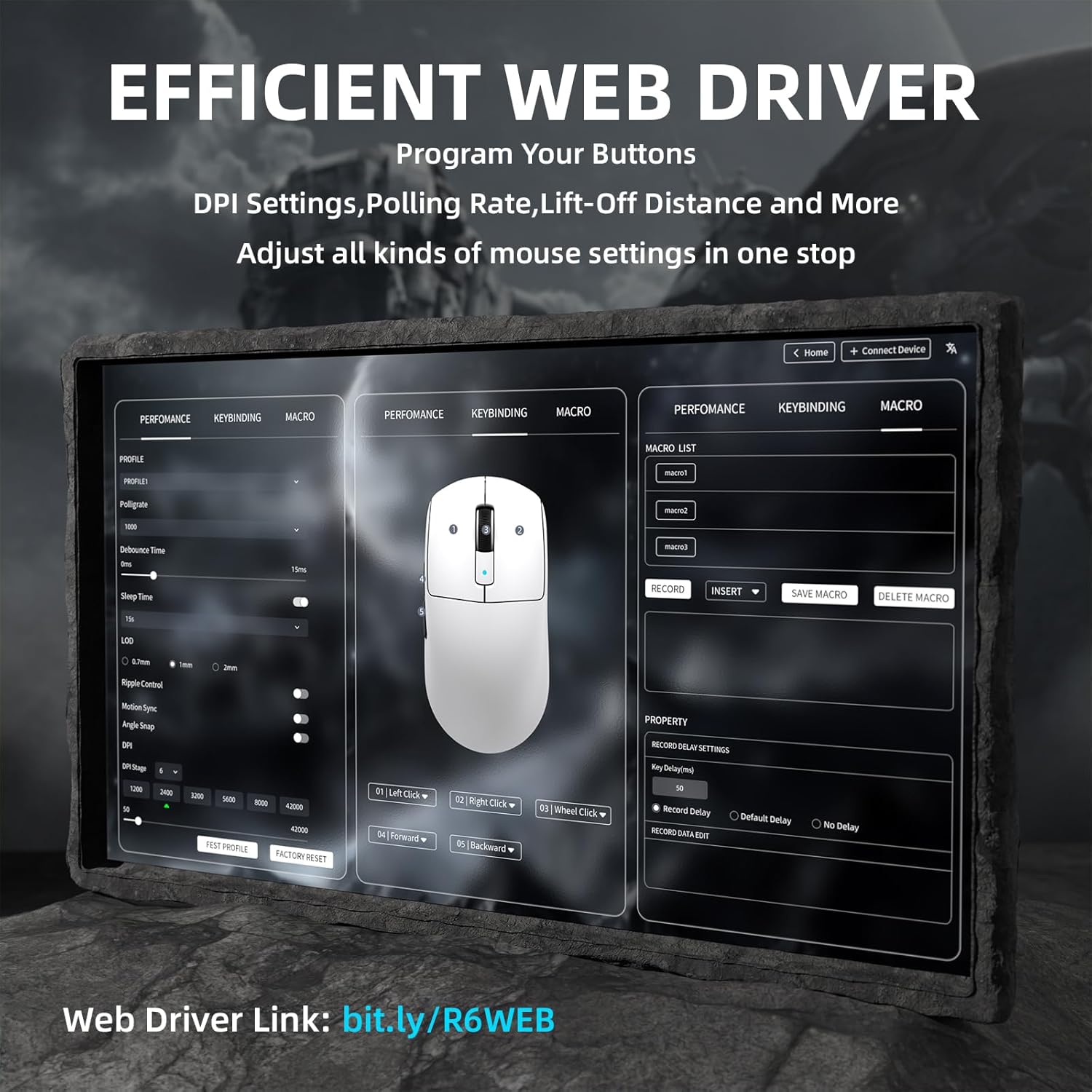
Image: Screenshot of the ATTACK SHARK R6PRO web driver interface, showing options for DPI settings, polling rate, keybinding, and macro customization.
6. Specifications
| Feature | Detail |
|---|---|
| Brand | ATTACK SHARK |
| Model Name | R6 |
| Color | White |
| Connectivity Technology | Bluetooth, USB (Wired, 2.4GHz Wireless) |
| Movement Detection Technology | Optical (PixArt PAW3950MAX) |
| Mouse Maximum Sensitivity | 42000 DPI |
| Polling Rate | 8000Hz |
| Weight | 39g |
| Switches | Omron Optical Micro Switches (80 million click life) |
| MCU | Nordic 52840 |
| Hand Orientation | Right |
| Compatible Devices | Personal Computer, Tablet |
| Operating System | Linux, Mac OS 9, Windows 10, Windows 11, Windows XP |
| Power Source | Battery Powered |
| Enclosure Material | Plastic |
| Finish | Ice-Feel |
7. Maintenance
To ensure the longevity and optimal performance of your ATTACK SHARK R6PRO mouse, follow these maintenance guidelines:
- Cleaning: Use a soft, dry cloth to clean the mouse surface. For stubborn dirt, a slightly damp cloth can be used, but ensure no moisture enters the mouse. Avoid harsh chemicals or abrasive materials.
- Sensor Care: Keep the optical sensor on the bottom of the mouse clean and free from dust or debris. Use a cotton swab or compressed air if necessary.
- Cable Management: Avoid sharp bends or excessive pulling on the USB-C cables to prevent damage.
- Storage: When not in use, store the mouse in a clean, dry environment away from extreme temperatures.
8. Troubleshooting
If you encounter issues with your ATTACK SHARK R6PRO mouse, refer to the following common problems and solutions:
8.1 Mouse Not Responding
- Check Connectivity: Ensure the mouse is properly connected via wired USB-C, the 2.4GHz receiver is plugged in, or Bluetooth is paired correctly.
- Battery Level: Charge the mouse using the USB-C cable. A low battery can cause intermittent connection or unresponsiveness.
- Power Cycle: Turn the mouse off and then on again using the switch on the bottom.
- Try a Different Port/Device: Test the mouse on a different USB port or computer to rule out port or system-specific issues.
8.2 Cursor Movement is Erratic or Inaccurate
- Clean Sensor: Ensure the optical sensor on the bottom of the mouse is clean and free of dust or debris.
- Mouse Pad Surface: Use the mouse on a clean, uniform surface. Highly reflective or uneven surfaces can affect tracking.
- DPI Settings: Adjust the DPI sensitivity using the web driver or the mouse's onboard controls.
- Interference (Wireless Modes): If using 2.4GHz or Bluetooth, ensure there are no strong wireless interference sources nearby.
8.3 Buttons Not Functioning
- Check Web Driver Settings: Verify that button functions haven't been accidentally remapped or disabled in the web driver.
- Test in Different Applications: See if the issue persists across various applications to determine if it's software-specific.
9. Warranty and Support
The ATTACK SHARK R6PRO Wireless Gaming Mouse comes with a manufacturer's warranty. Please refer to the warranty card included in your package for specific terms and conditions. For technical support, product inquiries, or warranty claims, please contact ATTACK SHARK customer service through their official website or the retailer where you purchased the product.
Video: An official product video showcasing the ATTACK SHARK R6 39g SUPERLIGHT Mouse, highlighting its design and features.