1. Introduction
Thank you for choosing the ApeStellar Smart Door Lock. This manual provides detailed instructions for the installation, operation, and maintenance of your new smart lock. This Wi-Fi enabled deadbolt offers convenient keyless entry, remote access control, and smart home integration, enhancing the security and accessibility of your home.
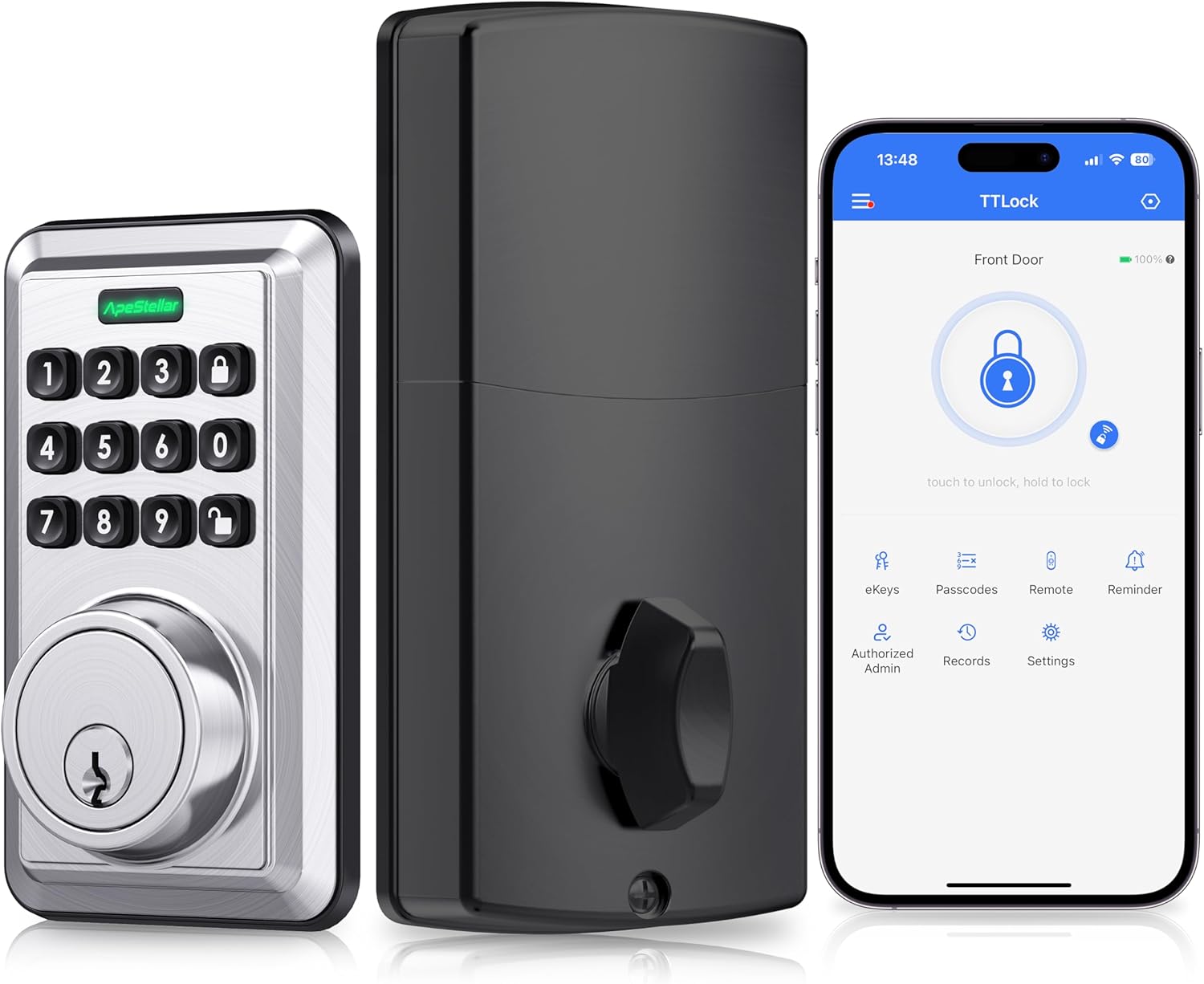
Image 1.1: Overview of the ApeStellar Smart Door Lock and its accompanying mobile application.
2. Safety Information
Please read all safety instructions carefully before installation and use. Failure to follow these instructions may result in damage to the product, property, or personal injury.
- Do not attempt to disassemble or modify the lock. This may void the warranty and pose a safety risk.
- Use only the specified battery type (batteries are required but not included).
- Keep the mechanical keys in a secure location outside your home in case of emergency or battery depletion.
- Ensure the door frame and door are structurally sound and properly aligned before installation.
- Protect the keypad from excessive moisture or direct water exposure.
3. Package Contents
Verify that all components are present before beginning installation:
- ApeStellar Keyless Entry Door Lock (Exterior and Interior Assemblies)
- 2 Backup Keys
- Latch
- Screws (various sizes for assembly)
- Strike Plate
- Mounting Plate
- Installation Instructions (this manual)
- Programming Instructions (integrated within this manual)
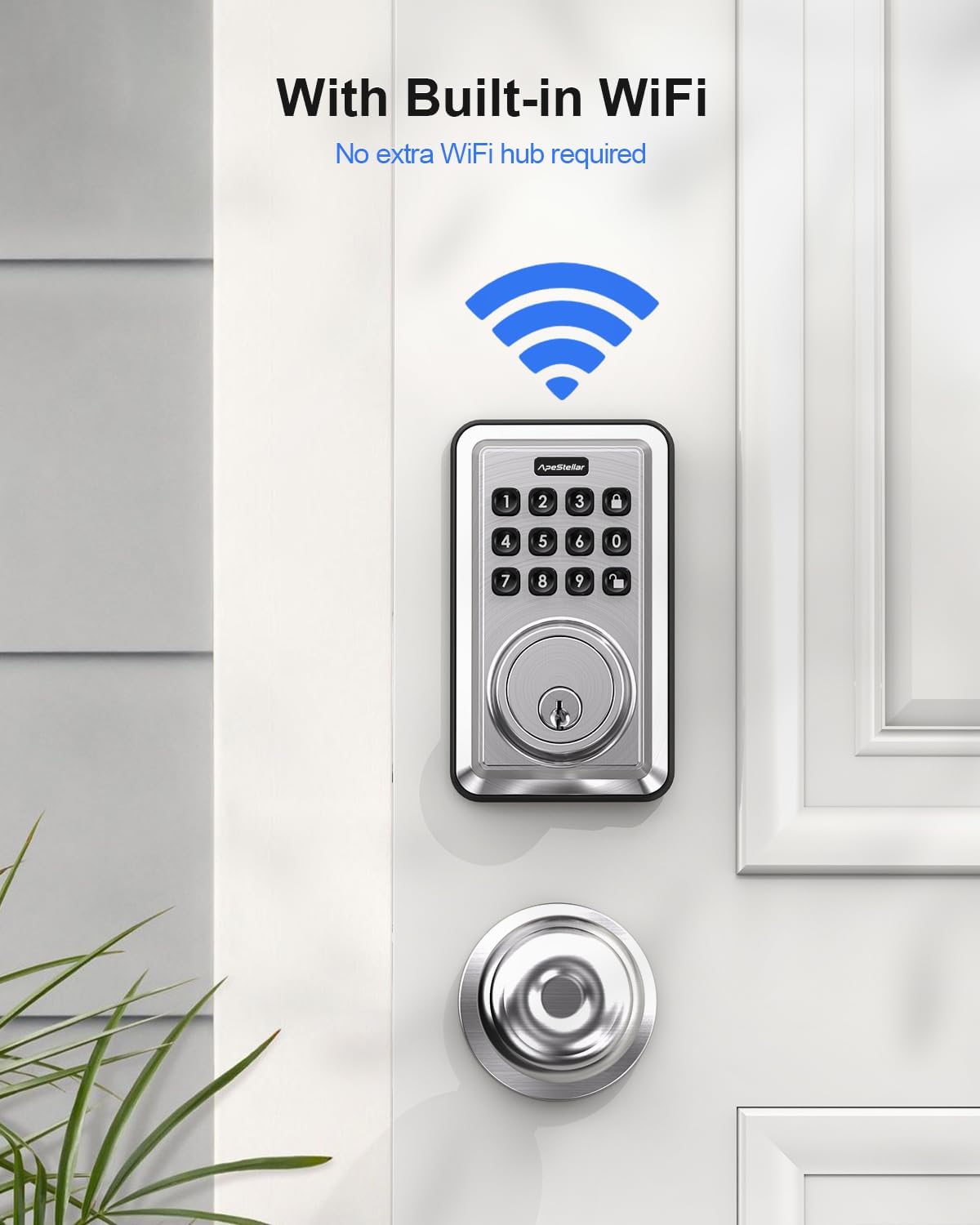
Image 3.1: All parts included in the smart lock package.
4. Setup (Installation)
The ApeStellar Smart Door Lock is designed for easy DIY installation with just a screwdriver. Please follow these steps carefully:
4.1 Door Compatibility
Ensure your door meets the following specifications:
- Door Thickness: Fits doors between 1-3/8" (35mm) and 1-3/4" (44mm) thick.
- Door Holes: Only suitable for 2-1/8" (54mm) door holes. Not compatible with 38mm door holes.
- Deadbolt Backset: Adjustable from 2-1/8" (54mm) to 2-3/4" (70mm).
- Latch Hole: Requires a rectangular latch hole. Not compatible with rounded latch holes.
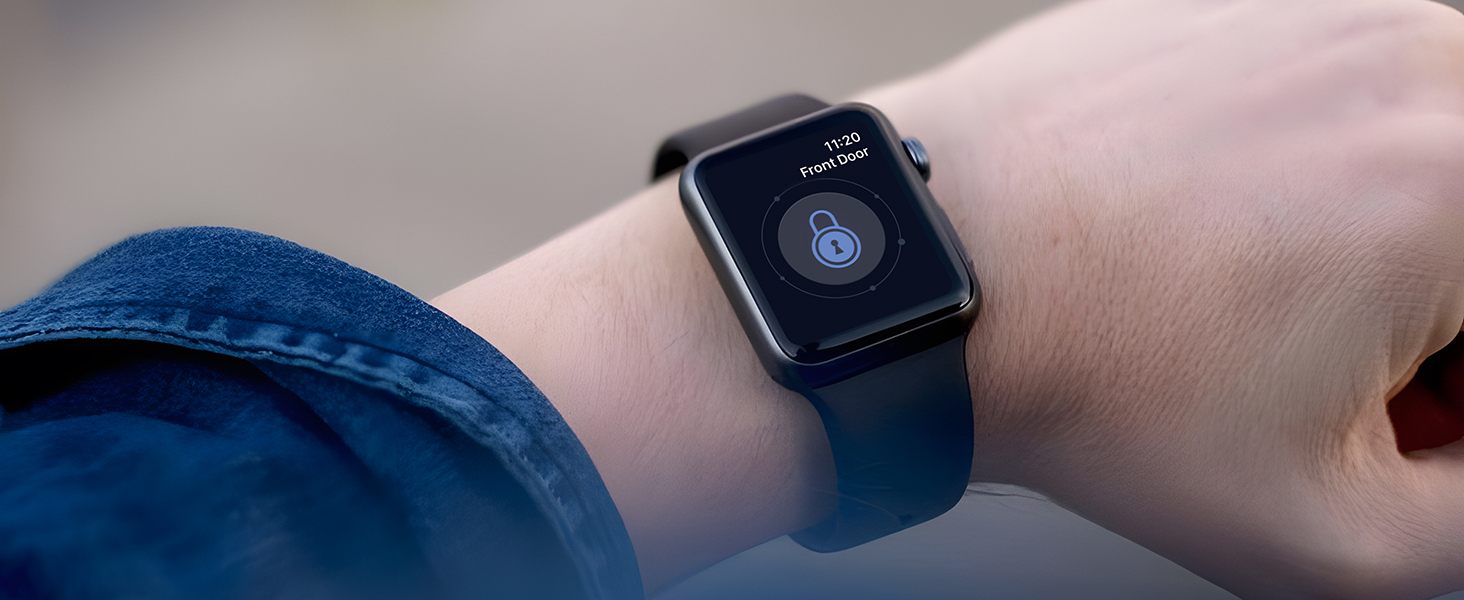
Image 4.1: Door dimensions and compatibility requirements.
4.2 Installation Steps
- Prepare the door: Ensure existing hardware is removed and the door holes are clean and clear.
- Install the latch: Insert the latch into the door edge, ensuring the correct backset is selected. Secure with screws.
- Install the exterior assembly: Feed the cable through the door hole and align the exterior keypad assembly.
- Install the mounting plate: Secure the mounting plate to the interior side of the door, connecting it to the exterior assembly.
- Connect the cable and install the interior assembly: Connect the cable from the exterior assembly to the interior assembly. Mount the interior assembly onto the mounting plate and secure it with screws.
- Install batteries: Insert the required batteries (not included) into the battery compartment of the interior assembly.
- Test the lock: Manually test the deadbolt mechanism to ensure smooth operation.
5. Operating Instructions
The ApeStellar Smart Door Lock offers multiple convenient ways to lock and unlock your door.
5.1 Unlocking and Locking Methods
- Smartphone App: Use the dedicated mobile application to remotely lock and unlock your door from anywhere.
- Anti-peep Keypad: Enter your access code on the illuminated keypad. The anti-peep feature allows you to enter random digits before or after your actual code to prevent others from guessing it.
- Mechanical Key: Use the provided backup keys for traditional manual unlocking.
- Apple Watch: Unlock your smart deadbolt directly from your Apple Watch.
- Voice Control: Integrate with Amazon Alexa or Google Voice Assistant to control your lock using voice commands.

Image 5.1: Multiple methods for unlocking the smart door lock.

Image 5.2: Using the keypad for keyless entry.
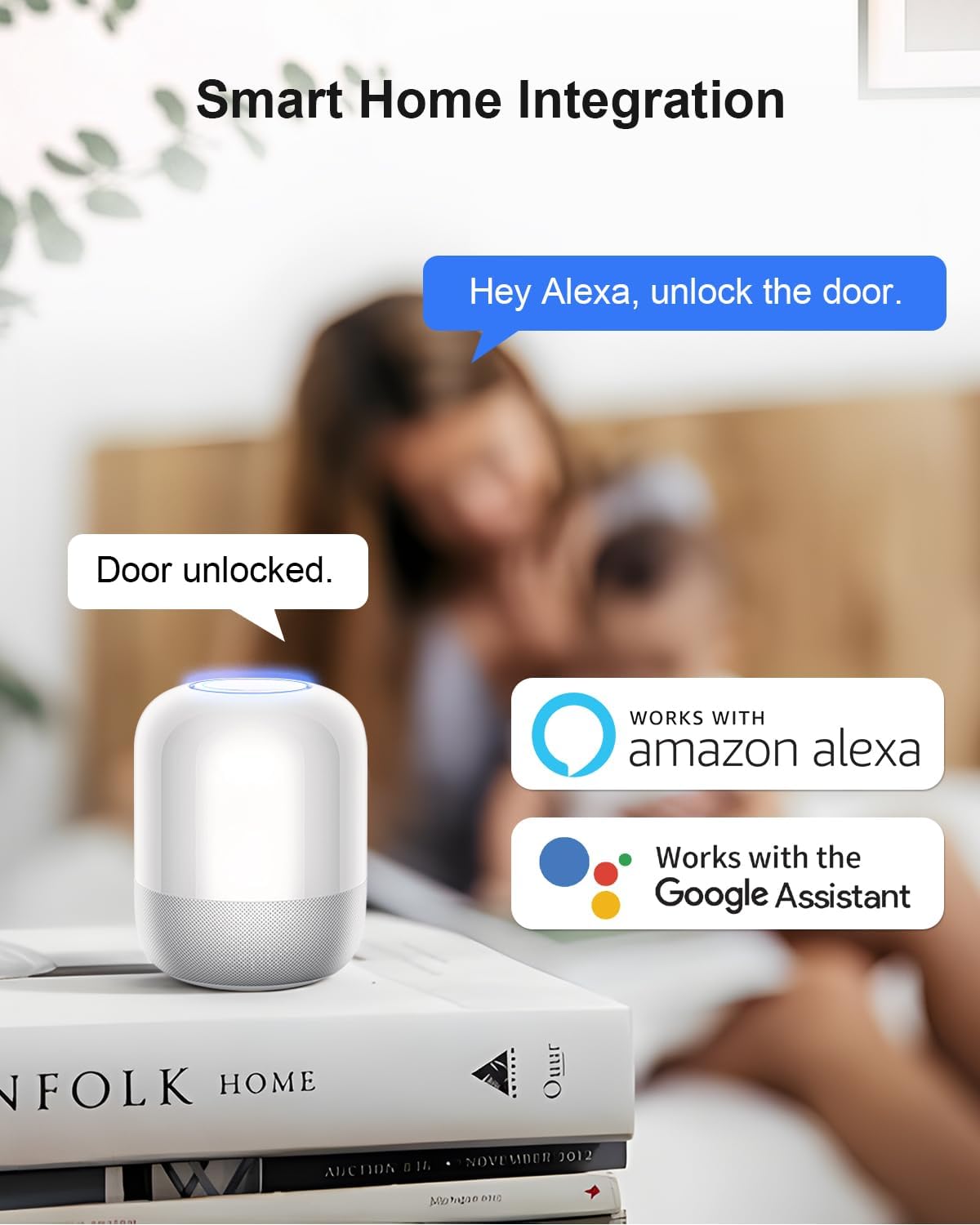
Image 5.3: Controlling the smart lock via Apple Watch.
5.2 Wi-Fi Connectivity and Remote Control
The lock features built-in Wi-Fi (2.4GHz only, 802.11 b/g/n), eliminating the need for a separate hub. This allows for remote control and monitoring.
- Remote Lock/Unlock: Control your door's status from anywhere using the app.
- Door Lock Status Alert: Receive real-time notifications about your door's status.
- Activity History: View a detailed log of who entered and when.

Image 5.4: Built-in Wi-Fi for direct connection.

Image 5.5: Direct connection to your home router for remote access.
Image 5.6: Viewing the activity log within the mobile application.

Image 5.7: Detailed view of the lock's activity history on the app.
5.3 Guest Access and Code Management
The lock supports up to 50 access codes, allowing you to share access with family and guests conveniently.
- Permanent Codes: For regular users.
- Scheduled Codes: Valid only during specific times or days.
- Recurring Codes: For repeated access on a set schedule (e.g., weekly).
- One-Time Codes: For single use.

Image 5.8: Managing and sharing access codes through the app.

Image 5.9: Generating a permanent access code.

Image 5.10: Setting up a recurring access code.
5.4 Smart Home Integration
The lock seamlessly integrates with Amazon Alexa and Google Home, allowing for voice control and automation.
- Voice Commands: Lock or unlock your door using simple voice commands (e.g., "Alexa, unlock the door").
- Automations: Create routines and automations to enhance your home security and convenience.
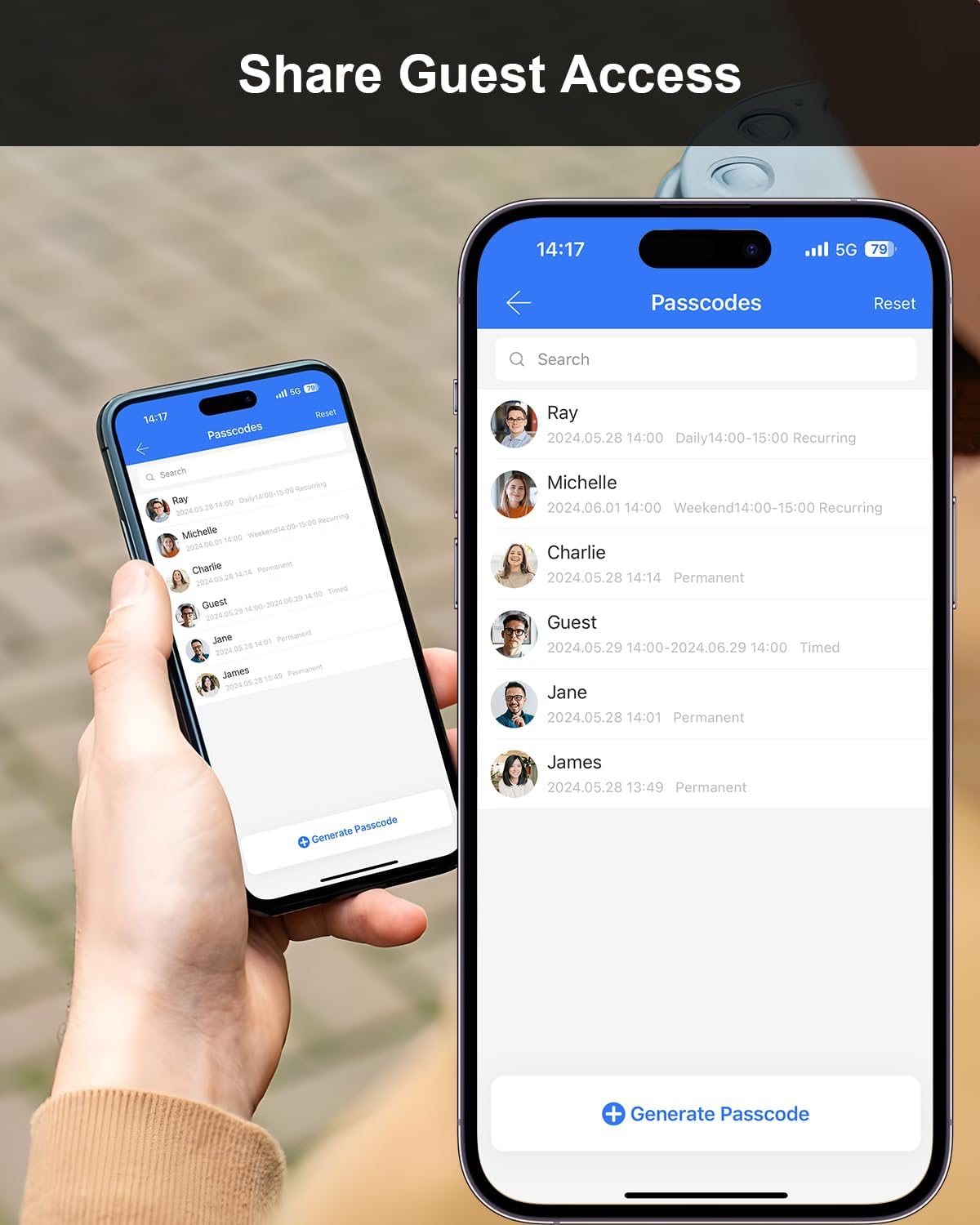
Image 5.11: Voice control via Amazon Alexa or Google Assistant.
5.5 Security Features
- Activity Detection: Receive instant notifications in the app if the door is left open or if someone unlocks the smart lock.
- Auto-Lock Security: Set a duration for the door to automatically lock after entry or exit, providing peace of mind.

Image 5.12: Notification for door activity.
6. Maintenance
To ensure the longevity and optimal performance of your ApeStellar Smart Door Lock, follow these maintenance guidelines:
- Cleaning: Wipe the lock's exterior surfaces with a soft, dry cloth. Avoid abrasive cleaners, solvents, or harsh chemicals, as they can damage the finish and electronic components.
- Battery Replacement: The lock requires batteries for operation. Replace all batteries simultaneously when the low battery indicator appears or when performance degrades. Use high-quality alkaline batteries.
- Mechanical Check: Periodically check that all screws are tight and the lock operates smoothly. Lubricate the deadbolt mechanism if necessary with a silicone-based lubricant.
- Firmware Updates: Check the mobile application regularly for any available firmware updates to ensure your lock has the latest features and security enhancements.
7. Troubleshooting
If you encounter issues with your ApeStellar Smart Door Lock, refer to the following common troubleshooting steps:
| Problem | Possible Cause | Solution |
|---|---|---|
| Lock not responding to keypad/app. | Low batteries; incorrect code; app connectivity issue. | Replace batteries; re-enter code carefully; check Wi-Fi connection and app status. |
| Cannot connect to Wi-Fi. | Incorrect Wi-Fi password; 5GHz network; weak signal. | Ensure correct 2.4GHz network and password; move router closer or use a Wi-Fi extender. |
| Auto-lock not working. | Feature disabled; incorrect settings. | Enable auto-lock in the app settings and adjust the delay time. |
| Mechanical key not working. | Key inserted incorrectly; internal mechanism issue. | Ensure key is fully inserted and turned correctly. If issue persists, contact support. |
If the problem persists after attempting these solutions, please refer to the support section for further assistance.
8. Specifications
Detailed technical specifications for the ApeStellar Smart Door Lock:
| Feature | Detail |
|---|---|
| Brand | ApeStellar |
| Model Number | AS-KL02S-SN |
| Lock Type | Deadbolt |
| Material | Zinc |
| Color | Satin Nickel |
| Finish Type | Satin Nickel |
| Item Dimensions (L x W x H) | 4.9 x 3.8 x 8.9 inches |
| Item Weight | 2.33 pounds |
| Connectivity Protocol | Wi-Fi (2.4GHz only, 802.11 b/g/n) |
| Control Method | App, Voice, Keypad, Mechanical Key |
| Controller Type | Amazon Alexa, Google Assistant, Push Button |
| Special Features | Anti-Peeping Password, Auto-Lock, Back-Lit Keypad, One-Touch Lock |
| Batteries Required? | Yes (Batteries not included) |
| Door Thickness Compatibility | 1-3/8" to 1-3/4" (35mm-44mm) |
| Door Hole Compatibility | 2-1/8" (54mm) |
| Deadbolt Backset | Adjustable 2-1/8" to 2-3/4" (54mm-70mm) |
9. Warranty and Support
For detailed warranty information regarding your ApeStellar Smart Door Lock, please refer to the official ApeStellar website or the warranty card included with your purchase. Warranty terms typically cover manufacturing defects for a specified period from the date of purchase.
For technical support, troubleshooting assistance beyond what is provided in this manual, or to inquire about replacement parts, please contact ApeStellar customer service through their official website or the contact information provided in your product packaging. Please have your model number (AS-KL02S-SN) and purchase date ready when contacting support.