
Introduction
This manual provides detailed instructions for the proper use and maintenance of your ROATEE 991EX Scientific Calculator. This device combines a powerful scientific calculator with an integrated erasable LCD writing tablet, designed to support various academic and professional calculations.
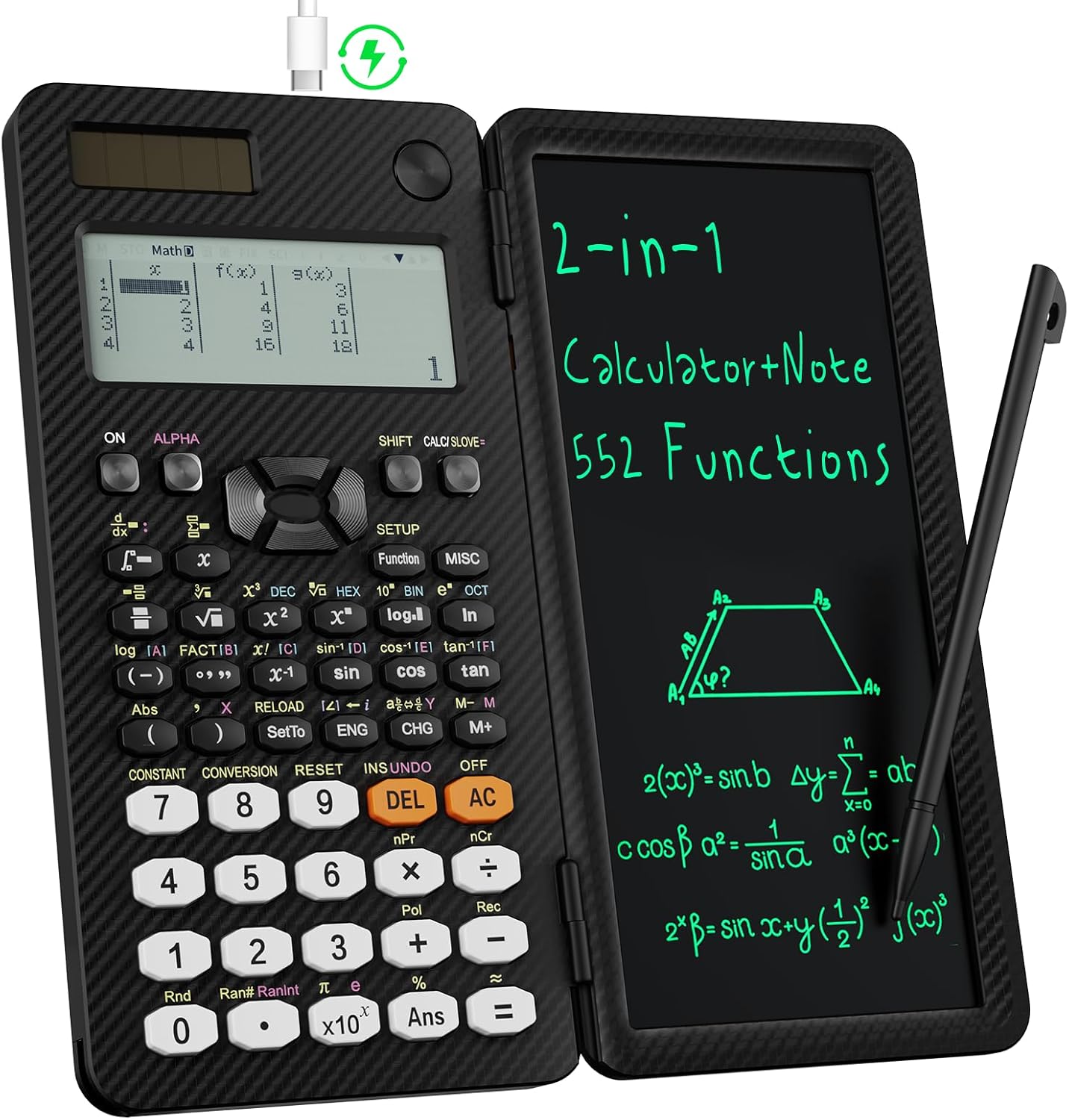
Image: The ROATEE 991EX Scientific Calculator shown open, displaying both the calculator keypad and the LCD writing tablet.
Setup
- Unpacking: Carefully remove the calculator, USB-C charging cable, and instruction manual from the packaging.
- Initial Charge: The calculator contains a rechargeable battery. Connect the provided USB-C cable to the charging port located on the top edge of the calculator and to a suitable USB power source. The calculator is also powered by solar energy, reducing reliance on the rechargeable battery.
- Stylus Removal: The stylus for the LCD writing tablet is built into the lower left corner of the calculator. Slide it out gently. It may be slightly tight the first time it is removed.
- Unlock Writing Tablet: Locate the lock switch on the top edge of the calculator. Slide it to the unlocked position to enable writing and erasing on the LCD tablet.

Image: A close-up view of the calculator highlighting its key external features: the solar panel, charging port, lock switch, clear button, and stylus.

Image: Illustration demonstrating how to remove the stylus from its storage slot on the calculator.
Operating Instructions
Calculator Functions
The ROATEE 991EX Scientific Calculator offers 552 functions suitable for a wide range of subjects including:
- General mathematics and science
- Pre-Algebra, Algebra 1 and 2, Geometry
- Statistics and regression calculations
- Calculus, fractions, decimals
- Calculations involving specific number systems (BASE-N, binary, octal, decimal, hexadecimal)
- Complex number calculations
- EQN (Equation solver), Matrix calculations, TABLE (Function table), VECTOR (Vector calculations), SOLVE (Equation solver)
- Biology, Chemistry, and other scientific disciplines
The calculator also features a memory function for enhanced user-friendliness.

Image: A user's hands interacting with the calculator, illustrating its diverse functional capabilities.
Multiview 6-Line Display
The calculator's display can show up to 6 lines of calculations simultaneously. This feature significantly improves computational efficiency by allowing users to view multiple steps or results at once.
Integrated LCD Writing Tablet
The erasable LCD writing tablet allows you to take notes, draw diagrams, or perform scratch work directly alongside your calculations. This is particularly useful for complex problems requiring intermediate steps or visual aids.
- Writing: Use the provided stylus to write on the LCD tablet.
- Erasing: Ensure the lock switch is in the unlocked position. Press the 'Clear' button located above the calculator screen to erase all content from the writing tablet.
- Lock Function: The lock switch prevents accidental erasure of notes. Always ensure it is unlocked before attempting to clear the screen.
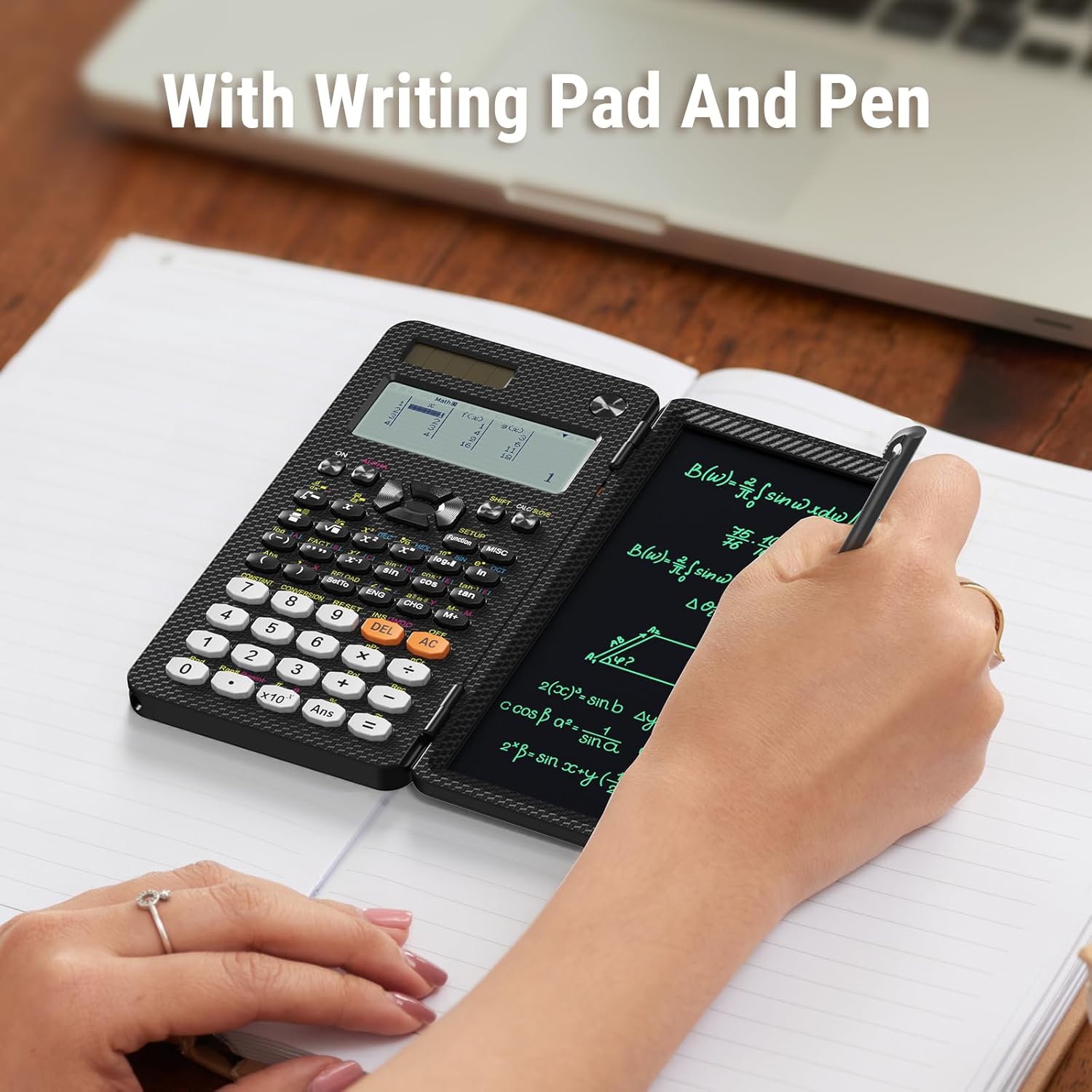
Image: A user actively writing mathematical equations on the LCD tablet using the stylus.

Image: A visual guide indicating the 'lock' and 'unlock' positions of the writing tablet's switch.
Fraction and Decimal Conversion
To change the display format of results between fractions and decimals:
- Press the 'CHG' key to toggle between fraction and decimal formats for the current result.
- Alternatively, to configure the calculator's default setting:
- Press the 'SHIFT' button.
- Press the 'SETUP' button (often labeled 'Function').
- Choose option '1' to set the mode for fraction or decimal output.
- Select 'MthIO' for fraction output or 'LineIO' for decimal output.

Image: The calculator screen displaying the menu for selecting Math Input/Output (MthIO) or Line Input/Output (LineIO) for result formatting.
Maintenance
- Cleaning: Use a soft, dry cloth to clean the calculator's exterior. Avoid abrasive cleaners or solvents.
- Battery Care: The integrated rechargeable battery is designed for long-term use. Recharge as needed using the provided USB-C cable. The solar panel provides continuous power and extends battery life.
- Storage: Store the calculator in a cool, dry place away from direct sunlight and extreme temperatures. The anti-drop body design provides durability, but proper care is recommended.
- Stylus: Keep the stylus securely stored in its designated slot when not in use to prevent loss.
Troubleshooting
- Q: The LCD writing area is not working or clearing.
- A: Ensure the 'LOCK KEY' switch on the top edge of the calculator is in the unlocked position. The writing area and erase button will only function when unlocked.
- Q: The calculator is not turning on or has low power.
- A: The calculator is dual-powered by solar energy and a rechargeable battery. Ensure it is exposed to sufficient light for solar charging or connect it to a USB power source using the USB-C cable to recharge the internal battery.
- Q: How do I take the pen out?
- A: The pen is built into the lower left corner of the calculator. You can slide it out. Note: It might be a little tight to take it out at first.
Specifications
| Product Dimensions | 6.31 x 3.28 x 0.04 inches |
| Item Weight | 8.8 ounces |
| Model Number | AB0607-U-5D-1007 |
| Batteries | 1 A rechargeable battery (included) |
| Brand | ROATEE |
| Calculator Type | Engineering/Scientific |
| Power Source | Battery Powered, Solar Powered |
| Screen Size | 2.51 Inches (Multiview 6-line display) |
Warranty and Support Information
For warranty claims, technical support, or further assistance, please contact ROATEE customer service through the retailer where the product was purchased or visit the official ROATEE website. Please retain your proof of purchase for warranty validation.

