
Douk Audio K5
Douk Audio K5 USB DAC Headphone Amplifier User Manual
Model: K5 | Brand: Douk Audio
1. Introduction
The Douk Audio K5 is a versatile and high-performance audio device designed to enhance your listening experience. It functions as a USB DAC (Digital-to-Analog Converter), a powerful headphone amplifier, a preamplifier, and a USB to optical converter. With its premium chipset and robust design, the K5 delivers ultra-clear, high-fidelity sound for various audio setups, including computers, amplifiers, and active speakers.

Figure 1: Douk Audio K5 USB DAC Headphone Amplifier, front-top view showing controls and inputs.
2. Key Features
- Multi-functional Device: Serves as a high-performance headphone amplifier, USB DAC, preamplifier, and USB to optical converter.
- High-Resolution Audio Support: Decodes PCM up to 32-bit/384kHz and supports DSD256 playback.
- Premium Chipset: Utilizes ESS9038Q2M (DAC), SA9312 (DSP), OPA1678 (LPF), and SGM8262 (Amp) for superior audio performance.
- Exceptional Audio Fidelity: Features a Signal-to-Noise Ratio (SNR) greater than 121 dB, a low noise floor of only 3 µV, and an ultra-low Total Harmonic Distortion (THD) of 0.0007%.
- Powerful Headphone Output: Delivers 560mW/470mW@32Ω per channel, supporting a wide impedance range of 16Ω to 600Ω headphones.
- Adjustable Gain Modes: High and low gain settings to optimize performance for various headphone sensitivities.
- Tone Controls with Bypass: Independent treble and bass controls with a central midpoint. A 'PURE' bypass function allows for direct, unaltered audio output.
- Versatile Connectivity: Includes USB and SPDIF optical inputs, along with optical, RCA, 6.35mm, and 3.5mm jack outputs.
- Flexible Power Options: Can be powered directly via USB Type-C (if current is >2A) or through an external DC5V/2A power adapter.
- User-Friendly Interface: Features a combined volume/power knob, one-click input switch, and clear LED indicators for current working mode and sampling rate.
- Durable Construction: Housed in a compact, CNC-molded aluminum alloy chassis.
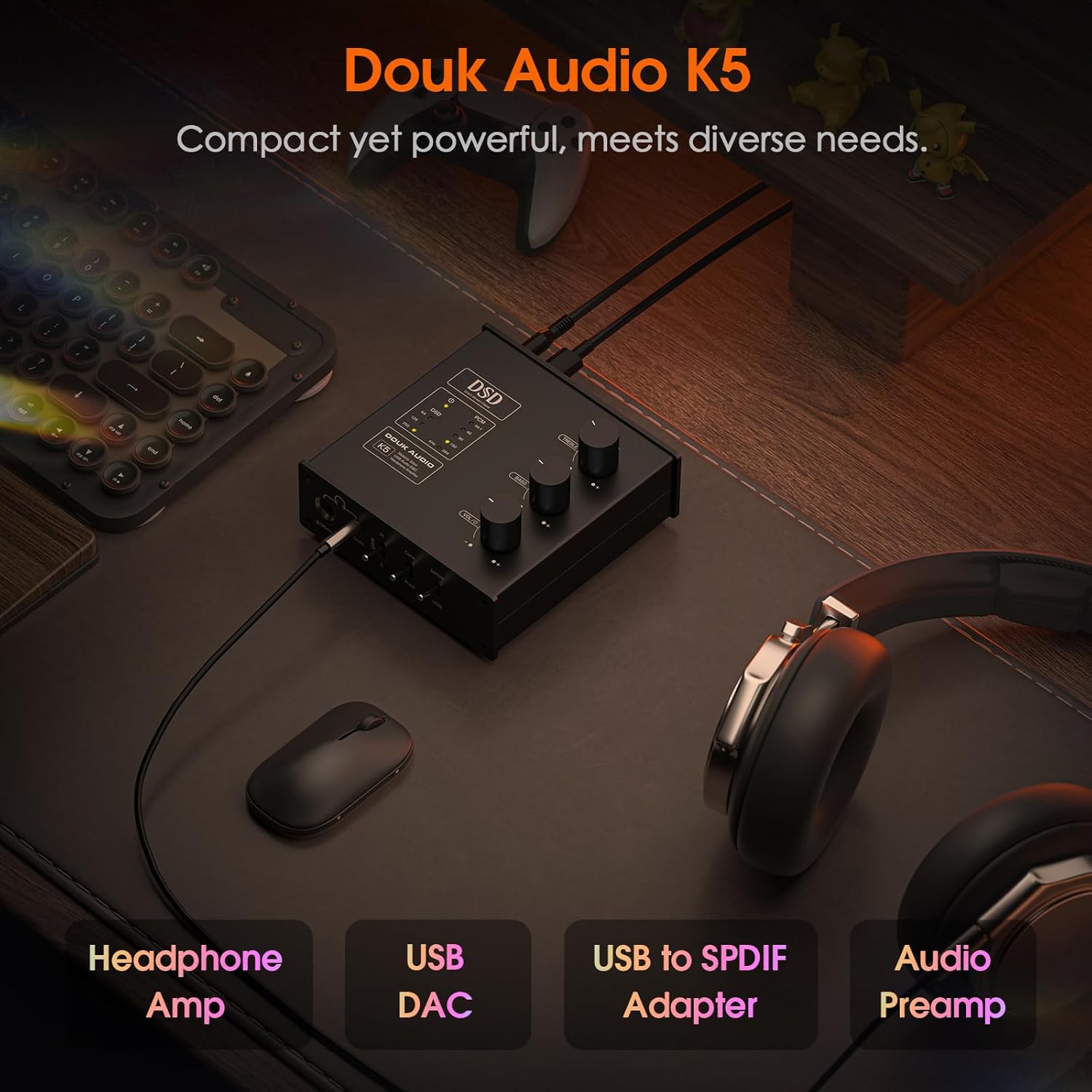
Figure 2: The Douk Audio K5 serving multiple roles as a headphone amplifier, USB DAC, USB to SPDIF adapter, and audio preamplifier.
3. Setup and Connections
Before connecting the Douk Audio K5, ensure all audio components are powered off. Refer to the diagram below for connection points.
3.1 Front Panel Overview
- 6.35mm Headphone Jack: For connecting headphones with a 6.35mm plug.
- 3.5mm Headphone Jack: For connecting headphones with a 3.5mm plug.
- Gain Switch (H/L): Selects high or low gain mode for headphone output.
- Tone/Pure Switch: Engages tone controls or bypasses them for a pure audio signal.
- SPDIF/USB Input Switch: Selects between SPDIF optical input and USB input.
- Treble Knob: Adjusts high-frequency response.
- Bass Knob: Adjusts low-frequency response.
- Volume/Power Knob: Controls output volume and powers the unit on/off.
- DSD Indicator: Lights up to indicate DSD audio playback.
- PCM Indicator: Lights up to indicate PCM audio playback and its sampling rate.
3.2 Rear Panel Overview
- RCA Output (LINE OUT L/R): For connecting to an amplifier or active speakers.
- SPDIF Optical Output (SPDIF OUT): Transmits digital audio signal (active only when USB input is selected).
- SPDIF Optical Input (SPDIF IN): For connecting digital audio sources via optical cable.
- USB Type-C Input (USB C IN): For connecting to a computer or other USB audio source. This port also provides power.
- DC 5V IN Power Interface: Optional external power input for situations where USB power is insufficient (e.g., less than 2A current from USB source).

Figure 3: Detailed diagram of the Douk Audio K5 front and rear panels, indicating all inputs, outputs, and controls.
3.3 Connection Steps
- Power Connection:
- Connect the provided USB-A to USB-C cable from your computer's USB port to the K5's USB C IN port. If your computer's USB port provides sufficient current (greater than 2A), no external power adapter is needed.
- If the USB current is less than 2A, or for optimal performance, connect the provided DC5V/2A power adapter to the K5's DC 5V IN port and plug it into a wall outlet.
- Audio Input Connection:
- For computer audio, connect the USB-C cable from your computer to the K5's USB C IN port.
- For other digital audio sources (e.g., CD player with optical output), connect an optical cable from the source to the K5's SPDIF IN port.
- Audio Output Connection:
- Headphones: Plug your headphones into either the 6.35mm or 3.5mm headphone jack on the front panel.
- Amplifier/Active Speakers: Connect RCA cables from the K5's LINE OUT (L/R) to your amplifier's input or active speakers.
- Digital Output: If using the K5 as a USB to optical converter, connect an optical cable from the K5's SPDIF OUT to a device with a digital optical input. Note: The optical output is only active when the USB input is selected.

Figure 4: Example setup showing the Douk Audio K5 connected to a computer and external speakers, illustrating typical usage.
4. Operating Instructions
- Power On/Off and Volume Control: Rotate the large knob on the right side of the front panel clockwise to power on the unit and increase volume. Rotate counter-clockwise to decrease volume and power off.
- Input Selection: Use the "SPDIF/USB" switch to toggle between the optical input and the USB input. The corresponding LED indicator will light up.
- Gain Adjustment: Use the "Gain" switch (H/L) to select between high and low gain modes. High gain is suitable for high-impedance or less sensitive headphones, while low gain is for more sensitive headphones or earphones.
- Tone Control:
- The "Tone" switch enables or disables the treble and bass controls.
- When "Tone" is engaged, use the "Treble" and "Bass" knobs to adjust the sound to your preference. The knobs have a central midpoint for a flat response.
- To bypass the tone controls and achieve the purest audio signal, set the "Tone" switch to "PURE".
- Audio Format Indicators: The DSD and PCM LEDs will illuminate to indicate the type of audio signal being processed and its sampling rate (e.g., 44.1kHz, 96kHz, 384kHz for PCM; DSD64, DSD128, DSD256 for DSD).

Figure 5: Close-up of the Douk Audio K5 front panel, highlighting the volume, tone, and input selection controls.
5. Compatibility and Drivers
- Windows Systems: The K5 USB DAC is not compatible with Windows 7. For Windows 10/11 systems, a specific USB driver may be required for DSD playback. Please refer to the user manual included in the package or contact Douk Audio support for driver download instructions.
- Mac OS, Linux, and Android Systems: No specific USB driver is required for DSD playback on these operating systems.
6. Specifications
| Feature | Detail |
|---|---|
| Brand | Douk Audio |
| Model | K5 |
| Dimensions (L x W x H) | 9.5 x 9.2 x 5 centimeters |
| Voltage | 32 Volts (DC) |
| Number of Channels | 2 |
| DAC Chip | ESS9038Q2M |
| DSP Chip | SA9312 |
| LPF Chip | OPA1678 |
| Amp Chip | SGM8262 |
| PCM Decoding | Up to 32-bit/384kHz |
| DSD Playback | DSD256 |
| SNR | >121 dB |
| Noise Floor | 3 µV |
| THD | 0.0007% |
| Headphone Output Power | 560mW/470mW@32Ω |
| Headphone Impedance Range | 16Ω to 600Ω |

Figure 6: Visual representation of the Douk Audio K5's audiophile-grade performance parameters.
7. Troubleshooting
- No Sound Output:
- Ensure the K5 is powered on and the volume knob is turned up.
- Verify that the correct input (USB or SPDIF) is selected using the input switch.
- Check all cable connections (USB, optical, RCA, headphone jacks) are secure.
- Confirm that your audio source (computer, CD player) is playing audio and its volume is not muted or too low.
- If using USB input, ensure the necessary drivers are installed for Windows 10/11 (if applicable).
- Distorted or Low Quality Sound:
- Check if the 'PURE' mode is engaged. If not, try setting the Tone/Pure switch to 'PURE' to bypass tone controls.
- Ensure the gain setting (H/L) is appropriate for your headphones. Too high gain for sensitive headphones can cause distortion.
- Verify the audio source quality. Low-quality source files can result in poor output.
- If using USB power, ensure sufficient current (2A or more). If not, use the external DC5V/2A power adapter.
- Optical Output Not Working:
- The optical output is only valid when the USB input is selected. Ensure the input switch is set to USB.
- Check the optical cable for damage and ensure it is securely connected.
- DSD Playback Issues on Windows:
- Ensure you have installed the correct USB driver for Windows 10/11. Windows 7 is not supported.
- Verify your audio player software supports DSD playback and is configured correctly.
8. Maintenance
To ensure the longevity and optimal performance of your Douk Audio K5, follow these maintenance guidelines:
- Cleaning: Use a soft, dry cloth to clean the exterior of the unit. Avoid using abrasive cleaners, solvents, or strong chemicals, as they may damage the finish.
- Placement: Place the unit on a stable, flat surface away from direct sunlight, heat sources, and excessive moisture. Ensure adequate ventilation around the device.
- Handling: Handle the unit with care. Avoid dropping it or subjecting it to strong impacts.
- Power Off When Not in Use: If the unit will not be used for an extended period, it is recommended to power it off and disconnect it from the power source.
9. Warranty and Support
Douk Audio is committed to providing high-quality audio equipment and excellent customer service. While specific warranty details are not provided in this manual, Douk Audio aims to make Hi-Fi affordable and offers responsive customer support.
For technical assistance, troubleshooting beyond this guide, or inquiries regarding warranty and repairs, please contact Douk Audio customer support. Most questions are answered within 12 hours.
You can find contact information and additional resources on the official Douk Audio website, typically linked from the product packaging or original purchase platform.
Related documentsK5


Ask a question about this manual
Ask about setup, troubleshooting, compatibility, parts, safety, or missing instructions. Manuals+ will review the question and use this page’s manual context to help answer it.