
1. Introduction
This instruction manual provides detailed guidance for the safe and effective use of your ROQIOO DC01 Pink Digital Camera. Please read this manual thoroughly before operating the camera to ensure optimal performance and longevity. Keep this manual for future reference.
2. Safety Information
- Do not expose the camera to water or excessive moisture.
- Avoid dropping the camera or subjecting it to strong impacts.
- Keep the camera away from extreme temperatures.
- Do not attempt to disassemble or repair the camera yourself. Contact customer support for assistance.
- Use only the specified battery and charging accessories.
- Keep small parts, such as the memory card, out of reach of young children to prevent choking hazards.
3. Product Overview
Familiarize yourself with the components of your ROQIOO DC01 Digital Camera.

Image Description: A pink digital camera shown from both front and back angles. The front features the lens, flash, and "48.0 MEGA PIXELS" text. The back shows the LCD screen displaying an image of a child, along with control buttons (W, T, OK, M, E). A 32GB SD card is also depicted next to the camera.
Package Contents:
- ROQIOO DC01 Digital Camera
- USB Charging Cable
- Wrist Lanyard
- Storage Bag
- User Manual (this document)
- 32GB MicroSD Card (pre-installed or included separately)

Image Description: An overhead view of the ROQIOO DC01 camera along with its included accessories: a user manual, cleaning cloth, storage pouch, wrist strap, and USB-C charging cable. These items are arranged neatly on a light background.
4. Setup
4.1 Charging the Battery
- Locate the USB-C port on the side of the camera.
- Connect the provided USB charging cable to the camera and a compatible USB power adapter (not included) or computer USB port.
- The charging indicator light will illuminate. Once charging is complete, the light will change or turn off.
- A full charge provides approximately 6 hours of continuous use.

Image Description: A transparent view of the ROQIOO DC01 camera highlighting its internal 800mAh battery. A circular graphic around the camera indicates "Up to 6 hours of continuous use," emphasizing the battery's capacity.
4.2 Inserting the Memory Card
The camera supports MicroSD cards up to 32GB. A 32GB card is typically included.
- Locate the memory card slot on the side of the camera.
- Insert the MicroSD card with the metal contacts facing the front of the camera until it clicks into place.
- To remove, gently press the card until it springs out.

Image Description: A pink digital camera shown from the back, with its screen displaying a child's photo. A 32GB SD card is depicted next to it, with a visual representation of photos and videos "flowing" from the camera, illustrating its storage capacity.

Image Description: A graphic showing the ROQIOO DC01 camera with a 32GB memory card. Surrounding the camera are multiple small images of children, indicating that the card "Stores approx. 3,000 photos," highlighting its storage capability.
4.3 Powering On/Off
Press and hold the power button (usually marked with a circle and a vertical line) to turn the camera on or off.
4.4 Setting Date and Time
Upon first use or after a prolonged period without power, you may need to set the date and time. Navigate to the camera's settings menu using the directional buttons and the OK button to adjust these parameters.
5. Operating Instructions
5.1 Taking Photos
- Turn on the camera. It will typically start in photo mode.
- Frame your shot using the LCD screen.
- Half-press the shutter button to activate autofocus. The focus frame will appear on the screen.
- Fully press the shutter button to capture the photo.

Image Description: A hand holding the pink ROQIOO DC01 digital camera, with the screen displaying a smiling child's face. Text above indicates "1080P 48MP HD Quality," highlighting the camera's image and video resolution capabilities.

Image Description: A split image demonstrating the camera's capabilities. On the left, a comparison of "1080P Video" (clear) versus "Others" (blurry). On the right, the ROQIOO DC01 camera's screen shows a child with a green focus box, labeled "Auto Focus," indicating its automatic focusing ability.
5.2 Using Digital Zoom
The camera features 16X digital zoom. Use the W (Wide) and T (Telephoto) buttons to adjust the zoom level.

Image Description: A large image of a child's face, with smaller inset circles showing progressive zoom levels (2X, 4X, 8X, 16X) of the same child's face, demonstrating the camera's 16X digital zoom feature.

Image Description: A graphic illustrating the camera's 16X Zoom capability. A large image of a child is shown, with smaller circular insets displaying magnified views (4X, 8X, 16X) of the child's face, emphasizing the ability to capture distant details.
5.3 Recording Videos
- Switch the camera to video mode (refer to the camera's on-screen interface or mode button).
- Press the shutter button to start recording.
- Press the shutter button again to stop recording.
5.4 Playback Mode
Enter playback mode to view your captured photos and videos. Use the directional buttons to navigate through files and the OK button to select or play videos.
5.5 Menu Navigation and Settings
Press the 'M' (Menu) button to access camera settings. Use the directional buttons to scroll through options and the 'OK' button to confirm selections. Settings include resolution, white balance, exposure, and special effects.
5.6 Special Features
5.6.1 Filters and Special Effects
The camera includes various built-in filters such as Black/White, Warm, and Cold to enhance creativity in your photos.

Image Description: A collage showing a child eating ice cream at the top, and four smaller images below demonstrating different photo filters: Normal, Black/white, Warm Filter, and Cold Filter, applied to a picture of a smiling child.

Image Description: A graphic illustrating the camera's "Various Interesting Filters." A main image of a child smiling in a field is shown, with smaller inset images displaying the "Normal," "Black/white," "Warm Filter," and "Cold Filter" effects.
5.6.2 Self-Timer and Continuous Shooting
Utilize the self-timer for group photos (2, 5, or 10-second delays) or continuous shooting mode to capture a sequence of fast-moving moments.
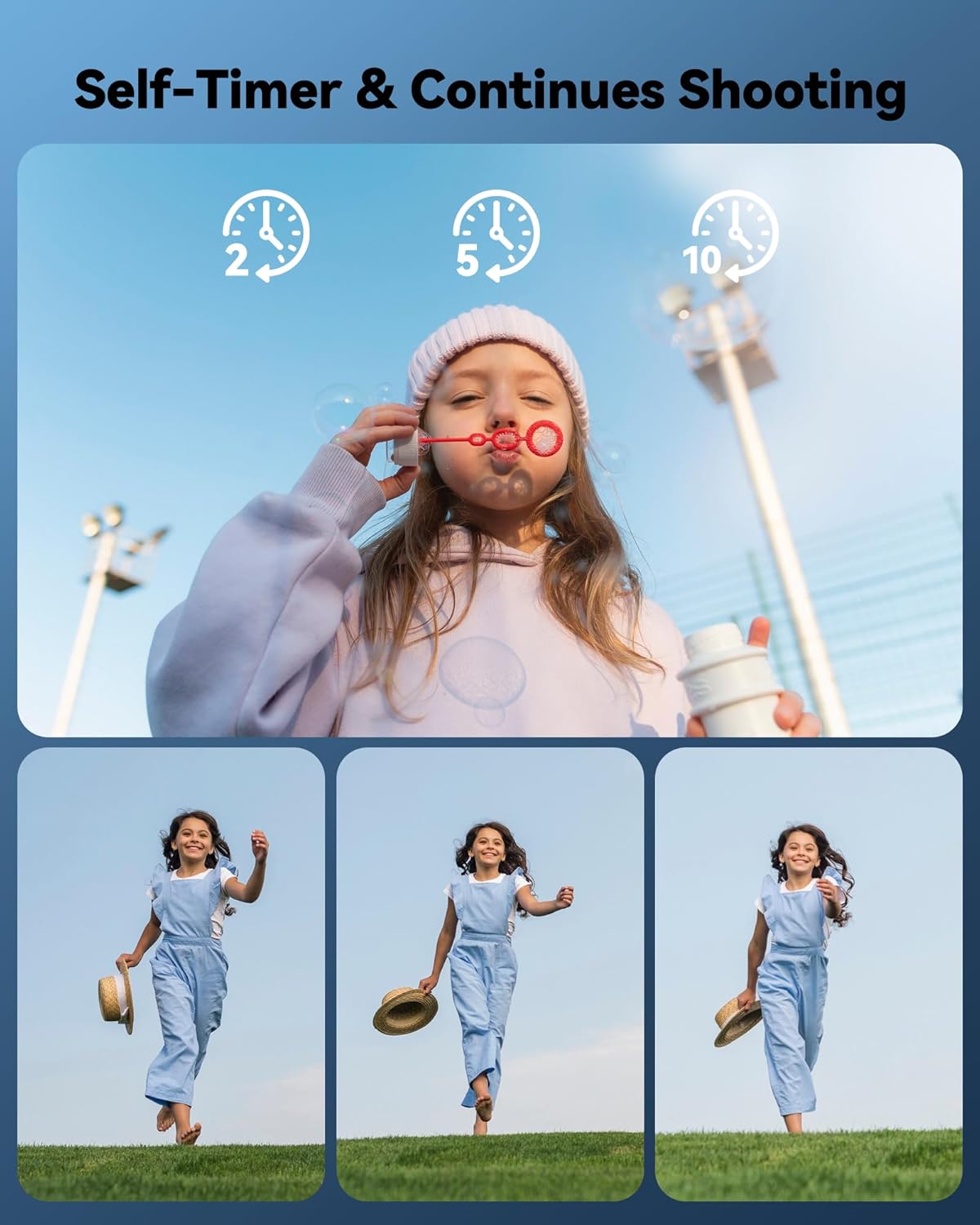
Image Description: A top image shows a child blowing bubbles with self-timer options (2, 5, 10 seconds). Below, three sequential images of a child running demonstrate the continuous shooting feature.

Image Description: A graphic illustrating the "Self-Timer & Continuous Shooting" features. A main image shows two children on a swing, with smaller inset images displaying the self-timer options (2, 5, 10 seconds) and a sequence of photos for continuous shooting.
5.6.3 Anti-Shake Technology
The camera incorporates anti-shake technology to help reduce blur in photos and videos, especially when shooting handheld or in motion.
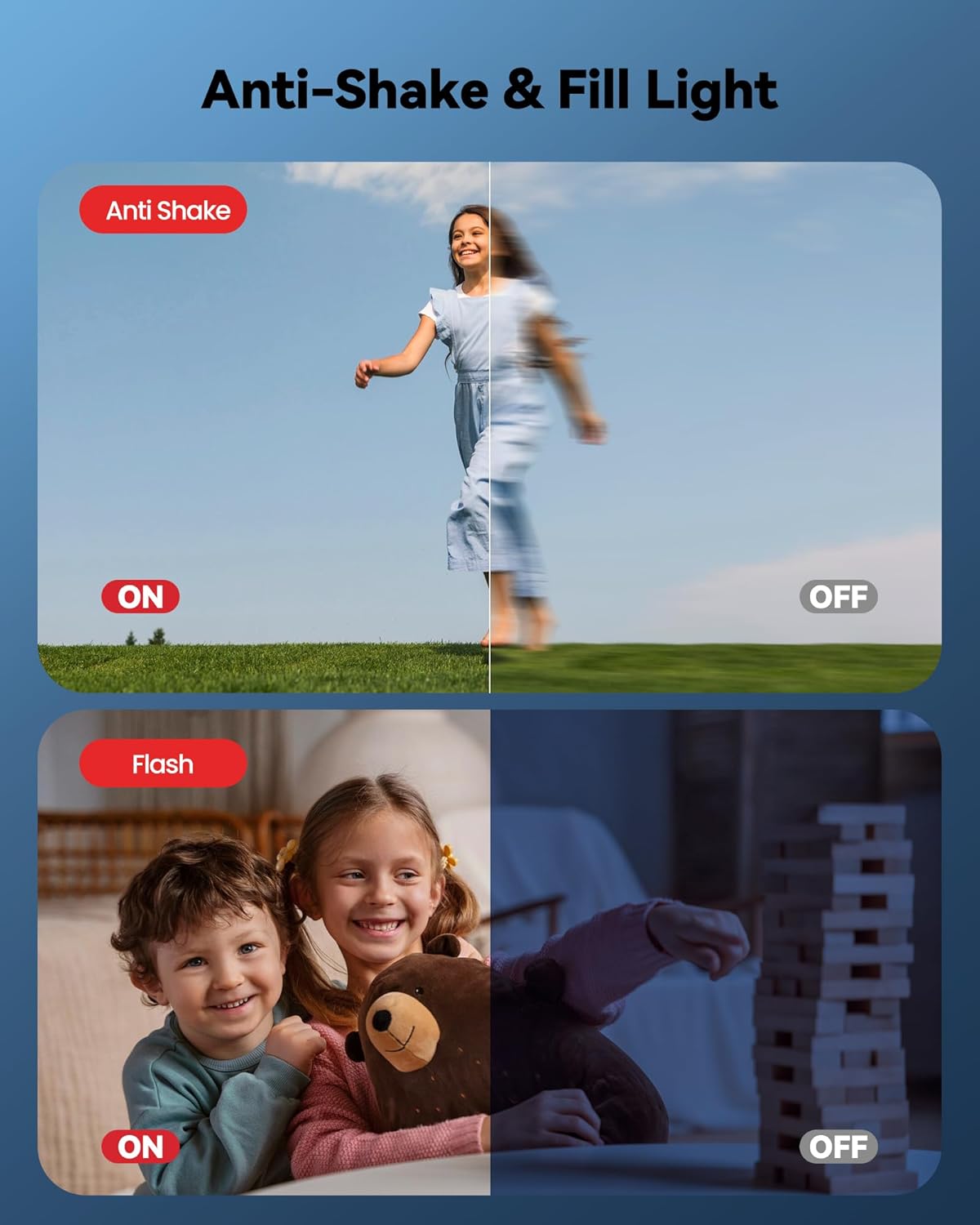
Image Description: A split image demonstrating two features. The top half shows "Anti Shake" with a clear image of a running child on the left (ON) and a blurry one on the right (OFF). The bottom half shows "Flash" with a well-lit image of children on the left (ON) and a dark image on the right (OFF).
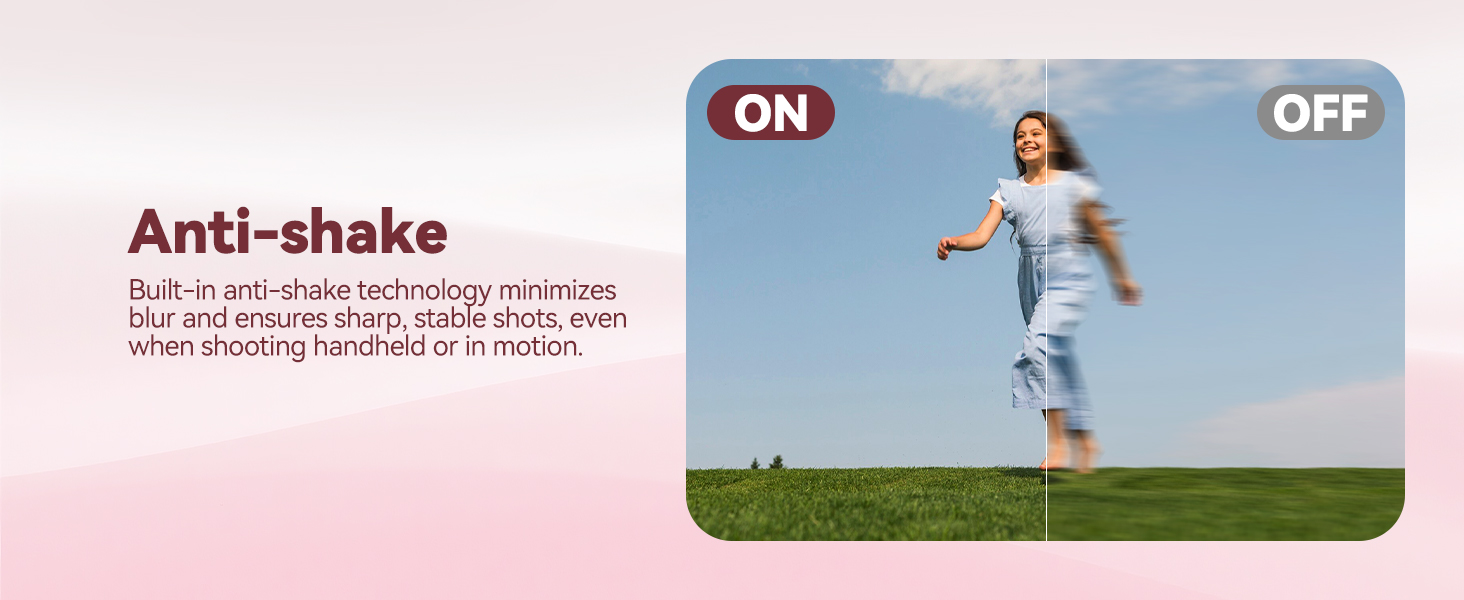
Image Description: A graphic illustrating the camera's "Anti-shake" technology. A split image shows a child running, with the left side (ON) being clear and sharp, and the right side (OFF) appearing blurry, demonstrating the effectiveness of the anti-shake feature.
5.6.4 Face Detection and Smile Capture
The camera can detect faces and automatically capture photos when a smile is detected, simplifying the photo-taking process.

Image Description: A graphic showcasing three multi-functional features: "Beautiful Face" (a child's portrait), "Auto Face Focus" (three children with focus boxes on their faces), and "Auto Smile Photograph" (a child smiling behind a tree).
5.6.5 Webcam Functionality
Connect the camera to a computer via the USB cable to use it as a webcam for video calls or streaming.
6. Maintenance
6.1 Cleaning the Camera
- Use a soft, dry cloth to clean the camera body.
- For the lens and screen, use a specialized lens cleaning cloth and solution.
- Do not use abrasive cleaners or solvents.
6.2 Battery Care
- Charge the battery regularly, even if the camera is not in use, to maintain battery health.
- Avoid fully discharging the battery frequently.
- Store the camera in a cool, dry place when not in use.
6.3 Storage
When storing the camera for extended periods, remove the battery and store it separately. Use the provided storage bag to protect the camera from dust and scratches.
7. Troubleshooting
| Problem | Possible Cause | Solution |
|---|---|---|
| Camera does not power on. | Battery is depleted or not inserted correctly. | Charge the battery. Ensure the battery is inserted with correct polarity. |
| Cannot take photos/videos. | Memory card is full, not inserted, or corrupted. | Insert a memory card. Delete unnecessary files or format the card (this will erase all data). |
| Images are blurry. | Camera shake, subject too close, or focus issue. | Hold the camera steady. Ensure adequate lighting. Use autofocus correctly (half-press shutter). |
| Camera freezes or becomes unresponsive. | Software glitch or low battery. | Press and hold the power button to force a restart. If unresponsive, allow the battery to fully discharge, then recharge. If issues persist, perform a factory reset (note: this will erase settings and potentially data). |
| Cannot connect to computer. | Incorrect USB cable, driver issue, or camera mode. | Ensure the correct USB cable is used. Check camera settings for USB mode (e.g., Mass Storage, PC Camera). Try a different USB port or computer. |
8. Specifications
| Feature | Detail |
|---|---|
| Brand | ROQIOO |
| Model Name | DC-S1 |
| Model Number | DC01 |
| Photo Sensor Technology | CMOS |
| Effective Still Resolution | 48 MP |
| Video Resolution | 1080p |
| Optical Zoom | 16 x (Digital Zoom) |
| Image Stabilization | Digital |
| Screen Size | 2.8 Inches |
| Display Type | LCD |
| Memory Storage Capacity | 32 GB (MicroSD card) |
| Battery Type | Lithium Polymer |
| Connectivity Technology | USB |
| Focus Type | Auto Focus |
| Color | Pink |
9. Warranty and Support
Your ROQIOO DC01 Digital Camera comes with a 12 Months Warranty from the date of purchase.
For technical support, warranty claims, or any questions regarding your product, please contact ROQIOO customer service through the retailer's platform or the contact information provided with your purchase. Please have your model number (DC01) and proof of purchase ready when contacting support.