
1. Introduction
The MOONDROP DISCDREAM 2 Ultra is a high-fidelity portable CD player designed for audio enthusiasts. It features a robust aluminum alloy construction, advanced audio decoding, and versatile output options, including a 4.4mm balanced output. This manual provides essential information for setting up, operating, and maintaining your device.

Image: The DISCDREAM 2 Ultra with its clamshell lid open, revealing the CD tray and laser assembly.
2. Key Features
- Clamshell Design: Durable and portable, constructed from high-precision CNC-cut aviation aluminum alloy with a polished, textured finish.
- Advanced Motor Drive: Utilizes imported audio driver chips to ensure stable and uniform disc rotation speed.
- Professional Optical Assembly: Equipped with a professional CD laser head for excellent disc reading capabilities.
- Double Shock Absorption: Combines electronic data buffering with an elastic-damping physical buffer to minimize vibration impact on CD playback.
- Dual DAC Architecture: Features dual Cirrus Logic flagship 32-bit MasterHlFl audio decoding chips for fully balanced four-channel analog signals.
- Balanced Headphone Output: Independent fully balanced hi-fi amplifier circuit provides ample and low-distortion power for the 4.4mm interface.
- Versatile Connectivity: Includes a powerful balanced/single-ended headphone output and a 3.5mm multifunctional interface with both digital optical output and analog linear output.
- USB Sound Card Functionality: Can function as a desktop USB sound card, supporting PCM decoding up to 32Bits/384kHz and DSD256.

Image: An overview of the DISCDREAM 2 Ultra's core technologies and features, such as its dual DAC, balanced output, and robust construction.

Image: A detailed view of the internal circuit board, showcasing the high-fidelity audio components.
3. Setup
3.1 Package Contents
Before starting, ensure all items are present:
- MOONDROP DISCDREAM 2 Ultra Portable CD Player
- User Manual (this document)
- Charger Cable (USB-A to USB-C)
- Certificate
3.2 Charging the Device
Connect the provided USB-A to USB-C charger cable to the USB AUDIO port on the side of the DISCDREAM 2 Ultra and to a compatible USB power adapter (not included) or computer USB port. The device will begin charging automatically.
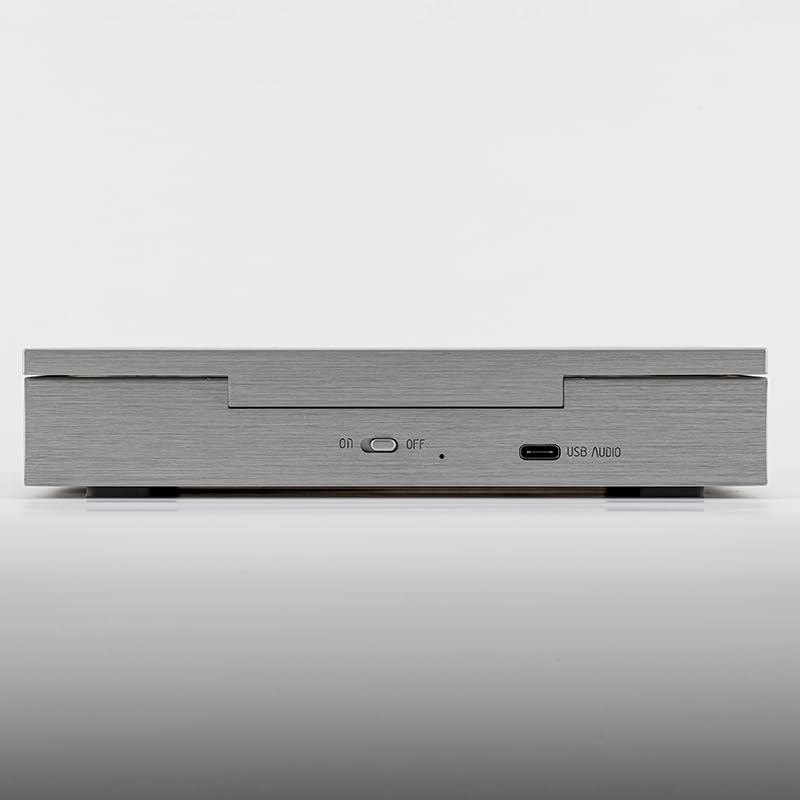
Image: The side panel of the DISCDREAM 2 Ultra, indicating the ON/OFF switch and the USB AUDIO port for charging and data transfer.
3.3 Connecting Audio Output
The DISCDREAM 2 Ultra offers multiple audio output options:
- 4.4mm Balanced Output (BAL): For high-fidelity headphones requiring a balanced connection.
- 3.5mm Headphone Output (PO): For standard headphones.
- 3.5mm Optical/Line-out Output (OPT/LO): This versatile port can be used for digital optical output to an external DAC or as an analog line-out to an amplifier or active speakers.
Connect your desired headphones or audio system to the appropriate port on the rear of the device.

Image: The rear panel of the DISCDREAM 2 Ultra, displaying the 3.5mm Optical/Line-out, 3.5mm Headphone Out, and 4.4mm Balanced Output ports.
Image: A diagram detailing the various audio output options available on the DISCDREAM 2 Ultra, including balanced and optical connections.
3.4 Loading a CD
Gently open the clamshell lid. Place a standard audio CD onto the spindle, ensuring it is seated correctly. Close the lid firmly but gently.
4. Operation
The DISCDREAM 2 Ultra features intuitive controls located on the front panel.

Image: The front panel of the DISCDREAM 2 Ultra, displaying the control buttons and the small screen.

Image: A comprehensive diagram illustrating each control button's function and the information displayed on the screen.
4.1 Basic Playback Controls
- Play/Pause (►▮): Short press to start or pause CD playback. In PC mode, this button mutes audio and displays "LOO".
- Stop (■): Short press to stop playback. Long press to toggle between CD mode and PC mode.
- Previous Track (◀◀): Short press to jump to the previous track. Long press for rewind (not available in PC mode).
- Next Track (►►): Short press to jump to the next track. Long press for fast-forward (not available in PC mode).
4.2 Volume Control
- Volume Up (+): Short press to increase volume by one level. Long press to continuously increase volume.
- Volume Down (-): Short press to decrease volume by one level. Long press to continuously decrease volume.
4.3 Playback Modes (Mode Button ≡)
Short press the Mode button (≡) to cycle through playback modes:
- Single Loop: Repeats the current track.
- Catalog Loop (Repeat 1): Repeats the entire CD.
- All/Random: Plays all tracks in sequence, then repeats, or plays tracks in random order.
4.4 Screen Display
The screen displays information such as track number, playback time, and current playback mode (Shuffle, Single Loop, Battery status).
5. Maintenance
- Cleaning: Use a soft, dry cloth to clean the exterior of the device. Do not use liquid cleaners or abrasive materials.
- Disc Care: Always handle CDs by their edges. Keep discs clean and free of scratches, dust, and fingerprints to ensure optimal playback and prevent skipping.
- Storage: Store the device in a cool, dry place away from direct sunlight and extreme temperatures.
- Battery: For optimal battery life, avoid fully discharging the device frequently. Charge it regularly.
6. Troubleshooting
- Device does not power on: Ensure the device is charged. Connect the charger cable and allow it to charge for at least 30 minutes before attempting to power on again.
- CD does not play or skips:
- Check if the CD is clean and free of scratches or smudges. Clean the CD with a soft, lint-free cloth if necessary.
- Ensure the CD is correctly seated on the spindle.
- Verify the clamshell lid is fully closed.
- Avoid excessive vibration or movement during playback.
- No sound from headphones:
- Ensure headphones are securely plugged into the correct audio output port (PO or BAL).
- Check the volume level on the device and increase if necessary.
- Confirm the device is in CD mode (not PC mode) if playing a CD.
- Test with another pair of headphones to rule out headphone issues.
- No output when connected to an external DAC/amplifier:
- Ensure the cable is correctly connected to the OPT/LO port and the external device.
- If using optical, ensure the external DAC is set to the correct optical input.
- If using line-out, ensure the external amplifier is set to the correct analog input.
- Verify the external device is powered on and functioning correctly.
- Device not recognized as a USB sound card:
- Ensure the device is connected to your computer via the USB AUDIO port.
- Long press the Stop button (■) to switch the device to PC mode.
- Check your computer's sound settings to select the DISCDREAM 2 Ultra as the audio output device.
7. Specifications
| Feature | Detail |
|---|---|
| Model Name | DISCDREAM 2 ULTRA |
| Brand | Moondrop |
| Product Dimensions | 6.65 x 6.06 x 1.25 inches (169 x 154 x 32 mm) |
| Item Weight | 2.42 pounds |
| Connectivity Technology | USB |
| Included Components | DISCDREAM Ultra, User Manual, Charger Cable, Certificate |
| DAC Chip | Dual Cirrus Logic MasterHlFl 32-bit |
| USB Sound Card Support | PCM up to 32Bits/384kHz, DSD256 |
| Headphone Outputs | 4.4mm Balanced, 3.5mm Stereo |
| Other Outputs | 3.5mm Optical/Line-out |
Image: A technical diagram illustrating the physical dimensions of the DISCDREAM 2 Ultra.
8. Warranty and Support
For warranty information and technical support, please refer to the official MOONDROP website or contact your retailer. Keep your purchase receipt and the included certificate for warranty claims.
For further assistance, you may visit the Moondrop Store on Amazon.

