
1. Introduction
This manual provides detailed instructions for the setup, operation, and maintenance of your akimart SSAWiFiFrame 10.1 Inch WiFi Digital Picture Frame. Please read this manual thoroughly before using the device to ensure proper functionality and to maximize your experience.
The akimart SSAWiFiFrame allows you to display photos and videos from anywhere in the world, shared directly from a smartphone app or email. It features a high-definition IPS touch screen, ample internal storage, and various smart functions to enhance your digital display experience.
2. Product Overview
2.1 Key Features
- 10.1-inch IPS HD Touch Screen with 1280x800 resolution.
- Built-in 32GB internal memory.
- Supports USB drive and SD card for extended storage.
- Share photos and videos via the "SSAWiFiFrame" app or email.
- Automatic photo rotation for portrait or landscape orientation.
- Multi-functional settings: Slide play, Video play, Calendar, Weather, Alarm, Clock, Music.
- Adjustable brightness, display caption, play order, image zooming, and auto on/off.
- Wall-mountable design.
2.2 Package Contents
Please verify that all items are present in the package:
- akimart SSAWiFiFrame Digital Picture Frame
- Power Adapter
- Detachable Stand
- User Manual

Image: The akimart SSAWiFiFrame digital picture frame displaying a family photo, with a smartphone next to it showing the photo sharing application.
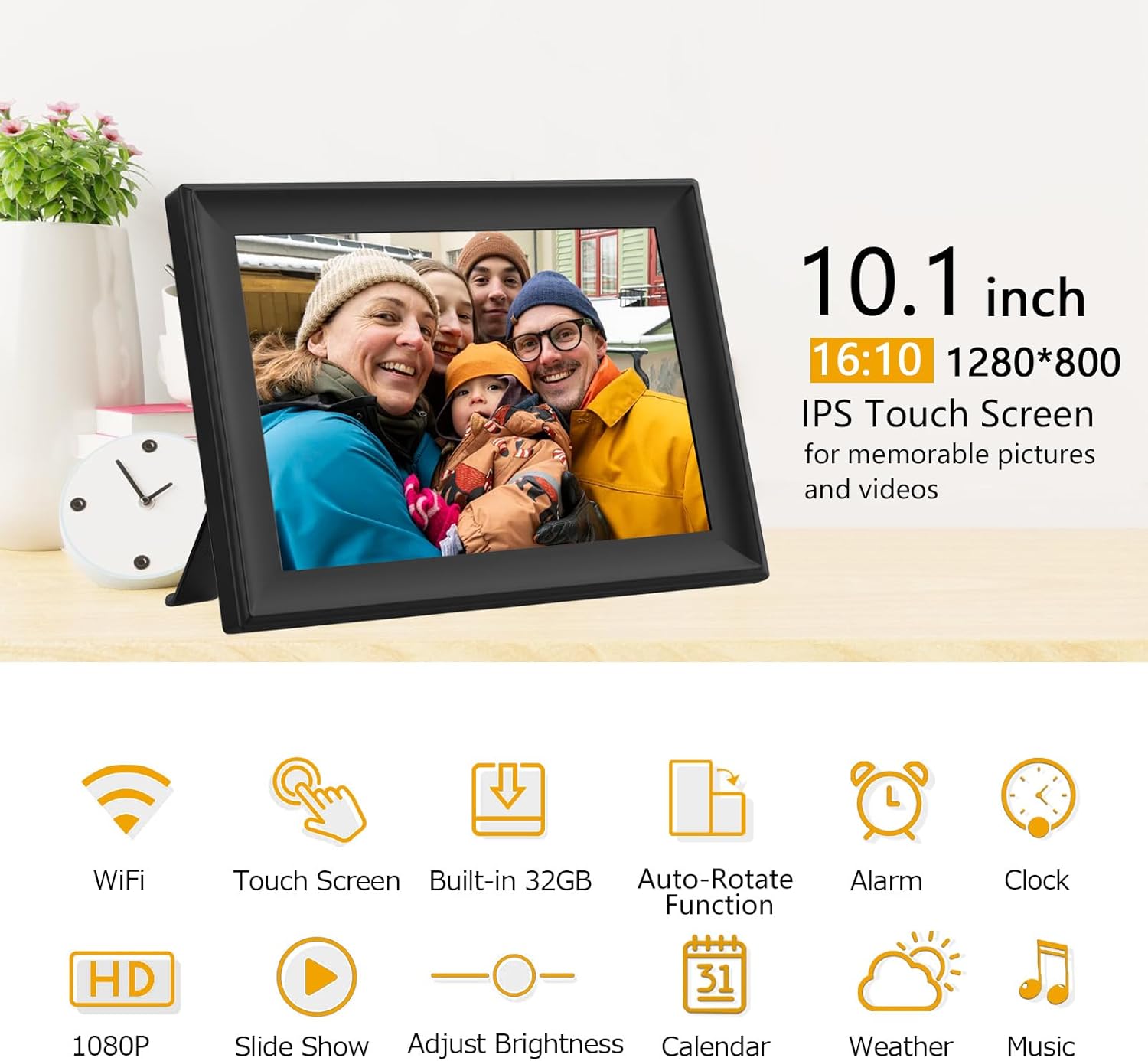
Image: Overview of the digital picture frame's key features, including WiFi connectivity, touch screen interface, 32GB storage, auto-rotation, and various multimedia functions.
3. Setup Guide
3.1 Initial Setup
- Power On: Connect the power adapter to the frame and plug it into an electrical outlet. The frame will automatically power on.
- Language Selection: Follow the on-screen prompts to select your preferred language.
- Wi-Fi Connection: Select your Wi-Fi network from the list and enter the password. A stable internet connection is required for sharing photos and videos.
- Time Zone: Set your local time zone.
3.2 App Download and Connection
To share photos and videos with your frame, download the "SSAWiFiFrame" application on your smartphone.
- Download the App: Search for "SSAWiFiFrame" in the Apple App Store (for iOS devices) or Google Play Store (for Android devices) and install it.
- Connect with Your Frame: Open the app and create an account. On your digital picture frame, navigate to Settings > Device Info > Connection Code.
- Enter Connection Code: In the app, enter the unique connection code displayed on your frame. This code is valid for 12 hours.
- Share Moments: Once connected, you can begin sending photos and videos to your frame.

Image: Step 1 of the setup process, showing icons for Google Play and Apple App Store to download the SSAWiFiFrame app.

Image: Step 2 of the setup process, illustrating connecting the app to the digital picture frame.

Image: Step 3 of the setup process, showing how to enter a connection code to add friends for sharing.

Image: Step 4 of the setup process, demonstrating sharing photos from a smartphone to the digital picture frame.
4. Operating Instructions
4.1 Sending Photos and Videos
You can send up to 50 pictures at once via the app. Videos are supported up to a maximum size of 200MB per file. Ensure your frame is connected to Wi-Fi to receive new content.
4.2 Display Modes and Settings
- Slide Play: Configure slideshow intervals and transition effects in the settings menu.
- Video Play: The frame supports MOV, MP4, AVI, and MKV video formats.
- Auto-Rotate: The frame automatically adjusts the orientation of photos and videos based on its physical position (portrait or landscape).
- Adjustable Brightness: Customize screen brightness to suit your environment.
- Auto On/Off: Schedule specific times for the frame to power on and off, conserving energy.

Image: The digital picture frame showcasing its auto-rotate feature and options for freestanding or wall-mounted placement.
4.3 Smart Functions
- Music Feature: Import MP3/WAV music files from a computer or memory card, or play directly from a USB drive or SD card.
- Calendar Feature: View the current date and schedule. A small slideshow window displays photos alongside the calendar.
- Weather Feature: Provides daily and three-day weather reports based on your location, with a small slideshow window.
- Alarm Feature: Set multiple alarms for reminders.
- Clock Feature: Choose from several display styles for the clock.
- Sleep Mode: Activating sleep mode conserves energy and extends the device's lifespan by reducing power consumption.

Image: The digital picture frame's music player interface, showing options to play music from internal storage, SD card, or USB.

Image: The digital picture frame's calendar feature, showing the current month and a small photo slideshow.

Image: The digital picture frame's weather feature, showing current and upcoming weather conditions for a specified location.

Image: The digital picture frame's alarm feature, allowing users to set and manage multiple reminder rings.

Image: The digital picture frame's clock feature, showing a customizable clock display.

Image: The digital picture frame in sleep mode, demonstrating its energy-saving capability.
5. Storage Management
The frame comes with 32GB of built-in memory. You can expand storage and manage media using external devices.
- USB Drive Support: Connect a USB drive to import or export photos and videos.
- SD Card Support: Insert an SD card to import or export photos and videos.
- Import/Export: Use the frame's interface to transfer files between internal storage, USB drives, and SD cards.
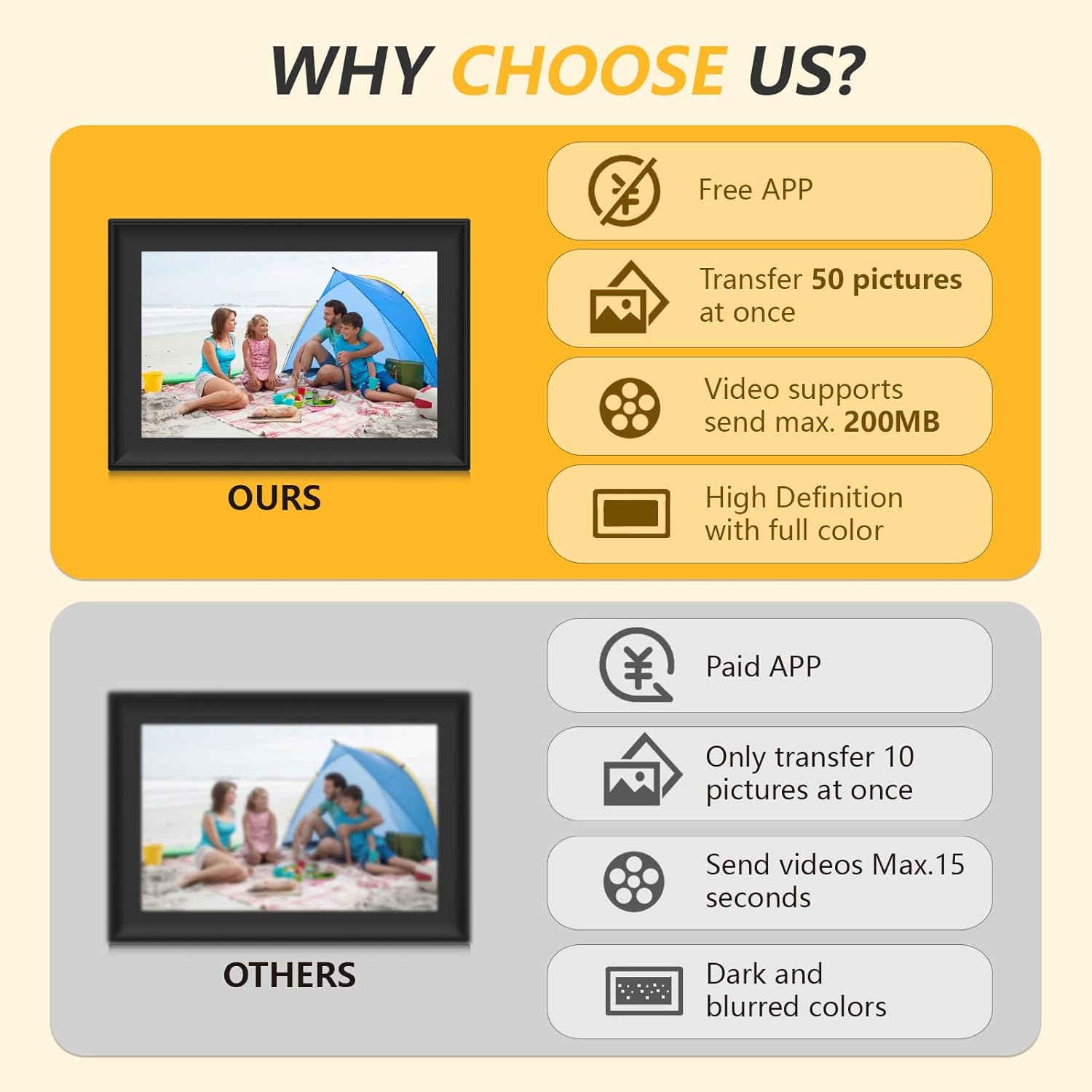
Image: The digital picture frame highlighting its 32GB internal storage and support for external SD cards and USB drives.

Image: A visual representation of various methods for uploading and exporting media, such as via app, SD card, USB, and computer.
6. Specifications
| Product Dimensions | 7 x 9 x 0.99 inches |
| Item Weight | 1.65 pounds |
| Model Number | 705252422081 |
| Brand | akimart |
| Color | Black |
| Resolution | 1280x800 |
| Compatible Devices | Smartphone |
| Screen Size | 10.1 Inches |
7. Troubleshooting
If you encounter issues with your digital picture frame, please refer to the following common solutions:
- Frame Not Powering On: Ensure the power adapter is securely connected to both the frame and a working electrical outlet.
- Wi-Fi Connection Issues: Verify your Wi-Fi password is correct. Ensure the frame is within range of your Wi-Fi router. Restarting both the frame and your router may resolve connectivity problems.
- Photos/Videos Not Appearing: Confirm the frame is connected to Wi-Fi. Check the "SSAWiFiFrame" app to ensure content was successfully sent. Verify the file formats are supported (JPG/JPEG/BMP/PNG/GIF for pictures; MOV/MP4/AVI/MKV for videos).
- Connection Code Expired: The connection code is valid for 12 hours. If it expires, generate a new one from Settings > Device Info > Connection Code on your frame.
- Time Display Incorrect: Check your time zone settings in the frame's menu. If the issue persists, ensure the frame has a stable internet connection to synchronize time.
- Screen Unresponsive: Try restarting the frame. If the issue continues, contact customer support.
8. Maintenance and Care
- Cleaning: Use a soft, dry cloth to clean the screen and frame. Avoid using liquid cleaners or abrasive materials.
- Placement: Place the frame on a stable surface or mount it securely on a wall. Avoid direct sunlight or extreme temperatures.
- Power Off: If not in use for an extended period, disconnect the power adapter.
9. Warranty and Support
For warranty information and customer support, please refer to the documentation included with your product packaging or visit the official akimart website. Keep your purchase receipt as proof of purchase for warranty claims.